Snipping Tool Shortcut: Every Hotkey for Windows 11 & 10
 By Sleekshot Team
8 min read
By Sleekshot Team
8 min read
Short answer
The Snipping Tool shortcut is Win + Shift + S. The screen dims, and a toolbar lets you snip a rectangle, a window, the full screen or a freeform shape to the clipboard. On Windows 11, Win + Shift + R starts a video snip. The PrtSc key opens the same toolbar when the Print screen setting is on, which is the default on current builds.
On this page
- All Snipping Tool shortcuts at a glance
- How to use Win + Shift + S, step by step
- Win + Shift + R: the Snipping Tool video shortcut
- Make PrtSc open Snipping Tool (or stop it)
- Copy text from a snip with Text actions
- Other ways to open Snipping Tool
- Snipping Tool shortcut not working? Quick fixes
- When another app is faster than Snipping Tool
Press Win + Shift + S. That's the Snipping Tool shortcut on both Windows 11 and Windows 10. The screen dims and a small toolbar appears at the top. Whatever you select is copied to the clipboard, ready to paste with Ctrl + V. Below, you'll find every other Snipping Tool shortcut worth knowing and how to put the tool on PrtSc or a key of your own. We also cover what to check when the shortcut stops working.
All Snipping Tool shortcuts at a glance
These shortcuts work anywhere in Windows. You don't need to open Snipping Tool first.
| Shortcut | What it does | Windows 11 | Windows 10 |
|---|---|---|---|
| Win + Shift + S | Opens the Snipping Tool bar: rectangle, window, full screen or freeform. The snip goes to the clipboard | Yes | Yes (Snip & Sketch) |
| Win + Shift + R | Opens the bar in video mode to record part of the screen | Yes | No |
| PrtSc | Opens the same bar as Win + Shift + S, if the Print screen setting is on | On by default in current builds | Off by default |
| Win + PrtSc | Saves a full-screen screenshot straight to Pictures\Screenshots (a Windows shortcut, no Snipping Tool window) |
Yes | Yes |
| Alt + PrtSc | Copies only the active window to the clipboard | Yes | Yes |
| Esc | Cancels the screenshot | Yes | Yes |
On many laptops, PrtSc is the second function of another key, so you may need to add Fn. If you're not sure where the key is, see our guide to the Print Screen key.
Shortcuts inside the Snipping Tool app
When the Snipping Tool window itself is open (from the Start menu, or after you click a snip notification), Microsoft lists these keys:
| Shortcut | Action |
|---|---|
| Alt + M | Choose a snipping mode |
| Alt + N | New snip in the same mode as the last one |
| Alt + D | Delay the screenshot (Windows 11 offers 3, 5 or 10 seconds) |
| Shift + arrow keys | Move between snip types |
| Ctrl + C | Copy the snip to the clipboard |
| Ctrl + S | Save the snip as a file |
The delay is the one thing the quick Win + Shift + S bar can't do. To screenshot a dropdown menu or a tooltip, open the app, set a delay and click New. Then open the menu while the countdown runs.
How to use Win + Shift + S, step by step
Win + Shift + S is the fastest way into Snipping Tool, and it works the same in every app.
- Press Win + Shift + S. The screen dims, and the toolbar appears at the top center.
- Pick a mode on the toolbar: Rectangle, Window, Full screen or Freeform.
- Drag around the area (Rectangle, Freeform), click a window (Window) or click anywhere (Full screen).
- The snip is copied to the clipboard, and a notification pops up in the bottom-right corner. Click it to open the editor, where you can crop, draw, highlight and save.
- On Windows 11, the snip is also saved to
C:\Users\<you>\Pictures\Screenshotson its own. On Windows 10, nothing is saved until you open the notification and press Ctrl + S.
Tip: If no notification appears, the snip is usually still on the clipboard, so just paste it. A missing notification usually means notifications are off for Snipping Tool (Settings → System → Notifications).
Not sure where the saved files ended up? Our guide on where screenshots go on Windows covers every folder.
Win + Shift + R: the Snipping Tool video shortcut
On Windows 11, Win + Shift + R opens the same toolbar in video mode. It's the quickest built-in way to record a short clip of part of the screen.
- Press Win + Shift + R.
- Drag a rectangle around what you want to record.
- If you need sound, turn on the microphone and system audio icons on the toolbar, then click Start.
- Click the stop button when you're done. The clip opens in Snipping Tool, where you can save it, copy it or send it to Clipchamp for editing.
Recordings are saved as MP4 to Videos\Screen Recordings. Windows 10 has no video snips, so use Xbox Game Bar (Win + Alt + R) there instead. All the recording shortcuts are in our screen recording shortcut guide.
Make PrtSc open Snipping Tool (or stop it)
One switch in Settings decides whether the PrtSc key opens the Snipping Tool bar or does the classic job of copying the whole screen.
- Windows 11: Settings → Bluetooth & devices → Keyboard → Use the Print screen key to open screen capture (on older builds: Settings → Accessibility → Keyboard; you can also search Settings for "print screen"). It's on by default in current builds.
- Windows 10: Settings → Ease of Access → Keyboard → Use the PrtScn button to open screen snipping. It's off by default.
Turn it off if you want PrtSc to copy the full screen, or if you want to give the key to another screenshot app. If the change doesn't work right away, sign out and back in. More options are in our guide on changing the Print Screen key.
Copy text from a snip with Text actions
Snipping Tool on Windows 11 can read text in a screenshot. Take a snip, open it in the editor and click Text actions. The tool highlights all the text it finds, and you can select part of it or copy everything. The same button has Quick redact, which hides email addresses and phone numbers before you share.
There's no regular keyboard shortcut for this yet. Microsoft has tested a Win + Shift + T text extractor in Windows Insider builds, but on most PCs that combination still moves backward through taskbar apps. Other ways to grab text are in our guide to copying text from a screenshot.
Other ways to open Snipping Tool
If you'd rather click than press keys, or you want a shortcut of your own, you have three options.
- Start menu: press Win, type "snipping" and press Enter. In the app, click New to start a snip.
- Taskbar: right-click Snipping Tool in the Start menu and choose Pin to taskbar. Then one click opens the app.
- Desktop shortcut with your own key: right-click the desktop → New → Shortcut, type
explorer.exe ms-screenclip:as the location and give it a name. This shortcut opens the Snipping Tool bar directly. Then open its Properties and click the Shortcut key box. Press a letter, and Windows turns it into Ctrl + Alt + that letter. Keys like this only work for shortcuts on the desktop or in the Start menu.
You can't change Win + Shift + S itself in Windows Settings. If you really want a different combination, Microsoft PowerToys (Keyboard Manager) can remap one shortcut to another.
Snipping Tool shortcut not working? Quick fixes
Most of the time, the key press just never reaches Snipping Tool. Go through these in order.
- Another app owns the key. Screenshot apps like Lightshot, Greenshot, ShareX or Sleekshot can take over PrtSc. Close them or change their key, then try again.
- The Windows key is locked. Many gaming keyboards have a Win Lock (often Fn + Win or a game mode switch). When it's on, no Win shortcut works.
- The snip worked, but you didn't see it. Paste into Paint or a chat with Ctrl + V. If the image appears, only the notification is missing.
- Repair or reset the app. Go to Settings → Apps → Installed apps → Snipping Tool → ⋯ → Advanced options → Repair, then Reset if needed. Also check the Microsoft Store for an update.
If PrtSc itself is the problem, follow our Print Screen not working checklist.
When another app is faster than Snipping Tool
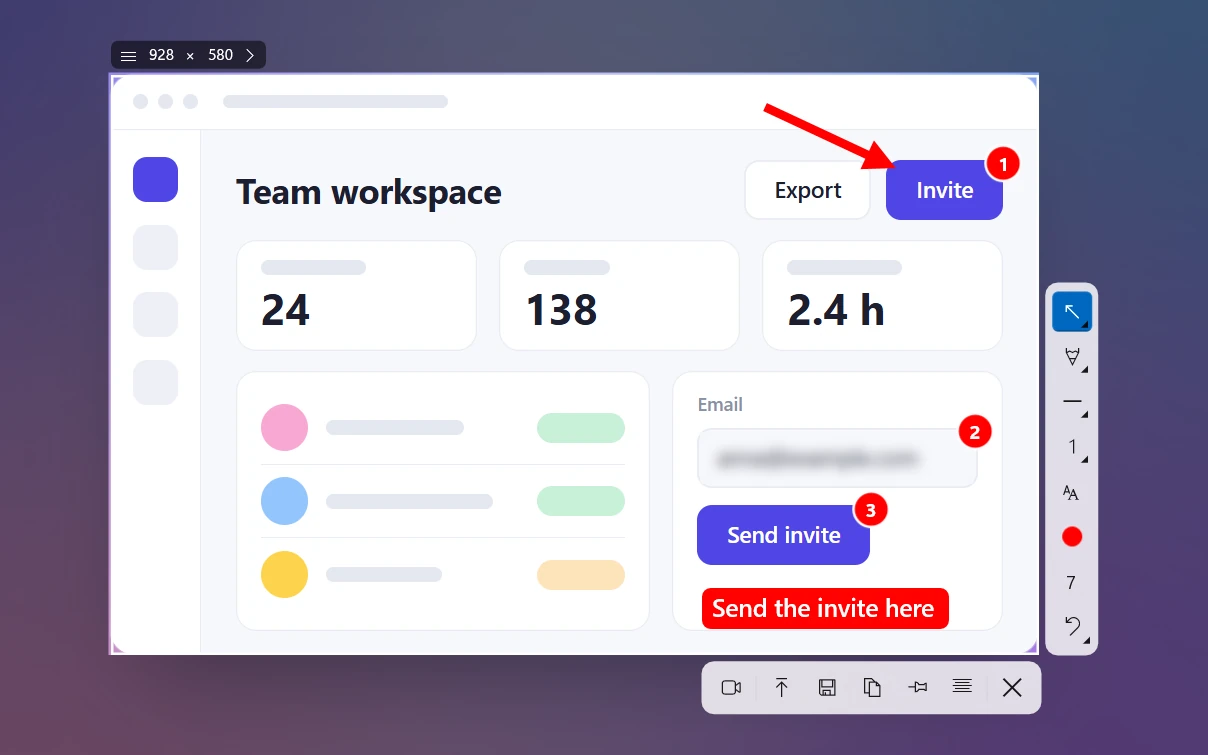
In Snipping Tool, adding an arrow takes two steps: take the snip, then open the editor. Sleekshot, our free screenshot app for Windows 10 and 11, does both on one screen. Press PrtSc (or any key you pick) and the screen dims. Drag over an area or click a window, and the toolbar with arrows, numbered steps, blur and text appears right next to the selection.
| Task | Snipping Tool | Sleekshot |
|---|---|---|
| Start a screenshot | Win + Shift + S or PrtSc | PrtSc or any key you choose |
| Screenshot a window | Window mode, then click | Click a window or one part of it |
| Full screen | Full screen mode | Ctrl + A |
| Add arrows and text | In a separate editor window | Right on the screenshot: arrow (1), blur (B), steps (S), text (T) |
| Copy text (OCR) | Text actions (Windows 11) | Ctrl + O, no internet needed |
| Share a link | No | Ctrl + U, no account needed |
| Record the screen | Win + Shift + R | V for the screen recorder, then Ctrl + R |
| Delay | Yes (3, 5, 10 s) | No |
| Freeform snip | Yes | No (rectangles only) |
To be fair to Snipping Tool: if you take a few plain screenshots a day, it's built in and good enough. Sleekshot has no delay, no freeform snips and no scrolling screenshots. It pays off when you add arrows often, share links or record short videos.
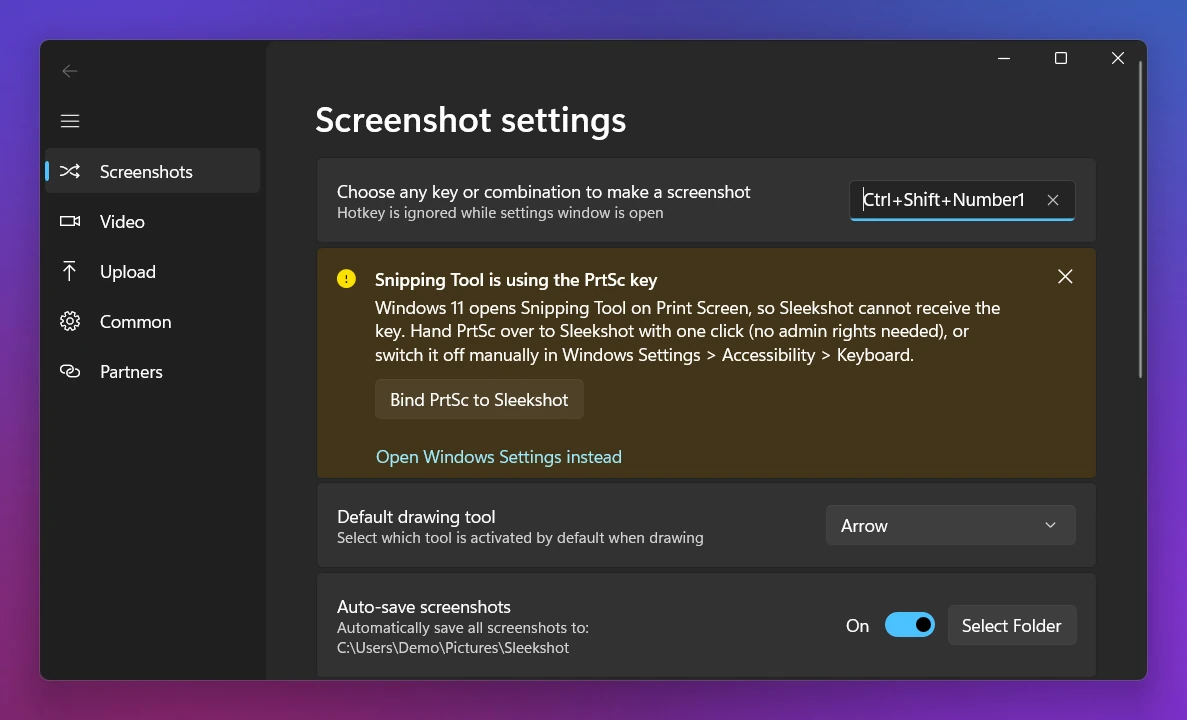
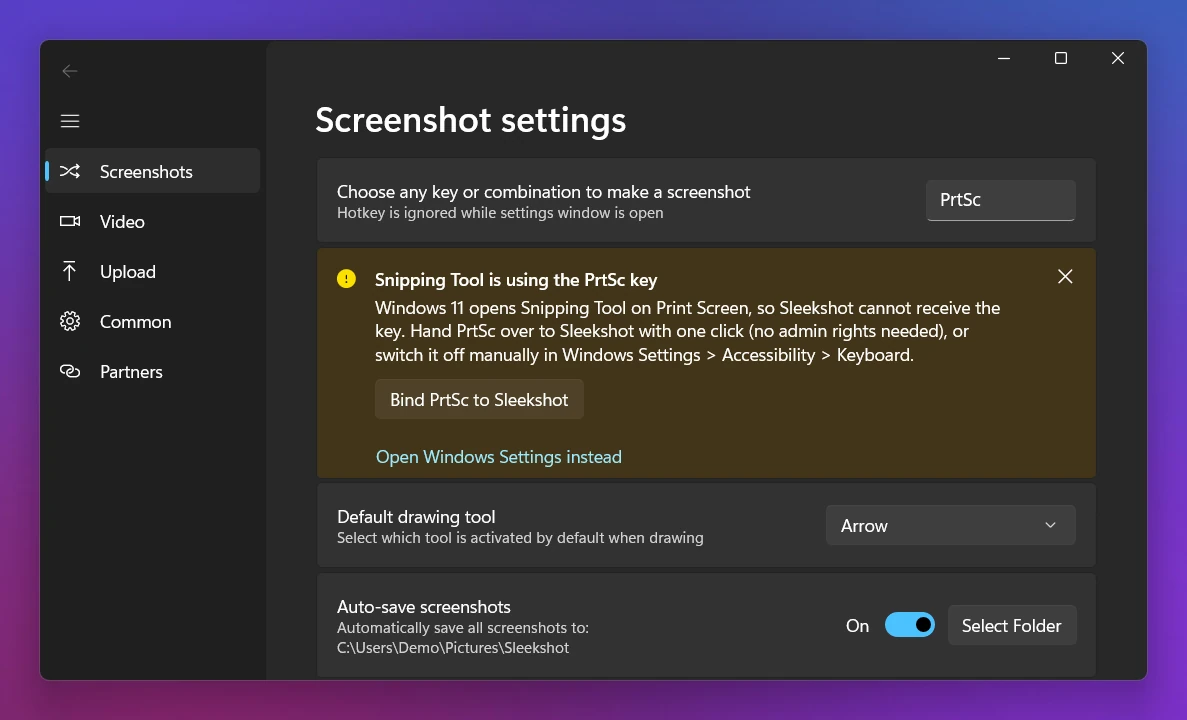
If both apps want PrtSc, Sleekshot's settings show the warning Snipping Tool is using the PrtSc key. Its Bind PrtSc to Sleekshot button hands the key to Sleekshot in one click, and the Open Windows Settings instead link takes you to the switch described above. All of Sleekshot's shortcuts are on the keyboard shortcuts page, and we compare more options in Snipping Tool alternatives.
Frequently asked questions
What is the shortcut key for Snipping Tool?
Can I change the Snipping Tool shortcut?
Where do Snipping Tool screenshots go?
What is the Snipping Tool shortcut on a Mac?
Why does Win + Shift + S do nothing?
Sleekshot Team
We build Sleekshot, a free screenshot and screen recording app for Windows and Mac. Every guide is checked on current Windows 11, Windows 10 and macOS builds.
Also available in: Deutsch Français Español Italiano Русский ភាសាខ្មែរ Bahasa Indonesia 简体中文 日本語