Share Screenshots as a Short Link: One Key, No Account
In Sleekshot, select an area and press Ctrl+U. The screenshot uploads to sleekshot.app, and a short link appears with Open and Copy buttons, ready to paste into a chat, a ticket or an email. Neither you nor the person who opens it needs an account. Anyone with the link can see the image, so blur private details before you upload.
Upload right from the screenshot. The link shows up in a small window with Open and Copy.
No account
No sign-up or login. The person who opens the link only needs a browser.
Links that are hard to guess
Each link ends in a random 12-character code, and the page is hidden from search engines.
Quick save
Ctrl+Shift+S saves to the last folder you used, with no dialog.
Auto-save copies
Every time you copy, save or upload, Sleekshot can also save a file to a folder you choose.
PNG, JPEG or WebP
Pick the file format in Settings. PNG is the default.
To share a screenshot as a link, press PrtSc, select the area and press Ctrl + U. Sleekshot uploads the image to sleekshot.app and shows a small window with the short link and two buttons. Open shows it in your browser, and Copy puts the link on the clipboard. There's no account and no sign-up, and the person who opens the link doesn't need to install anything.
A link is the right choice when the image has to go somewhere you can't paste pictures, like a forum post, a support form, a text message or a comment box. For everything else, copying the image to the clipboard is still faster.
How to share a screenshot link
Press PrtSc, then drag over an area, click a window or press Ctrl + A for the whole monitor.
Press Ctrl + U or click Upload under the selection.
In the window in the bottom-right corner, click Copy and paste the link wherever you need it. Open shows the page exactly as the other person will see it.
The other person sees the full-size screenshot on a plain sleekshot.app page, in any browser, on a phone or a computer.
Link or clipboard: which to use
Where the screenshot is going
Best option
Shortcut
Chats that take images: Slack, Teams, Telegram, Discord
Paste the image
Ctrl + C
Text-only boxes: a forum, a support form, SMS, a code comment
Short link
Ctrl + U
Several places at once, or a message that will be forwarded
Short link
Ctrl + U
A document or bug report with attachments
Save a file
Ctrl + S
Anything with private info
Clipboard or file, not a link
Ctrl + C / Ctrl + S
For bug reports, a link in the ticket plus a screenshot with arrows is often the clearest combination. See how to take screenshots for bug reports.
Who can see a shared link
Anyone who has the link can open the screenshot, and nobody else knows it exists. Each link ends in a random 12-character code, so nobody can find your screenshot by counting through short numbers in order. Some older screenshot services have had that problem, and we look at it in is Lightshot safe. The page also tells search engines not to index it.
That makes a link unlisted, not private. Links get forwarded, pasted into public channels and saved in chat history. Uploads aren't tied to an account, so there's no list of your uploads and no delete button in the app. Three rules we follow ourselves:
Blur before you upload. Cover emails, names, tokens and order numbers with Blur (B) or a Filled rectangle (F).
Never upload secrets. Passwords, API keys, recovery codes and ID documents stay on your PC.
Follow your company's rules. If uploads aren't allowed on a work PC, hide the button in Settings → Upload → Cloud upload button.
Save without dialogs: quick save and auto-save
Not every screenshot needs to leave your PC. Sleekshot has three ways to keep files without hunting for folders.
Save (Ctrl + S) opens a standard dialog with a ready-made name like Sleekshot 2026-10-01 14-32-05.
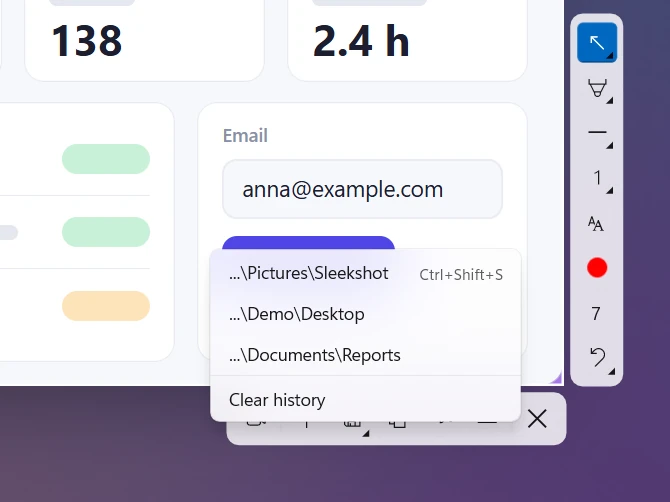
Quick save (Ctrl + Shift + S) saves straight to the last folder you used. The Save button's menu lists your last three folders.
Auto-save (Settings → Screenshots → Auto-save screenshots) saves a file to a folder you pick every time you copy, save or upload. You keep a copy on your PC of everything you shared.
Quickly save to a recent folder
Sleekshot saves screenshots as PNG by default. You'll find JPEG and WebP in Settings → Screenshots → Screenshot file format. PNG keeps text sharp, while JPEG and WebP make smaller files for screenshots full of photos. More in which screenshot format to choose.
What it doesn't do (yet)
No upload history, no expiry dates or passwords on links and no delete button in the app.
No team folders or custom domains.
Links are for images only. Screen recordings are saved as MP4 files or copied to the clipboard.
Sleekshot for Mac has no Upload button. It copies and saves.
Press PrtSc, select the area and press Ctrl+U or click Upload. When the upload finishes, click Copy and paste the link anywhere.
Do I or the recipient need an account?
No. You can upload and open links without signing up. The other person only needs a web browser.
Who can see my uploaded screenshot?
Anyone who has the link. Links use a random 12-character code, and the page asks search engines not to index it. But links can be forwarded, so blur private details and never upload passwords or keys.
Can I delete a screenshot I uploaded?
The app has no delete button, because uploads aren't tied to an account. Check the image before you press Ctrl+U, and use the clipboard or a file for anything sensitive.
Can I turn off uploading?
Yes. Settings → Upload → Cloud upload button hides the Upload button. Copying, saving and copying text keep working without the internet.
Turn a screenshot into a link you can share on Windows: one key in Sleekshot, OneDrive and Google Drive links, image hosts, and who can open each kind of link.