Screenshot Format: PNG vs JPG vs WebP (and How to Change It)
 By Sleekshot Team
6 min read
By Sleekshot Team
6 min read
Short answer
Use PNG for screenshots of text and apps. It's lossless, keeps letters crisp and is the default on Windows and macOS. Pick JPEG only for photo-like screenshots where a small file matters, and WebP for websites: Google measures lossless WebP at about 26% smaller than PNG. Windows has no setting for the format of its automatic screenshots, a Mac changes it with one Terminal command, and Sleekshot has a PNG/JPEG/WebP setting.
On this page
PNG is the best format for most screenshots. It's lossless, so text, icons and thin lines stay pixel-perfect, and it's what Windows and macOS use by default. JPEG only makes sense for photo-like screenshots, like a video frame, a game scene or a photo gallery, when file size matters more than crisp text. WebP sits in between. In Google's own tests, lossless WebP files are about 26% smaller than PNG, which makes WebP a good choice for screenshots you put on a website.
PNG vs JPG vs WebP for screenshots: comparison
It all comes down to compression. PNG keeps every pixel, JPEG throws detail away to save space, and WebP can do either.
| Format | Compression | Text and button edges | File size | Transparency | Support | Best for |
|---|---|---|---|---|---|---|
| PNG | Lossless | Pixel-perfect | Small for plain app windows, large for photos | Yes | Everywhere | Tutorials, bug reports, code, chats |
| JPEG / JPG | Lossy | Blurry halos around letters | Small for photo-like content | No | Everywhere | Photos, video frames, games, upload limits |
| WebP | Lossy or lossless | Lossless: perfect; lossy: slight artifacts | About 26% smaller than PNG (lossless) | Yes | All major browsers; some older apps can't open it | Websites and blogs |
| HEIC (Mac option) | Lossy | Good | Small | — | Mostly Apple devices | Saving space on a Mac |
JPEG and JPG are the same format. Only the file extension is different.
Why PNG keeps screenshots sharp and JPEG doesn't
Screenshots are mostly hard edges and flat colors: black text on white, thin borders, small icons. PNG packs flat areas down well without changing a single pixel. JPEG was made for photos. It splits the image into 8 × 8 pixel blocks and throws away fine detail your eye supposedly won't miss. On a photo, you don't notice. On text, you get smudgy halos and colored fringes, especially around red or blue letters.
The flip side: a screenshot full of photos, gradients or video can make a large PNG, several megabytes on a 4K screen. That's when JPEG or lossy WebP pays off.
Two things don't work:
- Converting JPG to PNG doesn't bring the detail back. The file gets bigger, and the halos stay.
- Saving a JPEG over and over makes it a little worse each time. Edit the PNG original and export once.
Which format to choose
Pick the format by where the screenshot is going, not out of habit.
| Where the screenshot goes | Format | Why |
|---|---|---|
| Docs, tutorials, help center | PNG | Sharp text, no artifacts |
| Bug report, support ticket | PNG | Error codes and small text must stay readable |
| Website or blog | WebP (PNG if your site won't accept it) | Smaller pages, same quality |
| Screenshot of a photo, video or game | JPEG at high quality | Much smaller file, artifacts barely visible |
| Upload form with a size limit | JPEG | Fits the limit |
| Messaging app | Doesn't matter much | Most chat apps compress images sent as photos anyway |
If your screenshots look blurry in any format, the cause is usually scaling or compression. See how to take a high-quality screenshot.
How to change the screenshot format on Windows
As of October 2026, Windows has no setting for the format of its built-in screenshots. Win + PrtSc and Snipping Tool's automatic copies in Pictures\Screenshots are always PNG. There are three ways around it.
Option 1: Save it yourself from Snipping Tool
- Take a snip with Win + Shift + S and click the notification to open it.
- Press Ctrl + S.
- In Save as type, choose JPG (PNG and GIF are there too), pick a folder and save.
The automatic PNG copy stays in Pictures\Screenshots. Delete it if you don't need it, or turn off automatic saving in Snipping Tool's settings.
Option 2: Convert a screenshot in Paint
- Right-click the screenshot → Open with → Paint.
- Choose File → Save as and pick the format (PNG or JPEG).
- Give the copy a new name so the original stays as it is.
That's fine for one or two files. For dozens, it gets tedious.
Option 3: Use a screenshot tool with a format setting (Sleekshot)
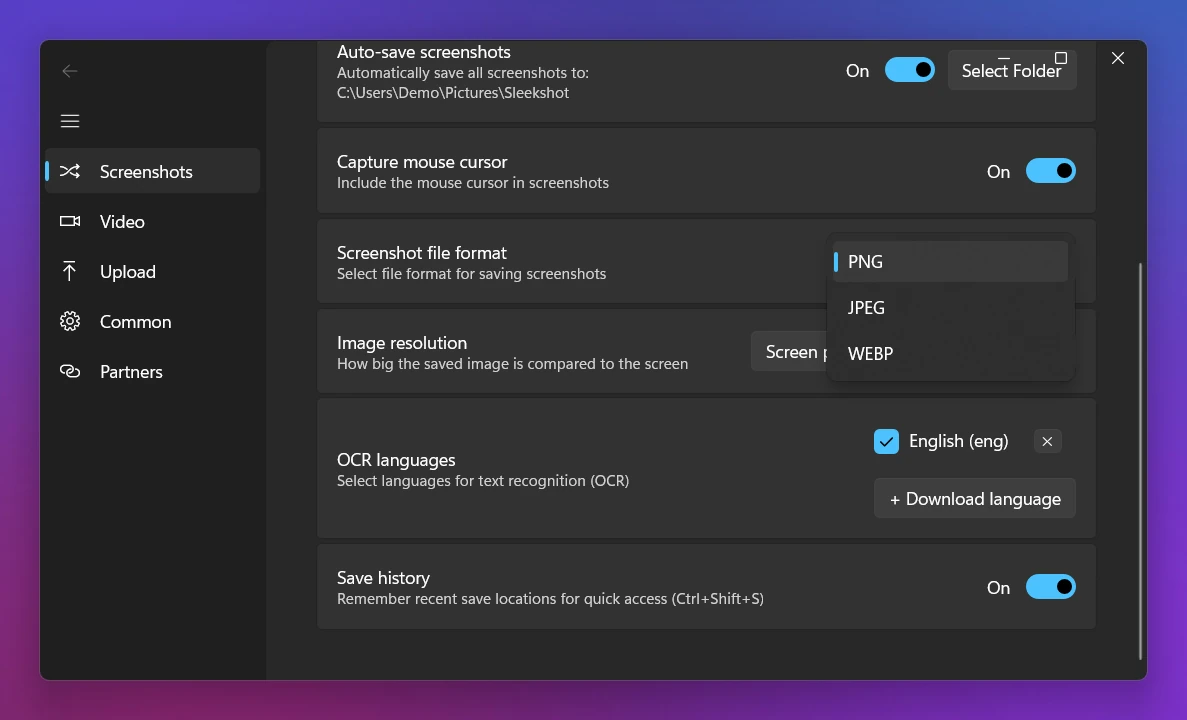
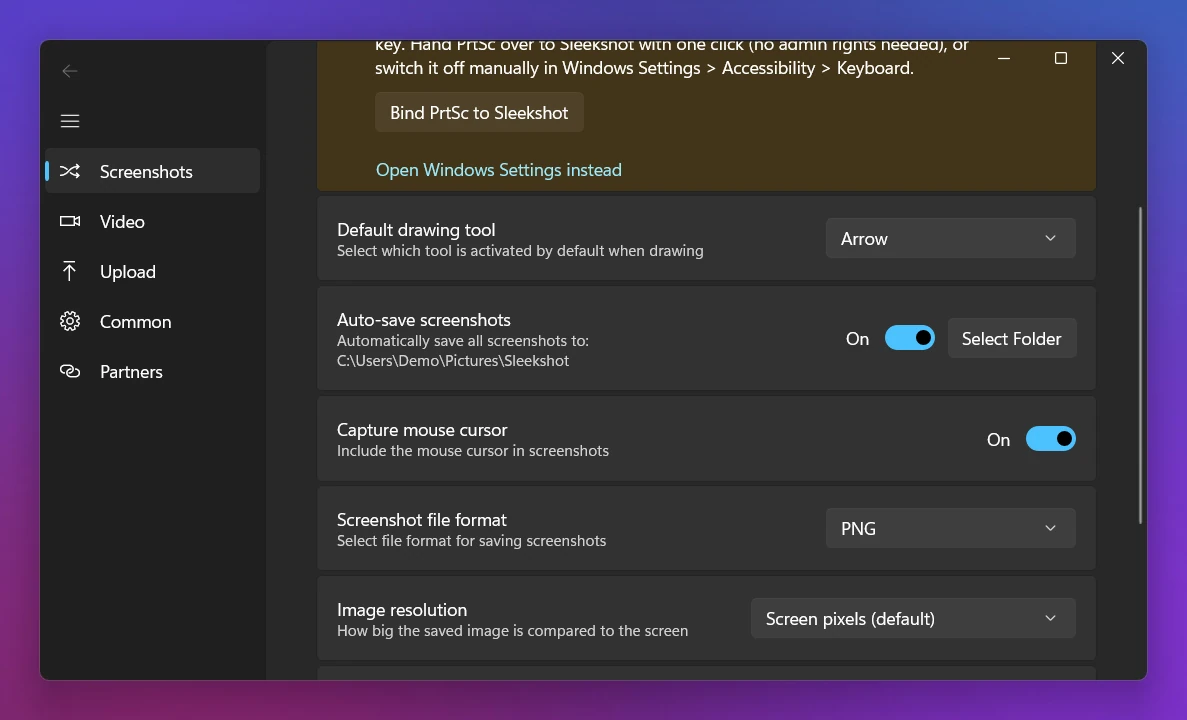
Sleekshot saves screenshots as PNG by default. You can switch to JPEG or WebP once in settings:
- Right-click the Sleekshot icon in the tray → Settings.
- Open the Screenshots tab and find Screenshot file format.
- Choose PNG, JPEG or WEBP.
This setting decides the format of every file Sleekshot saves. That includes saving with Ctrl + S and quick-saving to the last folder with Ctrl + Shift + S. It also includes Auto-save screenshots, which puts every screenshot in a folder you choose.
Ctrl + C puts the image on the clipboard, and the app you paste into decides how to store it. Want the files somewhere other than the default folder? See how to change the screenshot folder on Windows.
How to change the screenshot format on a Mac
macOS saves screenshots as PNG, and the Screenshot toolbar (⌘ ⇧ 5) has no format option. But one Terminal command changes it for all future screenshots.
- Open Terminal (Applications → Utilities).
- Run:
defaults write com.apple.screencapture type jpg
killall SystemUIServer
- Take a screenshot with ⌘ ⇧ 4 to check. If nothing changed, log out and back in.
For other formats, replace jpg with heic, tiff, pdf or gif. To go back to the default, run defaults write com.apple.screencapture type png (or remove the setting with defaults delete com.apple.screencapture type) and restart SystemUIServer again.
To convert one screenshot, open it in Preview and choose File → Export. Pick JPEG, PNG, HEIC or TIFF in the Format menu. For JPEG or HEIC, set the quality slider too.
Sleekshot for Mac has a format choice in its settings: PNG (the default) or JPEG, and it can auto-save to a folder.
Still learning the macOS shortcuts? Our Mac screenshot shortcuts cheat sheet covers them. Where screenshots go on a Mac explains where they're saved.
Screenshot formats on phones
Phones choose the format for you, with one common exception.
- iPhone and iPad: screenshots are saved as PNG, and you can't change it.
- Samsung Galaxy: go to Settings → Advanced features → Screenshots and screen recorder → Screenshot format and pick JPG or PNG.
- Other Android phones: most save PNG. Check the screenshot options in your phone's settings.
Quick summary
- PNG for anything with text. It's the default for a reason.
- JPEG for photo-like screenshots that need to be small.
- WebP for screenshots on a website.
- Windows has no built-in format setting. Save the file yourself, convert it in Paint or set it once in Sleekshot.
- On a Mac, run
defaults write com.apple.screencapture type jpg, thenkillall SystemUIServer.
Frequently asked questions
Is a screenshot a PNG or a JPG?
Which is better for screenshots, PNG or JPG?
How do I change the screenshot format in Windows 11?
How do I change the screenshot format on a Mac?
Should I use WebP for screenshots?
Does converting a JPG screenshot to PNG improve its quality?
Sleekshot Team
We build Sleekshot, a free screenshot and screen recording app for Windows and Mac. Every guide is checked on current Windows 11, Windows 10 and macOS builds.
Also available in: Русский