
The 10 Best Screenshot Tools for Windows 11 and 10 (2026)
 By Sleekshot Team
13 min read
By Sleekshot Team
13 min read
Short answer
For a few screenshots a week, the Snipping Tool built into Windows 11 (Win + Shift + S) is enough. For daily work, pick a free app. ShareX has every feature and lots of automation. In Sleekshot, you draw right on the screenshot and press Ctrl+U for a link. Greenshot is simple and open source. Snagit is the best paid tool for documentation and tutorials.
On this page
- Our verdict: the best screenshot app for each job
- Screenshot tools for Windows compared
- 1. Windows Snipping Tool: best built-in option
- 2. Sleekshot: best for adding arrows and sharing fast
- 3. ShareX: best free tool for power users
- 4. Greenshot: best simple open-source tool
- 5. Snagit: best paid tool for documentation
- 6. PicPick: best for designers
- 7. Lightshot: fastest minimal tool (but don't upload private images)
- 8. Flameshot: best for Windows, Mac and Linux
- 9. FastStone Capture: best one-time purchase
- 10. Screenpresso: all-in-one, Windows 11 only
- How we chose
- Which screenshot tool should you use?
The best screenshot tool for Windows depends on how often you take screenshots and what you do with them next. If it's a few a week, the Snipping Tool that comes with Windows 11 is enough. Press Win + Shift + S, drag, paste. If you mark up and send screenshots every day, a free app saves real time. ShareX is the most powerful. Sleekshot is the quickest from key press to shared link. Greenshot is the simplest open-source option. Snagit is the paid tool that earns its subscription for documentation work.
Disclosure: Sleekshot is our app. We checked every tool against its official site in October 2026. Every entry, ours included, says plainly what the tool can't do.
Our verdict: the best screenshot app for each job
- Best built-in tool: Windows Snipping Tool. Free and already installed. On Windows 11, it now copies text from images and records video.
- Best for adding arrows and sharing fast: Sleekshot. Free. You draw right on the screenshot, and one shortcut gives you a link without an account.
- Best free tool for power users: ShareX. Scrolling screenshots, text recognition, GIFs, automation and lots of places to upload.
- Best simple open-source tool: Greenshot. Light and predictable. Sends screenshots to Office, Jira or Imgur.
- Best paid tool for documentation: Snagit. Scrolling screenshots, step guides, templates and a library to keep everything.
- Best for designers: PicPick. Color picker, pixel ruler, protractor and an image editor in one app.
- Best one-time purchase: FastStone Capture. $29.95 once, with scrolling screenshots, text recognition and a recorder.
- Best for Windows, Mac and Linux: Flameshot. The same free tool on all three.
Screenshot tools for Windows compared
| Tool | Price (Oct 2026) | Platforms | Best for | Main limitation |
|---|---|---|---|---|
| Snipping Tool | Free, built in | Windows 11 (older version on 10) | Screenshots now and then | No blur, step numbers or share links |
| Sleekshot | Free, no account | Windows 10 (1809+) and 11; simpler Mac app | Adding arrows and sharing fast | No scrolling screenshots; can't open saved images |
| ShareX | Free, open source | Windows 10 and 11, 64-bit | Power users, automation | Many settings to learn |
| Greenshot | Free, open source | Windows; Mac App Store ($1.99) | Simple screenshots sent to Office or Jira | Separate editor window, no video |
| Snagit | About $39 per year | Windows 10/11, macOS 14+ | Documentation and training | Subscription only |
| PicPick | Free for personal use; $36/year for business | Windows | Designers, all-in-one editing | Business use needs a license |
| Lightshot | Free | Windows, Mac, Chrome | Quick screenshot and paste | Uploads are public; no blur |
| Flameshot | Free, open source | Windows, macOS, Linux | One tool on every OS | No recording, no text recognition |
| FastStone Capture | $29.95 one-time | Windows | Paying once for everything | Paid after a 30-day trial |
| Screenpresso | Free; Pro one-time | Windows 11 only | Workspace and video in one app | Branding on free videos |
Which features each tool has
| Tool | Scrolling screenshots | Blur / pixelate | Step numbers | Copy text (OCR) | Screen recording | Share link |
|---|---|---|---|---|---|---|
| Snipping Tool | No | No (Quick redact only) | No | Yes | Yes (Windows 11) | No |
| Sleekshot | No | Yes | Yes | Yes, on your PC | Yes, MP4 with webcam | Yes, no account |
| ShareX | Yes | Yes | Yes | Yes | Yes, MP4 and GIF | Yes, many services |
| Greenshot | Internet Explorer only | Yes | Yes | Yes, Windows plugin | No | Imgur plugin |
| Snagit | Yes | Yes (Smart Redact) | Yes | Yes | Yes, with webcam | Yes (Screencast) |
| PicPick | Yes | Yes | Yes (stamps) | No | Yes, MP4 or GIF | No (cloud folders, FTP) |
| Lightshot | No | No | No | No | No | Yes (public) |
| Flameshot | No | Yes | Yes | No | No | Imgur |
| FastStone Capture | Yes | Yes | Yes | Yes | Yes, with webcam | No (FTP, email) |
| Screenpresso | Yes | Auto-blur in Pro | Yes | Pro | Yes, with webcam | Yes (Imgur, S3 and more) |
Snipping Tool's Quick redact hides the email addresses and phone numbers it finds, but there's no blur brush for anything else. "Share link" means the app uploads the image itself and gives you a URL.
Tip: Most of these apps want the PrtSc key. On Windows 11, turn off Use the Print screen key to open screen capture in Settings → Bluetooth & devices → Keyboard (on older builds, Settings → Accessibility → Keyboard), or search Settings for "print screen". Details in how to change the Print Screen key.
1. Windows Snipping Tool: best built-in option
Snipping Tool is the screenshot app built into Windows 11, and if you only need it now and then, it's good enough. Win + Shift + S opens a small toolbar with rectangle, freeform, window and full-screen modes. The screenshot goes to the clipboard, and on Windows 11 it's also saved to Pictures\Screenshots.
The editor has caught up in recent updates. It has a pen, highlighter, shapes (rectangle, oval, line and arrow), eraser and crop. Text actions copies text out of the image, and Quick redact hides the email addresses and phone numbers it finds. There's also a 3-, 5- or 10-second delay, and Win + Shift + R records part of the screen as MP4.
- Pros: nothing to install; copies text and records the screen; delay timer; saves files on its own.
- Cons: no blur brush, no step numbers and, as of October 2026, no text box in the stable version. No scrolling screenshots and no share link.
- Price: free with Windows 11. Windows 10 has the older Snipping Tool and Snip & Sketch, neither of which records video. Windows 10 support ended on October 14, 2025.
Every built-in method is in how to take a screenshot on Windows. If Snipping Tool already feels too limited, see our Snipping Tool alternatives.
2. Sleekshot: best for adding arrows and sharing fast
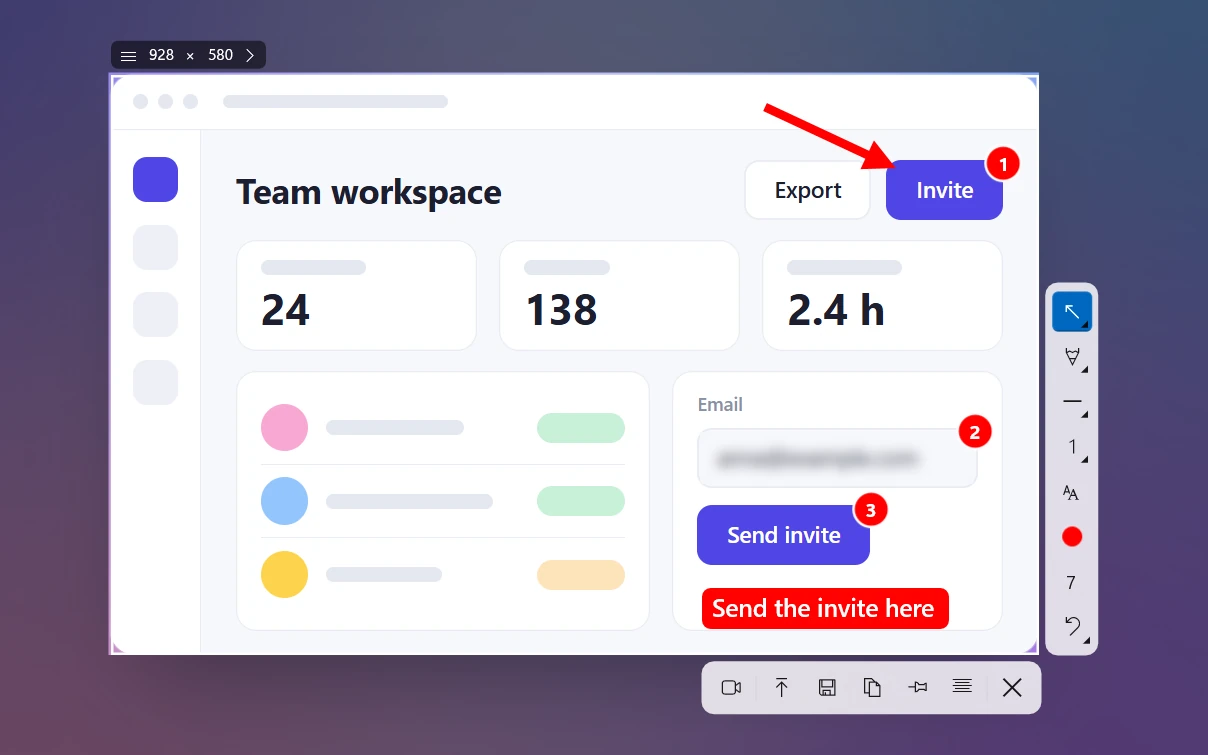
Sleekshot is a free screenshot and screen recording app for Windows 10 and 11. You draw right on the screenshot, with no separate editor. Press PrtSc, and the screen dims. Drag over an area, click a window, or press Ctrl + A for the whole monitor. The toolbar is already next to your selection.
The tools are made for people who explain things with screenshots. You get 7 arrow styles, from a plain arrow to hand-drawn and neon ones. There are steps that number themselves, a blur rectangle for emails and passwords, a highlighter, text labels and shapes. Ctrl + U uploads the image and gives you a short link, no account needed. Ctrl + O copies the text in the selection, recognized right on your PC. The same keys start a screen recording: MP4 with your mic, computer sound, a webcam bubble and highlighted clicks.
- Pros: the fewest steps from key press to finished image; step numbers and blur built in; share links with no sign-up. Copies text in many languages without the internet, and records the screen with no watermark or time limit. Builds for x64, x86 and ARM64, also in the Microsoft Store.
- Cons: no scrolling screenshots, delay timer, pinning to the screen, screenshot history or GIF export. You can only edit while taking the screenshot, not open saved images. Arrows and shapes can't be moved once drawn, only undone one step back. The Mac version is simpler and only takes screenshots.
- Price: free, no account, no watermark.
See everything on the arrows, steps and blur page and how share links work.
3. ShareX: best free tool for power users
ShareX is a free, open-source app for Windows that takes screenshots, records the screen and uploads files. No other free app has a longer feature list. It screenshots areas, windows, monitors and scrolling pages, records MP4 or GIF, recognizes text and pins images to the screen. One shortcut can also run a chain of tasks after each screenshot: save, mark up, upload, shorten the URL and copy it.
Its editor has arrows, text, speech bubbles, step numbers, blur, pixelate and a smart eraser. Version 21.0.0 (July 3, 2026) added a background remover and a tool to compare images. Text recognition runs on your PC through Windows' own engine and needs Windows 10 version 1903 or later.
- Pros: free, no ads, no account; scrolling screenshots; GIF recording; lots of upload services, plus your own; extra tools like a color picker, ruler and image combiner.
- Cons: you'll learn a lot of settings before it feels fast, and the interface is dense. Recording uses FFmpeg, which ShareX downloads. Recording computer sound needs an extra "recorder devices" package. No webcam bubble. Since version 18, it only runs on 64-bit Windows 10 or 11.
- Price: free from getsharex.com, the Microsoft Store or Steam.
The two classic free tools go head to head in ShareX vs Greenshot. If ShareX feels like too much, see ShareX alternatives.
4. Greenshot: best simple open-source tool
Greenshot is a free, open-source screenshot tool for Windows that does a few things well. PrtSc takes an area, Alt + PrtSc the active window and Ctrl + PrtSc the full screen. Then a menu asks where the image should go: the editor, the clipboard, a file, the printer, email or Office apps. Plugins add Imgur, Jira, Confluence, Box and Dropbox.
The editor opens in its own window. It has rectangle, ellipse, line, arrow, freehand, text, highlight, obfuscate (pixelate or blur), crop and a step counter. The current version is 1.3.315 (March 20, 2026). A Mac version costs $1.99 on the App Store.
- Pros: light and predictable; a clear menu for where the image goes; pixelate and step numbers; works with Office, Jira and Confluence.
- Cons: you mark up in a separate editor window, and it doesn't record the screen. Scrolling screenshots work only for Internet Explorer pages. No share links apart from the Imgur plugin.
- Price: free on Windows.
More options in Greenshot alternatives.
5. Snagit: best paid tool for documentation
Snagit from TechSmith is the paid standard for people who write documentation, training materials and help articles. It takes long web pages and wide spreadsheets in one scrolling screenshot. It records the screen with your mic, computer sound and webcam. The editor has a Step tool, Smart Redact for hiding private data and text recognition you can edit. Templates and a library keep your screenshots organized. Step Capture turns a series of clicks into a ready-made guide.
- Pros: the most polished editor; scrolling screenshots; step guides; GIFs from recordings; share links through TechSmith Screencast; Windows and Mac.
- Cons: subscription only; more than you need for quick screenshots.
- Price: about $39 per user per year (the store shows local prices), with a 14-day money-back guarantee. Runs on Windows 10 and 11 and macOS 14 or later.
Free tools that cover part of this are in Snagit alternatives.
6. PicPick: best for designers
PicPick combines screenshots, an image editor with an Office-style ribbon and design tools. You get a color picker with HEX and RGB codes, a pixel ruler, a protractor, a magnifier and a whiteboard for drawing over the desktop. It takes the full screen, windows, scrolling pages, fixed-size areas and freehand shapes, with a delay if you need one. The editor adds arrows, callouts, numbered stamps, blur, mosaic, frames and watermarks.
Its screen recorder saves MP4 or GIF with computer sound and mic. Version 7.6.1 (September 16, 2026) added a webcam bubble and click effects.
- Pros: one app for screenshots, editing and measuring; scrolling screenshots; sends to Google Drive, Dropbox, OneDrive, Box, FTP or email.
- Cons: free only for personal, non-commercial use; you need the paid plan to remove ads; no text recognition; Windows only; editing happens in a separate window.
- Price: free for personal use. Business use needs a license: $36 a year or a lifetime option, each for one person on up to two PCs.
See PicPick alternatives if you only need part of it.
7. Lightshot: fastest minimal tool (but don't upload private images)
Lightshot from Skillbrains is a tiny free tool for Windows and Mac, with a Chrome extension too. Press PrtSc and drag a box. Add a pen stroke, line, arrow, rectangle, marker or text right on the screen. Then copy, save or upload to prnt.sc for a short link.
- Pros: very quick; you draw right on the screenshot; nothing to set up.
- Cons: no blur, no step numbers, no text recognition, no recording. Lightshot's own privacy policy says uploaded images are public. Read is Lightshot safe before you share anything personal.
- Price: free.
If you like its speed but need more tools, see Lightshot alternatives.
8. Flameshot: best for Windows, Mac and Linux
Flameshot is a free, open-source (GPL v3) screenshot tool. It works the same way on Windows, macOS and Linux: you draw right on the screenshot. After you select an area, tool buttons appear around it. You get a pencil, line, arrow, rectangle, circle, marker, text, pixelate, a step counter and a color picker. Enter uploads to Imgur. There's also a pin option and a command line for scripts. Version 14.0.0 came out on June 19, 2026.
- Pros: works the same on every OS; no separate editor; step counter and pixelate; scriptable.
- Cons: no screen recording, no text recognition, no scrolling screenshots; links only through Imgur.
- Price: free.
See Flameshot alternatives for apps made for Windows first.
9. FastStone Capture: best one-time purchase
FastStone Capture packs a long feature list into a small paid app. It takes scrolling screenshots and multi-level menus, copies text on Windows 10 and 11 and pins images to the screen. The editor adds step numbers, blur, callouts and effects. Its screen recorder records the mic, speakers, webcam and mouse clicks to MP4 or WMV and has a simple video editor. Version 11.3 came out on July 29, 2026.
- Pros: pay once; screenshots, scrolling screenshots and recording in one app; sends to Word, PowerPoint, OneNote, email or FTP.
- Cons: paid after a 30-day trial; a dense, old-school interface; no share links.
- Price: $29.95 one-time.
10. Screenpresso: all-in-one, Windows 11 only
Screenpresso combines screenshots, scrolling screenshots, a Step tool, video recording with webcam, and a workspace that keeps your screenshots together. The free version includes screenshots, HD video with Screenpresso branding, a limited editor and sharing with branding, and you can use it at work. Pro adds text recognition, 4K video with computer sound, automatic subtitles, auto-blur and a document generator.
- Pros: a workspace to organize screenshots; Step tool; uploads to Imgur, SFTP, Amazon S3 and more.
- Cons: needs Windows 11 (or Windows Server 2022), so it won't run on Windows 10; branding on free videos and shares.
- Price: free. Pro is a one-time license per person, for up to five computers, with a 30-day money-back guarantee.
More in Screenpresso alternatives.
How we chose
We looked for tools people would actually install on a Windows PC in 2026. Then we compared them on what matters day to day:
- Works on Windows 11 today and is available from the official site or the Microsoft Store.
- Speed: how many steps between the key press and a finished image with arrows and text.
- Drawing tools: arrows, text, blur or pixelate, step numbers.
- Sharing and privacy: copy, save, links, and whether uploads are public.
- Extras that change the choice: scrolling screenshots, copying text and screen recording.
- Clear pricing: free, free for personal use only, subscription or one-time.
We didn't run lab tests or make up scores. Prices, platforms and version numbers come from each company's site, checked in October 2026. Prices change, so check before you buy.
Not on the list: Gyazo and Monosnap focus on cloud sharing. See Gyazo alternatives and Monosnap alternatives. On a Mac, read the best screenshot apps for Mac.
Which screenshot tool should you use?
- A few screenshots a week: Snipping Tool. Don't install anything.
- Bug reports, how-tos and chat answers every day: Sleekshot. Draw right on the screenshot, then paste it or share a link.
- Scrolling screenshots, GIFs and automation: ShareX.
- A simple tool that sends screenshots to Office or Jira: Greenshot.
- Documentation for a living, with a budget: Snagit.
- Colors, rulers and pixel-perfect mock-ups: PicPick.
- Videos too: see the best screen recorders for Windows.
Frequently asked questions
What is the best free screenshot tool for Windows 11?
Is Greenshot better than Snipping Tool?
Is ShareX better than Snipping Tool?
Which Windows screenshot tools can take a scrolling screenshot?
What has replaced the Snipping Tool?
Do I need a paid screenshot tool?
Sleekshot Team
We build Sleekshot, a free screenshot and screen recording app for Windows and Mac. Every guide is checked on current Windows 11, Windows 10 and macOS builds.
Also available in: Deutsch Français Español Italiano Русский ភាសាខ្មែរ Bahasa Indonesia 简体中文 日本語