Snipping Tool vs Sleekshot: Best Windows Screenshot Alternative in 2026
If you're looking for a Snipping Tool alternative that actually handles annotations properly, Sleekshot is the answer. While Microsoft's built-in screenshot tool has improved over the years, it still falls short on editing capabilities, reliability on multi-monitor setups, and professional annotation tools. Sleekshot fills every gap Snipping Tool leaves behind.
Quick Answer
Sleekshot is a free screenshot tool for Windows and macOS that offers everything Snipping Tool does, plus professional annotations (arrows, shapes, blur, numbered steps), screen recording with webcam overlay, and cloud sharing. The free version covers most users. A one-time $29 license unlocks additional features with no subscription required.
Feature Comparison Table
| Feature | Snipping Tool | Sleekshot |
|---|---|---|
| Price | Free (built into Windows) | Free / $29 one-time |
| Platform | Windows only | Windows + macOS |
| Region capture | ✓ | ✓ |
| Window detection | ✓ | ✓ (click-to-capture) |
| Fullscreen capture | ✓ | ✓ |
| Preset capture sizes | ✗ | ✓ |
| Screen freeze during capture | ✗ | ✓ |
| Arrow annotations | Basic | ✓ (distinctive style) |
| Rectangle/circle shapes | ✓ (limited) | ✓ |
| Text annotations | ✗ | ✓ (with/without background) |
| Blur/pixelate | ✗ | ✓ |
| Numbered stepper circles | ✗ | ✓ |
| Highlighter/marker | ✓ (pen only) | ✓ (with stabilization) |
| Dashed lines | ✗ | ✓ |
| Canvas resize after editing | ✗ | ✓ |
| Screen recording | ✓ (basic) | ✓ (no time limit, webcam overlay) |
| OCR / text extraction | ✓ | Coming soon |
| Cloud upload & share link | ✗ | ✓ |
| Dark/light theme | ✓ | ✓ (follows system + accent colors) |
Why Look Beyond Snipping Tool?
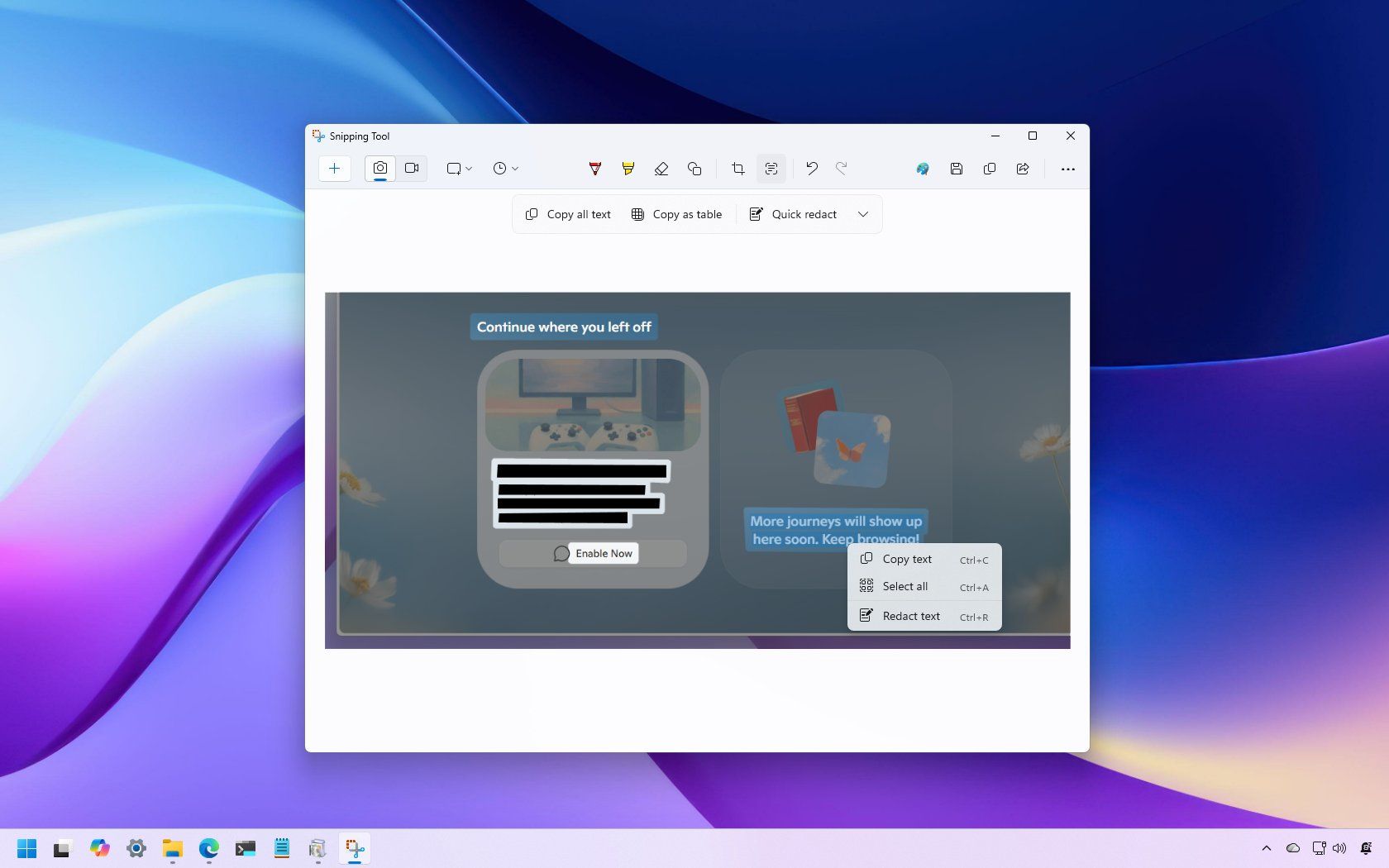
Snipping Tool ships with every copy of Windows 11, which makes it the default choice for millions of users. In our testing, it handles basic region and window captures well enough. Microsoft has added OCR text extraction, a color picker, and even basic screen recording with Win+Shift+R. For quick, no-frills screenshots, it works.
The problems start when you need to do anything beyond a simple capture. Snipping Tool's annotation capabilities remain frustratingly limited. You get a pen, a highlighter, and basic shapes. There is no text tool for typing labels or descriptions. There is no blur tool to redact sensitive information. If you need numbered steps for a tutorial, you are out of luck entirely.
The Multi-Monitor Problem
One of the most persistent complaints about Snipping Tool involves multi-monitor setups. Users with displays running at different scaling settings (say, a 4K laptop screen at 150% and an external monitor at 100%) regularly experience cropped or distorted captures. Microsoft issued a fix in January 2025, but forum reports from late 2025 suggest the issue keeps resurfacing after Windows updates. In our testing with a dual-monitor setup using different DPI settings, we encountered this problem twice in a single week.
Reliability Concerns
After the Windows 25H2 update, numerous users reported that the Win+Shift+S hotkey stopped working after several uses, requiring a full restart of the Snipping Tool process. Microsoft acknowledged crashes affecting Snipping Tool, Paint, and Notepad in January 2026 and rolled out a fix. For a built-in system tool, this level of instability is surprising.
What Sleekshot Does Differently
Professional Annotation Tools
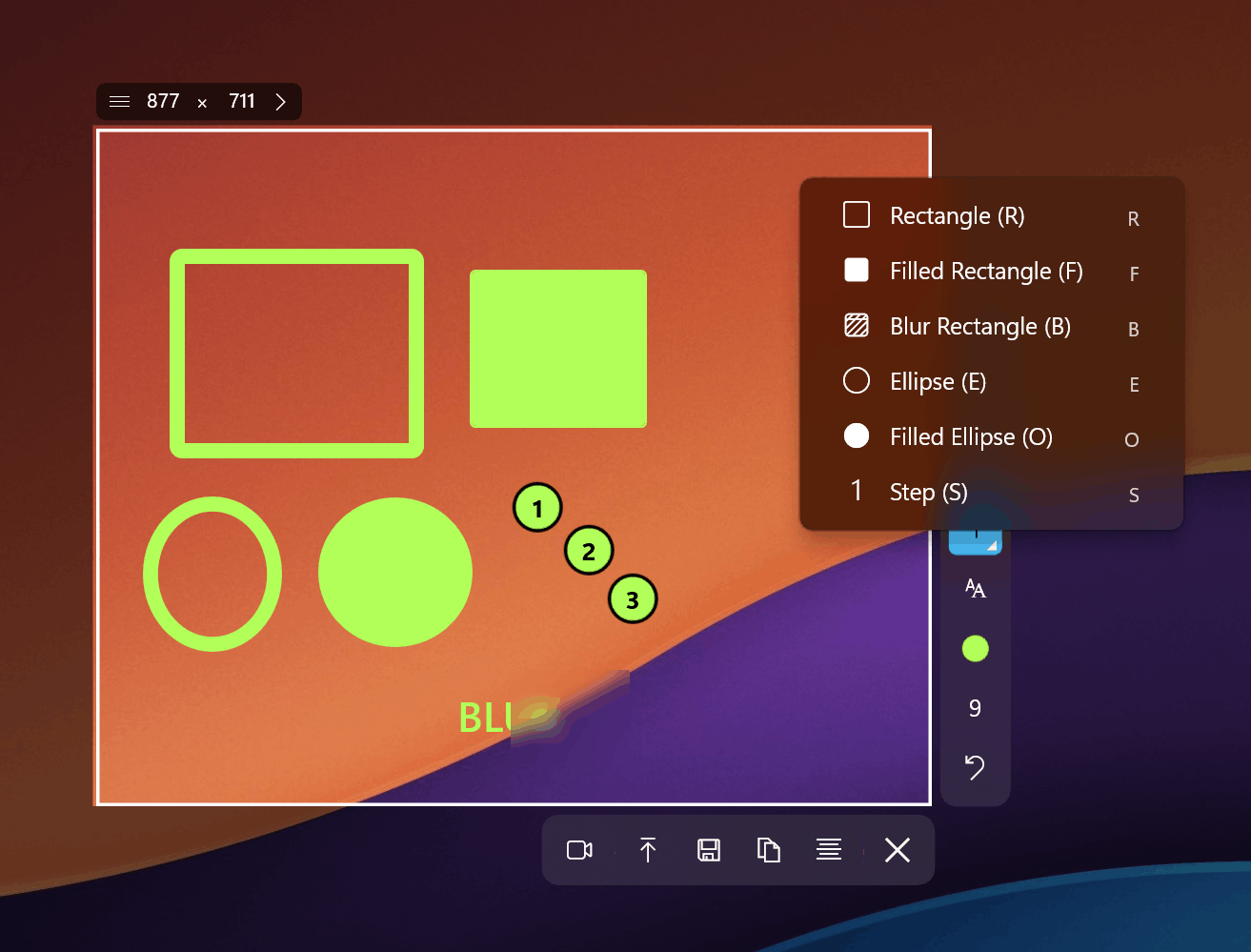
Sleekshot's annotation toolkit is where the real difference shows. You get arrows with a distinctive visual style, rectangles, circles, solid and dashed lines, text labels (with or without a background), blur and pixelate tools, a pencil with smooth stabilization, a marker/highlighter, and numbered stepper circles for tutorials. Holding Shift snaps arrows and lines to 45-degree angles, which saves time when creating clean diagrams.
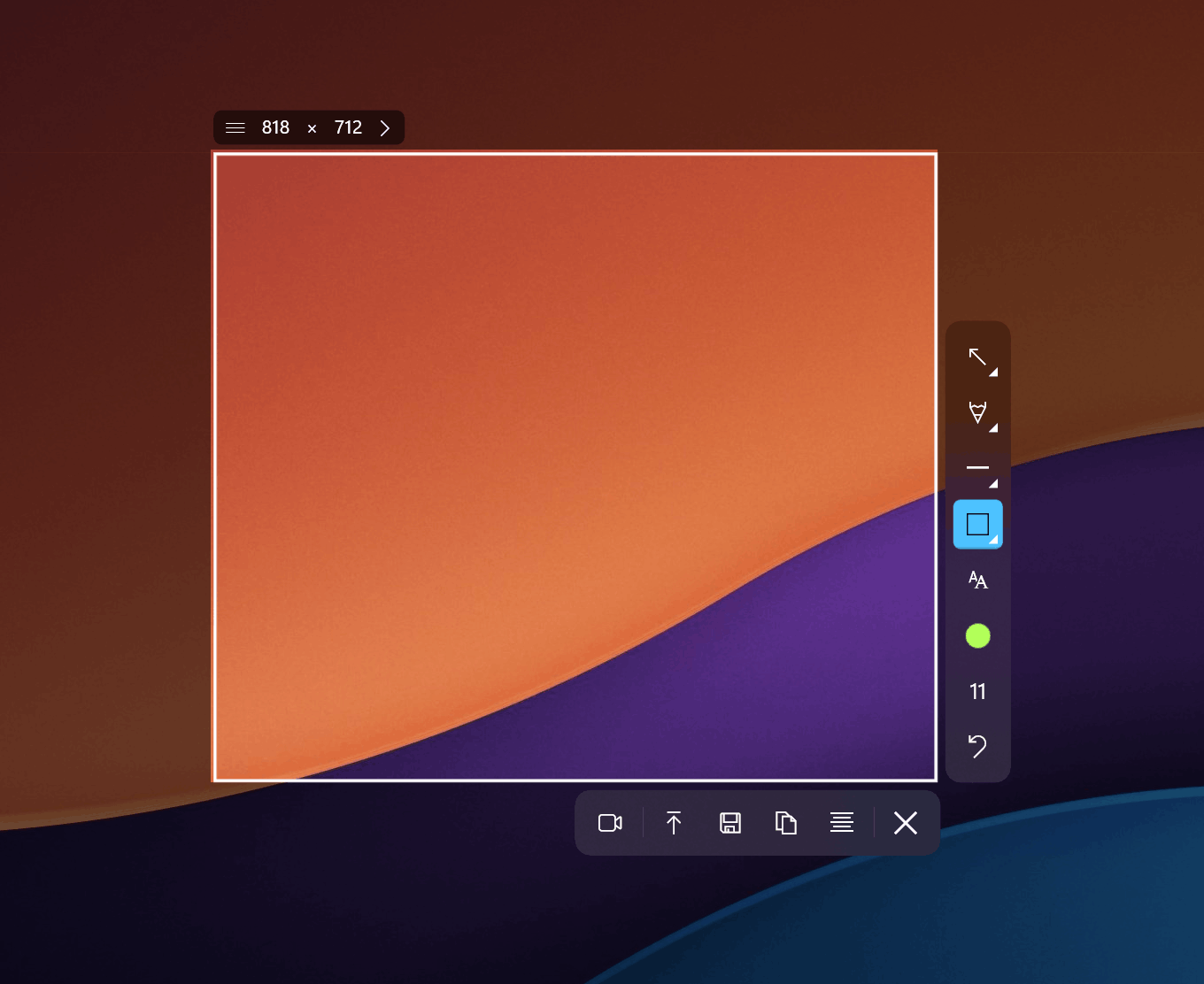
One feature we particularly appreciate is canvas resize after annotations. Say you've captured a screenshot and added all your annotations, but realize you need more space at the bottom for a text label. In Sleekshot, you simply resize the canvas. In Snipping Tool (and most other screenshot tools), you would need to start over.
Text Annotations That Actually Work
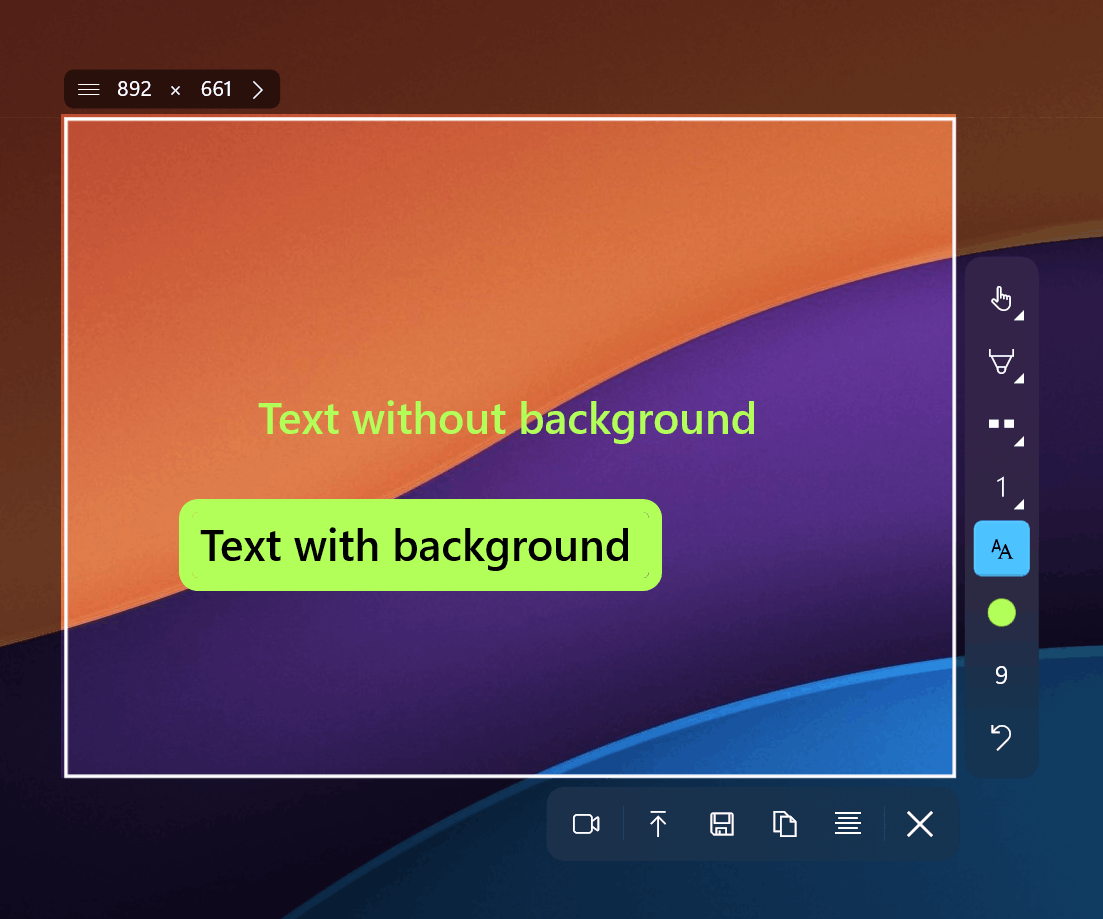
Snipping Tool's lack of a proper text tool is its single biggest limitation for professional use. When you need to label parts of a screenshot for documentation, a how-to guide, or a bug report, handwriting with a pen tool looks unprofessional. Sleekshot offers movable text annotations with optional backgrounds, letting you create clean, readable labels that look like they belong in professional documentation.
Screen Recording Without Limits
Snipping Tool added basic screen recording, which is a welcome addition. However, it remains fairly bare-bones. Sleekshot's recording includes cursor highlighting so viewers can follow your mouse movements, microphone selection for narration, a webcam circle overlay for face-cam, and critically, no time limits. The free version adds a small watermark, but the recording itself is unrestricted.
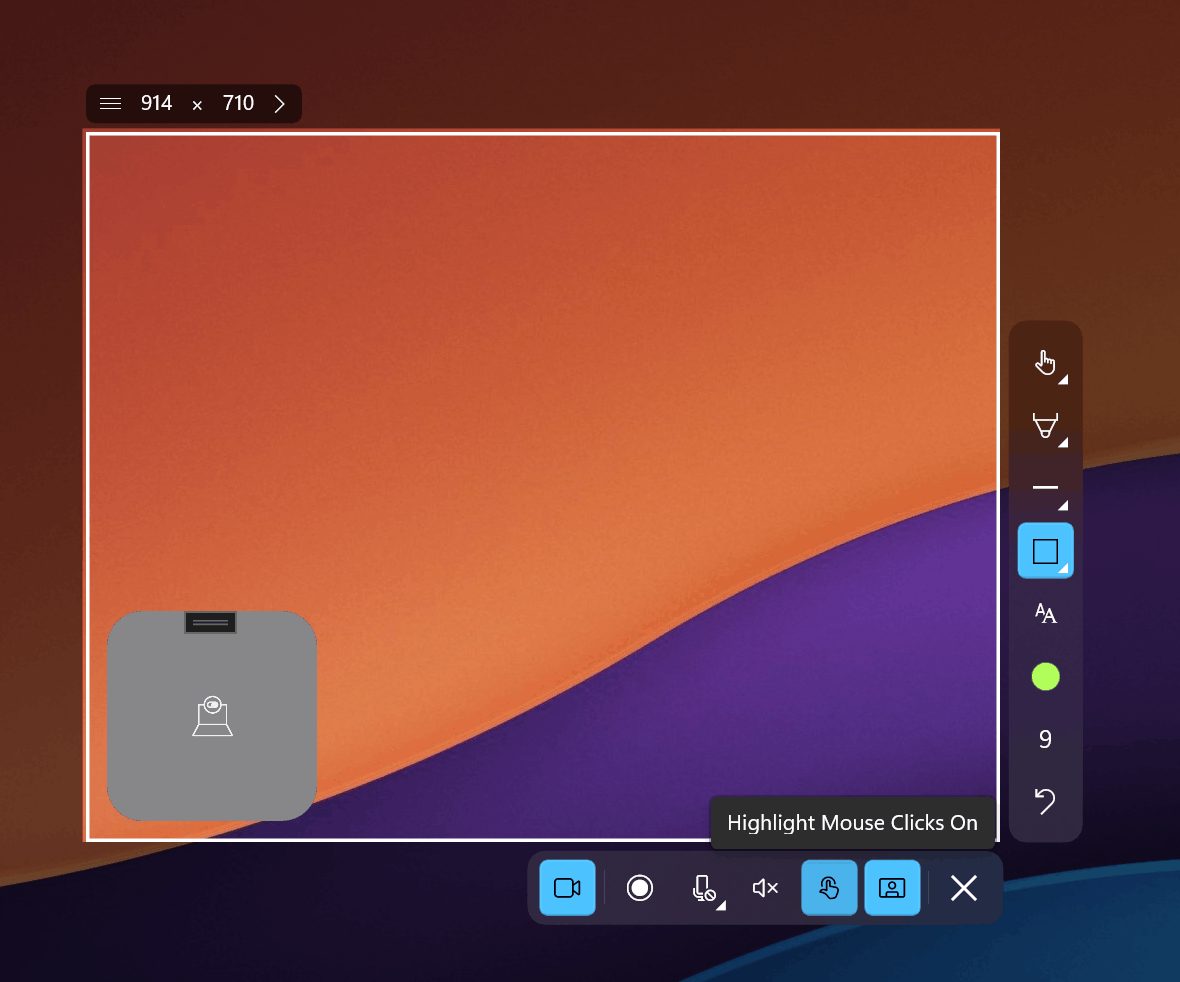
Native Windows 11 Look and Feel
Sleekshot is built on WinUI 3, the same framework Microsoft uses for its own modern Windows 11 apps. This means it follows your system's light or dark theme automatically and picks up your Windows accent color. The result is a screenshot tool that looks and feels like it belongs on your system, not a third-party bolt-on.
Pricing Breakdown
Snipping Tool is free, period. It comes with Windows, and there is nothing extra to pay for.
Sleekshot offers a generous free tier that covers screenshot capture, basic annotations, and screen recording (with watermark). The full license costs $29 per PC as a one-time purchase. There is no monthly subscription, no annual renewal, and no surprise price increases. For teams and professionals who need the complete toolset, $29 once is a straightforward deal.
Cross-Platform: macOS Support
Snipping Tool is Windows-only. If you switch between Windows and macOS (common for developers and designers), you need a separate tool on your Mac. Sleekshot runs on both platforms with the same feature set. The macOS version currently includes all features except screen recording, which is actively being developed.
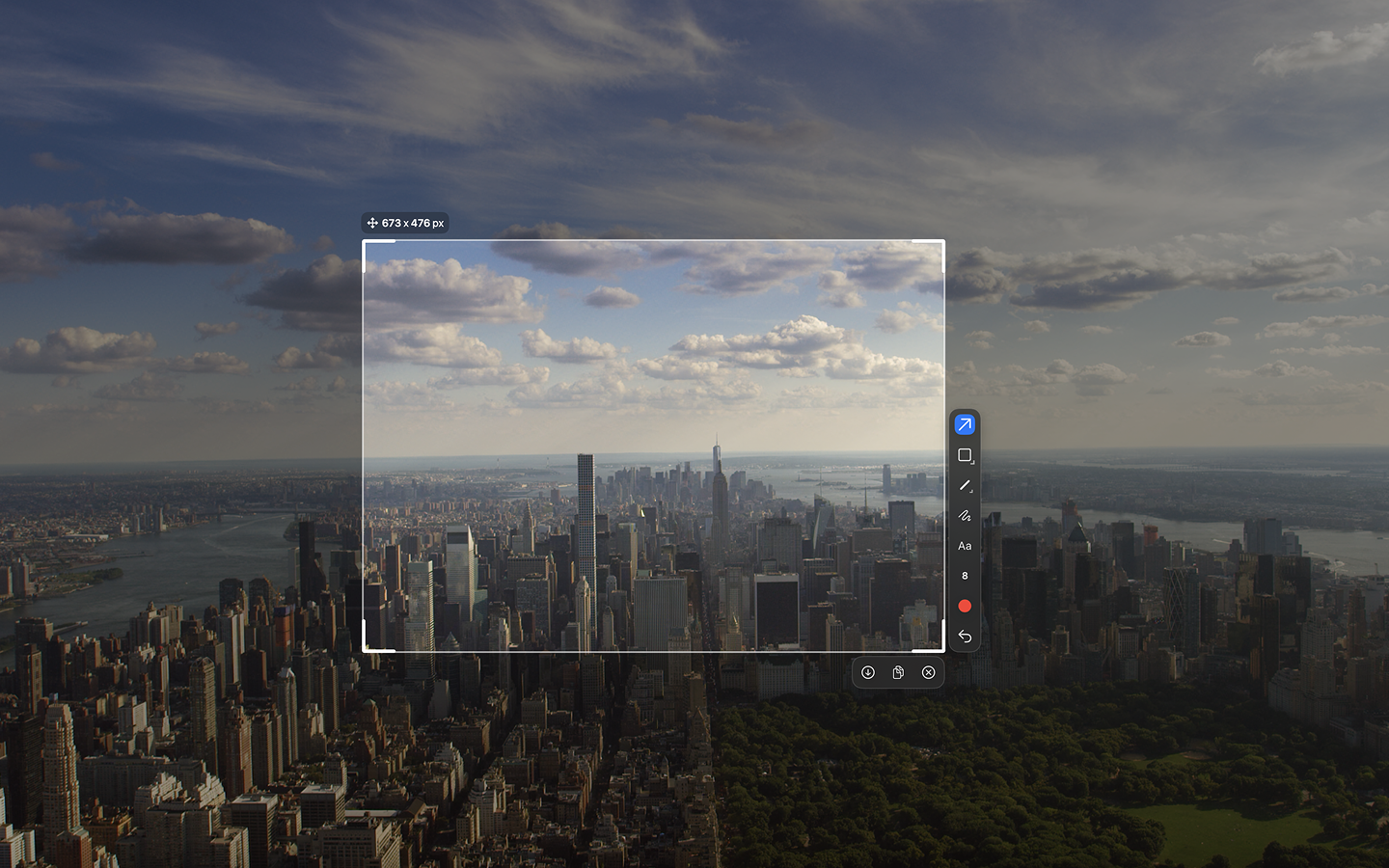
Expert Tips
- Set Sleekshot as your default screenshot tool. Windows 11 now allows third-party apps to intercept the Print Screen key (as of March 2026). Configure Sleekshot as your Print Screen handler for instant access.
- Use preset capture sizes when creating screenshots for documentation or app store listings. Consistent dimensions look professional and save cropping time later.
- Shift-snap is your friend. When drawing arrows or lines, hold Shift to lock them at 45-degree angles. Perfectly aligned annotations take seconds instead of careful mouse positioning.
- Freeze the screen first. For capturing dropdown menus, tooltips, or hover states, Sleekshot's screen freeze feature pauses everything so you can capture exactly what you see.
Common Mistakes When Switching from Snipping Tool
- Not setting a default annotation tool. Sleekshot lets you pick which tool is selected by default when the editor opens. If you always start with arrows, set it in Settings and skip an extra click every time.
- Ignoring the cloud upload feature. Instead of saving a file, attaching it to an email, and sending it, use Sleekshot's cloud share to generate a link instantly. This is particularly useful for quick bug reports and Slack messages.
- Forgetting about canvas resize. Many users coming from Snipping Tool don't realize they can expand the canvas after capturing. If you need to add context or annotations outside the original capture area, just drag the canvas edge.
Frequently Asked Questions
Is Sleekshot really free, or is there a catch?
Sleekshot is genuinely free for screenshot capture and annotations. Screen recording is also free but includes a small watermark. The $29 one-time license removes the watermark and unlocks premium features. There is no trial period that expires and no feature lockout after 30 days.
Can Sleekshot replace Snipping Tool completely?
Yes. Sleekshot handles every capture mode Snipping Tool offers (region, window, fullscreen) and adds preset sizes, screen freeze, and click-to-capture window detection. The only feature Snipping Tool currently has that Sleekshot does not is OCR text extraction, which is on Sleekshot's roadmap.
Does Sleekshot work on Windows 10?
Sleekshot is built on WinUI 3, which requires Windows 10 version 1809 or later. It runs on both Windows 10 and Windows 11, though the native styling looks best on Windows 11.
How does Sleekshot handle multiple monitors with different scaling?
Sleekshot correctly handles mixed-DPI multi-monitor setups without the distortion and cropping issues that plague Snipping Tool. In our testing across monitors running at 100%, 125%, and 150% scaling, captures were pixel-accurate every time.
Is Sleekshot developed by a large company?
Sleekshot is built by a solo developer who actively takes feature requests from users. This means faster iteration on features users actually want, without the bureaucratic delays of a large corporation. Updates ship regularly, and the developer is responsive to feedback.
Conclusion
Snipping Tool is a decent starting point that comes free with Windows, and for the simplest screenshot tasks, it gets the job done. But the moment you need professional annotations, reliable multi-monitor support, screen recording with webcam, or cross-platform compatibility, its limitations become clear. Sleekshot covers all of those gaps while maintaining a clean, native Windows 11 interface and a straightforward pricing model.
Download Sleekshot free and see the difference for yourself. If you decide the full feature set is worth it, the one-time $29 license is a simple upgrade with no strings attached.


