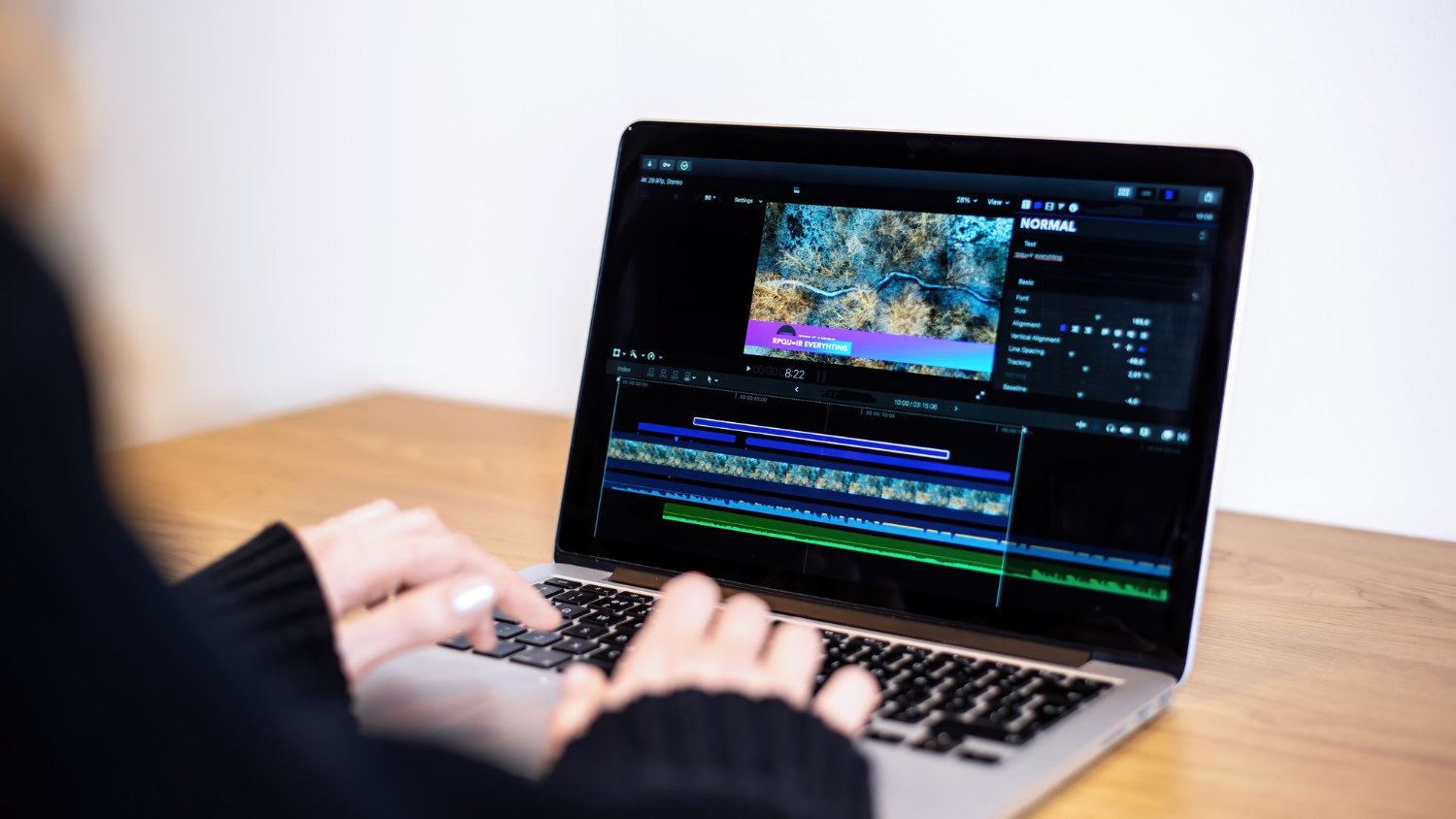
How to Change Screen Recording Quality on a PC

Screen recording on a PC is essential for creating tutorials, instructions, webinars, or capturing gameplay. It is often important to adjust recording quality so that the video looks clear while not taking up too much disk space. In this article, we will explain how to change screen recording quality on a PC and why SleekShot is a convenient solution for these tasks.
1. SleekShot — an Easy Way to Adjust Recording Quality
SleekShot is a convenient screen recording application that allows you not only to start capturing with one click but also to choose video quality settings.
When recording with SleekShot, you can:
choose recording resolution — from standard to HD or Full HD;
adjust frame rate (FPS) for smoother video;
select a file format that balances quality and size;
enable or disable system audio and microphone recording to save resources.
Thanks to these settings, you can easily create high-quality videos for studying, work, or webinars without overloading your computer.
2. Changing Recording Quality Using Built-in Windows Tools
On Windows 10 and 11, you can use the Xbox Game Bar for screen recording. To change recording quality, open the settings:
Press Win + G to open the Game Bar.
Go to “Settings” → “Capture”.
Here you can adjust video quality, set frame rate, and choose whether to record audio.
Videos are saved in MP4 format, and adjusting quality settings allows you to create sharper images or reduce file size.
You can also use PowerPoint for screen recording. PowerPoint includes basic quality settings where you can choose capture area size and video resolution for presentations.
3. Practical Tips for Adjusting Recording Quality
To ensure good video quality without taking up too much space:
For tutorials and learning materials, 720p at 30 FPS is usually enough.
For presentations and webinars, 1080p at 30–60 FPS is recommended.
For gameplay or dynamic content, a higher frame rate of 60 FPS is preferable.
If you want to save disk space, use MP4 format with optimized bitrate.
Resolution and FPS settings are the main way to balance video quality and file size.
SleekShot — a Convenient Solution for Recording and Quality Control
With SleekShot, changing recording quality is fast and intuitive. You can adjust resolution, FPS, and format before starting the recording, and the finished video is saved to a convenient folder. This makes SleekShot an ideal tool for creating professional-looking videos without complex setup or wasted time.