How to Start Screen Recording on a PC
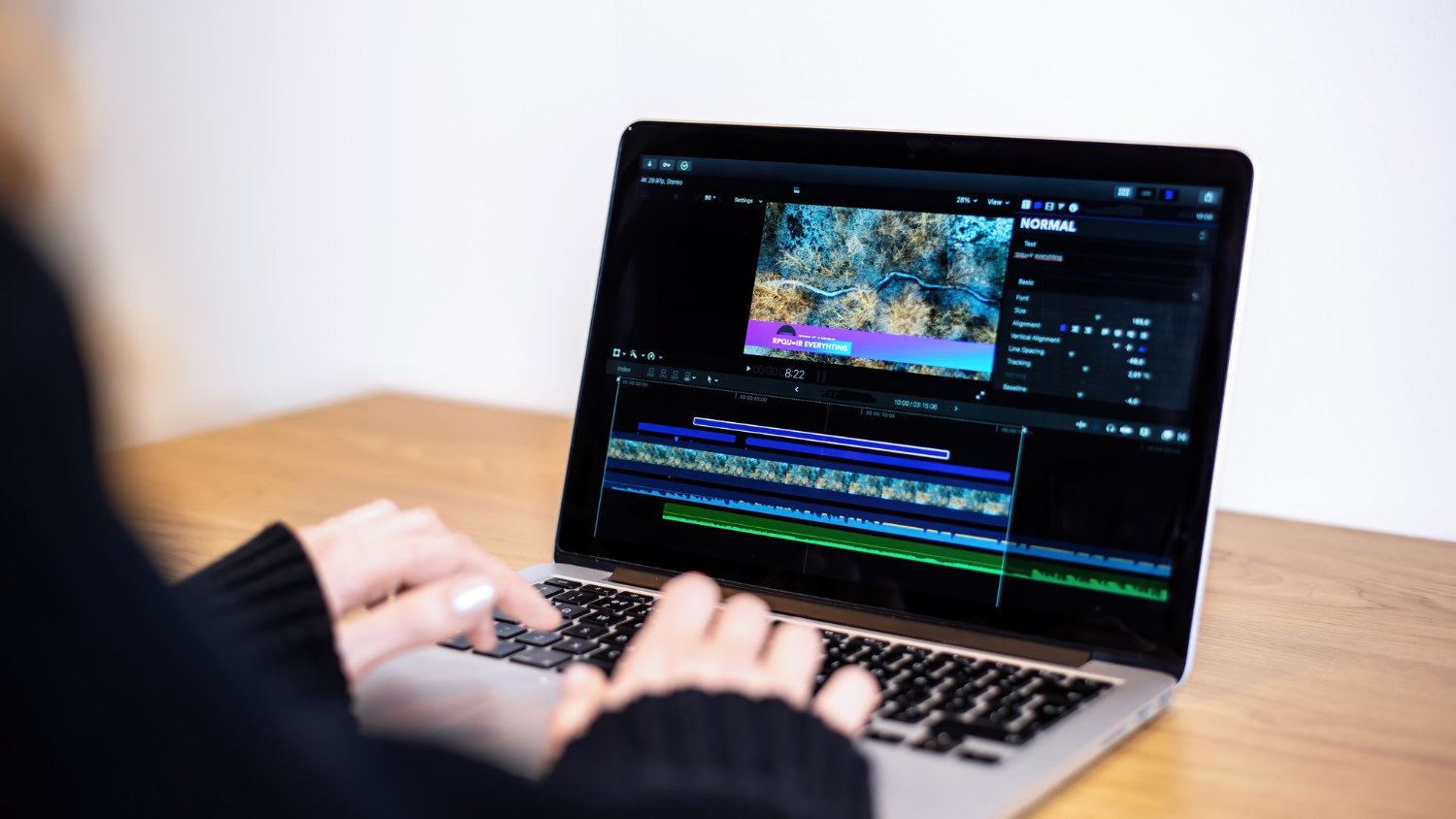
The screen recording feature on computers is used more and more often today, both for work and everyday tasks. It is useful for creating clear step-by-step instructions, explaining complex actions, saving online events, and capturing gameplay moments. In this article, we will look at the main ways to record your screen on a PC, from built-in Windows tools to a more practical solution — the SleekShot app.
When Screen Recording Is Needed
Recording what is happening on the screen makes it easier to clearly communicate information. This format is especially useful for creating educational materials, where it is important to show the entire process step by step. Recorded online meetings and webinars help you avoid missing important details and allow you to revisit them later at any convenient time. Screen capture is also often used for demonstrating software, testing interfaces, preparing reports, or saving gameplay.
How to Record Your Screen Using Built-in Windows Tools
Xbox Game Bar
Windows 10 and 11 include a built-in screen recording tool called Xbox Game Bar. It allows you to quickly start recording in almost any application. To open the panel, press Win + G, and to start recording, use the Record button or the shortcut Win + Alt + R. After stopping the recording, the video is automatically saved in the “Videos → Captures” folder. This method is convenient for quick tasks but is not suitable for users who need advanced settings or editing features.
Screen Recording in PowerPoint
If you have Microsoft Office installed, you can use PowerPoint’s screen recording feature. It is available in the “Insert” menu. You can select the area you want to record, start the capture, and save the result either inside the presentation or as a separate file. This option works well for short demonstrations but is not designed for long recordings or complex workflows.
What You Can Configure When Recording Your Screen
Even basic Windows tools allow you to control the recording process. You can select a specific screen area, enable system audio or microphone for voice commentary, use hotkeys for quick control, and predefine the folder where files will be saved. These settings help make screen recordings more convenient and organized.
SleekShot — a Convenient Screen Recording Solution
If built-in tools are not enough, SleekShot is a great alternative. This application is designed for simplicity and ease of use. It is suitable for creating tutorials, guides, webinar recordings, and demonstrating workflows. A clean interface and a well-thought-out set of features make SleekShot a practical tool for anyone who needs to record their screen quickly and without unnecessary complexity.


