Free Screen Recorder for Windows: Audio, Webcam, No Watermark
Sleekshot is a free screen recorder for Windows 10 and 11. It records any area of the screen to MP4 with your microphone, computer sound and your webcam in a bubble if you want it. You can highlight clicks and draw arrows on the screen while you record, pause and copy the finished video straight to the clipboard. There's no watermark, no time limit and no account.
H.264 video with AAC sound from your microphone, your computer or both.
Webcam bubble
A round camera window you can drag anywhere and resize from 120 to 800 px.
Draw while you record
Arrows, boxes and highlighter strokes show up in the video as you draw them.
Highlighted clicks
Animated circles show viewers exactly where you clicked.
Copy the MP4 to the clipboard
Paste the finished video into a chat or an email without opening a folder.
No watermark, no time limit
Free, with no account. Record for as long as your disk space allows.
To record your screen with Sleekshot, press PrtSc and select an area. Press V to switch to the screen recorder, then Ctrl + R to start. You get an MP4 with your voice and your computer's sound. If you want, add your webcam in a bubble, highlight your clicks and draw arrows on the screen. It's free, with no watermark, no time limit and no account.
The screen recorder starts the same way as a screenshot, so there's nothing new to learn: the same selection, the same toolbar, one extra key. It runs on Windows 10 (1809 or later) and Windows 11, on x64, x86 and ARM64 PCs.
How to record your screen with Sleekshot
Press PrtSc. The screen dims.
Drag over the area you want to record, click a window or press Ctrl + A for the whole monitor. Need an exact size like 1920 × 1080? Type it into the size box or pick a ready-made size.
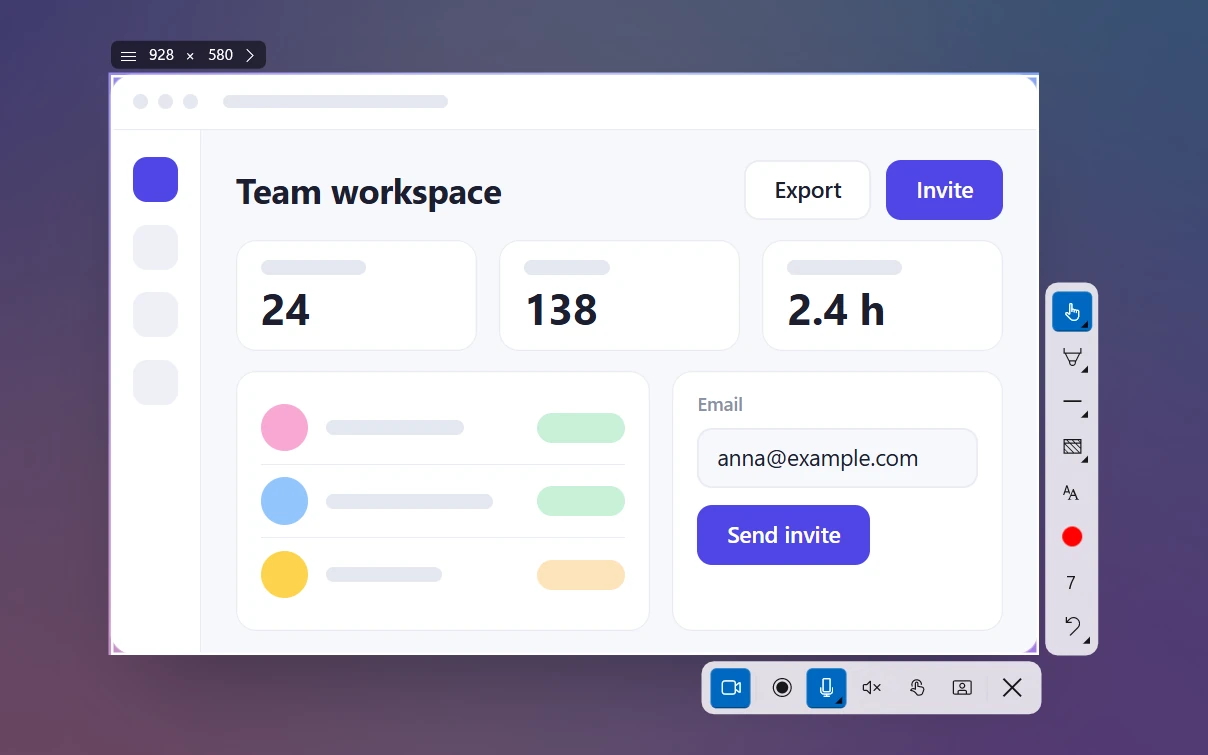
Press V (Screen recorder mode). The recording toolbar appears.
Pick a microphone, and turn system audio, click highlights and the camera on or off.
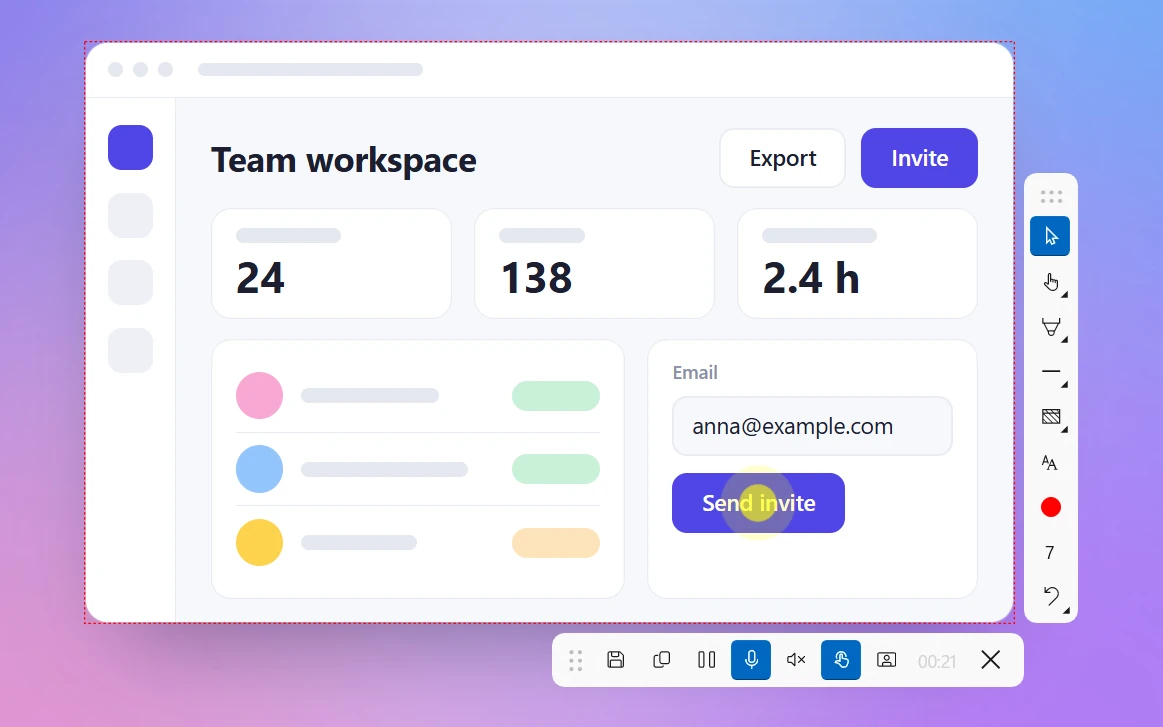
Press Ctrl + R (Record). A red dashed outline marks the area being recorded, and the toolbar shows a timer.
When you're done, click Save to file or Copy to clipboard. Pause / Resume and Discard and Close are on the same toolbar.
Every recording option on one toolbar
Sleekshot keeps its own toolbars out of the video, so viewers only see your screen. For a side-by-side comparison with Snipping Tool, Xbox Game Bar and OBS Studio, see how to screen record on Windows.
Microphone and system audio
Sleekshot records sound from your microphone, from the PC itself (system audio) or both, in one AAC track at 128 kbps. The microphone list shows a live level meter, so you can check that the right mic hears you before you press Record. System audio has its own switch: turn it on for a product demo with sound and off for a silent bug report.
Tip: Before a long session, record five seconds and play them back. A muted or wrong microphone is the most common reason to record again. More in how to record your screen with audio.
Webcam bubble, highlighted clicks and drawing on the screen
These three are why people pick Sleekshot over the recorders built into Windows:
Webcam bubble. Turn on the camera, and a round video of you appears over the recording. Drag it to any corner and resize it from 120 to 800 px. It's handy for course videos and video updates. See how to record your screen with a webcam.
Highlighted clicks. Every mouse click shows an animated circle, so viewers can follow quick clicks in a tutorial.
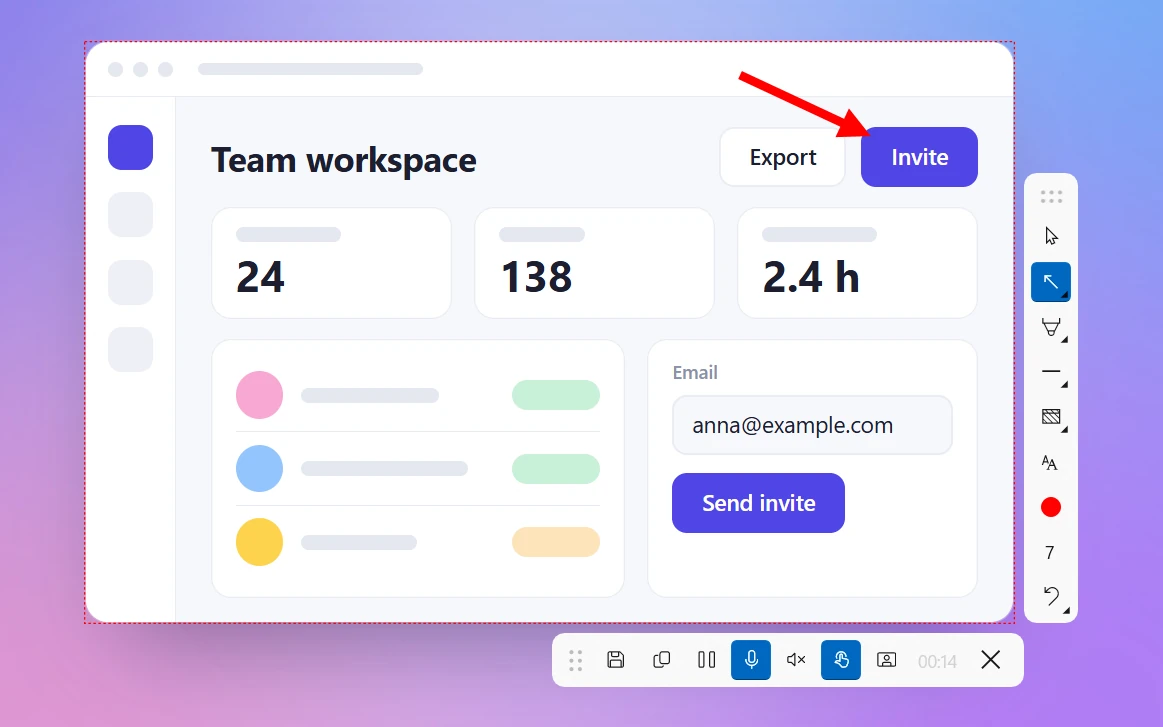
Draw while you record. All the tools for arrows, steps and blur are still there. Drop an arrow, a box or a highlighter stroke exactly where you're pointing, and it shows up in the video. Click Cursor to go back to using the desktop.
What you draw becomes part of the video
Quality and file sizes
Pick the quality in Settings → Video → Recording quality. The video is H.264 in an MP4 file. Sleekshot uses your graphics card to encode it and falls back to the processor if it can't.
Quality
Frame rate
Video bitrate
About this much per minute
Compact (default)
20 fps
2 Mbps
~15 MB
Optimal
30 fps
5 Mbps
~38 MB
High
60 fps
10 Mbps
~75 MB
The sizes are simple bitrate math (Mbps × 60 ÷ 8) plus about 1 MB per minute for sound. Compact is plenty for clicking around apps. Choose High for games, animations and fast scrolling. Our screen recording quality guide has more on resolution and frame rate.
Highlighted clicks help viewers follow along
Saving and sharing a recording
The first time you record, Sleekshot asks Save recordings by default? Choose Save all recordings to keep every video in Videos\Sleekshot, or pick another folder. You can change this later in Settings → Video.
Copy to clipboard puts the MP4 on the clipboard as a file. Paste it into Slack, Telegram or an email with Ctrl + V, without digging through folders. If you lose track of a file, where screen recordings are saved lists the folders of every common recorder.
What it doesn't do (yet)
MP4 only. There's no GIF export and no trimming. To cut a clip, open the MP4 in Clipchamp (it comes with Windows 11) or any video editor.
One area at a time. Sleekshot records one selected area on one monitor, and you can't schedule a recording or start it on a delay.
Windows only. Sleekshot for Mac takes screenshots but doesn't record video.
Drawings stay where you put them. Undo with Ctrl + Z and draw again if you need to.
Comparing options? See our list of free screen recorders without a watermark, or download Sleekshot and make a ten-second test recording.
Frequently asked questions
Is the Sleekshot screen recorder really free?
Yes. In the current version, recording is free, with no watermark, no time limit and no account. It works on Windows 10 (version 1809 or later) and Windows 11.
Can I record system audio and my microphone at the same time?
Yes. Pick a microphone on the recording toolbar (its live level meter shows that it's working) and turn on system audio. Both end up in the MP4.
Where does Sleekshot save screen recordings?
In Videos → Sleekshot by default. You can pick another folder in Settings → Video, or skip saving and copy the MP4 to the clipboard instead.
Can I record at 60 fps?
Yes. The High setting records at 60 fps and 10 Mbps. The default, Compact (20 fps, 2 Mbps), keeps files to roughly 15 MB per minute.
Can I record my webcam together with the screen?
Yes. Turn on the camera on the recording toolbar, and a round webcam bubble is recorded along with the screen. Drag it anywhere and resize it from 120 to 800 px.
Can I trim a recording or save it as a GIF?
Not in Sleekshot. It saves MP4 only and has no video editor. Trim the file in Clipchamp, which comes with Windows 11, or in any other video editor.
Screen record on Windows 11 or 10 for free: Snipping Tool (Win+Shift+R), Xbox Game Bar (Win+Alt+R), Sleekshot and OBS. Steps, sound, webcam and where files go.