Where Do Screen Recordings Go on Windows? How to Find Every Recording
 By Sleekshot Team
8 min read
By Sleekshot Team
8 min read
Short answer
On Windows 11, Snipping Tool screen recordings (Win + Shift + R) are saved as MP4 files in Videos → Screen Recordings, and Xbox Game Bar clips (Win + Alt + R) go to Videos → Captures. Sleekshot saves to Videos → Sleekshot, and OBS Studio to the Videos folder itself. If you can't find a file, search File Explorer for kind:video and sort the results by Date modified.
On this page
- Where each screen recorder saves videos
- Snipping Tool recordings: Videos\Screen Recordings
- Xbox Game Bar recordings: Videos\Captures
- Sleekshot recordings: Videos\Sleekshot
- OBS Studio recordings: the Videos folder
- Other places screen recordings end up
- Can't find your screen recording? 7 checks
- Screen recordings on a Mac or iPhone
Screen recordings on Windows are saved in your Videos folder, but each recorder uses its own subfolder. Snipping Tool on Windows 11 (Win + Shift + R) saves MP4 files to C:\Users\<you>\Videos\Screen Recordings. Xbox Game Bar (Win + Alt + R) saves them to C:\Users\<you>\Videos\Captures. Free apps like Sleekshot and OBS Studio use Videos\Sleekshot and Videos itself.
Not sure which app made the video? The checklist at the end starts with one File Explorer search that finds every video on the PC, newest first. Before that, you'll find the folder, the file name and the fastest way to open the folder for each common screen recorder. Then you'll see how to change where recordings go.
Where each screen recorder saves videos
Here's where recordings go by default, as of October 2026. <you> is your Windows user name, so Videos means C:\Users\<you>\Videos.
| Recorder | Default folder | File name looks like | Open the folder fast |
|---|---|---|---|
| Snipping Tool, Windows 11 (Win + Shift + R) | Videos\Screen Recordings |
Screen Recording 2026-10-01 143015.mp4 |
Snipping Tool → Settings |
| Xbox Game Bar, Windows 10 and 11 (Win + Alt + R) | Videos\Captures |
<window title> 2026-10-01 14-30-15.mp4 |
Win + G → See my captures |
| Sleekshot (PrtSc → V → Ctrl + R) | Videos\Sleekshot or a folder you choose |
Sleekshot 2026-10-01 14-30-15.mp4 |
Settings → Video |
| OBS Studio | Videos |
2026-10-01 14-30-15.mp4 |
File → Show Recordings |
| ShareX | Documents\ShareX\Screenshots\2026-10 |
Set in ShareX's file name settings | Paste the path into File Explorer |
| PowerPoint (Insert → Screen Recording) | Inside the slide, not a separate file | — | Right-click the video → Save Media as |
| Microsoft Teams meeting | The organizer's OneDrive → Recordings | — | Link in the meeting chat |
| Zoom local recording | Documents\Zoom |
— | Zoom → Settings → Recording |
You can also paste these into the Run box (Win + R) or the File Explorer address bar. The first two work in any Windows language:
shell:Capturesopens the Xbox Game Bar folder.shell:My Videoopens your Videos folder, where the other subfolders are.%USERPROFILE%\Videos\Screen Recordingsopens the Snipping Tool folder on Windows in English.
Screenshots follow different rules. They're covered in where screenshots go on Windows.
Snipping Tool recordings: Videos\Screen Recordings
Snipping Tool saves every screen recording on its own as soon as you click Stop. The MP4 goes to C:\Users\<you>\Videos\Screen Recordings, and its name has the date and the time (with no separators), for example Screen Recording 2026-10-01 143015.mp4.
To see or change the folder:
- Open Snipping Tool from the Start menu.
- Click See more (⋯) → Settings.
- Find Automatically save original screen recordings and expand it.
- Next to Screen recordings are saved to, you'll see the current folder. Click Change to pick another one.
Three things explain most "missing" Snipping Tool videos:
- Automatic saving is off. If someone turned off Automatically save original screen recordings, the video only exists in the window that opens after recording. Press Save as (Ctrl + S) before you close it.
- Only the original is saved on its own. If you trimmed the clip (Video trim, Ctrl + E), the folder still has the untrimmed original. Save the edited version yourself with Ctrl + S.
- The folder name follows your language. On Windows in another language, Snipping Tool gives the folder a translated name inside Videos. The Settings page always shows the real path.
Note: Snipping Tool on Windows 10 can't record video. If you made a recording on Windows 10, it came from Game Bar or another app.
Xbox Game Bar recordings: Videos\Captures
Xbox Game Bar saves clips from Win + Alt + R (and screenshots from Win + Alt + PrtSc) to C:\Users\<you>\Videos\Captures. Each file is named after the window you recorded, followed by the date and time, so it's easy to spot in a long list.
Three ways to open it:
- From Game Bar. Press Win + G, open the Capture widget and click See my captures. The gallery shows your clips, and Open file location opens the folder in File Explorer.
- From Settings. Go to Settings → Gaming → Captures. The page shows where "screenshots and game clips will save to" and has an Open folder button.
- By name. Press Win + R, type
shell:Capturesand press Enter.
Game Bar doesn't let you pick a folder. To keep clips somewhere else, move the folder itself: right-click Captures → Properties → Location → Move, then choose the new place. The same steps for screenshots are in how to change the screenshot folder.
Game Bar may say "We can't save your recording. Make sure your captures folder allows files to be saved". That means the Captures folder was deleted, moved to a drive that's no longer plugged in, or is read-only. Open Settings → Gaming → Captures to see which path it expects. More about this recorder in our Xbox Game Bar recording guide.
Sleekshot recordings: Videos\Sleekshot
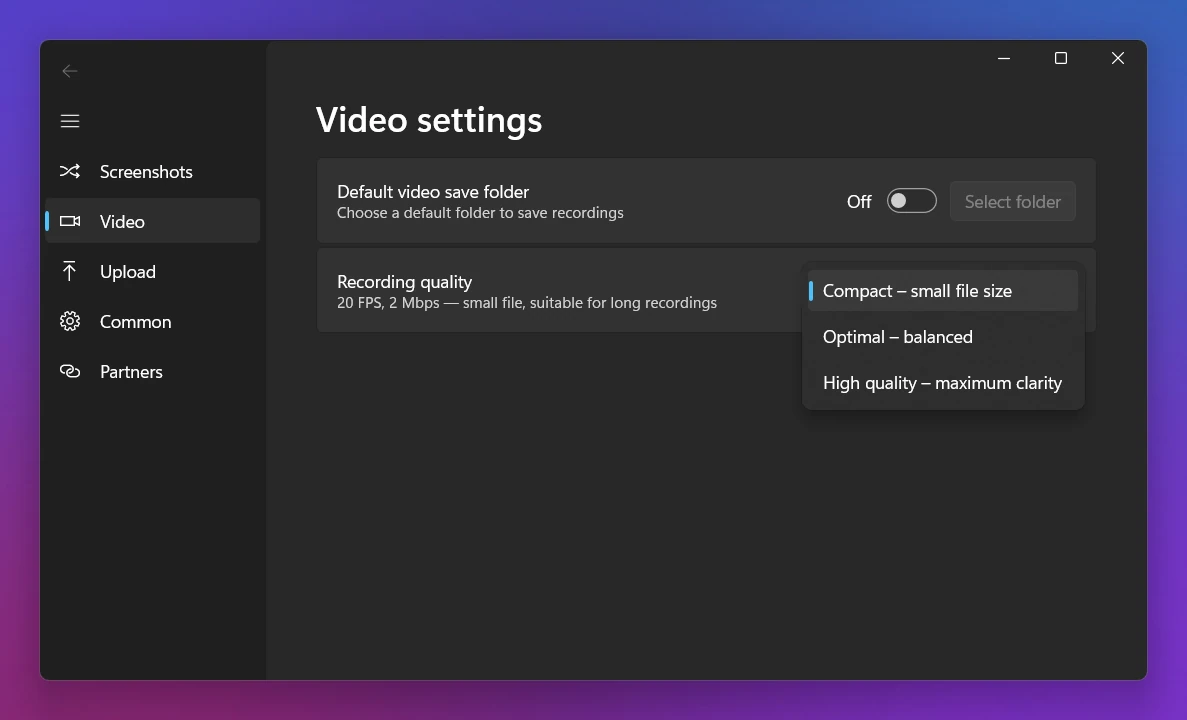
Sleekshot is a free screenshot and screen recording app for Windows 10 and 11. The first time you record, it asks where to keep videos. The Save recordings by default? dialog offers Save all recordings (to Videos\Sleekshot), Don't save recordings and Change folder.
- With Save all recordings, every video goes to the folder, even the ones you only Copy to clipboard to paste into a chat. Files are named
Sleekshot 2026-10-01 14-30-15.mp4. - With Don't save recordings, a video is only kept when you click Save to file on the toolbar. Use this if you mostly paste clips into Slack or Telegram and don't want a folder full of them.
- To change your choice or the folder later, open Settings → Video (Default video save folder → Select folder).
Sleekshot records an area, a window or a whole monitor to MP4, with your microphone, computer sound and your webcam if you want it. There's no watermark or time limit. It doesn't trim videos and has no GIF export, and the Mac version takes screenshots only. The full walkthrough is in how to screen record on Windows.
OBS Studio recordings: the Videos folder
OBS Studio saves recordings straight into C:\Users\<you>\Videos, not a subfolder, and names them by date and time: 2026-10-01 14-30-15.mp4. Since OBS 32, new profiles record to Hybrid MP4, a format that still plays if the PC crashes. Older setups often use MKV.
- Find the latest file: File → Show Recordings opens the folder. After you stop, the status bar also shows "Recording saved to" with the full path.
- Change the folder: Settings → Output → Recording Path (in Advanced output mode, on the Recording tab).
- Your editor won't open MKV? Use File → Remux Recordings to turn it into an MP4 without re-encoding.
Other places screen recordings end up
- ShareX saves recordings next to its screenshots, in
Documents\ShareX\Screenshots, with a subfolder for each month, like2026-10. - PowerPoint puts the recording on the current slide. Right-click it and choose Save Media as to get a separate file.
- Microsoft Teams saves meeting recordings to the organizer's OneDrive, in the Recordings folder. Channel meetings go to the team's SharePoint site, under Documents → Recordings. Nothing is stored on your PC.
- Zoom keeps local recordings in
Documents\Zoomby default. The exact folder is shown in Zoom's Settings → Recording. Cloud recordings stay in your Zoom account. - Graphics card apps (NVIDIA app, AMD Software) use their own folder, which you'll find in each app's recording settings.
Can't find your screen recording? 7 checks
Start at the top. The first check alone finds most lost videos.
- Search by file type. Open File Explorer, click your user folder or This PC and type
kind:video datemodified:todayin the search box (or*.mp4). Switch to Details view and sort by Date modified. The newest video is your recording. - Look in OneDrive. If OneDrive backs up your Videos folder, recordings are in
C:\Users\<you>\OneDrive\Videos\…, and the regularVideosfolder looks empty. You can check this in OneDrive Settings → Sync and backup → Manage backup. - Check which app you used. Win + Shift + R is Snipping Tool, and Win + Alt + R is Game Bar. On Windows 11, PrtSc opens the Snipping Tool bar. If it was set to screenshots, you got an image in
Pictures\Screenshots, not a video. - Check Snipping Tool's auto-save. If Automatically save original screen recordings is off, only the recordings you saved with Ctrl + S exist.
- Look for an error. When the disk is full or a monitor gets unplugged, Snipping Tool stops and saves what it has. Game Bar shows a "can't save your recording" message. Free up space in Settings → System → Storage before you try again.
- Check the clipboard. In Sleekshot, Copy to clipboard (with saving turned off) only keeps a copy on the clipboard, and so can Snipping Tool's edits. If you haven't copied anything since, paste into a chat or a folder with Ctrl + V.
- Check the Recycle Bin if you cleaned up the Videos folder recently.
Tip: Did the recording stop after exactly 2 hours? That's Game Bar's default maximum length, not a lost file. See how long you can screen record on Windows.
Screen recordings on a Mac or iPhone
On a Mac, screen recordings made with Shift + Command + 5 are saved to the desktop as .mov files. Their names start with "Screen Recording" and include the date and time. To change this, press Shift + Command + 5, click Options and pick a folder under Save to. Mac screenshots follow the same setting. See where screenshots go on a Mac.
On an iPhone or iPad, a screen recording from Control Center goes to the Photos app, in your Library next to your photos and videos.
Frequently asked questions
Where do Snipping Tool screen recordings go?
Where does Win + Alt + R save recordings?
Why can't I find my screen recording?
How do I change where screen recordings are saved?
Are screen recordings saved to OneDrive?
Where are screen recordings saved on a Mac?
Sleekshot Team
We build Sleekshot, a free screenshot and screen recording app for Windows and Mac. Every guide is checked on current Windows 11, Windows 10 and macOS builds.
Also available in: Русский