Where Do Screenshots Go on Windows? Every Location and How to Find Lost Ones
 By Sleekshot Team
7 min read
By Sleekshot Team
7 min read
Short answer
It depends on the shortcut. Win + PrtSc and Snipping Tool in Windows 11 (PrtSc or Win + Shift + S) save PNG files to This PC → Pictures → Screenshots. If OneDrive backs up your Pictures folder, they go to OneDrive → Pictures → Screenshots. Alt + PrtSc, and PrtSc or Win + Shift + S on Windows 10, only copy the image to the clipboard. There's no file until you paste it somewhere and save it.
On this page
- Where each screenshot method saves: quick table
- Win + PrtSc: the Pictures → Screenshots folder
- PrtSc and Win + Shift + S on Windows 11: clipboard plus a file
- PrtSc and Alt + PrtSc: only the clipboard
- Xbox Game Bar and screen recordings: the Videos folder
- OneDrive: when your screenshots move to the cloud
- How to find a lost screenshot
- Sleekshot: you decide where every screenshot goes
Where your screenshot ends up depends on the key you pressed. Win + PrtSc saves a PNG file straight to C:\Users\<you>\Pictures\Screenshots. On Windows 11, PrtSc and Win + Shift + S open Snipping Tool, which copies the snip to the clipboard and saves it to the same folder. Plain PrtSc on Windows 10 and Alt + PrtSc only put the image on the clipboard. There's no file until you paste it somewhere and save it.
If the Screenshots folder is empty, check OneDrive. When OneDrive backs up your Pictures folder, the path becomes C:\Users\<you>\OneDrive\Pictures\Screenshots.
Where each screenshot method saves: quick table
This table covers every built-in way to take a screenshot on Windows 10 and 11 (as of October 2026), plus Sleekshot.
| Method | Windows | Where the image goes | File name |
|---|---|---|---|
| Win + PrtSc | 10, 11 | File in Pictures\Screenshots |
Screenshot (1).png, Screenshot (2).png… |
| PrtSc (Windows 11 default: opens Snipping Tool) | 11 | Clipboard + file in Pictures\Screenshots |
Screenshot 2026-10-01 143512.png |
| Win + Shift + S | 11 | Clipboard + file in Pictures\Screenshots |
Screenshot 2026-10-01 143512.png |
| Win + Shift + S (Snip & Sketch) | 10 | Clipboard only | — |
| PrtSc (classic behavior) | 10, 11 | Clipboard only, all monitors | — |
| Alt + PrtSc | 10, 11 | Clipboard only, active window | — |
| Win + Alt + PrtSc (Xbox Game Bar) | 10, 11 | File in Videos\Captures |
App name + date |
| Win + Shift + R (Snipping Tool video) | 11 | MP4 in Videos\Screen Recordings |
— |
| Any method above + OneDrive backup of Pictures | 10, 11 | OneDrive\Pictures\Screenshots |
Same as above |
| Sleekshot (PrtSc) | 10, 11 | Clipboard, a folder you choose or an auto-save folder | Sleekshot 2026-10-01 14-35-12.png |
The fastest way to open the Screenshots folder, wherever it is: type shell:Screenshots into the File Explorer address bar and press Enter. The Run box (Win + R) works too.
Win + PrtSc: the Pictures → Screenshots folder
Win + PrtSc is the only classic shortcut that creates a file right away. The screen dims for a moment, and Windows saves a full-screen PNG to C:\Users\<you>\Pictures\Screenshots. The files are numbered: Screenshot (1).png, Screenshot (2).png and so on.
To open the folder:
- Open File Explorer (Win + E).
- Click Pictures in the left pane.
- Open Screenshots.
If you have two or more monitors, the image shows all of them side by side. To get just one screen, see how to screenshot only one monitor.
PrtSc and Win + Shift + S on Windows 11: clipboard plus a file
On Windows 11, both PrtSc and Win + Shift + S open the Snipping Tool bar. After you select an area, the snip goes to the clipboard and is also saved as a PNG in Pictures\Screenshots. Its name has the date and time, for example Screenshot 2026-10-01 143512.png.
This auto-save is a Snipping Tool setting called Automatically save original screenshots, and it's on by default. If your snips stopped showing up in the folder, someone probably turned it off:
- Open Snipping Tool from the Start menu.
- Click See more (the three dots) → Settings.
- Turn on Automatically save original screenshots. In current versions, the folder is shown right below it under Screenshots are saved to, with a Change link.
Since 2023, Windows 11 ties the PrtSc key to Snipping Tool by default. The switch is called Use the Print screen key to open screen capture. It's in Settings → Bluetooth & devices → Keyboard in recent builds (in older ones: Settings → Accessibility → Keyboard). With the switch off, PrtSc goes back to the classic behavior described below: the clipboard only.
PrtSc and Alt + PrtSc: only the clipboard
Classic PrtSc (Windows 10, or Windows 11 with the switch above turned off) copies the whole screen to the clipboard. Alt + PrtSc copies only the active window. Neither one creates a file.
To turn it into a file:
- Open Paint (or Word, or a chat).
- Press Ctrl + V.
- In Paint, press Ctrl + S and pick a folder.
The clipboard holds one item. The next time you copy anything, even a single word, the screenshot is gone, unless clipboard history is on. Turn it on in Settings → System → Clipboard or by pressing Win + V. It keeps the last 25 items (images up to 4 MB) and clears everything except pinned items when you restart. More in using clipboard history for screenshots.
On Windows 10, Win + Shift + S works the same way. Snip & Sketch copies the snip and shows a notification. Click the notification to open the snip, then press Ctrl + S to save it.
Xbox Game Bar and screen recordings: the Videos folder
Game Bar screenshots and videos don't go to Pictures at all.
- Win + Alt + PrtSc (an Xbox Game Bar screenshot) saves a PNG of the active game or app to
C:\Users\<you>\Videos\Captures. Game Bar recordings (Win + Alt + R) go to the same folder. - Snipping Tool recordings (Win + Shift + R) are saved as MP4 files in
C:\Users\<you>\Videos\Screen Recordings.
All the video folders, including those of popular recorders, are in where screen recordings are saved.
OneDrive: when your screenshots move to the cloud
If OneDrive backs up your Pictures folder, the Screenshots folder moves with it to C:\Users\<you>\OneDrive\Pictures\Screenshots. On many Windows 11 PCs signed in with a Microsoft account, this backup is on from day one, often without the owner noticing.
You can tell by the path: open shell:Screenshots and look at the address bar. If it says OneDrive, every new screenshot gets uploaded to the cloud. Older guides mention a OneDrive switch called Save screenshots I capture to OneDrive. Microsoft removed it in 2024, and now the Pictures backup is the only reason screenshots end up there. How to keep them on your PC, or sync them on purpose, is covered in screenshots saving to OneDrive.
How to find a lost screenshot
Go through these checks in order. The first two only help if the screenshot is still in memory, so do them before you copy anything else.
- Paste it. Open Paint and press Ctrl + V. If the image appears, it was on the clipboard all along. Save it now with Ctrl + S.
- Check clipboard history. Press Win + V. If history was on, recent screenshots show up as thumbnails.
- Open the real Screenshots folder. Type
shell:Screenshotsin the File Explorer address bar. This opens the folder even if it was moved or sent to OneDrive. - Check the other folders:
OneDrive\Pictures\Screenshots,Videos\CapturesandVideos\Screen Recordings. - Search the whole PC. In File Explorer, click This PC and search for
Screenshotorkind:picture datemodified:today. - Check where the folder points. Right-click the Screenshots folder → Properties → Location tab. The path there is where Windows actually saves. To move it somewhere else, follow how to change the screenshot folder.
Sleekshot: you decide where every screenshot goes
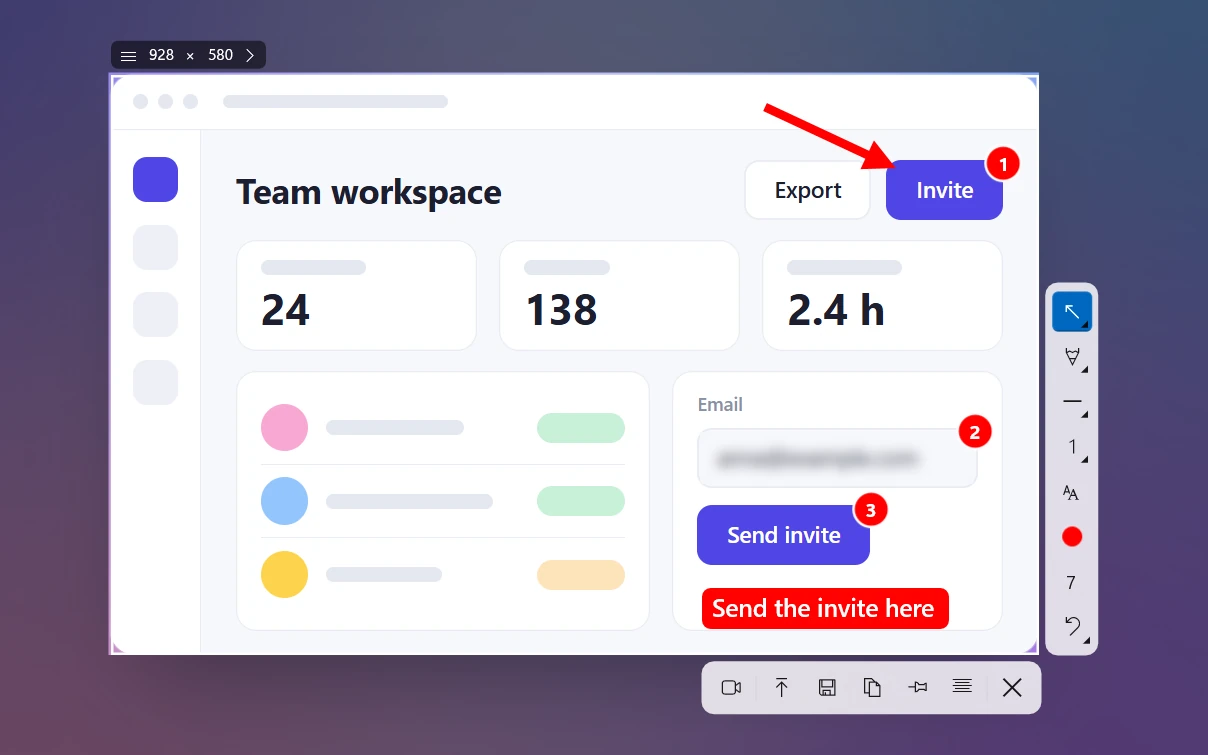
Sleekshot is a free screenshot and screen recording app for Windows 10 and 11, with no account and no watermark. Press PrtSc, select an area, add arrows or text right on the screenshot and choose what happens to the image:
| Action | Key | Result |
|---|---|---|
| Copy | Ctrl + C | Clipboard |
| Save | Ctrl + S | Save dialog, any folder |
| Quick save | Ctrl + Shift + S | One of the last 3 folders you used |
| Upload | Ctrl + U | A short link you can share |
If you want a file for every screenshot, turn on Auto-save screenshots in Settings → Screenshots and pick a folder. From then on, every time you copy, save or upload, Sleekshot also saves a file there, so nothing lives only on the clipboard. Files are named like Sleekshot 2026-10-01 14-35-12.png, and you can choose PNG, JPEG or WebP. After saving, a Screenshot saved notification appears. Click it to open the folder.
What Sleekshot doesn't do: it has no history gallery, so the auto-save folder is your history. It also doesn't change the Windows Screenshots folder, so Win + PrtSc keeps saving there. On Windows 11, Sleekshot can only use PrtSc once Snipping Tool lets go of it. The app's Bind PrtSc to Sleekshot button does that in one click. Or you can pick any other key.
Frequently asked questions
Where do Win + Shift + S screenshots go?
Why can't I find my screenshots on my PC?
Does Print Screen save a file?
Where are Xbox Game Bar screenshots saved?
Can I get a screenshot back after I copied something else?
How do I change where screenshots are saved?
Sleekshot Team
We build Sleekshot, a free screenshot and screen recording app for Windows and Mac. Every guide is checked on current Windows 11, Windows 10 and macOS builds.
Also available in: Deutsch Français Español Italiano Русский ភាសាខ្មែរ Bahasa Indonesia 简体中文 日本語