How to Screenshot One Monitor on a Dual-Monitor Setup (Windows 11 and 10)
 By Sleekshot Team
6 min read
By Sleekshot Team
6 min read
Short answer
PrtSc and Win + PrtSc grab all your monitors as one wide image. To get just one screen, press Win + Shift + S and drag over that monitor, or maximize a window on it and press Alt + PrtSc. In Sleekshot, press PrtSc, move the mouse to the monitor you want and press Ctrl+A to take exactly that display.
On this page
- What each method grabs: quick comparison
- Why Print Screen grabs both monitors
- Method 1: Win + Shift + S, then drag over one monitor
- Method 2: Alt + PrtSc on a maximized window
- Method 3: Xbox Game Bar for full-screen games
- Method 4: Grab everything, then crop
- Method 5: Sleekshot, where Ctrl + A takes the monitor you're on
- Tips for several monitors and scaling
On Windows, PrtSc and Win + PrtSc grab all your monitors at once, as one wide image. To screenshot only one monitor, press Win + Shift + S and drag over that screen, or maximize a window on it and press Alt + PrtSc. If you do this a lot, a screenshot app that can take the current monitor saves you the dragging. In Sleekshot, that's PrtSc, then Ctrl + A.
What each method grabs: quick comparison
Here's how each option works with two (or three) monitors, as of October 2026.
| Method | What it grabs | Where it goes | Good for |
|---|---|---|---|
| PrtSc (classic behavior) | All monitors, one image | Clipboard | Nothing, if you want one screen |
| Win + PrtSc | All monitors, one image | Pictures\Screenshots |
Grabbing everything, then cropping |
| Win + Shift + S → Rectangle | The area you drag | Clipboard (+ a file on Windows 11) | One monitor in any app |
| Win + Shift + S → Window | One window | Clipboard (+ a file on Windows 11) | A maximized app |
| Win + Shift + S → Full screen | All monitors, one image | Clipboard (+ a file on Windows 11) | Not for one screen |
| Alt + PrtSc | The active window | Clipboard | Fastest built-in option |
| Win + Alt + PrtSc (Xbox Game Bar) | The active game or app | Videos\Captures |
Full-screen games |
| Sleekshot: PrtSc → Ctrl + A | The monitor under the mouse | Clipboard, file or link | Exactly one monitor, with arrows and blur |
| ShareX: Capture → Monitor | The monitor you pick | ShareX folder | If you already use ShareX |
Not sure where a screenshot ended up? See where screenshots go on Windows.
Why Print Screen grabs both monitors
Windows treats all your displays as one big desktop, and PrtSc copies that whole desktop. Two 1920 × 1080 monitors side by side give you one 3840 × 1080 image. A laptop screen next to a taller external monitor gives you a rectangle with gaps, and those gaps come out black.
To see how Windows arranges your screens, open Settings → System → Display and click Identify. A big number shows up on each monitor for a few seconds. The layout on that page is exactly the layout of your full-desktop screenshots.
Method 1: Win + Shift + S, then drag over one monitor
This works on Windows 10 and 11 in any app. It's the built-in method we'd use most of the time.
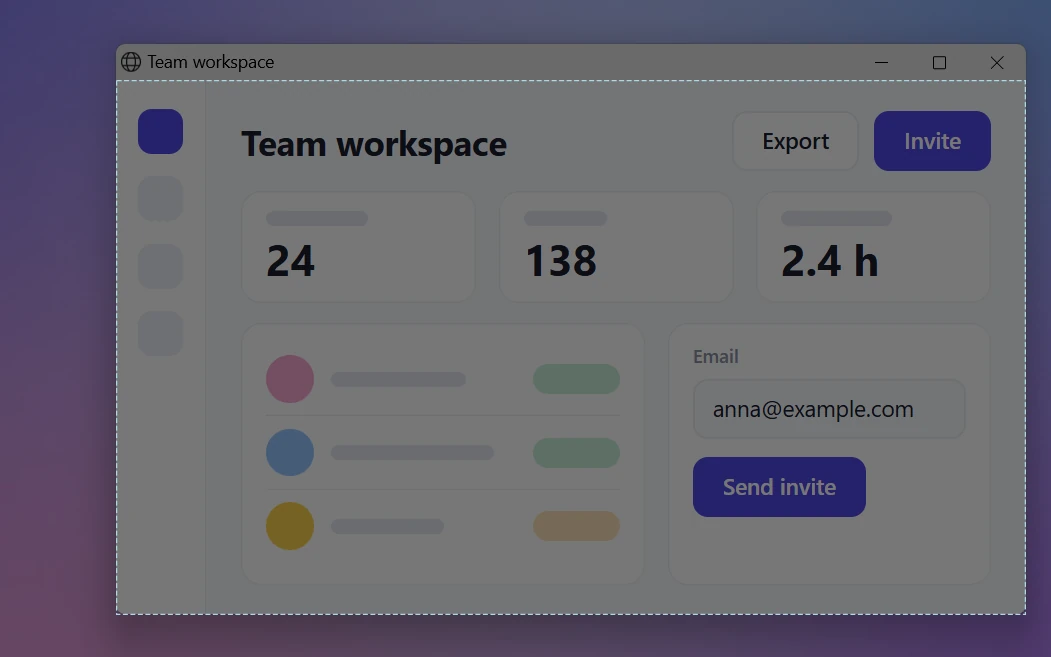
- Press Win + Shift + S. On Windows 11, PrtSc does the same by default. The screens dim and a small toolbar appears at the top.
- Make sure Rectangle mode is selected on the toolbar.
- Drag from one corner of the monitor you want to the opposite corner.
- Let go. The snip is copied to the clipboard. On Windows 11, Snipping Tool also saves it to
Pictures\Screenshots.
Tip for a clean edge: start in the outer corner of the monitor and push the mouse into it. The pointer can't leave the desktop there, so you can't overshoot. Only the edge you share with the other monitor needs care, so finish there slowly.
Skip the Full screen option on the toolbar. With several monitors, it grabs every display as one image, just like PrtSc.
Method 2: Alt + PrtSc on a maximized window
If the app you want fills the monitor anyway, this is the fastest built-in option.
- Click a window on the monitor you want and maximize it (Win + ↑).
- Press Alt + PrtSc. Windows copies only the active window to the clipboard.
- Paste it with Ctrl + V into a chat, a document or Paint, and save it from there.
You get the whole monitor except the taskbar. If you need a file right away, use Window mode on the Win + Shift + S toolbar instead and click the maximized window. More window tricks are in how to screenshot a single window.
Method 3: Xbox Game Bar for full-screen games
For a game running full screen on one monitor, press Win + Alt + PrtSc. Xbox Game Bar takes only the active game window, never the other screen, and saves a PNG to C:\Users\<you>\Videos\Captures. It needs a game or app in front. Game Bar won't screenshot the bare desktop.
Method 4: Grab everything, then crop
It's the slowest option, but it works on any PC with no setup.
- Press Win + PrtSc. Windows saves a PNG of the whole desktop to
Pictures\Screenshots. - Open the file in Paint.
- Choose Select, drag over the monitor you want to keep and click Crop (Ctrl + Shift + X).
- Save with Ctrl + S.
You may also see advice to press Win + P and switch to PC screen only before taking the screenshot. It works, but Windows piles every open window onto one display while you do it. Cropping is less disruptive.
Method 5: Sleekshot, where Ctrl + A takes the monitor you're on
Sleekshot is a free screenshot and screen recording app for Windows 10 and 11, and it was built with several monitors in mind. When you press PrtSc, it takes a still picture of every screen at the same moment, each at its own scaling.
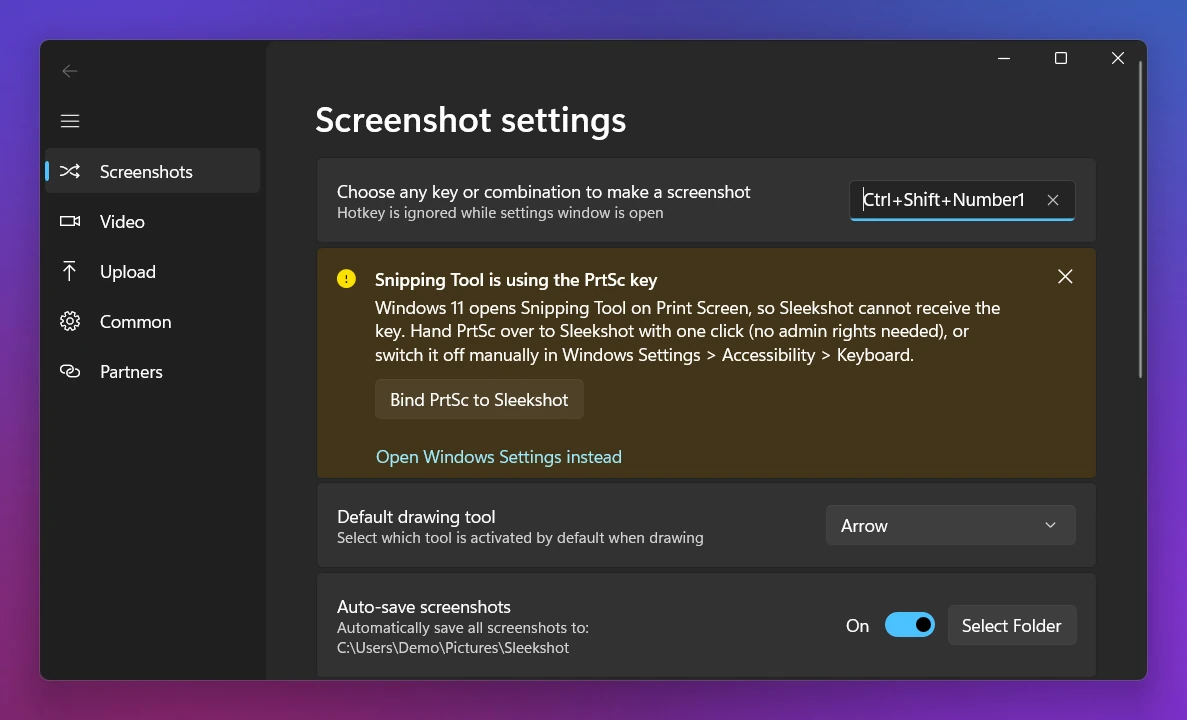
- Press PrtSc, Sleekshot's default shortcut. On Windows 11, the app's Bind PrtSc to Sleekshot button takes the key back from Snipping Tool in one click, or you can pick another key.
- Move the mouse to the monitor you want.
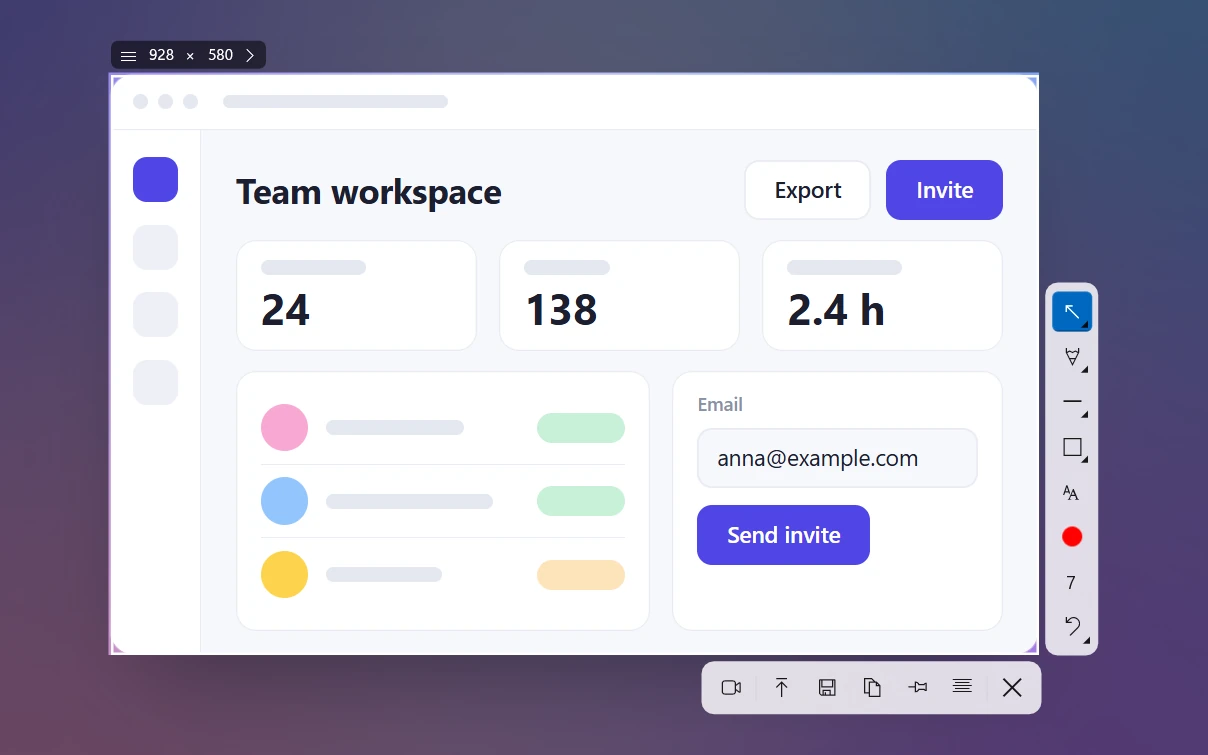
- Press Ctrl + A. The selection snaps to that monitor, and the size box shows its exact resolution, for example 2560 × 1440.
- If you want, add arrows, numbered steps or a blur box right on the screenshot. Then press Ctrl + C to copy, Ctrl + S to save or Ctrl + U to get a link you can share.
You can also click a window to grab just that window, or drag over any area. What Sleekshot doesn't have: a delay timer or scrolling screenshots. And if you really want both screens in one image, Win + PrtSc is still the quickest way.
Need a video instead of a still image? It works the same way for recording. See how to record only one monitor.
Tips for several monitors and scaling
- Mixed scaling confuses Snipping Tool. When one monitor runs at 150% and the other at 100%, the dimmed area sometimes doesn't cover a whole screen. People have reported this for years. To fix it, set both monitors to the same scale (Settings → System → Display → Scale), or make the monitor with higher scaling your main display. Updating Snipping Tool from the Microsoft Store helps too.
- Screenshots use real pixels. A 4K monitor at 150% scaling still gives you a 3840 × 2160 image. If you need a smaller file for a chat or a document, resize it afterward.
- Know which screen is which. Identify in Settings → System → Display shows each monitor's number. That helps when tools list them as "Monitor 1" and "Monitor 2".
Frequently asked questions
How do I screenshot only one monitor on Windows 11?
Why does Print Screen capture both monitors?
Is there a keyboard shortcut to screenshot just one monitor?
Why is part of my dual-monitor screenshot black?
How do I take a screenshot of my second monitor?
Why doesn't Snipping Tool cover my whole second monitor?
Sleekshot Team
We build Sleekshot, a free screenshot and screen recording app for Windows and Mac. Every guide is checked on current Windows 11, Windows 10 and macOS builds.
Also available in: Русский