How to Screen Record One Monitor in a Dual-Monitor Setup
 By Sleekshot Team
7 min read
By Sleekshot Team
7 min read
Short answer
Windows has no button for recording just monitor 2. On Windows 11, press Win + Shift + R and drag from one corner of the monitor to the opposite corner, and Snipping Tool records only that screen. For a perfect fit in one key press, Sleekshot selects the monitor under your mouse with Ctrl+A before you record. OBS Studio's Display Capture lets you pick a display from a list. Xbox Game Bar can't choose a monitor at all: it records only the active app.
On this page
- Four ways to record one monitor, compared
- First, find out which monitor is which
- Method 1: Snipping Tool (Windows 11)
- Method 2: Sleekshot – Ctrl + A selects the monitor you're on
- Method 3: OBS Studio – Display Capture
- Method 4: Xbox Game Bar – one app only
- Tips for recording one screen with several monitors
- How to record both monitors at once
Windows has no "record only monitor 2" button, but it takes just a few seconds anyway. On Windows 11, press Win + Shift + R and drag from one corner of the monitor you want to the opposite corner. Snipping Tool then records only that screen. In Sleekshot, a free screen recorder for Windows, Ctrl + A selects the monitor under your mouse, so there's nothing to drag.
In OBS Studio, Display Capture lets you pick a display from a list. Xbox Game Bar can't choose a monitor at all. When you record one screen, the video stays on topic, and the chat, email and notes on your other monitor stay out of it. Below are four ways to do it, how to tell your monitors apart and what to do when you need both screens in one video.
Four ways to record one monitor, compared
| Method | How | Windows | What it records | Best for |
|---|---|---|---|---|
| Snipping Tool | Win + Shift + R, drag over the monitor | 11 | The rectangle you drag | A quick clip with nothing to install |
| Sleekshot (free) | PrtSc → Ctrl + A → V → Ctrl + R | 10 (1809+) and 11 | Exactly the monitor under the mouse, or any area or window | Tutorials with voice, webcam and highlighted clicks |
| OBS Studio (free) | Display Capture → choose the display | 10 and 11 | A whole display, or several with scenes | Long recordings, both monitors in one video |
| Xbox Game Bar | Win + Alt + R | 10 and 11 | Only the active app, never a whole monitor | A game on one screen |
First, find out which monitor is which
Open Settings → System → Display and click Identify. A big number shows up on each screen for a few seconds. Recorders like OBS Studio list displays by name and resolution, so it's worth checking before you start.
On the same page, Make this my main display sets your main screen. That matters later: Windows shows notification pop-ups on the main display, so that's where surprises land in the middle of a recording.
Method 1: Snipping Tool (Windows 11)
Snipping Tool's video mode records the rectangle you draw. To record one monitor, you draw a rectangle the size of that monitor.
- Press Win + Shift + R. All screens dim.
- Start in the outer corner of the monitor you want (top right for the right-hand monitor) and drag to the opposite corner. The pointer stops at the outer edges of the desktop, so you can't overshoot there. Slow down at the edge you share with the other monitor.
- Set the microphone and system audio buttons, then click Start.
- Click Stop when you're done. The MP4 is saved to
C:\Users\<you>\Videos\Screen Recordings.
Two known problems. If your monitors use different scaling (say 150% and 100%), the dimmed area sometimes doesn't cover the whole second screen. Setting both to the same scale in Settings → System → Display → Scale, or updating Snipping Tool from the Microsoft Store, usually fixes it. And on Windows 10, Snipping Tool can't record video at all.
Method 2: Sleekshot – Ctrl + A selects the monitor you're on
Sleekshot is a free screenshot and screen recording app for Windows 10 and 11. When you press PrtSc, it takes a still picture of every monitor at once. Press Ctrl + A and it selects the whole monitor under your mouse. No dragging, no missed pixels at the edge.
- Press PrtSc, Sleekshot's default shortcut. All screens dim.
- Move the mouse to the monitor you want to record.
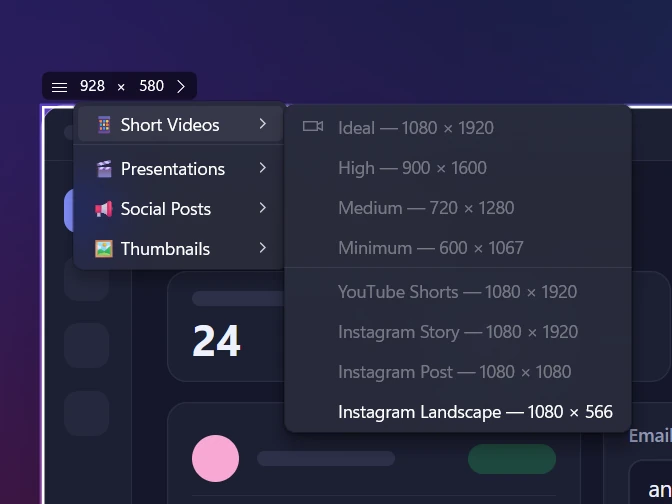
- Press Ctrl + A. The selection snaps to that monitor, and the size box shows its resolution, for example 2560 × 1440.
- Press V (Screen recorder mode) and pick your microphone. Turn on computer sound, click highlights or the webcam if you need them.
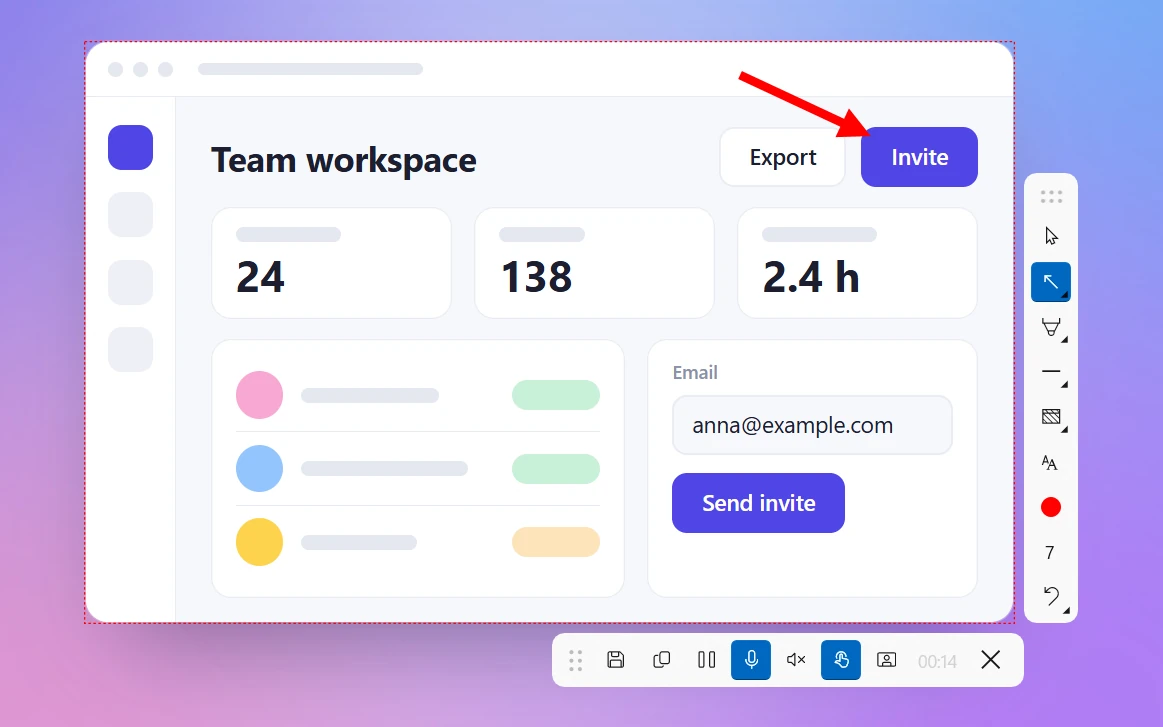
- Press Ctrl + R (Record). A red dashed outline marks the monitor being recorded. Work there as usual. The other screen is all yours.
- Click Save to file or Copy to clipboard when you're done.
We like this setup for tutorials: record the main monitor and keep the script, chat or a checklist on the second one. Nothing from the second screen gets into the video, and Sleekshot keeps its own toolbars out of it too.
Good to know: Sleekshot records one area on one monitor at a time, so it can't put both screens in one video. It saves MP4 only and has no video editor. Recording is free, with no watermark and no time limit.
Method 3: OBS Studio – Display Capture
OBS Studio is a free, open-source recorder for Windows, macOS and Linux. Its Display Capture source records one whole monitor, which you pick from a list.
- Install OBS Studio from obsproject.com and run the auto-configuration wizard for recording.
- Under Sources, click + → Display Capture, give it a name and click OK.
- In Display, choose your monitor. The names include the resolution, which helps when both screens look alike.
- Open Settings → Video and set Base (Canvas) Resolution to that monitor's resolution so you don't get black bars. For a 4K monitor, set Output (Scaled) Resolution to 1920 × 1080 to keep files smaller.
- Click Start Recording, then Stop Recording. The file goes to your
Videosfolder.
Black preview on a laptop? Laptops with both built-in and dedicated graphics can put OBS and the display on different GPUs. OBS 27 and later have a capture method that works across them. In the Display Capture properties, set Capture Method to Windows 10 (1903 and up). Automatic usually picks it anyway.
With this method, Windows draws a yellow border around the recorded screen. Only you see it, and it doesn't show up in the video. OBS allows one Display Capture source per display, but you can reuse it in several scenes.
Method 4: Xbox Game Bar – one app only
Xbox Game Bar can't pick a monitor. It records the active app, and Microsoft's own troubleshooting page says Game Bar supports one monitor at a time. It still works for "one screen" if everything you want to show happens in a single app.
- Move the app to the monitor you want. Win + Shift + ← or → moves the active window between monitors.
- Maximize it with Win + ↑, or switch a game to full screen.
- Press Win + Alt + R to start and stop.
The clip shows only that app: no taskbar, no desktop and no other windows on that monitor. See our Xbox Game Bar recording guide for full steps and limits.
Tips for recording one screen with several monitors
- Notifications show up on the main display. If that's the one you record, turn on Do not disturb (click the clock, then the bell), or record the second monitor instead.
- Don't unplug the other monitor, and don't switch to "PC screen only" with Win + P. That piles every window onto one screen and scrambles your layout mid-task.
- A big monitor makes a big video. A full 4K or ultrawide screen gives you huge files, and the text looks tiny on a phone. It's often better to record a 1920 × 1080 area of that monitor. See how to record part of the screen.
- Use the same scaling on both monitors if selecting an area acts up. A mix of 150% and 100% is the usual cause.
- Check the frame rate. 30 fps is plenty for clicking around apps. Use 60 fps for games and fast scrolling. More in screen recording quality.
How to record both monitors at once
If you really need both screens in one video, use OBS Studio. Add a Display Capture source for each monitor and put them side by side in the preview. Then set Base (Canvas) Resolution to the combined size: 3840 × 1080 for two Full HD monitors next to each other.
You'll get a very wide video that's hard to watch on a laptop or phone. For most tutorials, two separate recordings work better, or one monitor plus a webcam.
Need a still image of one screen instead? See how to screenshot only one monitor. For every other way to record on Windows, start with how to screen record on Windows.
Frequently asked questions
How do I record only my second monitor?
Can Xbox Game Bar record a specific monitor?
How do I know which monitor is 1 and which is 2?
How do I record both monitors at the same time?
Why is OBS Display Capture black on my laptop?
Will pop-ups from my other monitor end up in the recording?
Sleekshot Team
We build Sleekshot, a free screenshot and screen recording app for Windows and Mac. Every guide is checked on current Windows 11, Windows 10 and macOS builds.
Also available in: Русский