How to Screenshot on Windows 10 and 11: Every Method Explained
 By Sleekshot Team
11 min read
By Sleekshot Team
11 min read
Short answer
To screenshot on Windows 10 or 11, press Win + Shift + S and select part of the screen. Win + PrtSc saves the whole screen as a PNG file in Pictures > Screenshots. On Windows 11, the PrtSc key on its own opens the same Snipping Tool toolbar, and Alt + PrtSc copies just the active window. If the screenshot needs arrows, blur or a share link, a free app like Sleekshot lets you take it and mark it up in one go.
On this page
- Every Windows screenshot method at a glance
- Method 1: Win + Shift + S (the Snipping Tool toolbar)
- Method 2: The Print Screen (PrtSc) key
- Method 3: Win + PrtSc (save the whole screen as a file)
- Method 4: Alt + PrtSc (only the active window)
- Method 5: The Snipping Tool app (delay timer, editing and text)
- Method 6: Xbox Game Bar (screenshots in games)
- Method 7: Sleekshot (take, mark up and share in one go)
- How to screenshot on a laptop or tablet
- Where Windows saves your screenshots
- Screenshot not working? Quick fixes
The fastest way to take a screenshot on Windows 10 or 11 is Win + Shift + S. The screen dims, and you drag over the area you need. The image goes to the clipboard, ready to paste with Ctrl + V. To save the whole screen straight to a file, press Win + PrtSc, and the PNG appears in Pictures\Screenshots.
Those two shortcuts cover most screen capture on a PC. Below are all seven ways to screenshot on Windows, what each one takes and where the file ends up. We also cover the laptop quirks that trip people up: the Fn key and a missing PrtSc key. Shortcuts and settings paths match Microsoft's docs as of October 2026. Where Windows 10 works differently, we say so.
Every Windows screenshot method at a glance
Here's the short version. Find the row that matches what you need.
| Method | Shortcut | What it takes | Where the screenshot goes | Best for |
|---|---|---|---|---|
| Snipping Tool toolbar | Win + Shift + S | Rectangle, window, full screen or freeform | Clipboard + Pictures\Screenshots (Windows 11); clipboard only (Windows 10) |
Most everyday screenshots |
| Print Screen key | PrtSc | Windows 11: opens the toolbar. Windows 10: the whole screen | Windows 11: same as above. Windows 10: clipboard | Quick paste into a chat or document |
| Whole screen to a file | Win + PrtSc | All monitors | Pictures\Screenshots (PNG) |
Saving without pasting |
| Active window | Alt + PrtSc | The window you're in | Clipboard | One app or dialog box |
| Snipping Tool app | Start → Snipping Tool | Any mode, with a 3-, 5- or 10-second delay | Pictures\Screenshots (Windows 11) |
Menus, tooltips, quick edits |
| Xbox Game Bar | Win + Alt + PrtSc | The game or app you're in | Videos\Captures |
Games |
| Sleekshot (free app) | PrtSc or any key you set | Area, window or full screen | Clipboard, a folder you pick, or a share link | Arrows, numbered steps, blur, sharing |
Our pick: Win + Shift + S for everyday screenshots, and Win + PrtSc when you just want a file. Use a screenshot app when the screenshot has to explain something with an arrow, numbered steps or a blurred email address. Every key combination is in our Windows screenshot shortcuts cheat sheet.
Method 1: Win + Shift + S (the Snipping Tool toolbar)
Win + Shift + S is the best all-round screenshot shortcut on Windows 10 and 11. It works on every keyboard, including laptops without a Print Screen key, and you choose exactly what goes into the picture.
- Press Win + Shift + S. The screen dims and a small toolbar appears at the top.
- Pick a mode on the toolbar: Rectangle, Window, Full screen or Freeform.
- Drag over the area you want (or click a window) and let go of the mouse button.
- Paste the screenshot with Ctrl + V into a chat, email or document. Or click the notification in the bottom-right corner to open it in the Snipping Tool editor.
On Windows 11, Snipping Tool also saves every screenshot to C:\Users\<your name>\Pictures\Screenshots on its own, so nothing is lost if you forget to paste. On Windows 10, the same shortcut opens Snip & Sketch, which only copies the image to the clipboard. Click the notification and press Ctrl + S if you want a file.
Tip: The toolbar remembers the last mode you used. If Win + Shift + S suddenly takes whole windows instead of a rectangle, switch the mode back on the toolbar.
Method 2: The Print Screen (PrtSc) key
What the Print Screen key does depends on your Windows version. On an up-to-date Windows 11 PC, it opens the same Snipping Tool toolbar as Win + Shift + S. On Windows 10, it quietly copies the whole screen to the clipboard.
On Windows 11, Microsoft made PrtSc open the toolbar by default in a 2023 update. Prefer the classic way, where one press puts the whole screen on the clipboard? Go to Settings → Bluetooth & devices → Keyboard and turn off Use the Print screen key to open screen capture. On older Windows 11 builds, the same switch is in Settings → Accessibility → Keyboard. Turn it off too if you want another app to use the PrtSc key. We cover every option in how to change what the Print Screen key does.
On Windows 10, press PrtSc, and nothing seems to happen. But a picture of the whole screen is now on the clipboard. Open Paint, Word or a chat window and press Ctrl + V. With two or more monitors, you get all of them side by side in one wide image.
The key itself may say PrtSc, PrtScn, Prt Scr or Print Screen, and on many laptops it shares a key with something else. If you can't find it, see where the Print Screen key is.
Method 3: Win + PrtSc (save the whole screen as a file)
Win + PrtSc takes a screenshot of the whole screen and saves it as a PNG file right away, with no pasting. The screen dims for a split second to show it worked.
The file goes to C:\Users\<your name>\Pictures\Screenshots. If you use several monitors, all of them end up in one image. If OneDrive backs up your Pictures folder, look in OneDrive\Pictures\Screenshots instead. Our guide to screenshots and OneDrive explains why they move there.
On laptops where PrtSc is a second function, press Win + Fn + PrtSc. Can't find a file you know you took? Our guide on where screenshots go on Windows lists every location, including the Snipping Tool and Game Bar folders.
Method 4: Alt + PrtSc (only the active window)
Alt + PrtSc copies just the window you're working in, with no taskbar, no second monitor and no desktop clutter. It works the same on Windows 10 and 11, even when PrtSc itself opens Snipping Tool.
- Click the title bar of the window you want, so it's active.
- Press Alt + PrtSc.
- Paste with Ctrl + V where you need it.
The screenshot only goes to the clipboard, not to a file. If you need a file, paste it into Paint and save, or use Win + Shift + S in Window mode instead. On Windows 11, that one saves on its own. One thing to watch: if a dialog box is open, the dialog box is the active window, not the app behind it. More tricks are in how to screenshot one window.
Method 5: The Snipping Tool app (delay timer, editing and text)
Open the Snipping Tool app itself when you need a delay, want to mark up the image or need to copy text out of it. The shortcut is quicker, but the app has more options.
- Open Start, type Snipping Tool and press Enter.
- Pick a mode, then open the delay menu and choose 3, 5 or 10 seconds.
- Click New. During the countdown, open the menu or hover over the tooltip you want in the screenshot.
- Select the area. The screenshot opens in the editor, where you can crop and draw with a pen or highlighter. Text actions copies text from the image, and Quick redact hides emails and phone numbers.
- Press Ctrl + S to save or Ctrl + C to copy.
On Windows 11, Snipping Tool also records video. Win + Shift + R lets you select an area and saves the recording as an MP4 in Videos\Screen Recordings. For sound, a webcam or longer clips, see how to screen record on Windows. Microsoft's own Snipping Tool guide lists the rest of its options.
Method 6: Xbox Game Bar (screenshots in games)
Xbox Game Bar comes with Windows 10 and 11, and it's the easiest way to screenshot a game without leaving it.
- Press Win + Alt + PrtSc to take a screenshot of the game or app you're in.
- Or press Win + G, then click the camera icon in the Capture widget.
Screenshots are saved to C:\Users\<your name>\Videos\Captures. Game Bar only takes the app you're in, and it won't work on the bare desktop or in File Explorer. For everything else, use the methods above. It also records gameplay. Details in our Xbox Game Bar recording guide.
Method 7: Sleekshot (take, mark up and share in one go)
Sleekshot is a free screenshot and screen recording app for Windows 10 and 11. You draw arrows, numbered steps and blur right on the screenshot, then copy, save or share it. We make it, so here's the plain truth: the built-in tools are fine for simple screenshots. Sleekshot saves time when a screenshot needs to explain something.
- Install it from the download page or the Microsoft Store. It's free, with no account and no watermark, and it runs on x64, x86 and ARM64 PCs.
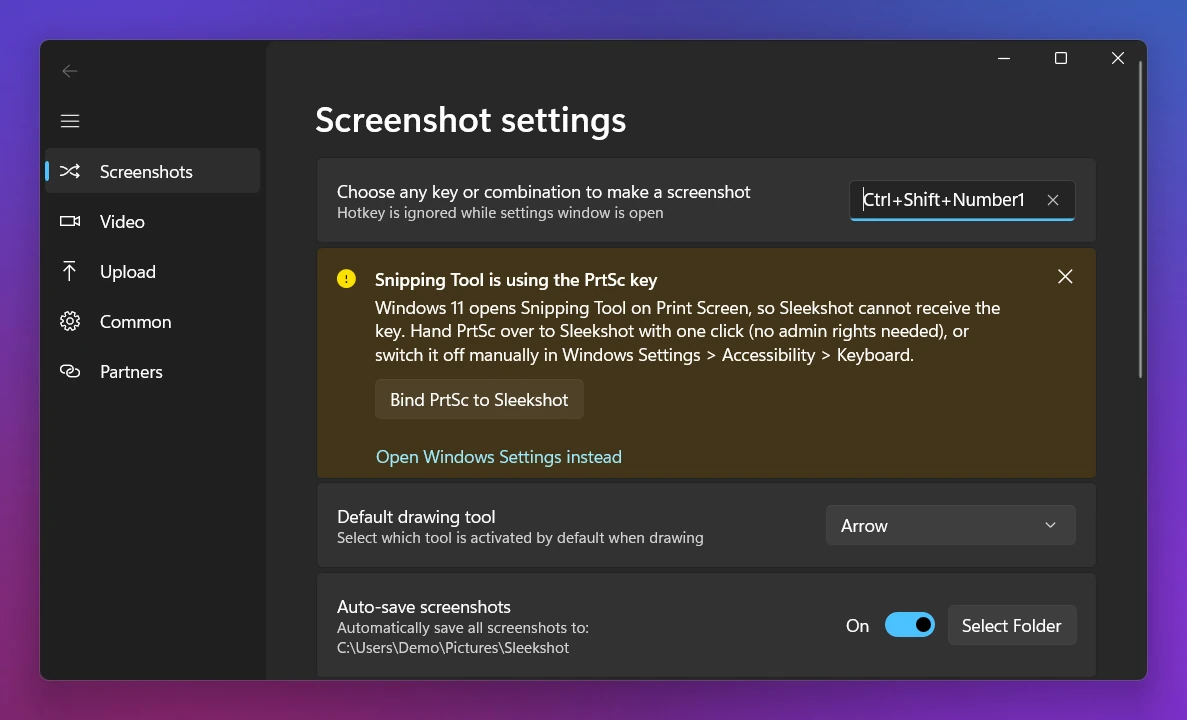
- Press PrtSc, the default shortcut. On Windows 11, Snipping Tool has that key. The app's Bind PrtSc to Sleekshot button then takes it back in one click. Or pick any other key or combination instead.
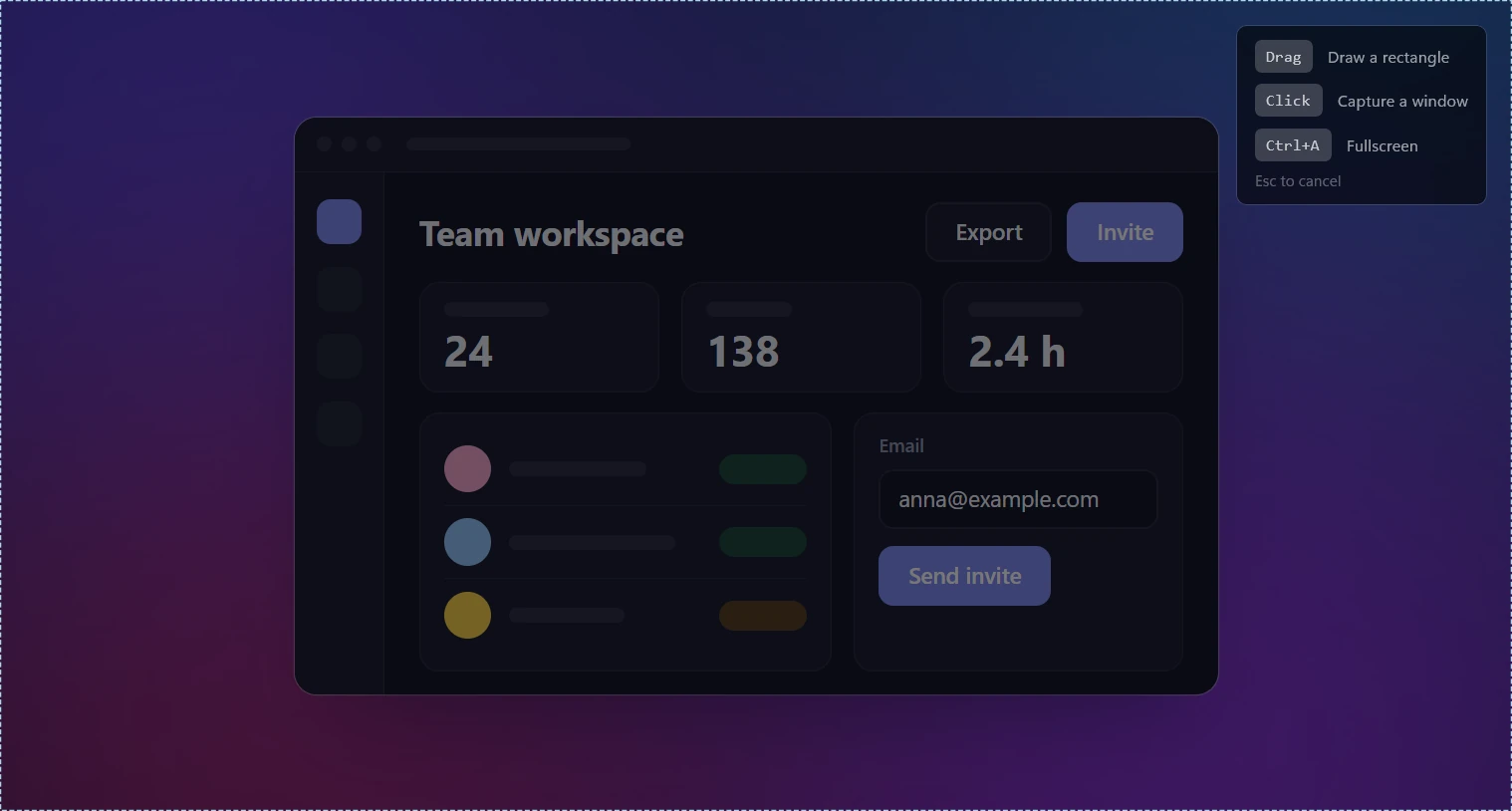
- The screen dims. Drag over an area, click a window, or press Ctrl + A for the whole screen.
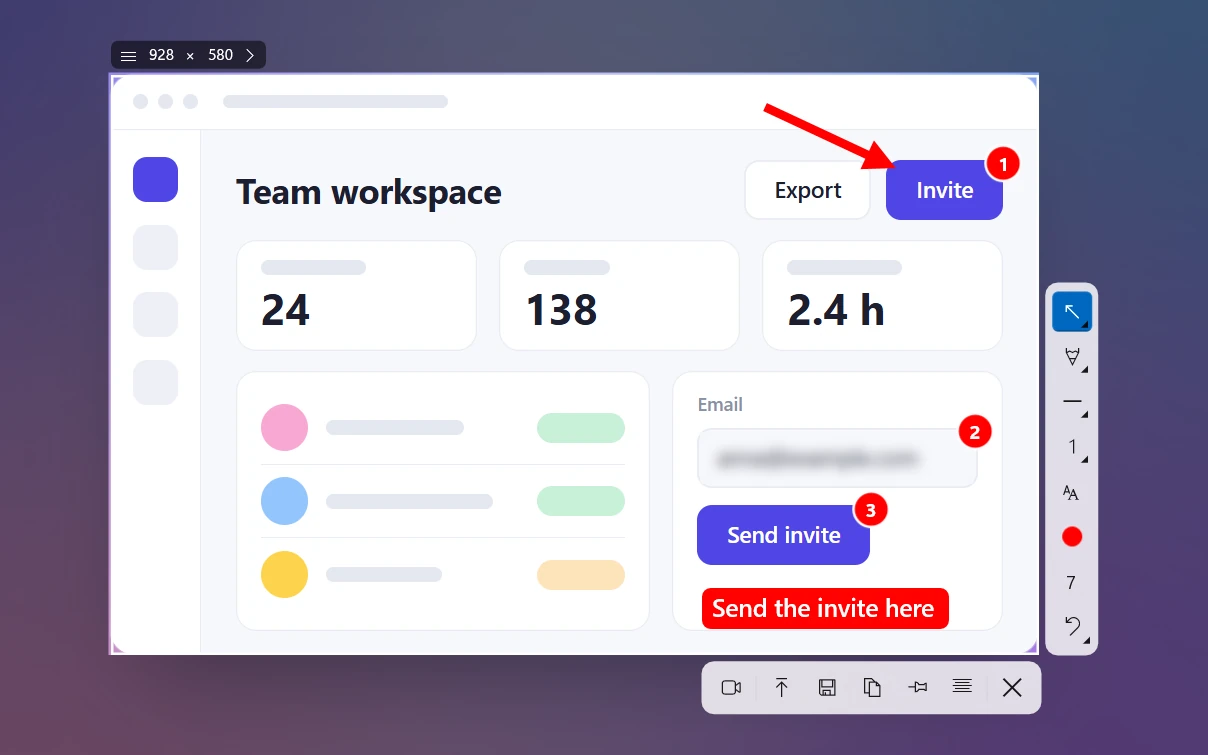
- Mark it up right there: 7 arrow styles, step numbers 1-2-3, a blur rectangle for emails and passwords, text labels, a highlighter and shapes in 20 colors. See all the drawing tools.
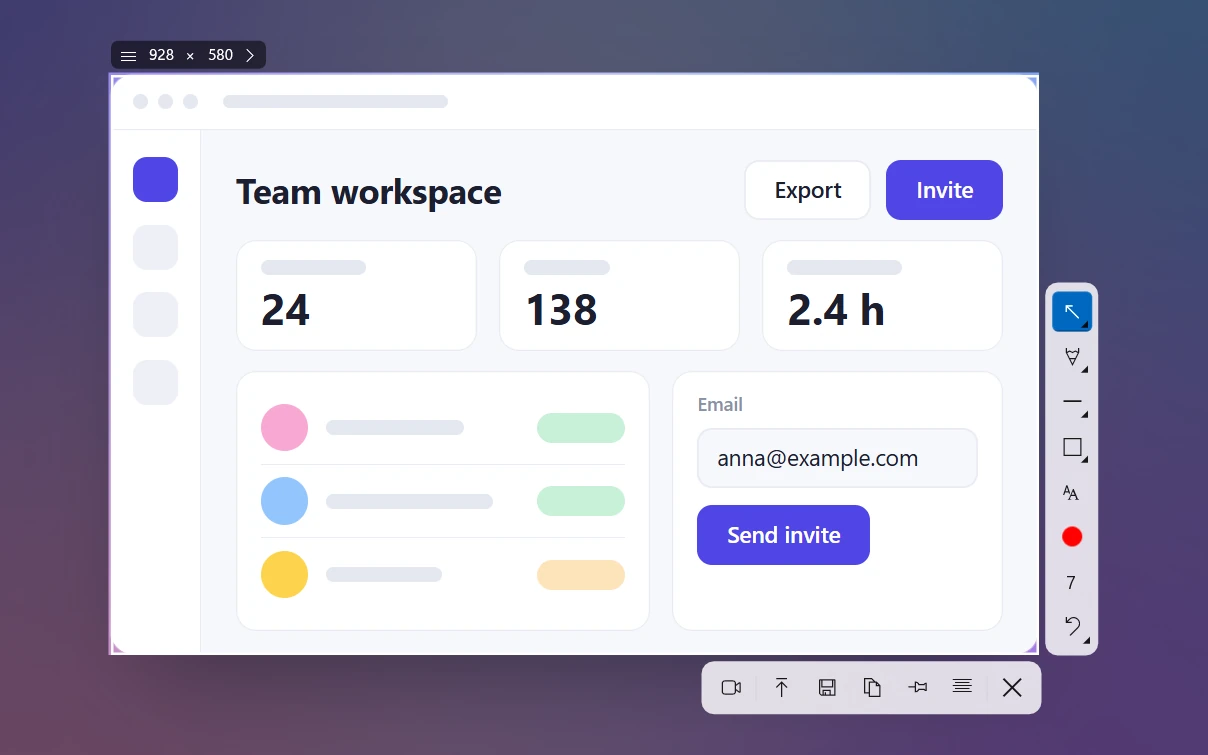
- Finish with one key. Ctrl + C copies it, and Ctrl + S saves it as PNG, JPEG or WebP. Ctrl + U gives you a short link without an account. Ctrl + O copies the text in the selection, recognized right on your PC.
What it doesn't do: there are no scrolling (full-page) screenshots, no delay timer and no GIF export. Arrows and shapes can't be moved once drawn, only undone with Ctrl + Z. If you need those, our comparison of the best screenshot apps for Windows covers apps that have them.
How to screenshot on a laptop or tablet
On most Windows laptops, the shortcuts are exactly the same. The catch is the Fn key. If the PrtSc label is printed in a different color or smaller, it's a second function, and you need to hold Fn: Fn + PrtSc, Win + Fn + PrtSc, Alt + Fn + PrtSc.
- No PrtSc key at all: Win + Shift + S always works. Microsoft also lists Fn + Win + Space as the Print Screen alternative on devices without a PrtScn key.
- Surface keyboards: Fn + Space opens screen snip, and Fn + Alt + Space copies the active window.
- Tablets and 2-in-1s without a keyboard: press Power + Volume Up together. This doesn't work on Surface Laptop.
- Fn Lock: if your laptop has an Fn Lock, switching it changes whether the top-row keys need Fn. If PrtSc works one day and not the next, Fn Lock is usually why.
For brand-specific keys, see how to screenshot on a laptop and screenshots without a Print Screen key. We also have guides for HP, Dell, Lenovo, ASUS, Acer and Surface.
Where Windows saves your screenshots
Some methods save a file, and others only put the image on the clipboard. That's the most common reason people "lose" a screenshot.
| Method | Saved to |
|---|---|
| Win + PrtSc | C:\Users\<your name>\Pictures\Screenshots |
| Windows 11: Win + Shift + S, Snipping Tool, PrtSc | Clipboard + the same Screenshots folder (auto-save is on by default) |
| PrtSc (Windows 10), Alt + PrtSc | Clipboard only; paste with Ctrl + V |
| Xbox Game Bar | C:\Users\<your name>\Videos\Captures |
| Win + Shift + R (video, Windows 11) | C:\Users\<your name>\Videos\Screen Recordings |
| OneDrive backing up Pictures | C:\Users\<your name>\OneDrive\Pictures\Screenshots |
| Sleekshot | Wherever you save; optional auto-save to a folder you choose |
A screenshot that's only on the clipboard disappears as soon as you copy something else. Turn on clipboard history with Win + V, and Windows keeps your last 25 copied items, screenshots included. See clipboard history for screenshots.
Screenshot not working? Quick fixes
Most problems come down to the Fn key, another app grabbing PrtSc, or a setting. Try these in order:
- PrtSc does nothing on a laptop. Press Fn + PrtSc, or switch Fn Lock and try again.
- PrtSc opens a different app. OneDrive, Dropbox, Lightshot, Sleekshot and similar apps can take over the key. Change the shortcut in that app, or check the Windows setting from Method 2.
- Win + Shift + S does nothing. The shortcut relies on the Snipping Tool app. Update or reinstall it from the Microsoft Store, then restart the PC.
- A video or streaming app comes out black. Copy-protected content is blocked from screenshots on purpose. No shortcut gets around it.
For step-by-step fixes, see Print Screen not working. On a Mac instead? The shortcuts are completely different. Here's how to screenshot on a Mac.
Frequently asked questions
What is the shortcut to take a screenshot on Windows?
Where do screenshots go on Windows 10 and 11?
How do I take a screenshot on a laptop without a Print Screen key?
Why does Print Screen open the Snipping Tool on Windows 11?
Is Ctrl + Shift + S a screenshot shortcut?
How do I take a delayed screenshot on Windows?
Sleekshot Team
We build Sleekshot, a free screenshot and screen recording app for Windows and Mac. Every guide is checked on current Windows 11, Windows 10 and macOS builds.
Also available in: Deutsch Français Español Italiano Русский ភាសាខ្មែរ Bahasa Indonesia 简体中文 日本語