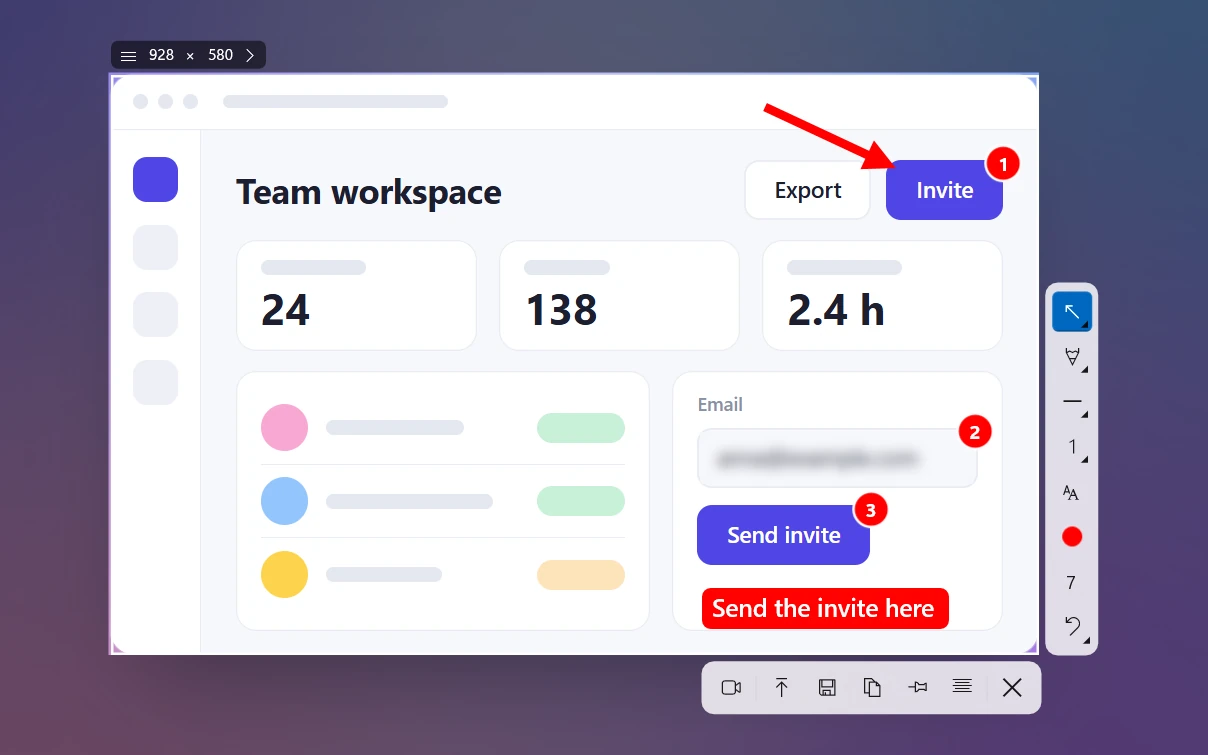
Windows Screenshot Keyboard Shortcuts: The Complete Cheat Sheet
 By Sleekshot Team
7 min read
By Sleekshot Team
7 min read
Short answer
The main Windows screenshot shortcut is Win + Shift + S: select an area and it's copied to the clipboard. Win + PrtSc saves the whole screen to Pictures → Screenshots, Alt + PrtSc copies the active window, and Win + Alt + PrtSc takes a screenshot of a game with Xbox Game Bar. Windows won't let you change Win + Shift + S, but with PowerToys or a screenshot app like Sleekshot you can use any key you like.
On this page
The main screenshot shortcut on Windows 10 and 11 is Win + Shift + S. Drag over any part of the screen, and it's copied to the clipboard. To save the whole screen as a file, press Win + PrtSc. For just the active window, press Alt + PrtSc.
Below is every screenshot keyboard shortcut worth knowing on a Windows PC, grouped by tool: Windows itself, Snipping Tool, Xbox Game Bar, laptops, browsers and Sleekshot. At the end, you'll see how to set your own screenshot key, which Windows doesn't make obvious. All shortcuts are current as of October 2026. If you'd rather have step-by-step instructions for each method, start with how to screenshot on Windows.
Windows screenshot shortcuts: the cheat sheet
These work on Windows 10 and 11 right away, with nothing to install.
| Shortcut | What it does | Where the image goes | Windows |
|---|---|---|---|
| Win + Shift + S | Opens the Snipping Tool bar: rectangle, window, full screen or freeform | Clipboard (+ Pictures\Screenshots on Windows 11) |
10, 11 |
| PrtSc | Windows 11: opens the same bar. Windows 10: copies the whole screen | Windows 11: same as above. Windows 10: clipboard | 10, 11 |
| Win + PrtSc | Saves the full screen (all monitors) | Pictures\Screenshots (PNG) |
10, 11 |
| Alt + PrtSc | Copies only the active window | Clipboard | 10, 11 |
| Win + Alt + PrtSc | Screenshot of the active game or app (Xbox Game Bar) | Videos\Captures |
10, 11 |
| Win + Shift + R | Records a video of a selected area (Snipping Tool) | Videos\Screen Recordings (MP4) |
11 |
| Win + V | Opens clipboard history, with your recent screenshots | — | 10, 11 |
| Ctrl + V | Pastes the screenshot from the clipboard | — | 10, 11 |
| Esc | Closes the Snipping Tool bar without taking a screenshot | — | 10, 11 |
Two things trip people up. First, on Windows 11 the PrtSc key opens Snipping Tool by default. Microsoft changed this in 2023, so it no longer quietly copies the screen. You can switch it back in Settings → Bluetooth & devices → Keyboard, as explained in changing what the Print Screen key does. Second, shortcuts that only copy to the clipboard (Alt + PrtSc, and PrtSc on Windows 10) don't create a file. The image is gone once you copy something else, unless clipboard history is on.
Snipping Tool keyboard shortcuts
Inside the Snipping Tool app, Microsoft lists these keys. They come in handy when you open the app for a screenshot with a delay or a precise selection.
| Shortcut | What it does |
|---|---|
| Alt + M | Choose a snipping mode |
| Alt + N | New snip in the same mode as the last one |
| Shift + arrow keys | Move the cursor to select the snip area |
| Alt + D | Delay the screenshot |
| Ctrl + C | Copy the snip to the clipboard |
| Ctrl + S | Save the snip |
In the Windows 11 app, you can delay the screenshot by 3, 5 or 10 seconds. That's the easiest way to screenshot a menu that closes when you press a key. More tips, including how to open Snipping Tool from the keyboard, are in our Snipping Tool shortcut guide.
Xbox Game Bar shortcuts
Xbox Game Bar comes with Windows 10 and 11 and has its own shortcuts for games and full-screen apps.
| Shortcut | What it does |
|---|---|
| Win + G | Open Game Bar |
| Win + Alt + PrtSc | Take a screenshot of the active game or app |
| Win + Alt + R | Start / stop recording |
| Win + Alt + G | Save the last moments of gameplay (30 seconds by default; background recording must be on) |
| Win + Alt + M | Turn the microphone on/off while recording |
Game Bar only works with the app in front, not on the desktop or in File Explorer. Screenshots and clips go to Videos\Captures. For all the video keys, see screen recording shortcuts on Windows.
Laptop and Surface screenshot shortcuts
Laptop keyboards often put PrtSc on a shared key, so the same shortcuts need Fn. If the PrtSc label is a different color or smaller, add Fn.
| Shortcut | Where it applies | What it does |
|---|---|---|
| Fn + PrtSc | Laptops where PrtSc is a second function | Same as PrtSc |
| Win + Fn + PrtSc | Same laptops | Saves the full screen to Pictures\Screenshots |
| Alt + Fn + PrtSc | Same laptops | Copies the active window |
| Fn + Win + Space | Devices without a PrtScn key (according to Microsoft) | Works instead of Print Screen |
| Fn + Space | Surface keyboards | Opens a screen snip |
| Fn + Alt + Space | Surface keyboards | Copies the active window |
| Power + Volume Up | Tablets and 2-in-1s without a keyboard (not Surface Laptop) | Full-screen screenshot |
If none of these work, Win + Shift + S doesn't need a PrtSc key at all. Details for each brand are in how to screenshot on a laptop.
Browser screenshot shortcuts
Browsers have their own screenshot tools, and they can screenshot a whole web page, which the Windows shortcuts can't.
| Shortcut | Browser | What it does |
|---|---|---|
| Ctrl + Shift + S | Microsoft Edge | Opens Web capture: select an area or take the full page |
| Ctrl + Shift + S | Firefox | Opens Firefox Screenshots: an area, the visible part or the full page |
That's also why people sometimes think Ctrl + Shift + S is a Windows screenshot shortcut. It isn't. Outside a browser, many apps use it for "Save as".
Sleekshot shortcuts
Sleekshot is a free screenshot and screen recording app for Windows, and you can do everything in it from the keyboard. One key dims the screen and starts a screenshot, and single keys switch tools while you add arrows and text. The default key is PrtSc, and you can change it to any key or combination.
| Shortcut | What it does |
|---|---|
| PrtSc (default, you can change it) | Dim the screen and start a screenshot |
| Drag / Shift + drag | Select an area / a perfect square |
| Click | Grab the window or the part of a window under the cursor |
| Ctrl + A | Select the whole current monitor |
| Esc | Cancel |
| Ctrl + C | Copy to the clipboard |
| Ctrl + S | Save (PNG, JPEG or WebP) |
| Ctrl + Shift + S | Quick save to the last folder you used |
| Ctrl + U | Upload and get a short link (no account) |
| Ctrl + O | Copy the text in the selection (OCR, no internet needed) |
| Ctrl + Z | Undo |
| V, then Ctrl + R | Switch to the screen recorder, then record |
While you add arrows and text, single keys pick a tool, so you never have to reach for the toolbar.
| Key | Tool | Key | Tool |
|---|---|---|---|
| 1–7 | Arrow styles (1 is the default arrow) | B | Blur box |
| P | Pen (Shift + P for dashed) | S | Numbered steps 1, 2, 3… |
| H | Highlighter | T | Text |
| L | Line (Shift + L for dashed) | C | Next color (20 colors) |
| R / F | Rectangle / filled rectangle | E / O | Ellipse / filled ellipse |
| Hold Shift | Snap an arrow to 0°, 45° or 90° | Mouse wheel | Brush or font size |
The limits: there's no shortcut for scrolling screenshots or a delay, because Sleekshot doesn't have those features. Undo goes back one step, and there's no redo. The full list is on the keyboard shortcuts page.
How to set your own screenshot key
Windows won't let you change Win + Shift + S. The only built-in choice is whether PrtSc opens Snipping Tool. If you want a different key, like a spare F-key, use one of these options.
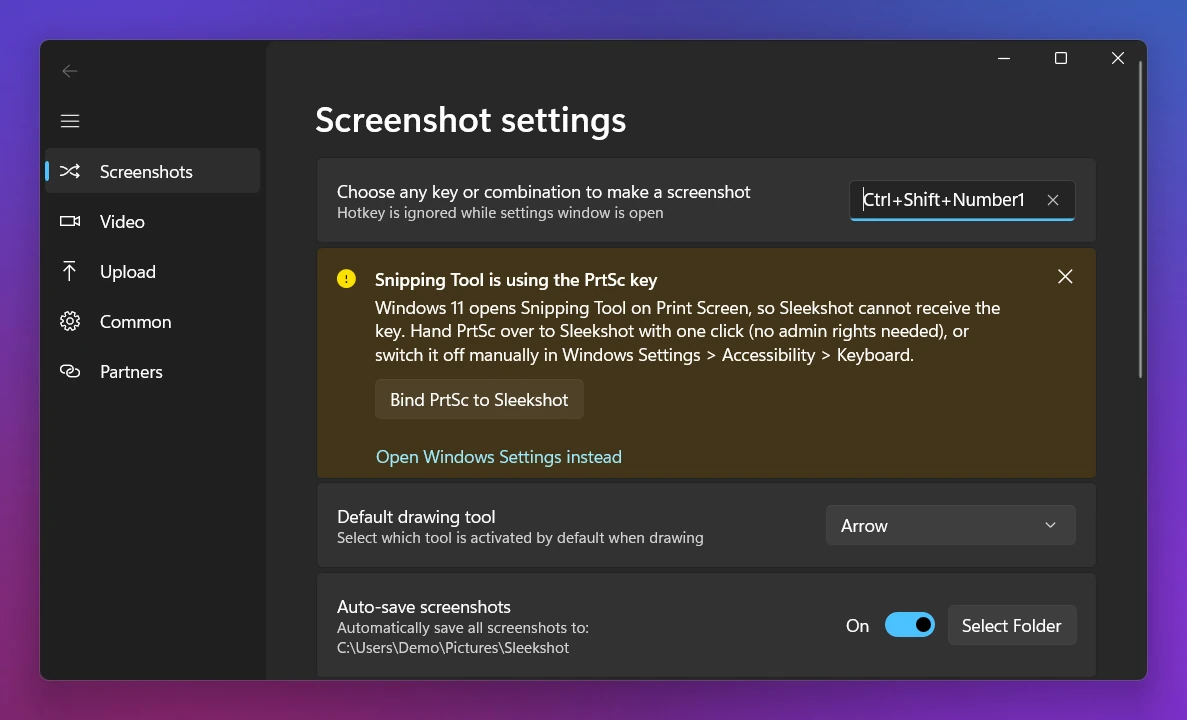
Option 1: a screenshot app where you can pick the key (the simplest). In Sleekshot, right-click the tray icon and open Settings → Screenshots. Click Change hotkey next to Choose any key or combination to make a screenshot, and press the key you want. The key doesn't work while the settings window is open, so close it to test.
If you choose PrtSc on Windows 11, first take it back from Snipping Tool. Sleekshot's Bind PrtSc to Sleekshot button does that in one click. Or turn off Use the Print screen key to open screen capture in Settings → Bluetooth & devices → Keyboard yourself.
Option 2: Microsoft PowerToys Keyboard Manager. PowerToys is a free add-on from Microsoft. In Keyboard Manager, you can remap a single key to Win + Shift + S, so one press opens the Snipping Tool bar. Pick a key you never use, because the remap works everywhere.
Option 3: Game Bar. You can change Game Bar's own shortcuts, including the screenshot key, in Game Bar settings (Win + G → the gear → Shortcuts).
On a Mac instead? The keys are completely different. See Mac screenshot shortcuts.
Frequently asked questions
What is the keyboard shortcut for a screenshot on Windows?
How do I change the screenshot shortcut on Windows?
What is the shortcut to screenshot just one window?
Is there a keyboard shortcut to record the screen on Windows?
Why is Win + Shift + S not working?
Sleekshot Team
We build Sleekshot, a free screenshot and screen recording app for Windows and Mac. Every guide is checked on current Windows 11, Windows 10 and macOS builds.
Also available in: Deutsch Français Español Italiano Русский ភាសាខ្មែរ Bahasa Indonesia 简体中文 日本語