How to Screenshot on a Laptop: Every Windows Method, Any Brand
 By Sleekshot Team
10 min read
By Sleekshot Team
10 min read
Short answer
On any Windows laptop, press Win + Shift + S, drag over the area you need and paste with Ctrl + V. It works even when the keyboard has no Print Screen key. To save the whole screen as a file, press Win + PrtSc. If PrtSc shares a key with something else, add Fn (Win + Fn + PrtSc). The file lands in Pictures > Screenshots.
On this page
- Laptop screenshot methods at a glance
- Step 1: Find the Print Screen key on your laptop
- The Fn key and Fn lock: why PrtSc "does nothing"
- Method 1: Win + Shift + S, which works on every laptop
- Method 2: PrtSc or Fn + PrtSc
- Method 3: Win + PrtSc to save a file right away
- Method 4: Alt + PrtSc for the active window
- No Print Screen key, or touchpad only
- Laptop brand cheat sheet
- MacBook or Chromebook instead?
- Faster on a laptop: Sleekshot
- Still not working?
To take a screenshot on a laptop running Windows 10 or 11, press Win + Shift + S. Drag over the part of the screen you need and paste it anywhere with Ctrl + V. This shortcut works on every laptop brand and doesn't need a Print Screen key at all. To save the whole screen straight to a file, press Win + PrtSc. If PrtSc shares a key with something else, add Fn.
Laptop keyboards are where screenshots get confusing. The Print Screen key may be squeezed onto an F-key, printed in small letters next to Insert or End, or missing entirely. And the Fn key changes what it does. This guide covers the methods that work on any Windows laptop, how to find PrtSc on your keyboard, Fn lock, and laptops with no PrtSc key. It ends with a cheat sheet for HP, Dell, Lenovo, ASUS, Acer, Surface and MSI. Everything here matches Microsoft's and the manufacturers' docs as of October 2026.
Laptop screenshot methods at a glance
Find the row that matches what you want to screenshot. "PrtSc" below means whatever key your laptop prints Print Screen on. You may need to hold Fn with it.
| Method | Keys on a laptop | What it takes | Where it goes | Best for |
|---|---|---|---|---|
| Snipping Tool toolbar | Win + Shift + S | Area, window, full screen | Clipboard + Pictures\Screenshots (Windows 11) |
Everyday screenshots, any keyboard |
| Print Screen key | PrtSc or Fn + PrtSc | Windows 11: opens the toolbar. Windows 10: whole screen | Windows 11: as above. Windows 10: clipboard | Quick paste into a chat |
| Save the whole screen | Win + PrtSc (or Win + Fn + PrtSc) | Whole screen | Pictures\Screenshots (PNG) |
A file without pasting |
| Active window | Alt + PrtSc (or Alt + Fn + PrtSc) | The window you're in | Clipboard | One app or dialog box |
| Snipping Tool app | Start → Snipping Tool | Any mode, with a delay | Pictures\Screenshots (Windows 11) |
Touchpad only, menus |
| 2-in-1 buttons | Power + Volume Up | Whole screen | Pictures\Screenshots |
Tablet mode, no keyboard |
| Sleekshot (free app) | Any key you set, or click the tray icon | Area, window, full screen | Clipboard, a folder, or a share link | Arrows, blur, numbered steps |
Short version: learn Win + Shift + S first. It's the one shortcut that works the same on an HP, a Dell, a ThinkPad or a Surface.
Step 1: Find the Print Screen key on your laptop
On most laptops, the Print Screen key is in the top row, near F12, Delete or Insert. The label varies: PrtSc, PrtScn, Prt Sc, PrtScr or Print Screen. They're all the same key. On German keyboards, it says Druck, and on French ones, Impr. écran.
Laptops use three main layouts:
- A PrtSc key of its own, usually at the right end of the top row. Press it on its own.
- PrtSc as a second label on another key. It may be on F10 (many Dell models), on the same key as Insert or End, or on an F-key on recent ThinkPads. The second label is often printed in a different color or smaller. Depending on the laptop, either the F-key or PrtSc needs Fn.
- No PrtSc at all. That's common on compact keyboards, keyboards with a touch-sensitive function row and some tablet covers. Use Win + Shift + S or one of the methods without a key further down.
Not sure which one you have? Our guide to where the Print Screen key is has photos of the common layouts.
The Fn key and Fn lock: why PrtSc "does nothing"
If PrtSc is the second function on its key, pressing the key on its own does the first one: a volume change, brightness, or nothing you can see. Hold Fn (bottom left, next to Ctrl) and press the key again.
What makes this confusing is Fn lock. Most laptops let you switch the top row between media keys and classic F1–F12. When Fn lock is on, the two swap. A key that used to take a screenshot on its own now needs Fn, and the other way around. Many laptops show which mode you're in with a small light on the Fn or Esc key.
| Brand | How you usually switch Fn lock |
|---|---|
| Dell | Fn + Esc; the default is set in the BIOS (Function Key Behavior) |
| Lenovo | Fn + Esc (light on the Esc key on ThinkPads) |
| ASUS | Fn + Esc on models with a light on the Fn key, or in MyASUS |
| HP | Varies: Fn + Shift on some EliteBook/ProBook models; otherwise BIOS → Action Keys Mode |
| Acer, MSI | Varies by model; check the shortcut list in the manual |
Rule of thumb: try the key on its own, then with Fn. One of the two will work. If you take screenshots often, set Fn lock so the combination you use most needs only one finger.
Method 1: Win + Shift + S, which works on every laptop
Win + Shift + S opens the Snipping Tool toolbar. It doesn't use PrtSc, so Fn and Fn lock don't matter.
- Press Win + Shift + S. The screen dims and a small toolbar appears at the top.
- Choose Rectangle, Window, Full screen or Freeform.
- Drag over the area with the touchpad, or click a window.
- Paste with Ctrl + V, or click the notification in the bottom-right corner to edit and save it.
On Windows 11, each screenshot is also saved to C:\Users\<your name>\Pictures\Screenshots on its own. On Windows 10, the image only goes to the clipboard until you save it. A touchpad tip: drag with one finger while holding the click button down, or double-tap and drag if tap-to-click is on. More shortcuts are in our Snipping Tool shortcut guide.
Method 2: PrtSc or Fn + PrtSc
What the key does depends on Windows. On current Windows 11 builds, PrtSc opens the same toolbar as Method 1. On Windows 10, it quietly copies the whole screen to the clipboard. Paste it into Paint, Word or a chat with Ctrl + V.
Want the old "whole screen to the clipboard" behavior on Windows 11? Go to Settings → Bluetooth & devices → Keyboard and turn off Use the Print screen key to open screen capture. On older builds, the switch is in Settings → Accessibility → Keyboard. The full story is in how to change what the Print Screen key does.
Method 3: Win + PrtSc to save a file right away
Win + PrtSc saves the whole screen as a PNG, with no pasting. The screen dims for a moment to show it worked. On a laptop where PrtSc needs Fn, press Win + Fn + PrtSc: hold Win and Fn, then tap the key.
The file goes to C:\Users\<your name>\Pictures\Screenshots, or to OneDrive\Pictures\Screenshots if OneDrive backs up your Pictures folder. If you can't find it, see where screenshots go on Windows.
Method 4: Alt + PrtSc for the active window
Alt + PrtSc copies only the window you're working in, with no desktop and no taskbar. Click the window first, then press the keys (with Fn if your PrtSc needs it) and paste with Ctrl + V. Nothing is saved as a file. For more ways to take one window, see how to screenshot a window.
No Print Screen key, or touchpad only
You don't need a PrtSc key to take a screenshot on a laptop. These methods work with no key, a broken key, or just the touchpad:
- Snipping Tool from Start. Open Start, type Snipping Tool, press Enter and click New. You do everything else with the touchpad. The app also has a delay timer for menus that close when you press a key.
- On-Screen Keyboard. Press Win + Ctrl + O, or find it in Start. It has a PrtScn key you can click.
- Fn + Win + Space. Microsoft lists this as the Print Screen alternative on devices without a PrtScn key. Whether it works depends on the keyboard.
- Power + Volume Up on 2-in-1s. On many 2-in-1 laptops and Surface tablets, holding Power and pressing Volume Up saves a screenshot of the whole screen. It doesn't work on a Surface Laptop.
- Pen menu. On touchscreen laptops with a pen, the Windows 11 pen menu includes Snipping Tool by default.
The full list, including turning another key into Print Screen, is in how to screenshot without Print Screen.
Laptop brand cheat sheet
Brands put PrtSc in different places, and even one brand uses several layouts. Use this table as a starting point, then follow the link for your brand.
| Brand | Where PrtSc usually is | Common catch | Full guide |
|---|---|---|---|
| HP | Top row near F12 or Delete, sometimes shared with ins; on some Envy/Spectre keyboards, printed on the right Shift key | Needs Fn when it's a second label | HP laptop |
| Dell | On F10 on many Inspiron, XPS, Latitude and newer Dell / Dell Pro models | F10 vs Fn + F10 depends on Fn lock (Fn + Esc) | Dell laptop |
| Lenovo | IdeaPad/Yoga: top row. Older ThinkPads: bottom row between right Alt and Ctrl; 2024+ ThinkPads: F9 | Fn lock (Fn + Esc) swaps the top row | Lenovo laptop |
| ASUS | Top row; some models have a screen capture key in the F-row | Top-row functions vs F1–F12 mode in MyASUS | ASUS laptop |
| Acer | Top right, sometimes as a second label | Look for the small PrtSc label and add Fn | Acer laptop |
| Microsoft Surface | Type Covers often have no PrtSc key | Fn + Space works as PrtScn; Power + Volume Up on Surface Pro and Go | Surface |
| MSI | Usually top right, on its own or as a second function (e.g. Fn + F10 on GT75) | The combination differs by model, so check the manual | — |
MacBook or Chromebook instead?
The Windows shortcuts above don't apply to other laptops:
- MacBook: Shift + Command + 4 takes an area, Shift + Command + 3 the whole screen, and Shift + Command + 5 opens the Screenshot toolbar. Files go to the desktop. Details: how to screenshot on a Mac.
- Chromebook: Ctrl + Show windows takes a screenshot of the whole screen, and Ctrl + Shift + Show windows opens the screenshot toolbar. Files go to Downloads, according to Google's Chromebook Help.
Faster on a laptop: Sleekshot
The built-in tools are enough for a quick screenshot. They get slow when you need to point at something: take the screenshot, open the editor, find the arrow tool, save, then upload it somewhere. On a laptop where PrtSc needs Fn, even starting can take two hands.
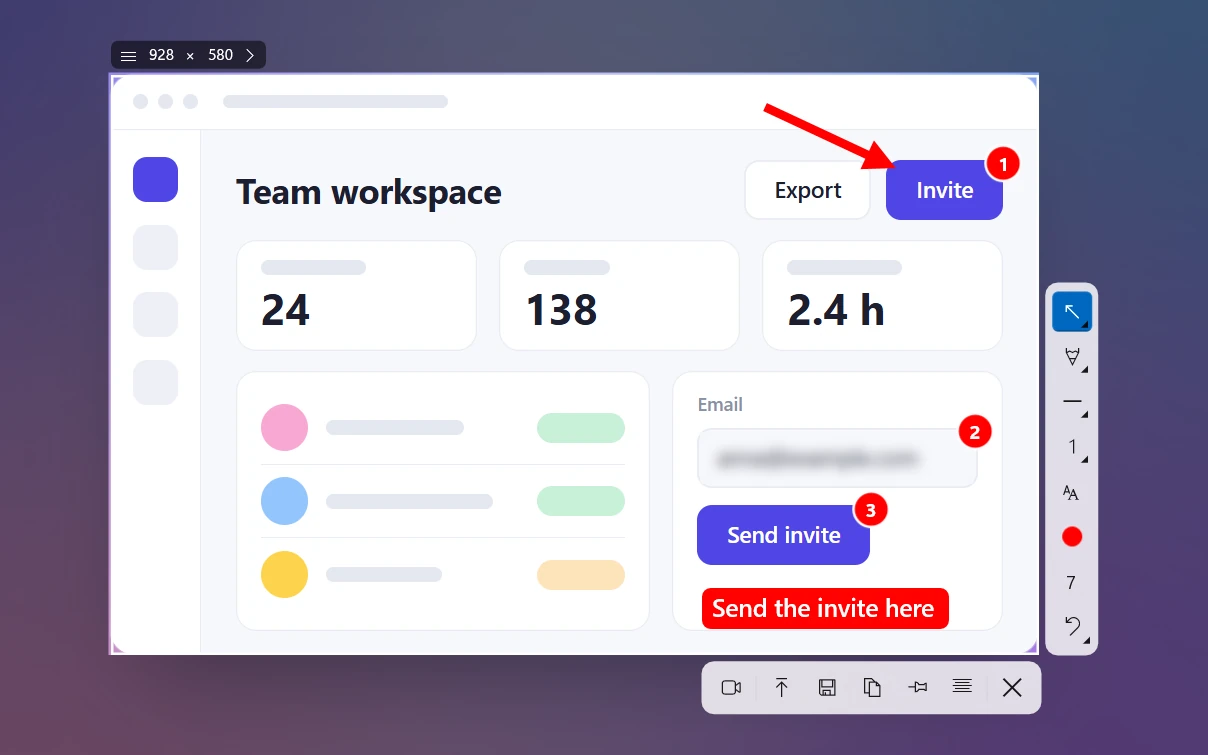
Sleekshot is a free screenshot and screen recording app for Windows 10 (1809+) and 11. You add arrows and text right on the screenshot. A few things help on laptops in particular:
- Any key you like. The default is PrtSc, but you can set any key or combination. That's useful when PrtSc needs Fn or sits on an awkward key.
- One click on the tray icon takes a screenshot, which is handy when you only use the touchpad.
- Area, window or whole screen: drag over an area, click a window, or press Ctrl + A.
- Add arrows before you save: 7 arrow styles, numbered steps, blur, highlighter, text and shapes, all right on the screenshot.
- Copy, save or share: Ctrl + C, Ctrl + S, or Ctrl + U for a short link without an account.
What it doesn't do: scrolling screenshots, a delay timer or GIF export. If you need those, Snipping Tool (for a delay) or another app will serve you better. On Windows 11, Sleekshot's Bind PrtSc to Sleekshot button takes PrtSc back from Snipping Tool in one click if you want to use PrtSc for Sleekshot.
Still not working?
If no key combination does anything:
- Try Win + Shift + S first. If that works, the problem is the PrtSc key or Fn, not Windows.
- Switch Fn lock and try PrtSc again, on its own and with Fn.
- Close apps that can grab PrtSc (OneDrive, Dropbox, other screenshot apps) and test again.
- Restart the laptop. On Windows 11, check that Snipping Tool is installed and up to date in the Microsoft Store.
Step-by-step fixes are in our guide to Print Screen not working.
Frequently asked questions
What is the shortcut to screenshot on a laptop?
How do I screenshot on a laptop without a Print Screen key?
Why does Print Screen not work on my laptop?
Where do screenshots go on a laptop?
How do I take a screenshot on a laptop with only the touchpad?
Sleekshot Team
We build Sleekshot, a free screenshot and screen recording app for Windows and Mac. Every guide is checked on current Windows 11, Windows 10 and macOS builds.
Also available in: Deutsch Français Español Italiano Русский ភាសាខ្មែរ Bahasa Indonesia 简体中文 日本語