
How to Screenshot Without Print Screen on Windows (7 Ways)
 By Sleekshot Team
7 min read
By Sleekshot Team
7 min read
Short answer
If your keyboard has no PrtSc key, press Win + Shift + S. It opens the Snipping Tool bar, where you can screenshot an area, a window or the full screen, and it doesn't need PrtSc at all. You can also open Snipping Tool from the Start menu or click PrtScn on the On-Screen Keyboard (Win + Ctrl + O). Xbox Game Bar (Win + G) and screenshot apps like Sleekshot, which work with any key you choose, are other options.
On this page
- 7 ways to screenshot without PrtSc at a glance
- Method 1: Win + Shift + S (the built-in replacement)
- Method 2: Open Snipping Tool from the Start menu
- Method 3: Find the hidden PrtSc key on a laptop
- Method 4: Click PrtScn on the On-Screen Keyboard
- Method 5: The screenshot button in Xbox Game Bar
- Method 6: Make your own screenshot shortcut
- Method 7: Sleekshot with any key or a tray click
- Which method should you use?
Press Win + Shift + S. This shortcut opens the Snipping Tool bar and doesn't need the PrtSc key at all. You can snip an area, a single window or the whole screen, and the image goes to the clipboard. It works on Windows 11 and 10, on compact keyboards, laptops and tablets with a keyboard cover. Below are six more ways to take a screenshot without Print Screen, from tools built into Windows to a key you choose yourself.
7 ways to screenshot without PrtSc at a glance
| Method | What you press | Where the image goes | Best for |
|---|---|---|---|
| Win + Shift + S | Win + Shift + S | Clipboard (+ Pictures\Screenshots on Windows 11) |
Everyday screenshots |
| Snipping Tool app | Start → Snipping Tool → New | Clipboard, then save | Screenshots with a delay, mouse users |
| Hidden PrtSc on a laptop | Fn + the key labeled PrtSc | Same as PrtSc | Laptops with PrtSc on a shared key |
| On-Screen Keyboard | Win + Ctrl + O, click PrtScn | Same as PrtSc | When you really need the PrtSc key |
| Xbox Game Bar | Win + G, click the camera button | PNG in Videos\Captures |
Games and whole app windows |
| Your own shortcut | A desktop shortcut or a PowerToys remap | Clipboard | A fixed key without extra apps |
| Sleekshot | Any key you pick, or a click on the tray icon | Clipboard, file or share link | Frequent screenshots with arrows and notes |
Method 1: Win + Shift + S (the built-in replacement)
Win + Shift + S is the standard Snipping Tool shortcut. It's the closest thing to a PrtSc key that every Windows PC already has.
- Press Win + Shift + S. The screen dims and a toolbar appears at the top.
- Choose Rectangle, Window, Full screen or Freeform.
- Drag around an area or click a window. For Full screen, just click anywhere.
- Paste the screenshot with Ctrl + V, or click the notification in the corner to edit and save it.
On Windows 11, every snip is also saved to C:\Users\<you>\Pictures\Screenshots. On Windows 10, nothing is saved until you open the notification and press Ctrl + S. The other shortcuts (video, delay, modes) are in our Snipping Tool shortcut guide.
Method 2: Open Snipping Tool from the Start menu
If you'd rather click, or you need a delay to screenshot an open menu, start the app itself.
- Open Start, type "snipping" and open Snipping Tool.
- Choose a mode and, if you need one, a delay (3, 5 or 10 seconds on Windows 11).
- Click New and select the area.
- Save with Ctrl + S or copy with Ctrl + C.
Right-click the app in Start and choose Pin to taskbar so it's always one click away. To skip the keyboard entirely, see our guide on taking a screenshot with the mouse.
Method 3: Find the hidden PrtSc key on a laptop
Many laptops do have Print Screen, just not as a separate key. Look for small "PrtSc", "Prt Sc" or "PrtScn" lettering on another key, often in a different color. Check the top row and the keys near the arrows. Press it together with Fn.
For devices that really don't have the key, Microsoft's support page lists Fn + Win + Space as the Print Screen shortcut. It doesn't work on every laptop, so if nothing happens, go back to Win + Shift + S. Layouts for each brand are in how to screenshot on a laptop, and the key itself is covered in our Print Screen key guide.
Method 4: Click PrtScn on the On-Screen Keyboard
The Windows On-Screen Keyboard has a real PrtScn key, and clicking it does exactly what the physical key would.
- Press Win + Ctrl + O. Without a keyboard: Settings → Accessibility → Keyboard → On-Screen Keyboard (on Windows 10: Settings → Ease of Access → Keyboard).
- Click PrtScn on the right side of the keyboard.
- To grab only the active window, click Alt first and then PrtScn. Alt stays pressed until you click the next key.
- Paste the result with Ctrl + V.
What PrtScn does depends on your settings. On current Windows 11 builds, it opens the Snipping Tool bar. On Windows 10, it copies the whole screen to the clipboard. The keyboard window stays on top of everything, so it can end up in a full-screen screenshot. Drag it aside or crop it out. It's a fine backup, but slow for every day.
Method 5: The screenshot button in Xbox Game Bar
Xbox Game Bar has a screenshot button you can click without touching PrtSc.
- Press Win + G while the app or game you want is in front.
- In the Capture widget, click the camera icon (Take screenshot).
- The screenshot is saved as a PNG to
C:\Users\<you>\Videos\Captures, and a notification pops up.
Game Bar always takes the whole active app window, not an area. It's made for games and doesn't work on the desktop or in File Explorer. If you don't see the Capture widget, open it from the widget menu at the top of Game Bar.
Method 6: Make your own screenshot shortcut
In Windows, you can make a shortcut that opens the Snipping Tool bar and give it a key combination.
- Right-click the desktop → New → Shortcut.
- Type
explorer.exe ms-screenclip:as the location, click Next, name it (for example "Screenshot") and click Finish. - Right-click the new shortcut → Properties, click the Shortcut key box and press a letter, like S. Windows turns it into Ctrl + Alt + S.
- Click OK. That combination now opens the Snipping Tool bar. It only works while the shortcut stays on the desktop or in the Start menu.
Want a real key to act as PrtSc? Microsoft PowerToys (free, from Microsoft) has a Keyboard Manager for that. It can remap a key you rarely use, like the right Ctrl or the Menu key, to Print Screen. More options, including taking PrtSc back from Snipping Tool, are in our guide to changing the Print Screen key.
Method 7: Sleekshot with any key or a tray click
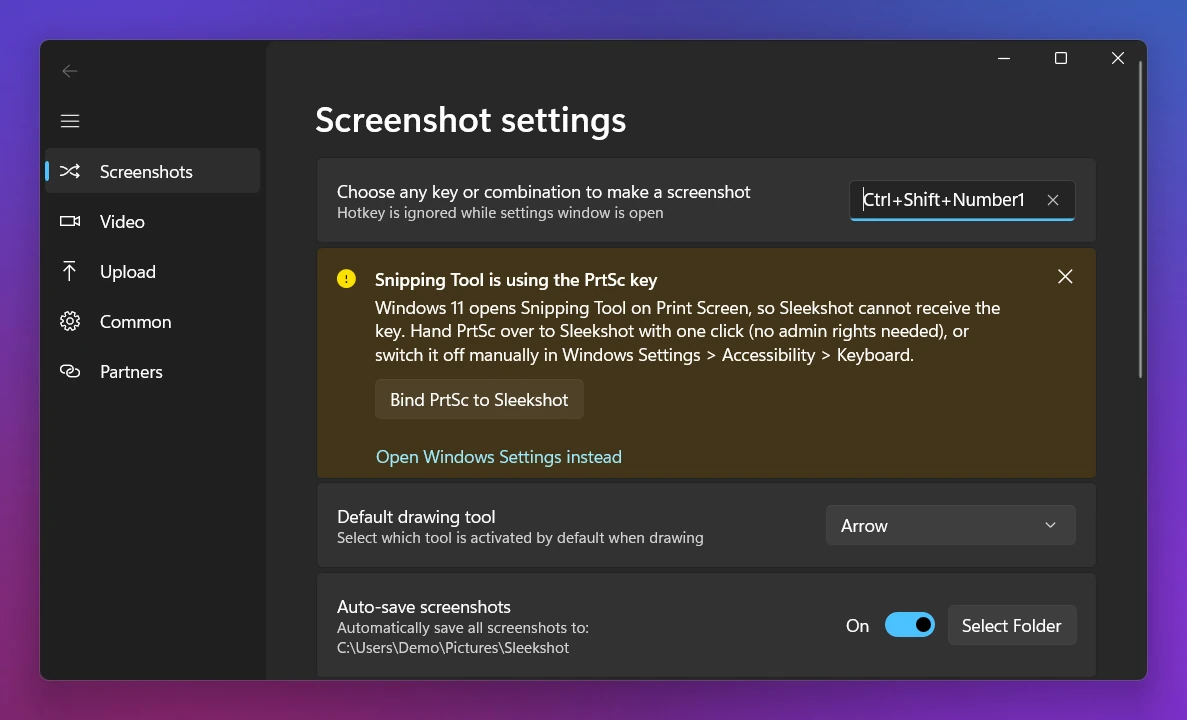
If you take screenshots every day, a screenshot app that doesn't depend on PrtSc solves the problem for good. Sleekshot is our free screenshot and screen recording app for Windows 10 and 11. Its default key is PrtSc, but you can set any key or combination in Settings → Screenshots. The setting says "Choose any key or combination to make a screenshot".
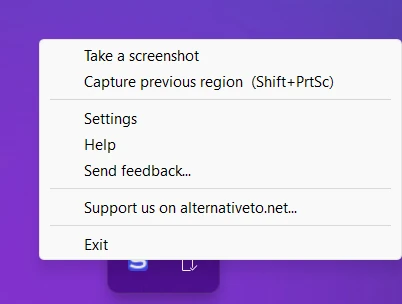
You can also skip the keyboard. Left-click the Sleekshot icon in the system tray to start a screenshot, or right-click it and choose Take a screenshot. Either way, the screen dims, and you drag over an area or click a window (Ctrl + A takes the full screen). Add arrows, blur or numbered steps right on the screenshot, then copy, save or upload it.
Keep in mind what it can't do: there's no delay and no scrolling screenshots. For all its keys, see the keyboard shortcuts page.
Which method should you use?
For an occasional screenshot, Win + Shift + S is enough. It's built in and fast. If you need a delay, open the Snipping Tool app. If the missing key bugs you every day, pick a permanent fix: remap a key with PowerToys or use a screenshot app with its own key. And if PrtSc is there but just stopped working, that's a different problem. Our Print Screen not working checklist walks you through the fixes.
Frequently asked questions
How do I take a screenshot if my keyboard has no Print Screen key?
How do I screenshot on a laptop without a PrtSc key?
How do I take a full-screen screenshot without PrtSc?
Can I use the On-Screen Keyboard to press Print Screen?
How do I take a screenshot with a Mac keyboard on Windows?
Sleekshot Team
We build Sleekshot, a free screenshot and screen recording app for Windows and Mac. Every guide is checked on current Windows 11, Windows 10 and macOS builds.
Also available in: Русский