The Print Screen Key: Where to Find PrtSc and What Each Combination Does
 By Sleekshot Team
6 min read
By Sleekshot Team
6 min read
Short answer
The Print Screen key, labeled PrtSc, PrtScn or Prt Scr, sits in the top row of the keyboard. On desktop keyboards it’s right of F12; on laptops it’s usually near F12, Insert or Delete, and you may need to hold Fn. On Windows 11 it opens the Snipping Tool capture bar; on Windows 10 it copies the whole screen to the clipboard. Win + PrtSc saves a screenshot file, and Alt + PrtSc copies only the active window.
On this page
The Print Screen key (labeled PrtSc, PrtScn or Prt Scr) is in the top row of your keyboard. On a desktop keyboard it's just right of F12. On a laptop it's usually near F12, Insert or Delete, and you may have to hold Fn to use it. On Windows 11, pressing it opens the Snipping Tool capture bar; on Windows 10, it copies the whole screen to the clipboard.
Below: exactly where to look on each type of keyboard, and what the different labels mean (including German, French, Spanish and Italian ones). We also cover what every PrtSc combination does in Windows 10 and 11, and how to take a screenshot with a single button. Facts are current as of October 2026.
Where is the Print Screen key?
On almost every PC keyboard, Print Screen lives in the top row on the right-hand side. The exact spot depends on the keyboard size.
| Keyboard type | Where to look | Need Fn? |
|---|---|---|
| Full-size desktop | Right of F12, the first of three keys: PrtSc · Scroll Lock · Pause, above Insert / Home / Page Up | No |
| Tenkeyless (no number pad) | Same place: right of F12, above Insert | No |
| Laptop | Top row near F12, Insert, Delete or End; some Lenovo ThinkPads: bottom row between right Alt and Ctrl | Often: if the label is a different color or smaller |
| Compact 60–75% keyboards | Often no dedicated key; PrtSc sits on an Fn layer (check the keycap's side legend or the manual) | Yes |
| Microsoft Surface keyboards | No PrtSc key; use Fn + Space instead | — |
| Mac keyboards | No PrtSc key; macOS uses ⌘ + Shift + 3 / 4 / 5 | — |
A quick way to tell whether you need Fn: look at the color of the label. If "PrtSc" is printed in the same color as the small symbol on the Fn key (often blue or grey), it's the secondary function. On a Mac, see how to screenshot on a Mac instead.
What the labels on the key mean
Manufacturers abbreviate "Print Screen" differently, and keyboards in other languages use their own words. They're all the same key.
| Label on the key | Where you'll see it |
|---|---|
| PrtSc, PrtScn, Prt Scr, PrtScr, Print Screen | US, UK and most international layouts, laptops |
| PrtSc SysRq (SysRq on the side or below) | Many desktop and laptop keyboards |
| Druck (often with S-Abf) | German keyboards |
| Impr. écran (often Impr écran Syst) | French AZERTY keyboards |
| Impr Pant (often Impr Pant Pet Sis) | Spanish keyboards |
| Stamp (often Stamp R Sist) | Italian keyboards |
SysRq means System Request, a function from early IBM PC keyboards; Windows doesn't use it, so you can ignore it. The key's original job was literal: on early PCs running DOS, Print Screen sent the text on screen to the printer. Windows turned it into a screenshot key.
What the Print Screen key does in Windows 10 and 11
On its own, PrtSc behaves differently in Windows 10 and Windows 11. Its combinations work the same in both.
| Combination | Windows 11 | Windows 10 |
|---|---|---|
| PrtSc | Opens the Snipping Tool capture bar (rectangle, window, full screen, freeform); copies the result and saves it to Pictures\Screenshots |
Copies the whole screen (all monitors) to the clipboard |
| Win + PrtSc | Saves the full screen as a PNG in Pictures\Screenshots; the screen dims briefly |
Same |
| Alt + PrtSc | Copies only the active window to the clipboard | Same |
| Win + Alt + PrtSc | Xbox Game Bar screenshot of the active game or app, saved to Videos\Captures |
Same |
| Fn + any of the above | Needed on laptops where PrtSc is a secondary function | Same |
Clipboard screenshots don't create a file. Paste them with Ctrl + V into a chat, an email, Paint or Word. Or turn on clipboard history (Win + V) so they aren't lost when you copy something else.
The full list of key combinations, including Snipping Tool and Game Bar keys, is in our Windows screenshot shortcuts cheat sheet. Our guide on how to screenshot on Windows explains every method step by step.
Why Print Screen opens the Snipping Tool on Windows 11
In 2023 Microsoft changed the default on Windows 11. PrtSc now opens the same capture bar as Win + Shift + S, so you choose what to capture instead of always getting the whole screen.
To get the old behavior back, open Settings → Bluetooth & devices → Keyboard and turn off Use the Print screen key to open screen capture. On older Windows 11 builds the switch is under Settings → Accessibility → Keyboard. You also need to turn it off if you want another screenshot app to use PrtSc. All the options, including remapping the key, are in how to change what the Print Screen key does.
How to take a screenshot with one button
"One button" means different things depending on what you want at the end: an image to paste, a saved file, or an annotated screenshot.
- Whole screen to the clipboard (Windows 10): PrtSc alone does it. Paste with Ctrl + V.
- A saved file (Windows 11): press PrtSc, drag over the area (or pick Full screen on the bar), and Windows saves the screenshot to
Pictures\Screenshotsautomatically. That's one key plus one drag. - A full-screen file from a single key: Microsoft PowerToys Keyboard Manager (a free Microsoft add-on) can remap a spare key to Win + PrtSc. Choose a key you never use, because the remap applies everywhere.
- Any key you like, with annotation: a screenshot app lets you pick the key.
Sleekshot is a free screenshot and screen recording app for Windows 10 and 11, and its default hotkey is PrtSc. You can assign any other key or combination in Settings → Screenshots → Change hotkey.
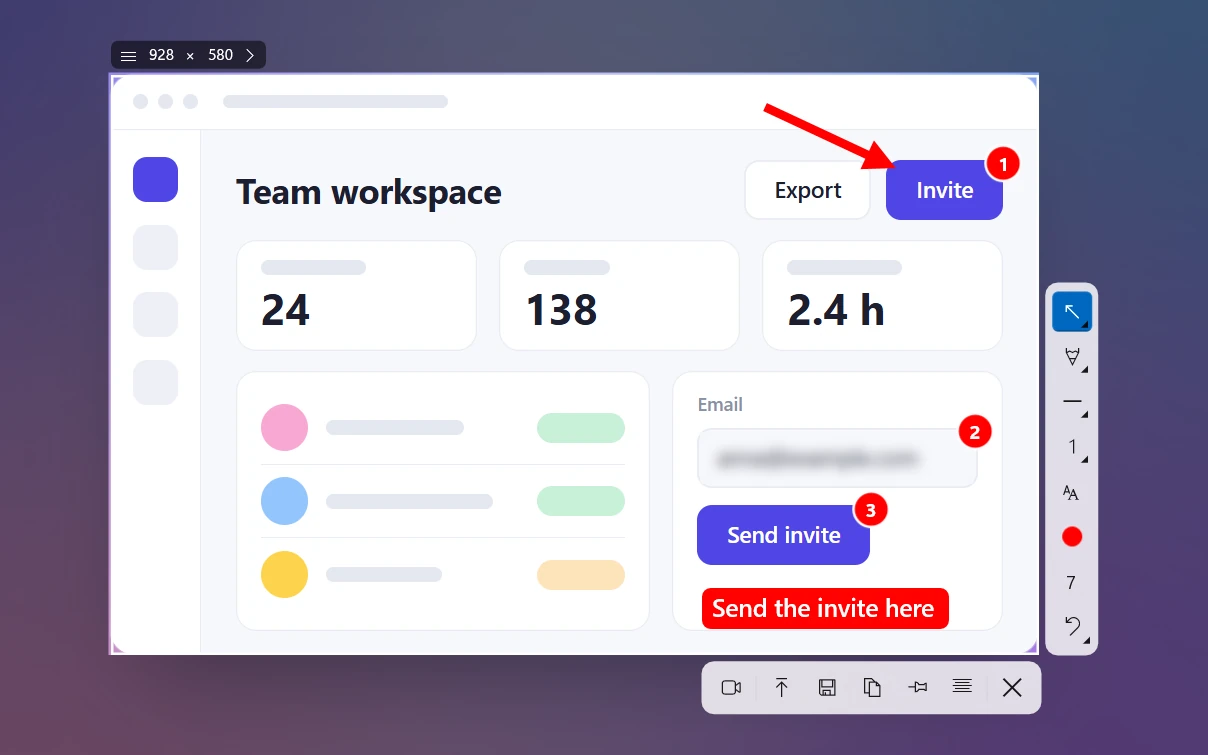
One press freezes the screen. Drag to select, click a window, or press Ctrl + A for the full screen. Then add arrows, step numbers or blur, and press Ctrl + C to copy or Ctrl + S to save. With auto-save turned on, every copy, save or upload also writes a file to a folder you choose.
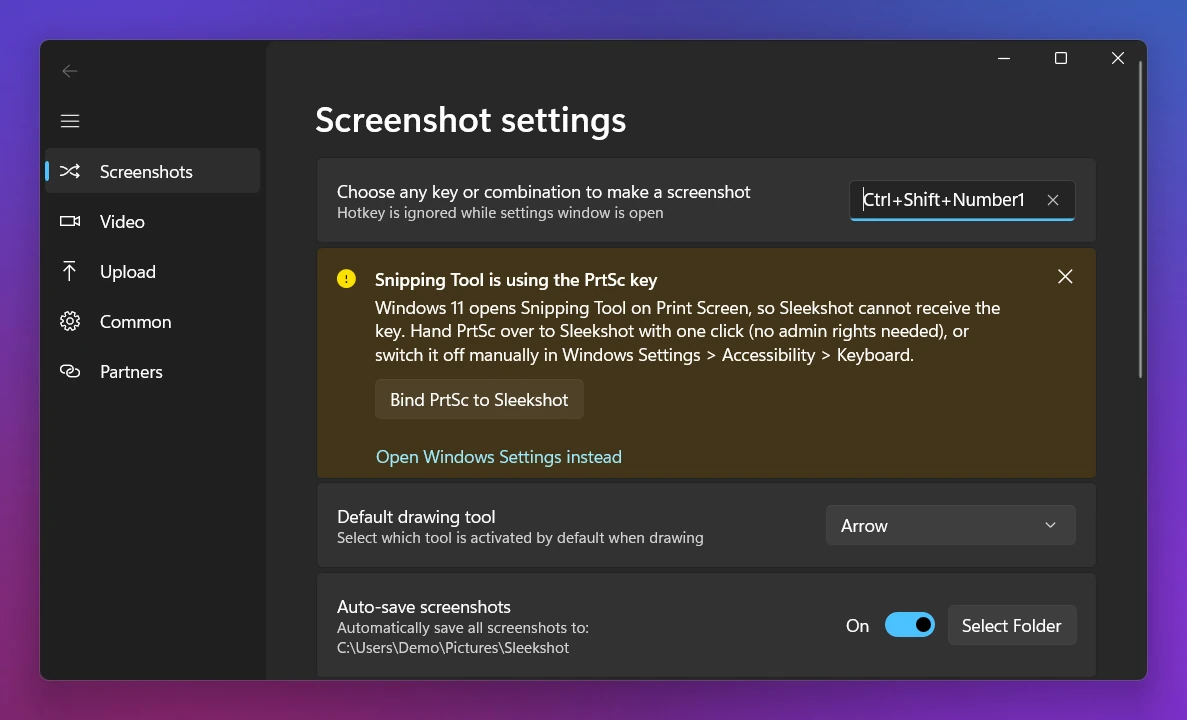
To be clear about the limits: it still takes a selection step (or Ctrl + A), and it has no delayed or scrolling capture. On Windows 11 you need to free PrtSc from the Snipping Tool first, but the app's Bind PrtSc to Sleekshot button does that in one click. See all keyboard shortcuts it supports.
No Print Screen key? Use these instead
Plenty of compact keyboards, tablets and Surface devices have no PrtSc key at all. You can still take screenshots:
- Win + Shift + S opens the same capture bar and needs no PrtSc key.
- Fn + Win + Space is the Print Screen alternative Microsoft lists for devices without a PrtScn button.
- On-Screen Keyboard: press Win + Ctrl + O and click its PrtScn key.
More workarounds, including a free app hotkey, are in how to screenshot without a Print Screen key.
Print Screen not working?
If pressing PrtSc does nothing, the cause is usually one of three things. The key needs Fn (or Fn Lock is toggled). Another app such as OneDrive, Dropbox or a screenshot tool has taken over the key. Or the Windows setting above changed what it does.
Try Fn + PrtSc first, then Win + Shift + S to confirm screenshots work at all. Step-by-step fixes are in Print Screen not working.
Frequently asked questions
Where is the Print Screen key on a laptop?
What does the PrtSc key do?
What does SysRq mean on the Print Screen key?
How do I take a screenshot with one button on Windows?
What is the Print Screen key called on other keyboards?
Sleekshot Team
We build Sleekshot, a free screenshot and screen recording app for Windows and Mac. Every guide is checked on current Windows 11, Windows 10 and macOS builds.
Also available in: Deutsch Français Español Italiano Русский ភាសាខ្មែរ Bahasa Indonesia 简体中文 日本語