
Change What Print Screen Does in Windows 11 (Snipping Tool, Apps, Remap)
 By Sleekshot Team
7 min read
By Sleekshot Team
7 min read
Short answer
In Windows 11, Print Screen opens the Snipping Tool toolbar by default. To change that, open Settings > Bluetooth & devices > Keyboard (on older builds, Accessibility > Keyboard). Turn off 'Use the Print screen key to open screen capture'. PrtSc then copies the whole screen to the clipboard, or you can give it to another app like Sleekshot. To take screenshots with a different key, remap it with PowerToys Keyboard Manager.
On this page
- What do you want Print Screen to do?
- How the Print Screen key works by default
- Option 1: Stop Print Screen from opening Snipping Tool
- Option 2: Make Print Screen open Sleekshot or another screenshot app
- Option 3: Remap Print Screen to another key with PowerToys
- Which option should you choose?
- If the change doesn't take effect
On Windows 11, pressing PrtSc opens the Snipping Tool toolbar. Microsoft made that the default in a mid-2023 update, and one switch changes it: Settings → Bluetooth & devices → Keyboard → Use the Print screen key to open screen capture. On older Windows 11 builds, the same switch is in Settings → Accessibility → Keyboard. Turn it off, and PrtSc goes back to copying the whole screen to the clipboard. You can also give the key to a screenshot app you like. To take screenshots with a different key, remap it with PowerToys Keyboard Manager.
Below are all three options with exact steps, plus what to do if the change doesn't stick.
What do you want Print Screen to do?
Find the row that matches what you want. The sections below walk through each change.
| Goal | What to change | What PrtSc does afterwards |
|---|---|---|
| Open the Snipping Tool toolbar | Windows switch on (default on Windows 11) | You select an area, window or full screen; the screenshot is copied and, by default, saved to Pictures\Screenshots |
| Copy the whole screen to the clipboard (the classic way) | Windows switch off | Nothing visible happens; paste the screenshot with Ctrl + V |
| Open another screenshot app | Windows switch off + PrtSc set as the app's shortcut | Whatever that app does, for example Sleekshot dims the screen and shows its drawing tools |
| Take screenshots with a different key | PowerToys Keyboard Manager | The key you chose acts as PrtSc |
| Turn PrtSc off completely | PowerToys Keyboard Manager → Disable | Nothing |
How the Print Screen key works by default
Plain PrtSc does different things on Windows 11 and Windows 10 right after you set up the PC. The key combinations work the same on both. The switch in this guide only changes plain PrtSc.
| Keys | Windows 11 (default) | Windows 10 (default) |
|---|---|---|
| PrtSc | Opens the Snipping Tool toolbar | Copies the whole screen to the clipboard |
| Win + PrtSc | Saves the whole screen as a PNG to Pictures\Screenshots |
Same |
| Alt + PrtSc | Copies the active window to the clipboard | Same |
| Win + Shift + S | Opens the Snipping Tool toolbar | Opens the screen snipping bar |
| Win + Alt + PrtSc | Xbox Game Bar screenshot of the active window, saved to Videos\Captures |
Same |
On many laptops, PrtSc shares a key with something else, so you may need Fn + PrtSc. If you're not sure where the key is or what it says on your keyboard, see where to find the Print Screen key.
Option 1: Stop Print Screen from opening Snipping Tool
This brings back the Windows 10 behavior. PrtSc quietly copies the whole screen (all monitors) to the clipboard, and you paste it wherever you need it.
- Press Win + I to open Settings.
- Go to Bluetooth & devices → Keyboard. If the switch isn't there, open Accessibility → Keyboard instead. Microsoft moved it in newer builds. Typing "print screen" into the Settings search box finds it in either place.
- Turn off Use the Print screen key to open screen capture. On some builds, the label ends in "…open Snipping Tool" or "…open screen snipping". It's the same switch.
- Test it. Press PrtSc, and no toolbar should appear. Then open Paint or a chat window and press Ctrl + V. The full screenshot should paste.
If Snipping Tool still pops up, sign out and back in. Some people need a full restart before Windows lets go of the key.
On Windows 10
Open Settings → Ease of Access → Keyboard and find Print Screen shortcut. The switch there, Use the PrtScn button to open screen snipping, is off by default. So on Windows 10, PrtSc copies the screen unless someone turned it on. Windows 10 support ended on October 14, 2025, but the setting still works the same way.
Tip for admins: the switch is stored as the DWORD value
PrintScreenKeyForSnippingEnabledunderHKEY_CURRENT_USER\Control Panel\Keyboard(0 = off, 1 = on). Sign out for the change to apply.
Option 2: Make Print Screen open Sleekshot or another screenshot app
Most screenshot apps can use PrtSc as their shortcut, including Sleekshot, Greenshot, ShareX, Lightshot and Snagit. But only one program can have the key at a time, so turn off the Windows switch from Option 1 first.
Sleekshot is a free screenshot and screen recording app for Windows 10 and 11, and PrtSc is its default shortcut. Here's how to set it up:
- Install Sleekshot from the Microsoft Store or our download page. It sits in the system tray. There's no account and no watermark.
- Free up PrtSc. In Sleekshot's Settings → Screenshots, the warning Snipping Tool is using the PrtSc key has a Bind PrtSc to Sleekshot button that hands the key over in one click, no admin rights needed. Or turn off the Windows switch from Option 1 yourself: the Open Windows Settings instead link takes you to the right page.
- Press PrtSc. The screen dims. Drag over an area, click a window, or press Ctrl + A for the whole monitor.
- Add arrows, step numbers, blur or text right on the screenshot. Then press Ctrl + C to copy, Ctrl + S to save or Ctrl + U to get a short link.
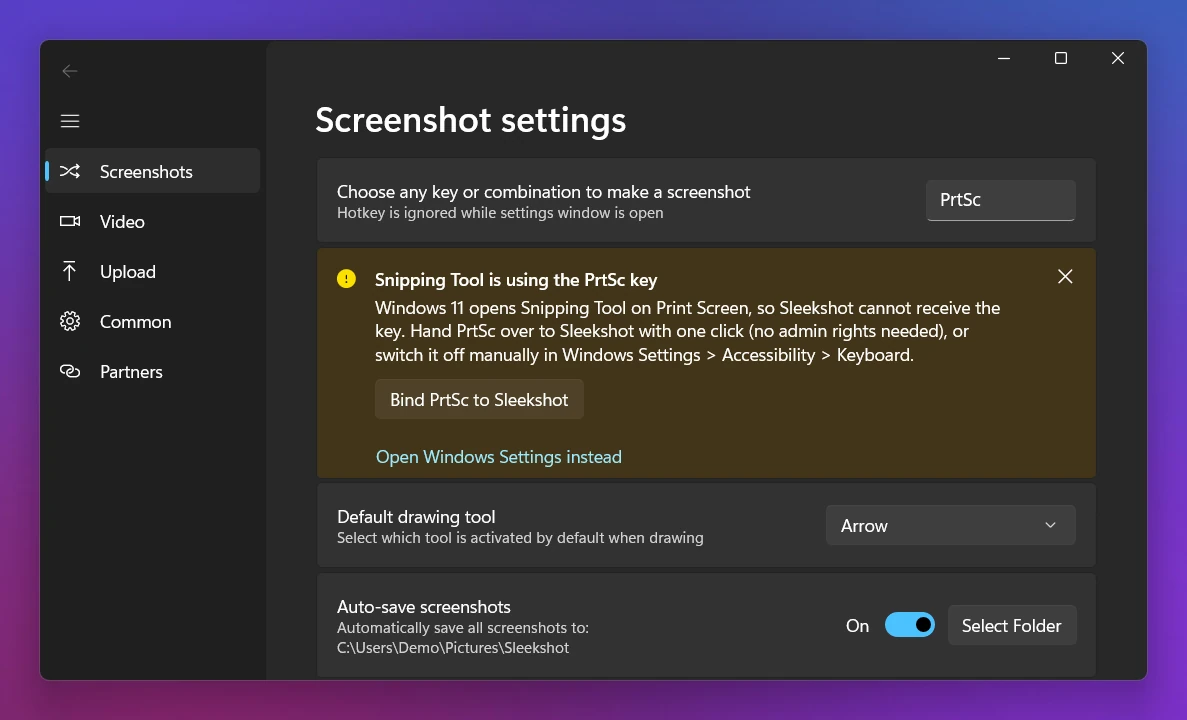
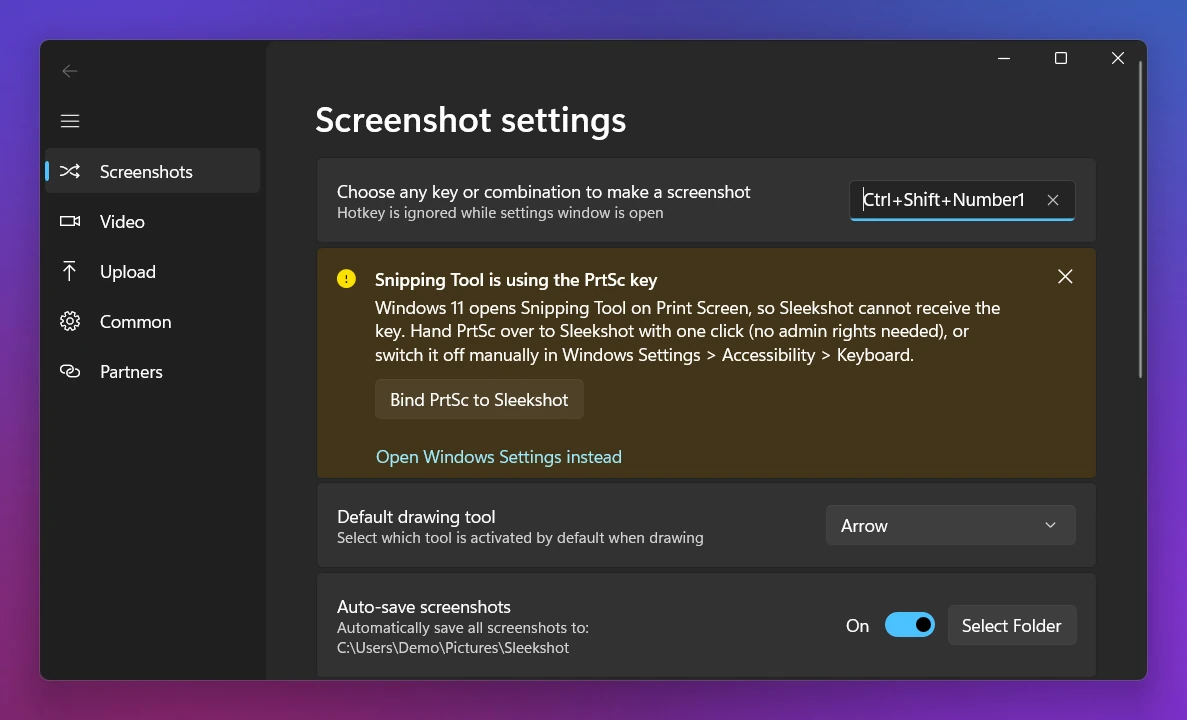
Want a different key? In Sleekshot, open Settings → Screenshots, click Change hotkey and press any key or combination. For example, Ctrl + Shift + 2 or a spare key like Pause. The shortcut doesn't work while the Settings window is open, so close it before you test. Every key in the app is listed on the keyboard shortcuts page.
What Sleekshot doesn't do: it takes an area, a window or the whole screen and can record video, but it has no scrolling screenshots and no delay timer. If you need those, ShareX (free) or Snagit (paid) have them.
OneDrive and Dropbox can grab PrtSc too. OneDrive does it with Save screenshots I capture to OneDrive (OneDrive Settings → Sync and back up). Dropbox does it with Save screenshots to your Dropbox (Preferences → Screenshots). If a screenshot app says the key is already taken, turn these off.
Option 3: Remap Print Screen to another key with PowerToys
Microsoft PowerToys is a free set of tools from Microsoft. Its Keyboard Manager can turn any spare key into Print Screen. Use it if your compact keyboard has no PrtSc, if the key is hard to reach, or if you want to turn PrtSc off entirely.
- Install PowerToys from the Microsoft Store or with
winget install Microsoft.PowerToys. Open it and select Keyboard Manager. Make sure it's turned on. - Click Remap a key, then Add key remapping.
- Under Select, pick a key you rarely use. Pause, Scroll Lock, Insert or the right Ctrl are common choices. Under To send, choose Print Screen.
- Click OK. The new key works right away, with no restart.
A few variations:
- A shortcut instead of a key: use Remap a shortcut to make a combination like Ctrl + Alt + P act as Print Screen.
- Turn PrtSc off: set To send to Disable. Since PowerToys 0.100, new installs open a redesigned editor. If Disable isn't listed, turn off Use the new editor in the Keyboard Manager settings to get the classic one.
Some limits: remapped keys only work while PowerToys is running, and you can't remap the Fn key itself. They don't work on the sign-in screen. Windows running as administrator ignore them unless PowerToys also runs as administrator.
Which option should you choose?
- You like quick screenshots with the built-in tool: keep the Windows default. If you ever turn the switch off, Win + Shift + S still does the same thing.
- You want the classic "copy the screen, paste anywhere" key: turn the switch off (Option 1).
- You add arrows or share screenshots every day: turn the switch off, then give PrtSc to Sleekshot or another app (Option 2).
- Your keyboard has no PrtSc, or it's in an awkward spot: remap a spare key with PowerToys (Option 3). It works with either of the above.
For every other way to take a screenshot without the key, see how to take a screenshot without Print Screen.
If the change doesn't take effect
When "it didn't work", something is usually still holding on to the key.
- Restart the app after you change the switch. Screenshot apps claim PrtSc when they start, so quit and reopen yours, or sign out of Windows.
- Look for something else using the key. OneDrive, Dropbox, an old screenshot app you forgot about, or your keyboard's own software can grab PrtSc.
- On a laptop, try Fn + PrtSc. If PrtSc is printed in a different color, it's the key's second function.
- Nothing happens at all? Go through the checks in Print Screen not working on Windows 11.
Frequently asked questions
How do I stop Print Screen from opening Snipping Tool?
Where is the Print Screen setting in Windows 11?
Can I make Print Screen save screenshots automatically?
Can I use a different key for screenshots instead of PrtSc?
Why does Print Screen still open Snipping Tool after I turned the setting off?
Sleekshot Team
We build Sleekshot, a free screenshot and screen recording app for Windows and Mac. Every guide is checked on current Windows 11, Windows 10 and macOS builds.
Also available in: Русский