Lightshot vs Sleekshot: Which Screenshot Tool Is Actually Better in 2026?
If you're searching for a Lightshot alternative, Sleekshot is the strongest option available right now. It offers everything Lightshot does, plus video recording, advanced annotation tools, canvas resizing, and cross-platform support for both Windows and macOS. Sleekshot is free to download and use, with an optional one-time license for power users.
Quick answer: Lightshot remains a decent basic screenshot tool, but it hasn't seen meaningful updates in years. Its last version (5.5.0.7) shipped without modern annotation features, screen recording, or proper Windows 11 integration. Sleekshot fills every gap Lightshot leaves open, and then some.
Feature Comparison Table
| Feature | Sleekshot | Lightshot |
|---|---|---|
| Windows support | ✓ | ✓ |
| macOS support | ✓ | ✓ |
| Native Windows 11 design | ✓ (WinUI 3) | ✗ |
| Dark/Light theme | ✓ (follows system) | ✗ |
| Screen recording | ✓ (no time limit) | ✗ |
| Webcam overlay | ✓ | ✗ |
| Window detection | ✓ | ✗ |
| Screen freeze on capture | ✓ | ✗ |
| Blur/Pixelate tool | ✓ | ✗ |
| Stepper numbered circles | ✓ | ✗ |
| Text with/without background | ✓ | ✓ (basic) |
| Canvas resize after annotation | ✓ | ✗ |
| Pen stabilization | ✓ | ✗ |
| Cloud upload & sharing | ✓ | ✓ |
| Preset capture sizes | ✓ | ✗ |
| Shift-snap to 45° angles | ✓ | ✗ |
| App size | ~30 MB | ~2.7 MB |
Annotation and Editing Tools
This is where the difference between the two tools becomes obvious. Lightshot gives you a pen, line, arrow, rectangle, text, and a color picker. That's the complete list. For quick markup on a screenshot you're about to paste into Slack, it works. For anything beyond that, you'll hit walls fast.
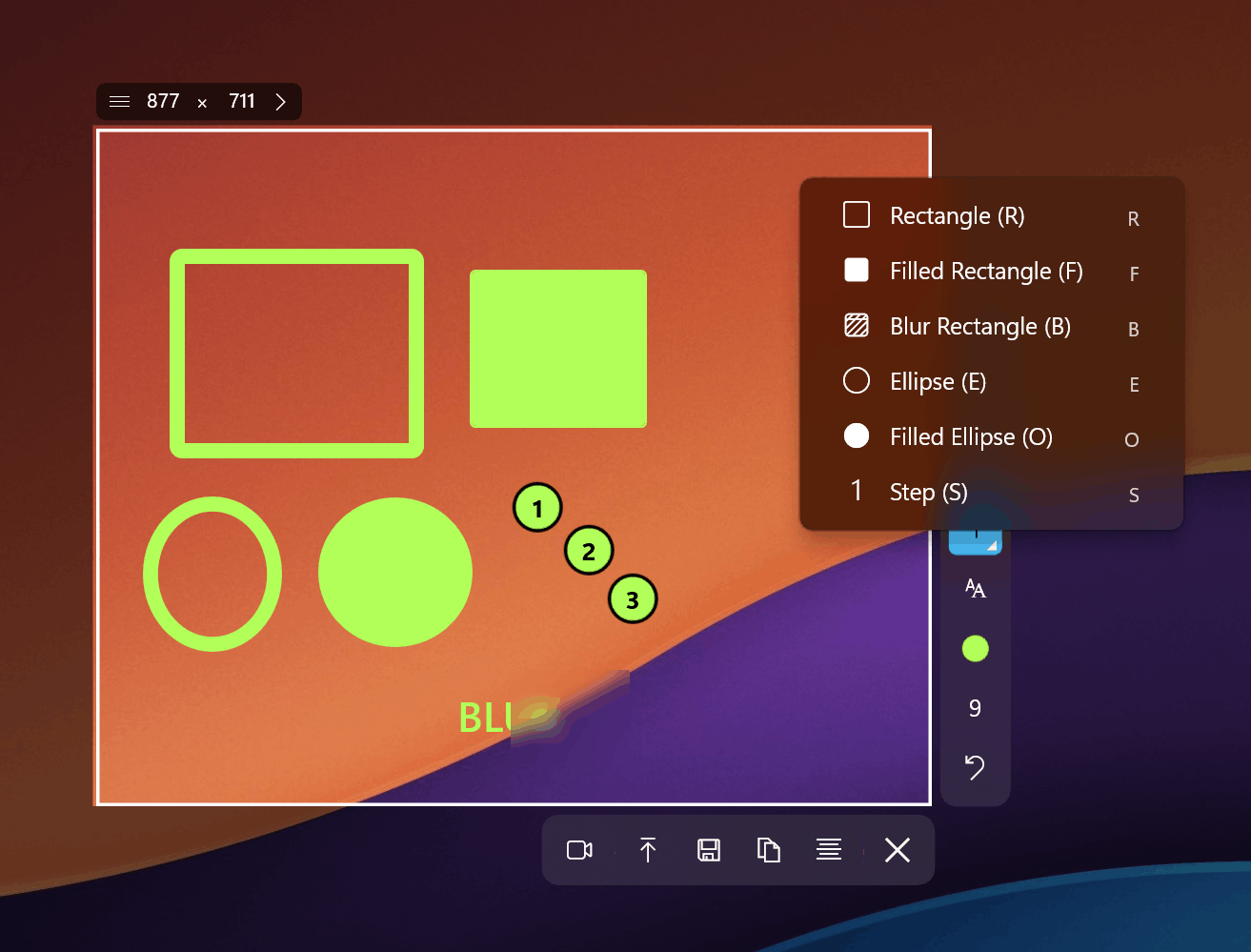
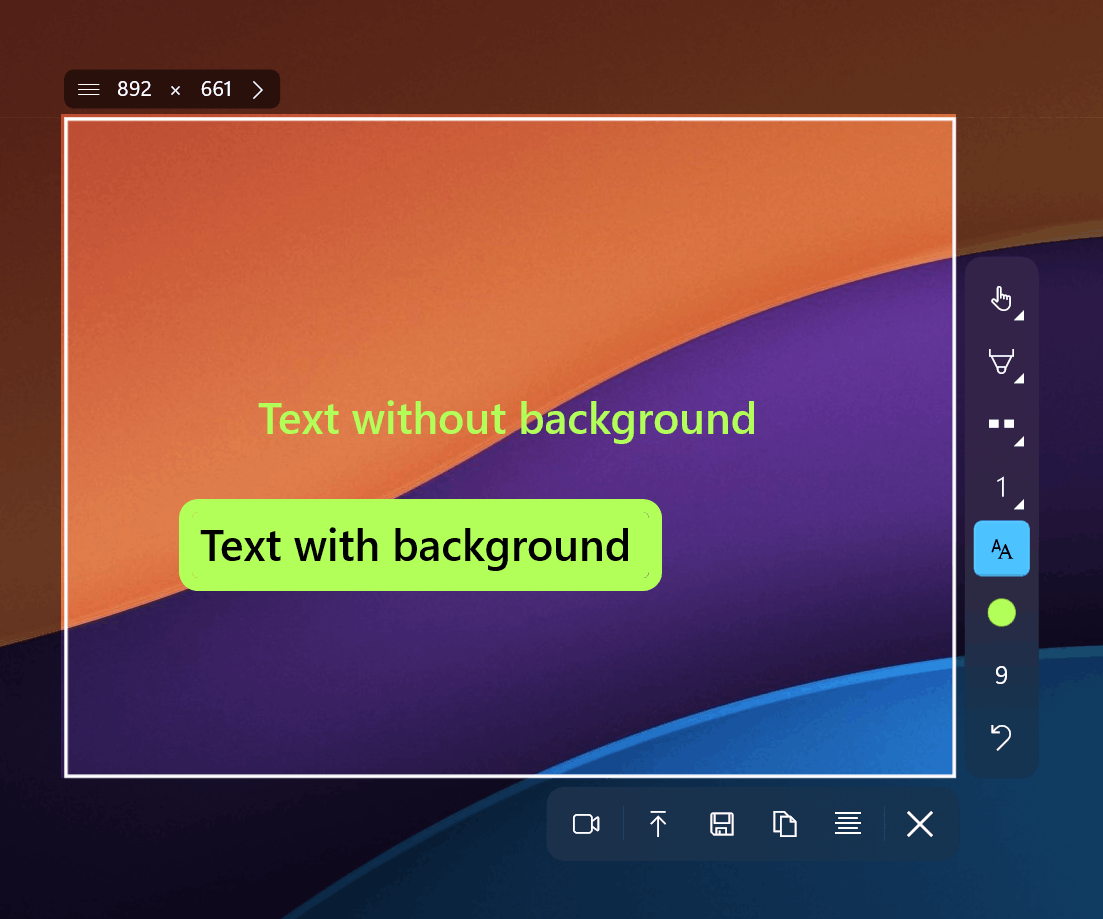
Sleekshot ships with arrows that have a distinctive visual style, rectangles, circles, solid and dashed lines, text annotations with or without a background color, blur and pixelate brushes, a pencil with smooth stabilization, a marker/highlighter, and stepper numbered circles for creating step-by-step guides. In our testing, the pen stabilization made freehand annotations look noticeably cleaner than what you'd get from Lightshot's basic pen tool.
Canvas Resizing: A Feature Lightshot Simply Doesn't Have
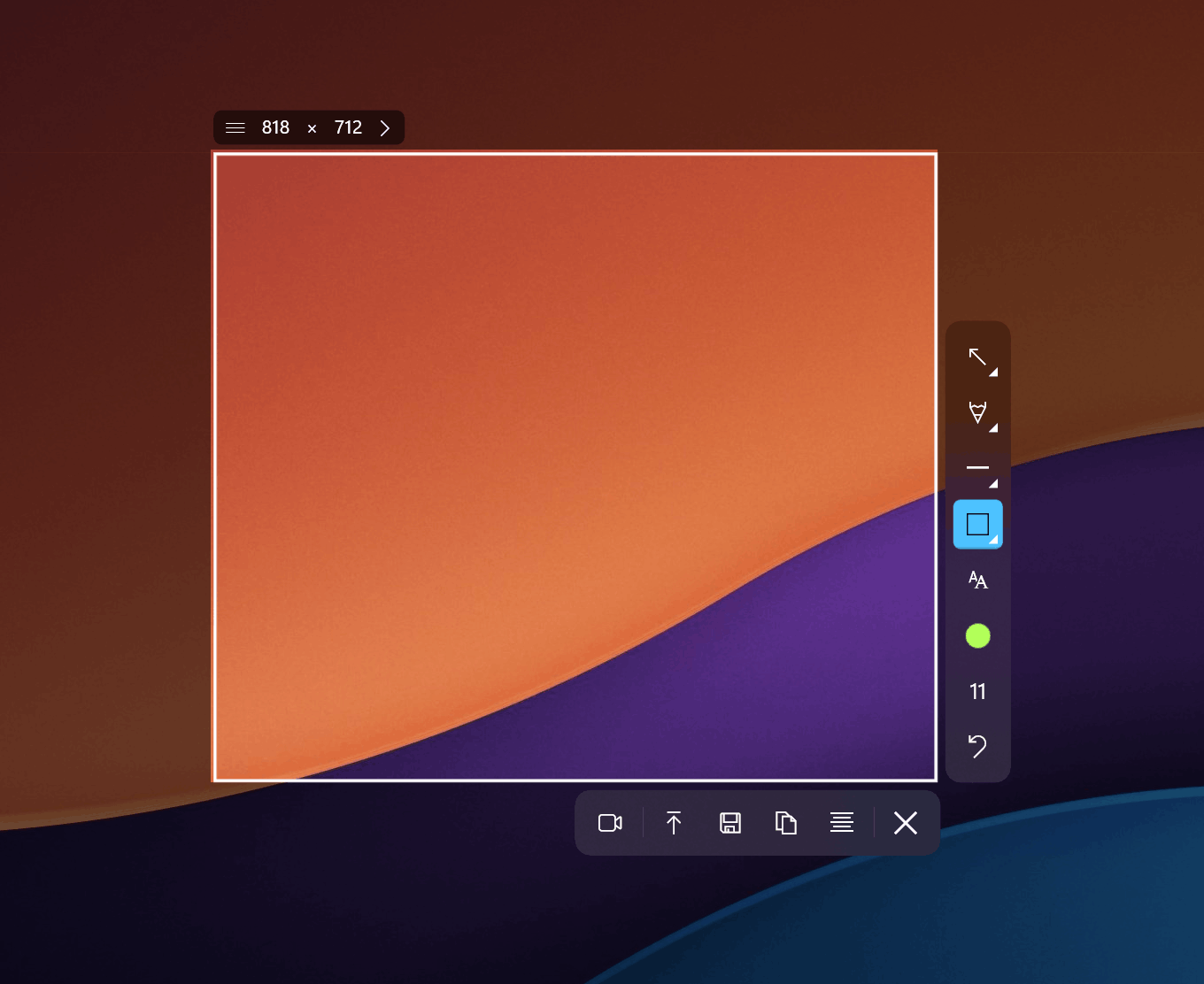
One capability that sets Sleekshot apart is the ability to resize the canvas after you've already added annotations. Say you've captured a screenshot, drawn arrows and labels, and then realize you need more space on the right side. In Sleekshot, you just drag the canvas edge. In Lightshot, you'd need to start over. We found this particularly useful when building tutorial images where the final layout wasn't obvious at first.
Keyboard Shortcuts and Precision
Sleekshot supports Shift-snapping for arrows and lines, locking them to 45-degree angles. This matters when you're creating professional-looking documentation. Lightshot has keyboard shortcuts for basic actions (PrtSc to capture, Ctrl+S to save), but nothing for precision drawing.
Screen Recording
Lightshot does not record video. Period. If you need screen recording, you'll need a separate tool entirely.
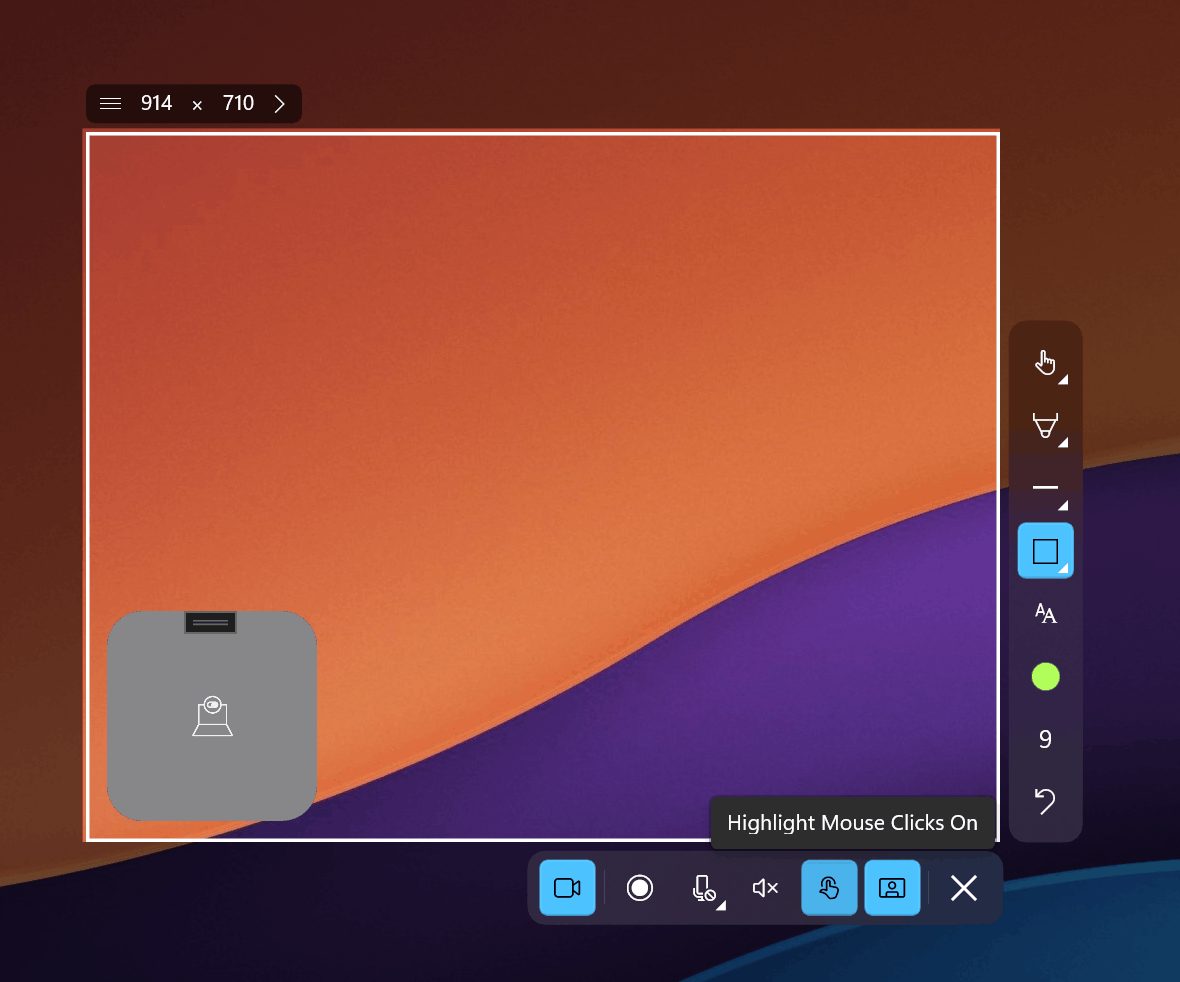
Sleekshot includes screen recording with no time limits. The free version adds a small watermark, but there's no countdown timer or forced stops. You get cursor highlighting so viewers can follow mouse movements, microphone input selection for voiceovers, and a circular webcam overlay for face-cam recordings. For anyone making tutorials, bug reports, or product demos, this eliminates the need for a dedicated recording app like OBS or Loom.
Design and Platform Support
Lightshot was designed years ago and looks like it. The interface is functional but dated, with no dark mode and no adaptation to modern Windows 11 aesthetics. It does run on both Windows and macOS, plus browser extensions for Chrome, Firefox, IE, and Opera.
Sleekshot is built on WinUI 3, which means it looks and feels native on Windows 11. It follows your system theme automatically, switching between light and dark modes, and picks up your Windows accent color. The macOS version supports all features except screen recording, which is in development.
Window Detection
Sleekshot can automatically detect window boundaries when you hover over an application. Click once and the entire window is captured, no manual dragging required. Lightshot requires you to manually select the capture area every time, which gets tedious when you're capturing dozens of windows for documentation.
Security and Privacy Concerns with Lightshot
This is something worth knowing before you commit to Lightshot. In August 2025, Lightshot was blocked on managed computers at several institutions due to a cybersecurity vulnerability. The cloud upload feature generates short URLs for shared screenshots, and security researchers found these URLs could be enumerated, meaning someone could randomly access other users' uploaded screenshots by guessing URLs.
Sleekshot's cloud sharing generates unique links, and the tool is actively developed by a solo developer who responds to security concerns and feature requests directly.
Lightshot's Known Issues in 2025-2026
Users have reported several recurring problems with Lightshot:
- Upload failures after Windows updates, showing "upload failed, retry" errors
- The app disappearing from the system tray after OS updates
- Conflicts with Windows 11's built-in Snipping Tool over the Print Screen key
- Inability to capture fullscreen games on Windows 11
- No meaningful updates for over a year
Sleekshot's screen freeze feature actually helps with the capture reliability issue. When you trigger a capture, the screen freezes in place, giving you time to precisely select what you need without worrying about content changing underneath your selection.
Pricing Breakdown
Lightshot is completely free with no paid tier. Sleekshot is also free to download and use. The free version includes all screenshot tools, annotation features, and screen recording (with a watermark on recordings). A one-time payment of $29 per PC removes the watermark and unlocks the full experience. There is no subscription, no monthly fee, and no recurring charges.
For most users who only need screenshots and annotations, the free version of Sleekshot covers everything without limitations.
Expert Tips
- Set your default tool: In Sleekshot's settings, you can choose which annotation tool is selected by default when you open the editor. If you use arrows 90% of the time, set it as default and save clicks on every capture.
- Use preset capture sizes when you need consistent dimensions across multiple screenshots, such as for app store listings or documentation with uniform image sizes.
- Try window detection first: Before manually dragging a selection area, hover over the window you want to capture. Sleekshot often detects the exact boundaries automatically, giving you a pixel-perfect capture with one click.
- Shift-snap your arrows: Hold Shift while drawing arrows or lines to lock them to 45-degree angles. This makes technical diagrams look significantly more professional.
Common Mistakes When Switching from Lightshot
- Keeping Lightshot installed alongside Sleekshot. Both tools may compete for the same hotkeys. Uninstall Lightshot first or remap one tool's shortcuts to avoid conflicts.
- Ignoring the screen freeze feature. New users sometimes try to capture the old way, racing against changing screen content. Sleekshot freezes the screen automatically, so take your time selecting the area.
- Not exploring canvas resize. Many users coming from Lightshot don't realize they can expand the canvas after annotations. This eliminates the need to recapture when you realize you need more space around your content.
- Forgetting about cloud sharing. Sleekshot lets you upload and get a shareable link, similar to Lightshot's prntscr.com, but with better privacy controls.
Frequently Asked Questions
Is Sleekshot really free, or is there a catch?
Sleekshot is genuinely free for screenshots and annotations with no limitations. Screen recording is also free but includes a small watermark. The $29 one-time license removes the watermark. There are no subscriptions, no ads, and no data collection schemes.
Can Sleekshot replace Lightshot on macOS?
Yes. Sleekshot has a macOS version that supports all screenshot and annotation features. Screen recording on macOS is coming soon. You can download Sleekshot for macOS from the official site.
Does Sleekshot work with the Print Screen key?
Yes. You can configure Sleekshot to respond to the Print Screen key or set custom hotkeys. If Windows 11's Snipping Tool is intercepting the key, Sleekshot provides instructions for reassigning it during setup.
What is the best free screenshot tool for Windows 11 in 2026?
For a balance of modern design, comprehensive annotation tools, and screen recording, Sleekshot is the strongest free screenshot tool on Windows 11. It's built natively with WinUI 3, so it integrates with Windows 11's visual style in ways older tools like Lightshot cannot.
Can I use Sleekshot for creating step-by-step tutorials?
Absolutely. The stepper tool places numbered circles on your screenshot, and the canvas resize feature lets you add more space for annotations after the fact. Combined with screen recording for video tutorials, Sleekshot handles the entire tutorial creation workflow. Try it free.
The Verdict
Lightshot earned its reputation as a quick, lightweight screenshot tool. But in 2026, "quick and lightweight" isn't enough when free alternatives offer so much more. Lightshot lacks screen recording, modern annotation tools, dark mode, canvas resizing, and native Windows 11 integration. It also carries unresolved security concerns around its cloud sharing feature.
Sleekshot delivers everything Lightshot does, plus the features modern users expect from a screen capture tool. It's free, it runs on Windows and macOS, and it's actively maintained by a developer who takes feature requests seriously.
Download Sleekshot free and see the difference for yourself. If you find it useful and want to support development, the one-time $29 license is there when you're ready.


