Copy Text from Any Part of the Screen (OCR on Your PC)
Select any part of the screen in Sleekshot and press Ctrl+O. Sleekshot recognizes the text on your PC and copies it to the clipboard, ready to paste. It uses the open-source Tesseract engine and needs no internet, so screenshots of private documents never leave your computer. Sleekshot for Mac does the same with ⌘⇧C, using Apple's text recognition on your Mac.
Select an area and press Ctrl+O. The text is already on your clipboard.
No internet needed
Text is recognized on your PC with Tesseract 5. Your screenshot is never sent to a server.
16 popular languages
English, Russian, German, French, Spanish, Chinese, Japanese, Arabic and more. You download each one once.
Reads dark mode too
Before it reads, Sleekshot makes the image gray, bigger and higher contrast, and flips light text on dark backgrounds.
Text from anywhere
Error dialogs, video frames, scanned PDFs, images in chats: anything you can see on the screen.
Mac: ⌘⇧C
Sleekshot for Mac copies text with Apple's Vision framework, also right on your Mac.
To copy text from the screen on Windows, press PrtSc with Sleekshot running, select the area with the text and press Ctrl + O. Sleekshot recognizes the text right on your PC and puts it on the clipboard. A notification says Text recognized and copied to clipboard, and Ctrl + V pastes it anywhere.
It works on anything you can see: an error message you can't select, a paused video, a scanned PDF. It also copies text from an image in a chat or from a web page that blocks copying. And since nothing is uploaded, it's safe for contracts, invoices and internal dashboards too.
How to copy text from the screen
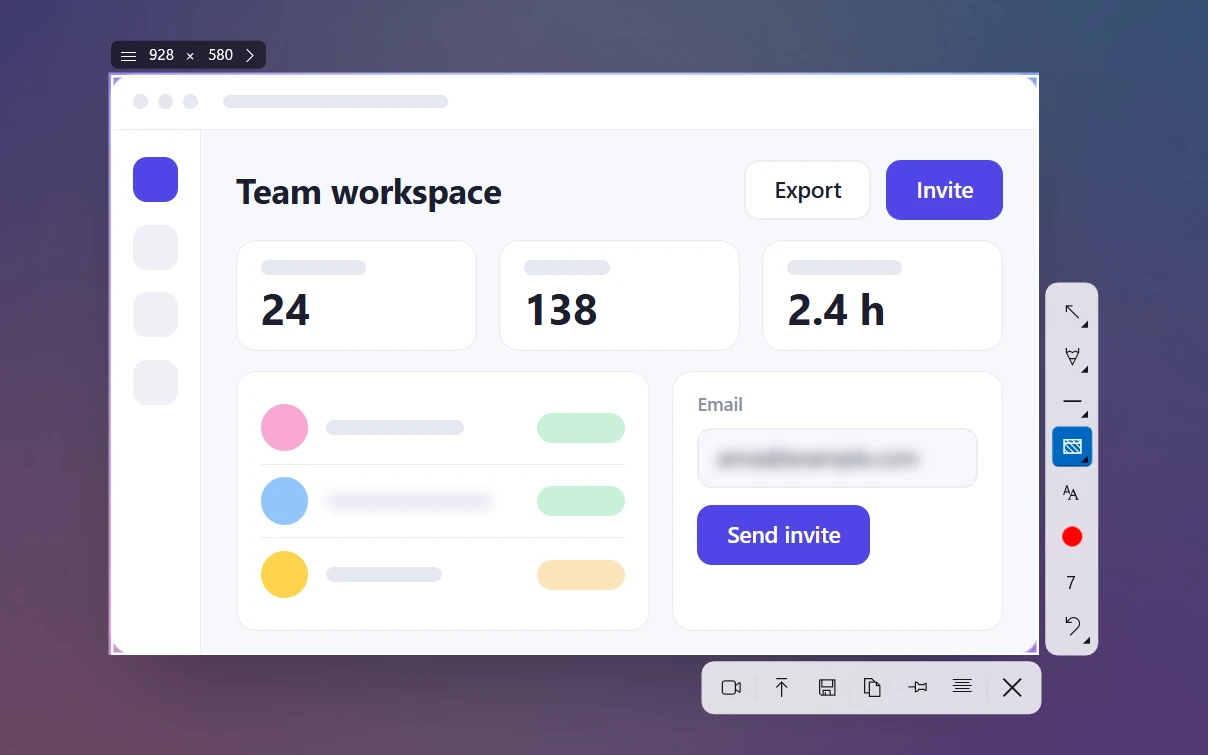
Press PrtSc. The screen dims.
Drag a rectangle around the text. Leave out icons, photos and nearby columns.
Press Ctrl + O or click Copy text under the selection. A moving border runs around the selection while Sleekshot reads the text.
Paste with Ctrl + V into Notepad, Word, a chat or a search box.
If Sleekshot can't find anything readable, you'll see Could not recognize text in the selected area. Zoom in or make the selection tighter (see the tips below).
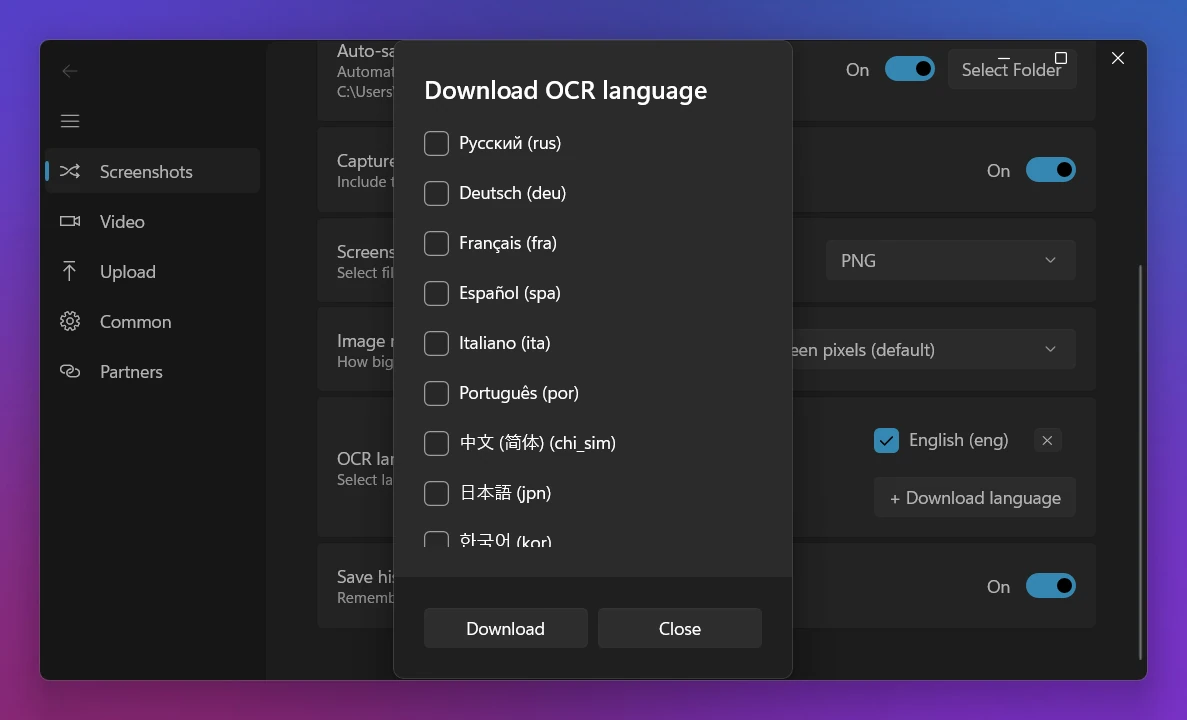
The first time, Sleekshot asks you to download languages. Check the languages you read and click Download. After that, copying text works without the internet.
On your PC and private: where your screenshot goes
Nowhere. Sleekshot uses Tesseract 5, the open-source text recognition engine, with its most accurate "best" models, on your own PC. It only goes online once for each language you download.
Online OCR sites and AI chatbots, on the other hand, need you to upload the image first. That's a bad idea for passwords, medical documents or customer data.
Before it reads the text, Sleekshot prepares the image. It turns it gray, makes it bigger, separates the text from the background and flips the colors when the text is light on a dark background. That's why white text in a dark-themed app or code editor comes out as well as black text on white.
Languages and how to add one
Settings → Screenshots → OCR languages offers 16 popular languages: English, Russian, German, French, Spanish, Italian, Portuguese, Chinese (Simplified), Japanese, Korean, Ukrainian, Polish, Turkish, Arabic, Hindi and Dutch. English is always suggested, along with the languages of your Windows. To add another one, click + Download language. You download each language once, and it stays on your PC.
Pick only the languages you actually read. Each extra language makes reading a little slower and gives the engine more ways to mix up a letter.
You download each language once
Tips for getting the text right
Zoom in before you take the screenshot. Big letters read best, and small text causes most mistakes. In a browser or PDF viewer, press Ctrl + + a couple of times first.
Select one block at a time. A selection that cuts across two columns or includes a toolbar mixes lines together.
Avoid busy backgrounds. Text over a photo or a gradient is harder to read. Pause a video on a cleaner frame if you can.
Download the right language. Umlauts, accents or Cyrillic letters come out wrong if only English is installed.
Check numbers and codes. OCR can mix up O and 0, or l and 1. Double-check serial numbers, IBANs and amounts before you use them.
Sleekshot for Mac can do this too. Press ⌘ + ⇧ + 2, select the text and press ⌘ + ⇧ + C (Copy text). It uses Apple's Vision framework and runs right on your Mac, so nothing leaves your Mac either.
Read how to copy text from an image on a Mac for Live Text, the built-in option. The Sleekshot for Mac page covers the rest of the app.
What it doesn't do (yet)
Plain text only. Tables, columns and fonts aren't kept. You get lines of text.
No translation, and no search across old screenshots, because Sleekshot doesn't keep a screenshot history.
Handwriting is hit-and-miss. The engine is made for printed text.
It only reads the languages you downloaded. Scripts that aren't on the list aren't supported.
Windows has its own options too. Snipping Tool in Windows 11 copies text from a screenshot with Text actions, and Microsoft PowerToys includes Text Extractor (Win + Shift + T). If you already take screenshots with Sleekshot, Ctrl + O saves you switching apps. Download Sleekshot to try it, and see the keyboard shortcuts for the rest.
Frequently asked questions
How do I copy text from a screenshot on Windows?
With Sleekshot running, press PrtSc, select the area with the text and press Ctrl+O (or click Copy text). Sleekshot recognizes the text and copies it to the clipboard. Paste it with Ctrl+V.
Does Sleekshot upload my screenshots for OCR?
No. Text is recognized on your PC with the Tesseract engine. Sleekshot only goes online once per language, to download the language you choose.
Which languages can Sleekshot recognize?
Settings offers 16 popular languages: English, Russian, German, French, Spanish, Italian, Portuguese, Chinese (Simplified), Japanese, Korean, Ukrainian, Polish, Turkish, Arabic, Hindi and Dutch. You download each one once, and then it works without the internet.
Why is the copied text wrong or empty?
Usually the text is too small, the selection includes pictures or two columns, or the language isn't downloaded. Zoom in, select one block of text and check Settings → Screenshots → OCR languages.
Does Windows have built-in OCR?
Yes. Snipping Tool in Windows 11 can copy text from a screenshot with Text actions, and Microsoft PowerToys adds Text Extractor (Win+Shift+T). Sleekshot lets you copy text with the same key press you use for screenshots.
Can I copy text from the screen on a Mac?
Yes. In Sleekshot for Mac, press ⌘⇧2, select the area and press ⌘⇧C. Apple's Live Text can also select text in images in Preview and Photos.
Copy text from any image or screenshot on Windows with Snipping Tool, Photos, PowerToys, OneNote, Google Lens or Sleekshot. Steps, shortcuts and privacy notes.
Common screenshot mistakes and how to fix them: leaked personal info, weak blur, too much or too little context, blurry text, JPEG artifacts, wrong monitor.