How to Copy Text From a Screenshot or Image on Windows 11 & 10
 By Sleekshot Team
8 min read
By Sleekshot Team
8 min read
Short answer
On Windows 11, press Win + Shift + S, click Text extractor in the Snipping Tool toolbar and drag over the text. It goes straight to the clipboard. For an image file, open it in Photos and click Scan text. On Windows 10, use PowerToys Text Extractor (Win + Shift + T) or a screenshot app that reads text on your PC, like Sleekshot (PrtSc, then Ctrl + O).
On this page
- Quick comparison: 7 ways to copy text from an image
- Method 1: Snipping Tool Text extractor (Windows 11)
- Method 2: Photos app Scan text (image files on Windows 11)
- Method 3: PowerToys Text Extractor (Windows 10 and 11)
- Method 4: OneNote Copy Text from Picture
- Method 5: Google Lens in Chrome
- Method 6: Click to Do on Copilot+ PCs
- Method 7: Sleekshot, copy text right from the screenshot (no internet needed)
- Which method keeps your text private?
- Tips for cleaner results
To copy text from an image on Windows 11, press Win + Shift + S. Click Text extractor in the Snipping Tool toolbar and drag a box around the words. The text goes straight to the clipboard, ready for Ctrl + V. Windows 10 has nothing built in, but Microsoft PowerToys, OneNote, Google Lens and Sleekshot fill the gap.
Every method here uses OCR (optical character recognition): the app looks at the pixels and works out the letters. It handles text on screen well, like error messages, locked PDFs or text in a video or slide. It struggles with tiny, blurry or handwritten text. Below are all seven options, when each one makes sense, and how to get accurate results.
Quick comparison: 7 ways to copy text from an image
The right choice depends on two things. Is the text on screen right now or in an image file? And is it OK for the image to leave your PC?
| Method | How to start | Windows version | Where the text is recognized | Best for |
|---|---|---|---|---|
| Snipping Tool: Text extractor | Win + Shift + S → Text extractor | 11 | On your PC | Text on screen right now |
| Snipping Tool: Text actions | Take a screenshot, open the editor → Text actions | 11 | On your PC | Copying a few lines, hiding emails and phone numbers |
| Photos: Scan text | Open the image → Scan text | 11 | Not stated by Microsoft | Image files you already have |
| PowerToys Text Extractor | Win + Shift + T | 10 and 11 | On your PC (Windows language packs) | Windows 10, keyboard fans |
| OneNote: Copy Text from Picture | Paste the image → right-click | 10 and 11 | Not stated by Microsoft | Notes and scanned printouts |
| Google Lens in Chrome | Right-click an image → Google Lens | Any | Google's servers | Photos of paper, translation |
| Click to Do | Win + Q | 11, Copilot+ PCs only | On your PC | New Copilot+ laptops |
| Sleekshot: Copy text | PrtSc → select → Ctrl + O | 10 (1809+) and 11 | On your PC, no internet needed | Screenshots you also mark up, share or record |
Method 1: Snipping Tool Text extractor (Windows 11)
Snipping Tool, the screenshot app built into Windows 11, can copy text without saving a screenshot first. The Text extractor button arrived in its toolbar in 2025. If you don't see it, update Snipping Tool from the Microsoft Store.
- Press Win + Shift + S. On most Windows 11 PCs, the PrtSc key opens the same toolbar.
- In the toolbar at the top of the screen, click Text extractor.
- Drag a rectangle over the text. Snipping Tool highlights the words it found and copies them.
- Paste with Ctrl + V into Word, a chat or a browser field.
The toolbar's options include removing line breaks. That helps when you copy a paragraph from a narrow column and don't want a break after every few words.
Text actions: copy part of the text or hide emails first
If you've already taken a normal screenshot, click the notification to open it in the Snipping Tool editor, and click Text actions. Then select the lines you want and copy them, or click Copy all text. The same panel has a quick option that hides email addresses and phone numbers. It's handy before you send the image to someone.
Microsoft says Snipping Tool recognizes all text on your device.
Method 2: Photos app Scan text (image files on Windows 11)
For a PNG or JPG that's already on your PC, the Windows 11 Photos app is the quickest way.
- Double-click the image so it opens in Photos.
- Click Scan text at the bottom of the window. In current versions, the button shows up for every image. If there's no text, Photos tells you.
- Select the text you need, right-click and choose Copy text, or select all of it.
- Paste it wherever you need it.
Microsoft says Photos recognizes text in more than 160 languages. If the button is missing, update Photos from the Microsoft Store.
Method 3: PowerToys Text Extractor (Windows 10 and 11)
PowerToys is a free set of tools from Microsoft. Its Text Extractor is the closest thing to a built-in option on Windows 10. Install PowerToys from the Microsoft Store, from GitHub or with winget install Microsoft.PowerToys. Then make sure Text Extractor is turned on in the PowerToys settings.
- Press Win + Shift + T. The screen dims.
- Drag over the text. Hold Shift to move the selection instead of resizing it.
- The text is copied as soon as it's recognized. Esc cancels.
Text Extractor uses the Windows text recognition engine, so it only reads languages whose pack is installed. To see which packs you have, run this in Windows PowerShell as administrator:
Get-WindowsCapability -Online | Where-Object { $_.Name -Like 'Language.OCR*' }
You can add packs marked NotPresent with Add-WindowsCapability -Online, as shown in Microsoft's Text Extractor documentation. Microsoft itself warns that the result "may not be perfect", so give it a quick check.
Method 4: OneNote Copy Text from Picture
OneNote has been able to read text in pictures for years. It's still useful for scanned documents and printouts with several pages.
- Paste the screenshot into a OneNote page (Ctrl + V), or use Insert → Pictures.
- Right-click the image and choose Copy Text from Picture.
- Click where you want the text and press Ctrl + V.
This works in the OneNote desktop app for Windows (Microsoft 365, 2024, 2021 and 2016), not in OneNote for the web. If the command is grayed out or missing, wait a moment. OneNote reads the picture in the background, and Microsoft notes that some images take longer.
Method 5: Google Lens in Chrome
Google Lens is good with hard cases: photos of paper taken at an angle, mixed languages, text you also want to translate.
- In Google Chrome, right-click an image and choose the Google Lens option, for example Search image with Google Lens.
- In the Lens panel, switch to Text, select the words and click Copy.
- For an image file, go to google.com, click the camera icon (Search by image) and upload it.
The catch is privacy. Lens sends the image to Google. That's fine for a recipe or a street sign, not for a contract, an invoice with bank details or a screenshot of an internal dashboard.
Method 6: Click to Do on Copilot+ PCs
Click to Do is a Windows 11 AI feature that only works on Copilot+ PCs. These need a 40 TOPS NPU and 16 GB of RAM. Press Win + Q, or hold Win and click. Select the text on screen and choose Copy. Microsoft says the screen is always analyzed on your PC, and content only goes online if you pick an action like a web search. You can turn the feature on or off in Settings → Privacy & security → Click to Do.
Method 7: Sleekshot, copy text right from the screenshot (no internet needed)
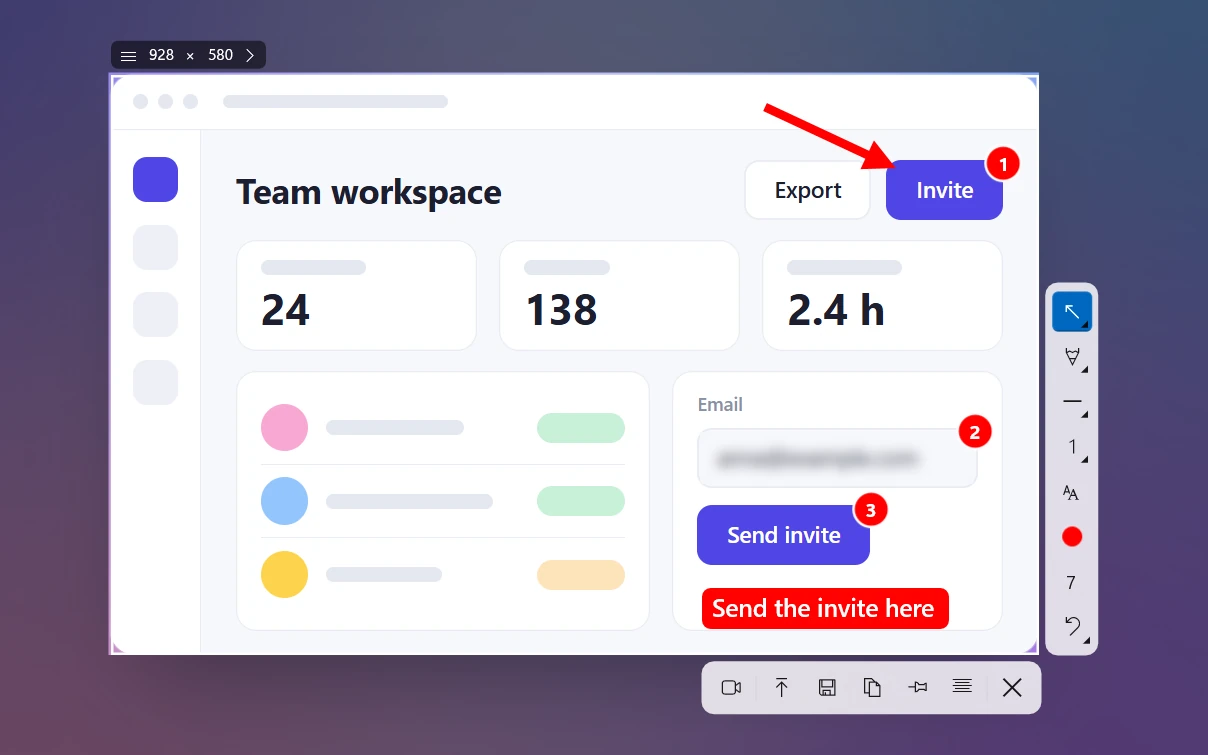
Sleekshot is a free screenshot and screen recording app for Windows 10 and 11. It can copy the text from any area you select, right on your PC. It's one key away from the selection you already made, so you don't switch apps.
- Press PrtSc (Sleekshot's default shortcut). The screen dims.
- Drag around the text, or click a window to select all of it.
- Press Ctrl + O, or click Copy text to clipboard. A moving border runs around the area while Sleekshot reads it.
- When the notification "Text recognized and copied to clipboard" appears, paste the text.

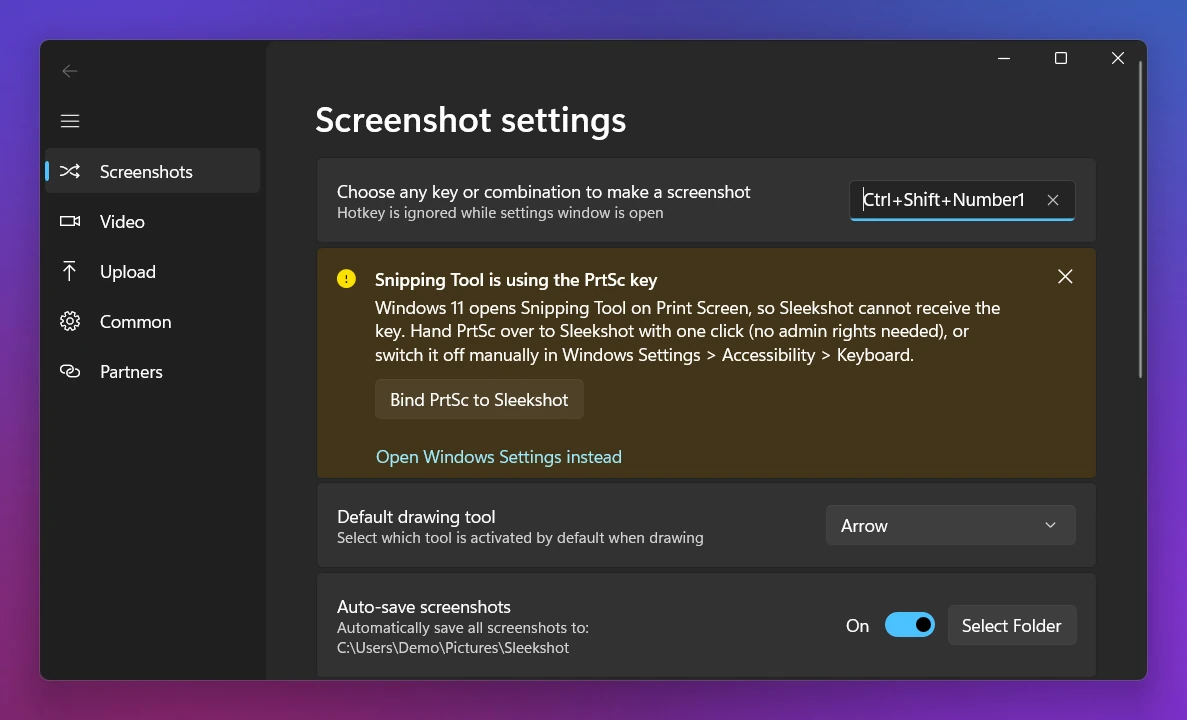
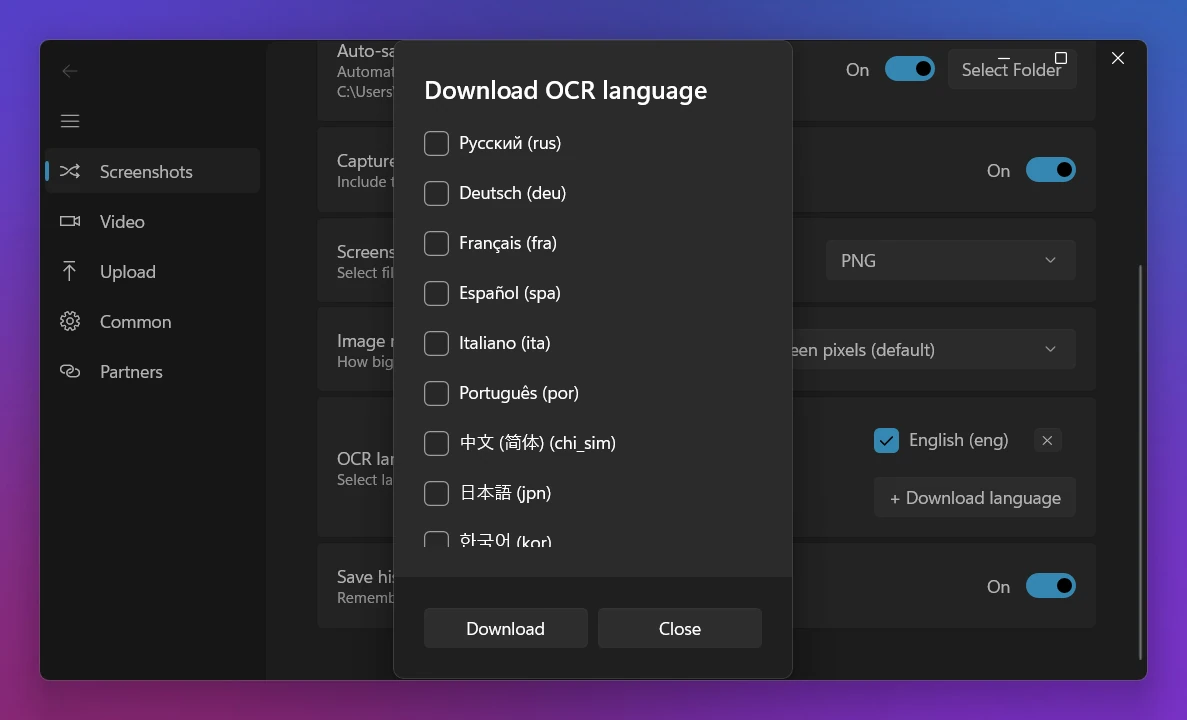
The first time, Sleekshot asks which languages to download. Settings → Screenshots → OCR languages offers 16 popular ones. English and Russian are the defaults, and your system languages are suggested. It uses Tesseract 5 models and runs entirely on your PC, with nothing uploaded. Before reading, Sleekshot turns the area gray, enlarges it and flips dark backgrounds to light. That helps with dark-mode apps and the small text in app menus.
What it won't do: Sleekshot doesn't open image files. For a picture saved on your PC, open it in Photos or a browser first, then take the screenshot. You get plain text without formatting. Where it shines is everything else you can do with the same screenshot. You can add arrows, blur or save it, upload it for a short link with Ctrl + U, or switch to a screen recording. More on copying text in Sleekshot.
Which method keeps your text private?
If the image has anything personal in it, pick a tool that recognizes the text on your PC.
| Where the text is recognized | Tools |
|---|---|
| On your PC (according to the company) | Snipping Tool, Click to Do, PowerToys Text Extractor (Windows language packs), Sleekshot |
| Sent to the cloud | Google Lens |
| Not mentioned on Microsoft's support pages | Photos Scan text, OneNote Copy Text from Picture |
If you plan to share the screenshot itself after copying the text, hide the private parts first. Here's how to blur a screenshot on Windows.
Tips for cleaner results
Most mistakes come from the image, not the recognition. A few habits make a big difference:
- Zoom in before you take the screenshot. Press Ctrl + + in the browser or PDF viewer. Bigger letters mean fewer errors.
- Select only the text. Leave out icons, profile pictures and table borders. They turn into stray characters.
- Use the right language. German text read with only English installed loses its umlauts. Add the language first.
- Double-check the usual suspects: 0 and O; 1, l and I; "rn" read as "m"; quotes and dashes. Check every number before you paste it into a form or a spreadsheet.
- Tables come out as lines of text. Paste into Excel and use Data → Text to Columns, or take one column at a time.
- Handwriting and decorative fonts are where every tool makes the most mistakes, so check the result.
Prefer the keyboard? Our list of Windows screenshot shortcuts covers every combination. If you also use a Mac, see how to copy text from an image on a Mac.
Frequently asked questions
Can Windows copy text from an image without extra software?
What is the shortcut to copy text from the screen on Windows?
Is copying text from a screenshot private?
Why is the copied text full of mistakes?
How do I copy text from an image on Windows 10?
Sleekshot Team
We build Sleekshot, a free screenshot and screen recording app for Windows and Mac. Every guide is checked on current Windows 11, Windows 10 and macOS builds.
Also available in: Deutsch Français Español Italiano Русский ភាសាខ្មែរ Bahasa Indonesia 简体中文 日本語