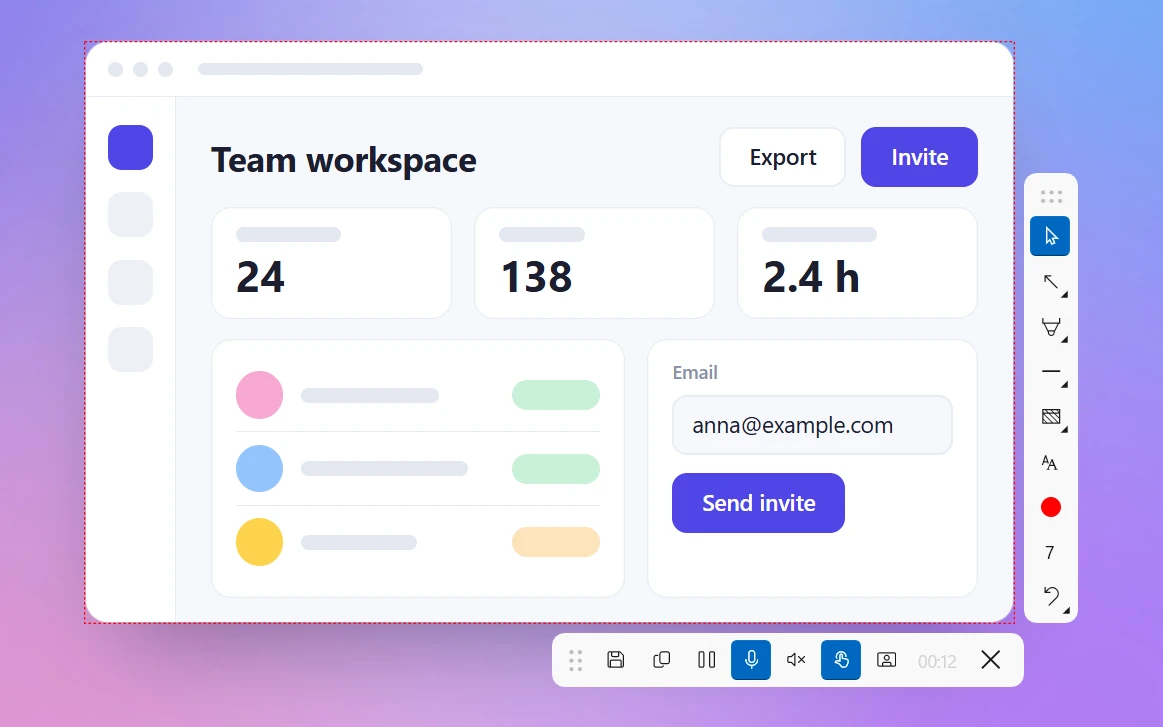
Screenshots at an Exact Size: Ready-Made Sizes for Social Posts, Shorts and Slides
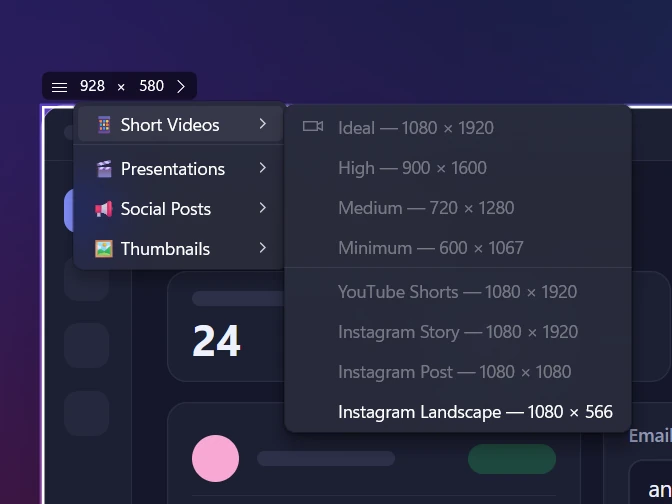
Sleekshot's size box shows the width and height of your selection in real pixels. Type an exact size or pick a ready-made one: 1080 × 1920 for Shorts, 1280 × 720 for YouTube thumbnails, Full HD, 4K and more. There are also sizes for Facebook and link previews (1200 × 630), X, LinkedIn and Pinterest. You can record the same selection as a video, so screen recordings come out at the size you need too.
Click the W × H box and type the exact width and height, up to 7680 × 4320.
22 ready-made sizes in 4 groups
Short videos, Presentations, Social posts and Thumbnails, one click each.
Real pixels
The numbers are real pixels: 1200 × 630 gives you a 1200 × 630 image, even at 150% display scaling.
Works for video too
Set the size, press V and record. The video covers exactly that area.
Move without resizing
Drag the grip on the size box to move the selection and keep its size.
Squares with Shift
Hold Shift while you drag for a perfectly square selection.
To take a screenshot at an exact size in Sleekshot, press PrtSc and drag any selection. Then click the W × H numbers in the size box and type the width and height. Or open the list of sizes next to them and pick 1080 × 1920 for Shorts or 1280 × 720 for a YouTube thumbnail. The selection snaps to that size, and whatever you copy, save or record comes out at exactly those pixels.
That saves the usual detour of grabbing too much and cropping it in an image editor. It also means a batch of screenshots for docs, a slide deck or a social post all come out the same size.
How to take a screenshot at an exact size
Press PrtSc and drag a rough selection. Hold Shift for a perfect square.
Look at the size box next to the selection. It shows the current width and height.
Click a number and type a new value, up to 7680 × 4320. Or click the small arrow button next to the numbers to open the list of sizes.
To move the selection without resizing it, drag the grip on the size box. To fine-tune it, drag an edge.
Add arrows or text if you need to, then copy (Ctrl + C), save (Ctrl + S) or press V to record.
The list of sizes opens from the size box
All ready-made sizes
Group
Name
Size (px)
Short videos
Ideal
1080 × 1920
Short videos
High
900 × 1600
Short videos
Medium
720 × 1280
Short videos
Minimum
600 × 1067
Short videos
YouTube Shorts
1080 × 1920
Short videos
Instagram Story
1080 × 1920
Short videos
Instagram Post
1080 × 1080
Short videos
Instagram Landscape
1080 × 566
Presentations
Full HD
1920 × 1080
Presentations
HD
1280 × 720
Presentations
Widescreen 16:9
1600 × 900
Presentations
4K UHD
3840 × 2160
Presentations
Standard 4:3
1024 × 768
Presentations
SVGA
800 × 600
Presentations
VGA
640 × 480
Social posts
Twitter/X post
1600 × 900
Social posts
LinkedIn post
1200 × 627
Social posts
Facebook post
1200 × 630
Social posts
Pinterest pin
1000 × 1500
Thumbnails
YouTube thumbnail
1280 × 720
Thumbnails
Blog featured image
1200 × 628
Thumbnails
Open Graph (link preview)
1200 × 630
Social networks change their recommended sizes from time to time. Our social media image sizes guide has the current list.
Setting the size of a screen recording
The screen recorder uses the same selection, so the sizes work for video too. Set the size first, then press V for Screen recorder mode and Ctrl + R to record. A 1280 × 720 or 1920 × 1080 area gives you a clean 16:9 clip for YouTube or a slide deck. A vertical size gives you a 9:16 video for Shorts, Reels or TikTok.
The recorded area is the selection you sized
A smaller area also keeps text readable after YouTube or a chat app compresses the video. More in how to record part of the screen.
Real pixels, even with display scaling
The size box shows real pixels, which is the size of the image you'll get. With Windows display scaling at 125% or 150%, a 1200 × 630 selection still gives you a 1200 × 630 file. It just covers less of the screen than you might expect. That's what social networks and documentation tools care about: pixels, not how big something looked on your monitor.
A selection can't be bigger than the monitor. If a size doesn't fit, it's cut at the edge of the screen. On a 1920 × 1080 display, 1080 × 1920 becomes 1080 × 1080. Of the vertical short-video sizes, only Minimum (600 × 1067) fits. For full-size vertical screenshots, use a 4K monitor or one turned to portrait.
The list is fixed. You can type any size, but you can't save your own sizes to the list yet.
No padding or backgrounds. A ready-made size crops the screen to that size. It doesn't put a smaller screenshot on a bigger background.
Windows only. Sleekshot for Mac shows the size of the selection but has no ready-made sizes.
How do I take a screenshot of an exact size on Windows?
In Sleekshot, press PrtSc and drag any selection. Then click the W × H numbers in the size box and type a width and height, or open the list of sizes next to them. The selection snaps to that size. Then copy or save as usual.
What happens if a size is bigger than my screen?
A selection can't be bigger than the monitor, so it's cut at the edge of the screen. For example, 1080 × 1920 doesn't fit on a 1920 × 1080 display. Use a 4K monitor or one turned to portrait, or a smaller vertical size like 600 × 1067.
What size is best for X, LinkedIn or Facebook posts?
Sleekshot's ready-made sizes are 1600 × 900 for X (Twitter), 1200 × 627 for LinkedIn, 1200 × 630 for Facebook and 1000 × 1500 for Pinterest. Platforms change their recommendations, so check our social media image sizes guide for the current list.
Can I record a vertical video for Shorts or Reels?
Yes, if your monitor is tall enough. Set the selection to 1080 × 1920 or a smaller vertical size, press V for the screen recorder and Ctrl+R to record. The MP4 covers exactly that area.
Does Windows display scaling change the size?
No. The size box shows real pixels, which is what the saved image has, whether Windows scaling is set to 100%, 125% or 150%.
Why screenshots come out blurry and how to fix it: native resolution, scaling, zooming in first, PNG vs JPEG, exact pixel sizes and sharing without compression.