Sleekshot Keyboard Shortcuts: Complete Cheat Sheet for Windows and Mac
Sleekshot starts with PrtSc on Windows and ⌘⇧2 on Mac. After you select an area, every drawing tool has its own key: 1 for an arrow, R for a rectangle, B for blur, T for text, S for numbered steps. Actions use familiar combinations: Ctrl+C to copy, Ctrl+S to save, Ctrl+U for a link, Ctrl+O to copy text, and V then Ctrl+R to record. You can change the main shortcut to any key or combination in Settings.
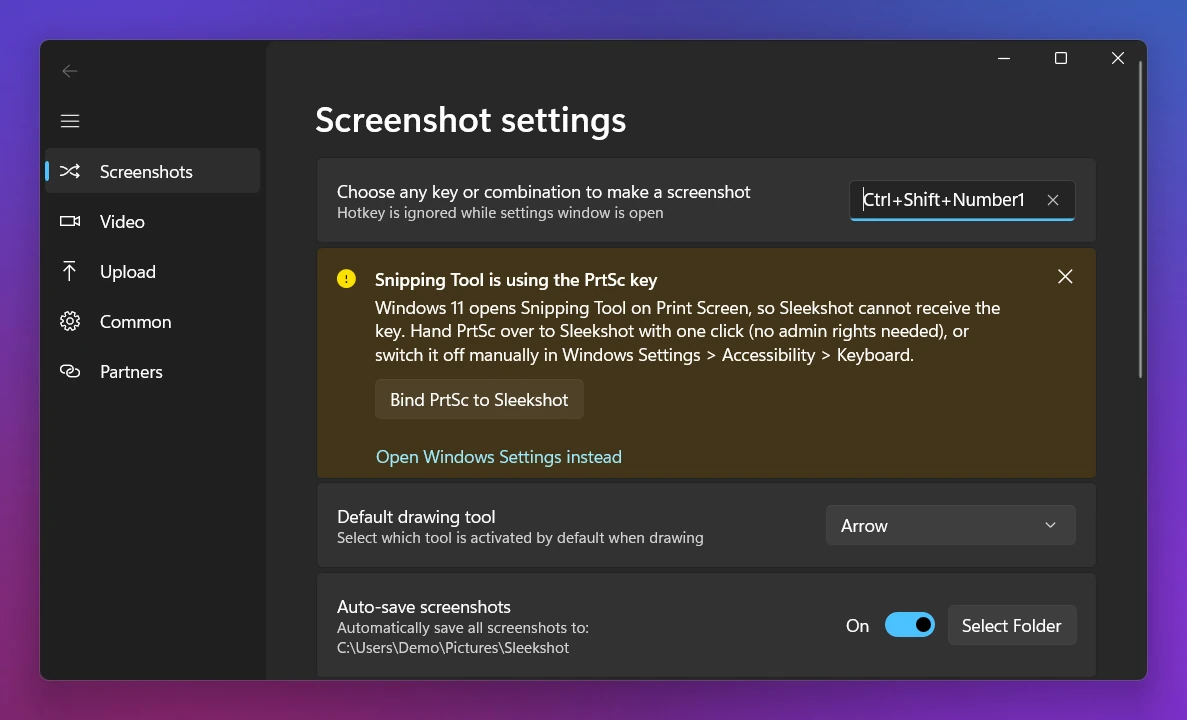
One key starts a screenshot, and you can change it to any key or combination.
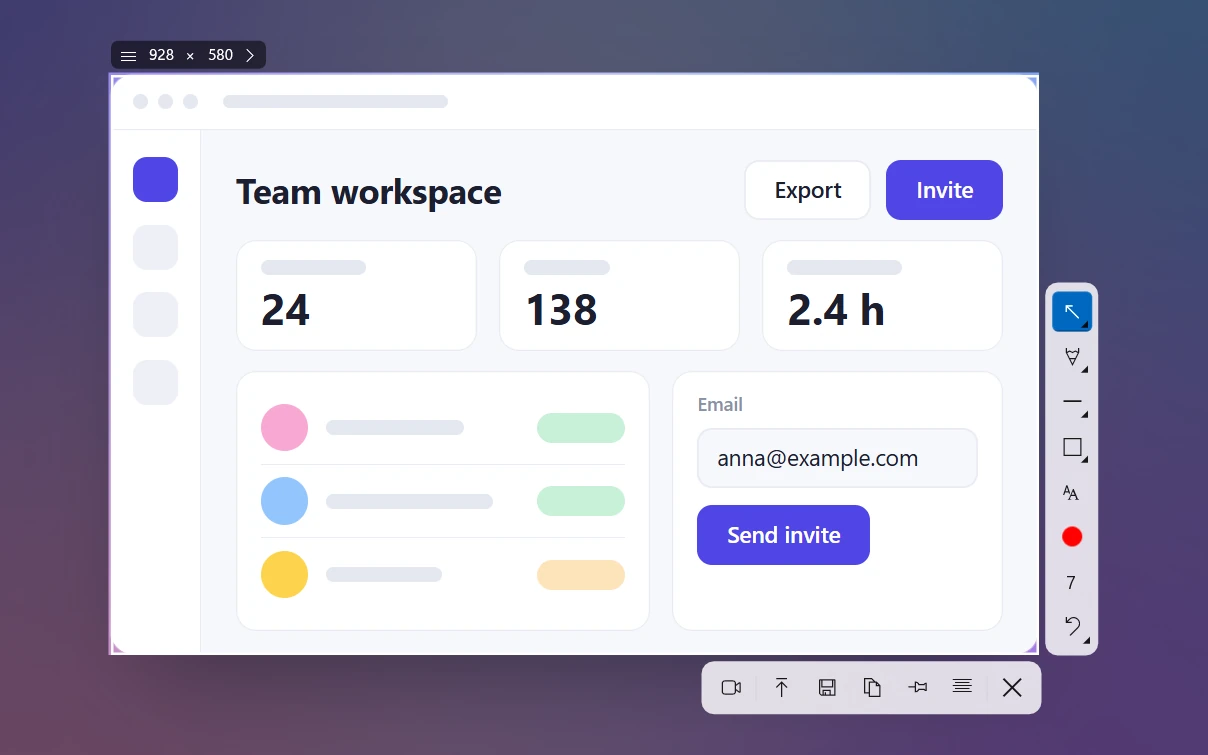
One key per tool
R, E, B, S, T and more switch tools in a single press, without reaching for the mouse.
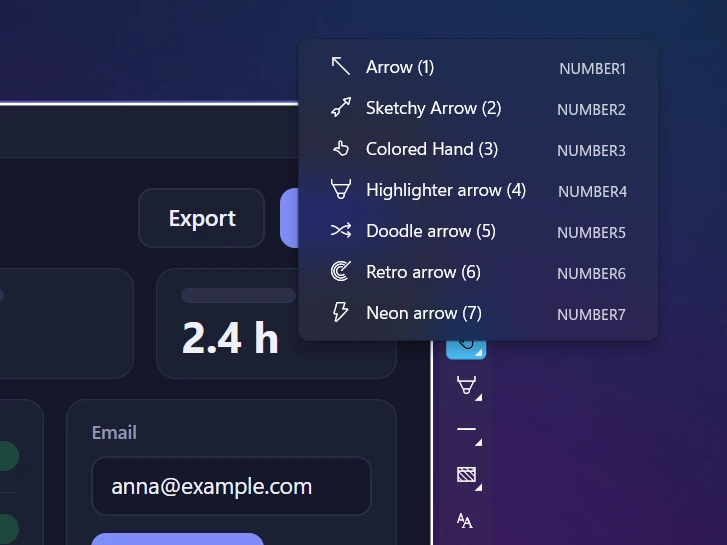
Arrow styles on 1–7
Number keys pick one of seven arrow styles, and 1 goes back to the default Arrow.
Actions on Ctrl
Ctrl+C, Ctrl+S, Ctrl+U and Ctrl+O: copy, save, share a link, copy text.
Record with V and Ctrl+R
Switch the selection to the screen recorder and start recording from the keyboard.
Help with the PrtSc key
A button in Settings takes PrtSc back from Snipping Tool in one click.
You can do everything in Sleekshot from the keyboard. PrtSc starts a screenshot on Windows (⌘ + ⇧ + 2 on Mac). After you select an area, every drawing tool is one key away, and every action is a familiar Ctrl combination.
Below is the full list of keyboard shortcuts for Sleekshot for Windows and Sleekshot for Mac. You'll also see how to change the main key and how to take PrtSc back from Snipping Tool. You don't need to learn them all. Most people get by with five: 1 (arrow), T (text), B (blur), S (numbered steps) and Ctrl + C (copy).
Windows: taking a screenshot and selecting
Action
Shortcut
Start a screenshot
PrtSc (default, you can change it) or left-click the tray icon
Select an area
Drag
Square selection
Hold Shift while you drag
Grab a window or a part of it
Click it (it's outlined in blue when you hover)
Whole current monitor
Ctrl + A
Cancel or close
Esc
A tip on screen repeats Drag, Click, Ctrl + A and Esc, so you'll only need this table on day one.
Pause / Resume, Save to file, Copy to clipboard, Discard
Buttons on the recording toolbar
Draw on the screen while recording
Drawing toolbar; the Cursor button switches back to using the desktop
Windows has its own recording keys: Win + Shift + R for Snipping Tool and Win + Alt + R for Xbox Game Bar. Both are covered in screen recording shortcuts for Windows.
Right-click the Sleekshot icon in the system tray and choose Settings.
On the Screenshots tab, find Choose any key or combination to make a screenshot and click Change hotkey.
Press the new key or combination, for example a spare F-key or Ctrl + Shift + 2.
Close Settings and test it. The key doesn't work while the Settings window is open.
Any key or combination works
On a laptop without a PrtSc key, this is the easiest fix. More options are in how to change the Print Screen key. On a Mac, you set the shortcut in Sleekshot's Settings.
PrtSc opens Snipping Tool? Fix the conflict
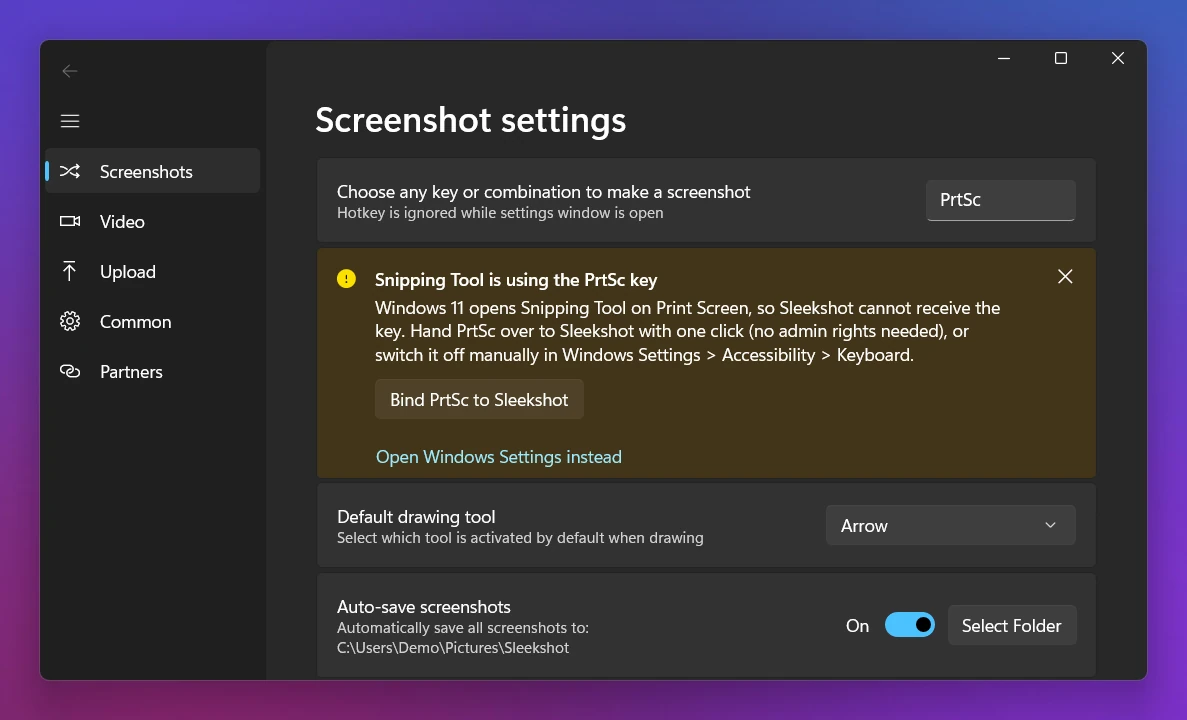
Windows 11 gives the PrtSc key to Snipping Tool by default. Windows 10 only does so if you turned it on. So the key may open the Snipping Tool bar instead of Sleekshot. Sleekshot fixes this itself: while its screenshot key is PrtSc, Settings → Screenshots shows the warning Snipping Tool is using the PrtSc key with a Bind PrtSc to Sleekshot button. One click hands the key over, no admin rights needed. To do it by hand, use the Open Windows Settings instead link, or in Windows:
Windows 11: Settings → Bluetooth & devices → Keyboard → turn off Use the Print screen key to open screen capture. On older Windows 11 builds, the same switch is in Settings → Accessibility → Keyboard. You can also type "print screen" into the Settings search box.
Windows 10: Settings → Ease of Access → Keyboard → turn off Use the PrtScn button to open screen snipping.
One click hands PrtSc over to Sleekshot
If another screenshot app like Lightshot, Greenshot or ShareX is running, it may be taking PrtSc too. Quit it or change its key. And if you'd rather keep PrtSc for Snipping Tool, just give Sleekshot another key. Windows screenshot shortcuts lists all the screenshot keys built into Windows, and Sleekshot itself is a free download.
Frequently asked questions
What is the default Sleekshot shortcut?
PrtSc on Windows and ⌘⇧2 (Command + Shift + 2) on Mac. On Windows, you can also left-click the tray icon to start a screenshot.
How do I change the Sleekshot shortcut on Windows?
Right-click the tray icon, open Settings → Screenshots, click Change hotkey and press the new key or combination. The key doesn't work while the Settings window is open, so close it before you test.
Why does PrtSc open Snipping Tool instead of Sleekshot?
Windows 11 gives PrtSc to Snipping Tool by default. Press Bind PrtSc to Sleekshot in Sleekshot's Settings → Screenshots to take it back in one click. To do it by hand, turn off Use the Print screen key to open screen capture in Settings → Bluetooth & devices → Keyboard. On older builds, it's in Settings → Accessibility → Keyboard. Or give Sleekshot a different key.
Is there a redo shortcut?
No. Ctrl+Z only removes the last mark, and there's no redo.
Why doesn't Sleekshot for Mac use ⌘⇧4?
macOS uses ⌘⇧3, ⌘⇧4 and ⌘⇧5 for its built-in screenshot tool, so Sleekshot uses ⌘⇧2 to avoid a clash. You can turn off the system shortcut and give ⌘⇧4 to Sleekshot in its Settings.
What does Shift do in Sleekshot?
On Windows, holding Shift makes a square selection and snaps arrows to 0°, 45° and 90°. Shift+P and Shift+L switch to the dashed pen and the dashed line. On Mac, Shift draws straight lines, squares and circles.
Every screenshot keyboard shortcut for Windows 10 and 11 in one table: PrtSc, Win+Shift+S, Snipping Tool, Game Bar, laptop Fn keys and how to set your own.
Every Mac keyboard shortcut for screenshots in one table: ⌘⇧3, ⌘⇧4, Space, ⌘⇧5, ⌘⇧6, Control to copy, and how to change or turn them off in System Settings.
Stop Print Screen from opening Snipping Tool, give PrtSc to another screenshot app, or move it to a different key with PowerToys. Steps for Windows 11 and 10.