Screen Recording Shortcuts on Windows 11 and 10: Every Shortcut in One Table
 By Sleekshot Team
7 min read
By Sleekshot Team
7 min read
Short answer
Win + Alt + R starts and stops an Xbox Game Bar recording of the active app on Windows 10 and 11. On Windows 11, Win + Shift + R opens the Snipping Tool screen recorder, so you can record any area you select. In Sleekshot, press PrtSc, select the area, press V and then Ctrl+R. In OBS Studio, you set the shortcuts yourself.
On this page
- All screen recording shortcuts on Windows
- Win + Alt + R: Xbox Game Bar (Windows 10 and 11)
- Win + Shift + R: Snipping Tool video (Windows 11)
- Sleekshot screen recorder: PrtSc → V → Ctrl + R
- OBS Studio: set your own shortcuts
- PowerPoint: Win + Shift + Q to stop
- Which shortcut should you use?
- Shortcut not working? Quick fixes
The main screen recording shortcut on Windows is Win + Alt + R. It starts and stops an Xbox Game Bar recording of the active app on Windows 10 and 11. Windows 11 has a second one, Win + Shift + R. It opens the Snipping Tool screen recorder, where you drag over any area and record it.
You don't need to install anything for either one, and both save MP4 files. But each shortcut records something different, and that's where most of the confusion comes from. Game Bar sees only one app window, while Snipping Tool records whatever area you select. Below is every recording shortcut in one table, what each one really does and how to fix it when nothing happens.
All screen recording shortcuts on Windows
| Shortcut | What it does | Tool | Windows |
|---|---|---|---|
| Win + Shift + R | Select an area and record it | Snipping Tool | 11 |
| Win + Alt + R | Start / stop recording the active app | Xbox Game Bar | 10, 11 |
| Win + Alt + G | Save the last moments (background recording must be on) | Xbox Game Bar | 10, 11 |
| Win + Alt + M | Turn the microphone on / off while recording | Xbox Game Bar | 10, 11 |
| Win + Alt + T | Show / hide the recording timer | Xbox Game Bar | 10, 11 |
| Win + G | Open Game Bar | Xbox Game Bar | 10, 11 |
| PrtSc → V → Ctrl + R | Start Sleekshot, switch to the screen recorder, start recording | Sleekshot (free app) | 10, 11 |
| Ctrl + A (after PrtSc in Sleekshot) | Select the whole monitor before you record | Sleekshot | 10, 11 |
| Win + Shift + E / D / Q | Select area / pause / stop | PowerPoint (Insert → Screen Recording) | 10, 11 |
| Your own combination | Start / stop recording | OBS Studio (set in Settings → Hotkeys) | 10, 11 |
Note: Win + Alt + K is something else. On Windows 11, it mutes your microphone during calls in apps that support it. It doesn't control a screen recording.
Looking for screenshot keys instead? They're in our list of Windows screenshot shortcuts.
Win + Alt + R: Xbox Game Bar (Windows 10 and 11)
Win + Alt + R records the app you're using right now: a game, a browser, PowerPoint. Press it once to start and again to stop. You don't need to open Game Bar first.
- Click inside the app you want to record.
- Press Win + Alt + R. A small bar with a timer appears in the corner.
- If you want to talk over the video, press Win + Alt + M.
- Press Win + Alt + R again to stop. The MP4 goes to
C:\Users\<you>\Videos\Captures.
The catch: Game Bar records only one app window. On the desktop or in File Explorer, you'll see "Gaming features aren't available for the Windows desktop or File Explorer". It can't record a selected area either. The recording stops at the maximum length set in Settings → Gaming → Captures: 2 hours by default, 4 hours at most.
To change the shortcut, press Win + G, click the gear icon and open Shortcuts. Click the box next to Start/stop recording and press a new combination. Your own shortcuts can't include the Windows key, so use Ctrl, Shift or Alt plus another key.
For more on Game Bar's settings and limits, see our Xbox Game Bar recording guide.
Win + Shift + R: Snipping Tool video (Windows 11)
Win + Shift + R is the Windows 11 shortcut for recording part of the screen. It's the video version of Win + Shift + S for screenshots.
- Press Win + Shift + R. The screen dims.
- Drag over the area you want to record.
- Set the microphone and system audio buttons on the toolbar.
- Click Start, then click Stop when you're done.
Snipping Tool saves the video to C:\Users\<you>\Videos\Screen Recordings on its own. There's no default shortcut to stop a Snipping Tool recording, so keep the toolbar where your mouse can reach it. You also can't change Win + Shift + R in Snipping Tool's settings.
Tip: If the shortcut does nothing, you're probably on Windows 10, where Snipping Tool can't record video. Or Snipping Tool needs an update from the Microsoft Store.
Sleekshot screen recorder: PrtSc → V → Ctrl + R
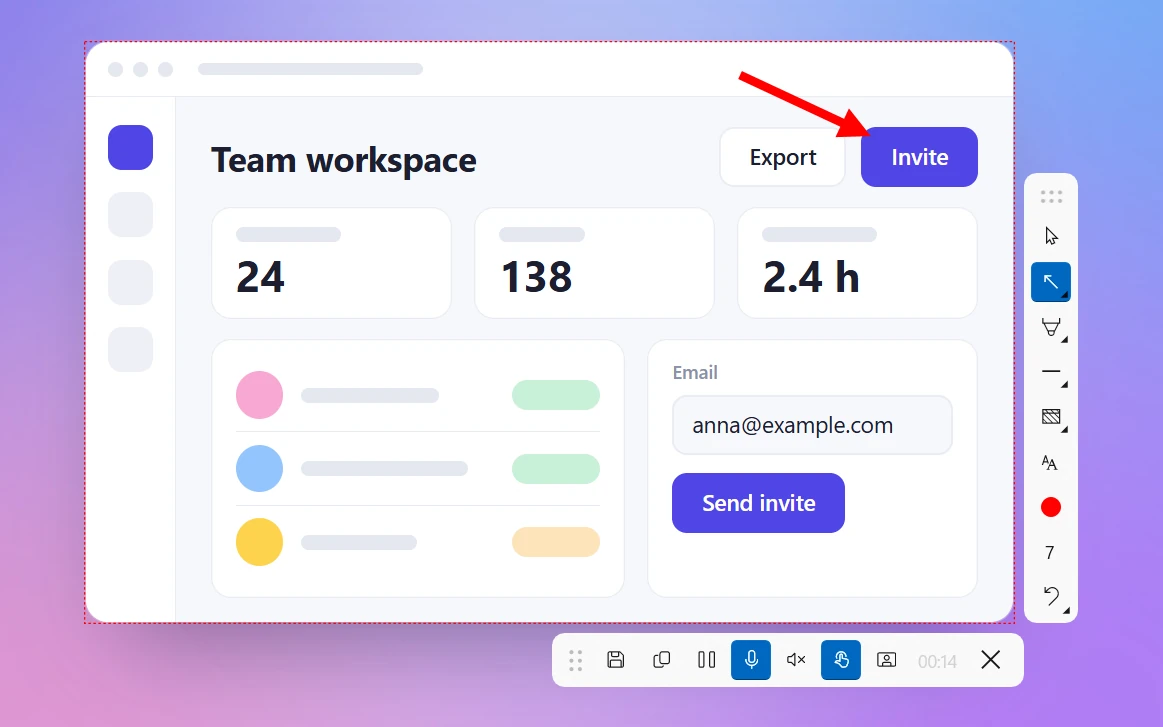
In Sleekshot, you start a recording with the same key as a screenshot. It takes three key presses, but you choose exactly what to record: an area, a window or the whole monitor. You also pick your microphone and decide whether to add computer sound, your webcam and click highlights.
- Press PrtSc, Sleekshot's default shortcut. The screen dims.
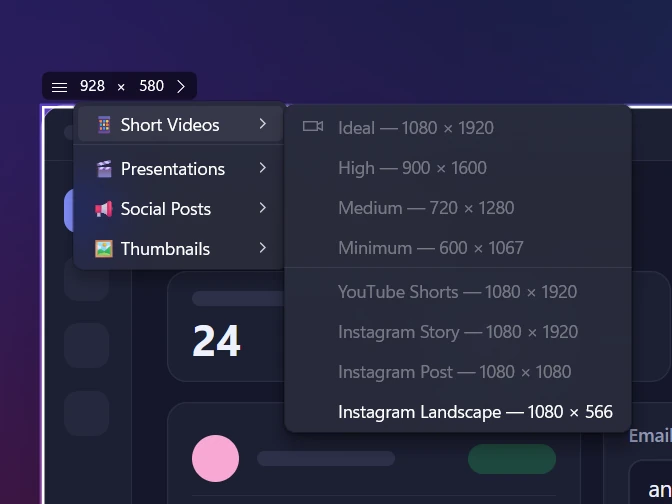
- Drag over an area, click a window or press Ctrl + A for the whole monitor.
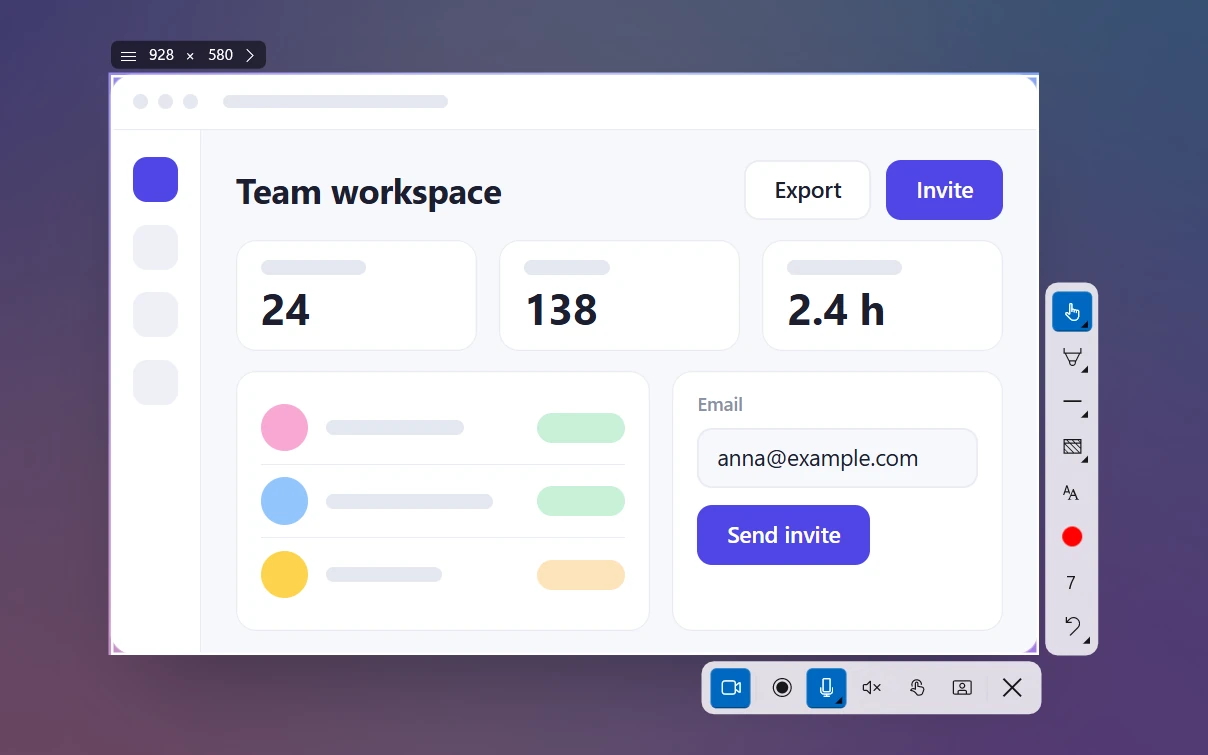
- Press V for Screen recorder mode. Check the microphone, system audio, click highlight and camera buttons.
- Press Ctrl + R to Record.
- When you're done, click Save to file or Copy to clipboard on the toolbar. Pause / Resume is on the same toolbar. Before you start, Esc cancels.
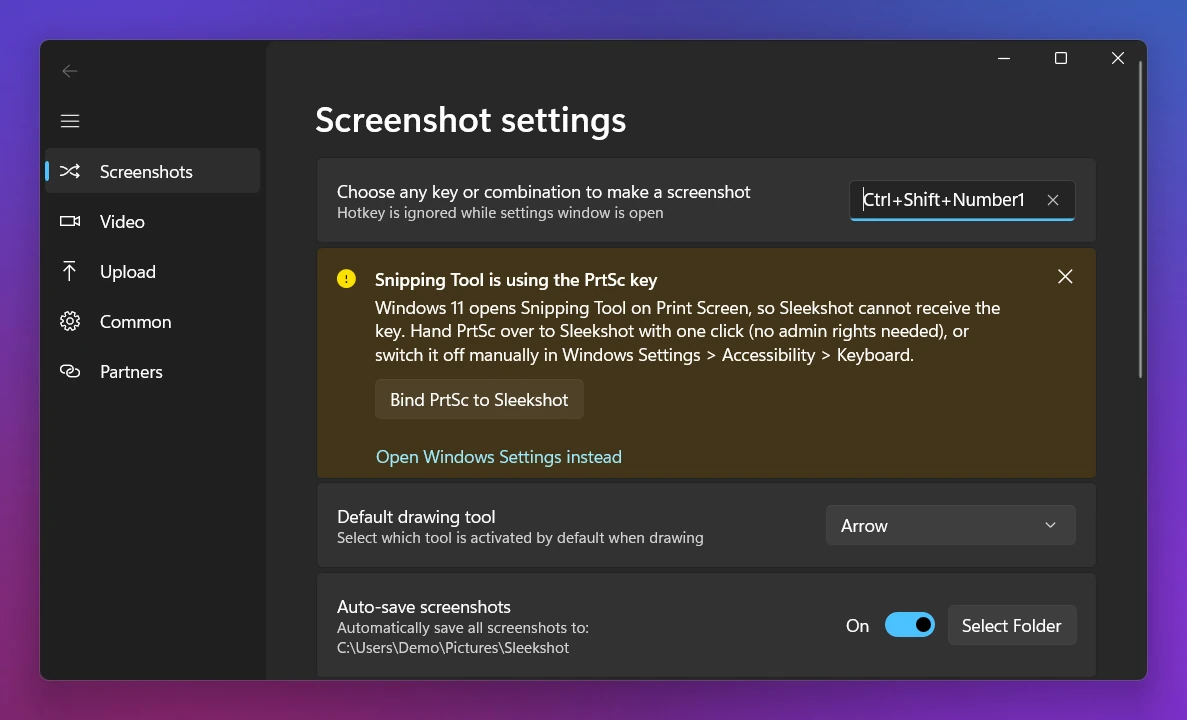
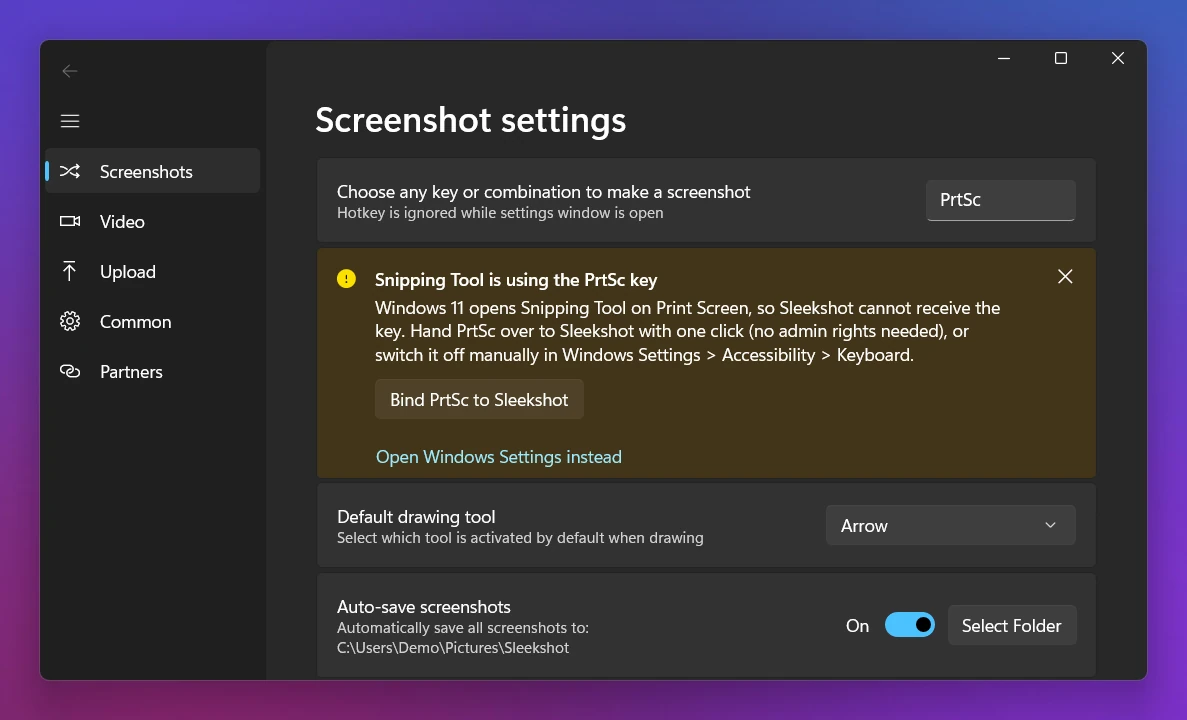
You can use any key. In Sleekshot's settings (Screenshots tab), you can swap PrtSc for any key or combination, like a spare function key.
If PrtSc keeps opening Snipping Tool on Windows 11, free the key first. The quickest way is the Bind PrtSc to Sleekshot button in Sleekshot's settings: one click, no admin rights needed. To do it by hand, turn off Settings → Bluetooth & devices → Keyboard → Use the Print screen key to open screen capture. On older builds, the switch is under Accessibility → Keyboard. You can also search Settings for "print screen".
Sleekshot's Open Windows Settings instead link takes you there. For the full walkthrough, see how to change what the Print Screen key does.
On many laptops, PrtSc shares a key with something else, so you may need Fn + PrtSc. Our Print Screen key guide shows where it hides on common keyboards.
Sleekshot is free, with no watermark and no time limit on recordings. The keyboard shortcuts page lists all its shortcuts.
OBS Studio: set your own shortcuts
OBS Studio has no recording shortcut until you set one. Open Settings → Hotkeys and find Start Recording and Stop Recording. Click each box and press the keys you want. If you give both the same combination, one key starts and stops recording. There are separate boxes for pausing.
Pick a combination no other app uses. If two programs claim the same shortcut, only one of them gets it.
PowerPoint: Win + Shift + Q to stop
PowerPoint's recorder (Insert → Screen Recording, Microsoft 365) has its own keys. Win + Shift + E selects an area, Win + Shift + D pauses and Win + Shift + Q stops. The video goes into your slide. To get a file, right-click it and choose Save Media as.
Which shortcut should you use?
| You want to record… | Use |
|---|---|
| A quick area on Windows 11 | Win + Shift + R (Snipping Tool) |
| A game or one app, on Windows 10 or 11 | Win + Alt + R (Game Bar) |
| Something that just happened in a game | Win + Alt + G (with background recording on) |
| Tutorials or bug reports with your voice, webcam and arrows | PrtSc → V → Ctrl + R (Sleekshot) |
| Long sessions or streams with scenes | Your own OBS Studio shortcut |
For step-by-step instructions for each tool, see our main guide on how to screen record on Windows.
Shortcut not working? Quick fixes
- Win + Alt + R does nothing. You're on the desktop or in File Explorer, and Game Bar can't record those. Click into an app window first. If it still doesn't work, update Xbox Game Bar in the Microsoft Store or repair it in Settings → Apps → Installed apps.
- The Game Bar record button is grayed out. Your graphics card may not have a supported video encoder. That's common on older PCs and virtual machines. Use Snipping Tool or Sleekshot instead.
- Win + Shift + R does nothing. You're on Windows 10, or Snipping Tool is out of date.
- PrtSc opens Snipping Tool instead of your recorder. Turn off the Print screen option in Settings → Bluetooth & devices → Keyboard (Accessibility → Keyboard on older builds). Or pick a different key in your app.
- The recording has no sound. The shortcut started the video, but the microphone or system audio was off. See how to record your screen with audio.
- You can't find the video. Each tool's folder is listed in where screen recordings are saved.
Frequently asked questions
What is the shortcut to screen record on Windows 11?
What does Win + Alt + R do?
How do I stop a screen recording with the keyboard?
Can I change the screen recording shortcut?
Is there a shortcut to record the last 30 seconds?
What is the screen recording shortcut on a Mac?
Sleekshot Team
We build Sleekshot, a free screenshot and screen recording app for Windows and Mac. Every guide is checked on current Windows 11, Windows 10 and macOS builds.
Also available in: Русский