10 Common Screenshot Mistakes and How to Avoid Them
 By Sleekshot Team
9 min read
By Sleekshot Team
9 min read
Short answer
The most common screenshot mistakes are leaking personal info you didn't notice (emails, tabs, notifications) and hiding secrets with blur that can be undone. Others are grabbing the whole screen instead of what matters, cropping away the context and sending blurry text through JPEG or chat compression. The fixes: screenshot only what you need, cover secrets with a solid box, save as PNG and add an arrow or numbered steps. Then check which monitor you grabbed before you send it.
On this page
- The 10 screenshot mistakes at a glance
- Mistake 1: Leaking personal info in the background
- Mistake 2: Hiding secrets with blur, pixelation or a highlighter
- Mistake 3: Grabbing the whole screen when one part matters
- Mistake 4: Cropping so tight nobody knows where it is
- Mistake 5: Tiny, unreadable text
- Mistake 6: JPEG artifacts and chat compression
- Mistake 7: No arrows, or so many that nothing stands out
- Mistake 8: Grabbing the wrong monitor, or both
- Mistake 9: Sending a screenshot where text would do
- Mistake 10: Losing the screenshot on the clipboard
- Avoid most of these mistakes in one step with Sleekshot
- A 20-second check before you hit send
The most common screenshot mistakes have little to do with the shortcut you press. They're about what ends up in the picture: an email address in the corner, a friend's notification, two monitors squeezed into one unreadable strip. Or a password under blur that can be undone, and text so compressed nobody can read it. Each one has a simple fix, usually a few seconds of care before you hit send.
Below are the ten mistakes we see most in bug reports, support chats and documentation. For each one, you'll see why it hurts and how to avoid it with the tools built into Windows or a screenshot app. Everything here applies to Windows 10 and 11 and is current as of October 2026.
The 10 screenshot mistakes at a glance
If you only read one section, read this table. It shows what goes wrong and the quickest fix.
| Mistake | Why it hurts | Quick fix |
|---|---|---|
| 1. Personal info in the background | Leaks emails, names, tabs, notifications | Screenshot one window; silence notifications |
| 2. Weak blur on secrets | Pixelated text can be rebuilt | A solid box you can't see through |
| 3. The whole screen when one part matters | The reader can't find the point | Screenshot an area or a window |
| 4. Cropped too tight | Nobody knows where it is | Keep the window title or menu in the shot |
| 5. Tiny, unreadable text | Useless on a laptop or phone | Zoom in before you take it |
| 6. JPEG artifacts and chat compression | Smudged letters | PNG; send as a file or link |
| 7. No arrows (or way too many) | The reader doesn't know where to look | One arrow or numbered steps per point |
| 8. The wrong monitor (or both) | A 3840 × 1080 strip shrunk to nothing | Screenshot one display |
| 9. A screenshot where text would do | Can't be searched or copied | Paste the text too, or use OCR |
| 10. Lost on the clipboard | Gone after the next copy | Auto-save, clipboard history |
Mistake 1: Leaking personal info in the background
The biggest risk in a screenshot usually isn't the thing you meant to show, but everything around it. Full-screen screenshots pick up much more than people expect.
Here's what we often see in screenshots that were meant to show something else:
- A chat or email notification that popped up at the wrong moment.
- Other browser tabs and the bookmarks bar, which show what else you're working on.
- Email addresses, phone numbers and customer names in a CRM or inbox.
- A URL with a token in it, like a password-reset or shared-document link.
- Your Windows user name in a file path like
C:\Users\anna.petrova\Documents. - The system tray, calendar previews and taskbar thumbnails.
Fix: screenshot only the window or area you need, not the whole screen. Before you share anything sensitive, turn on Do not disturb in Windows 11 (click the bell in the notification center), so no pop-up shows up at the wrong moment. Then look at the edges of the image. That's where leaks usually hide.
Mistake 2: Hiding secrets with blur, pixelation or a highlighter
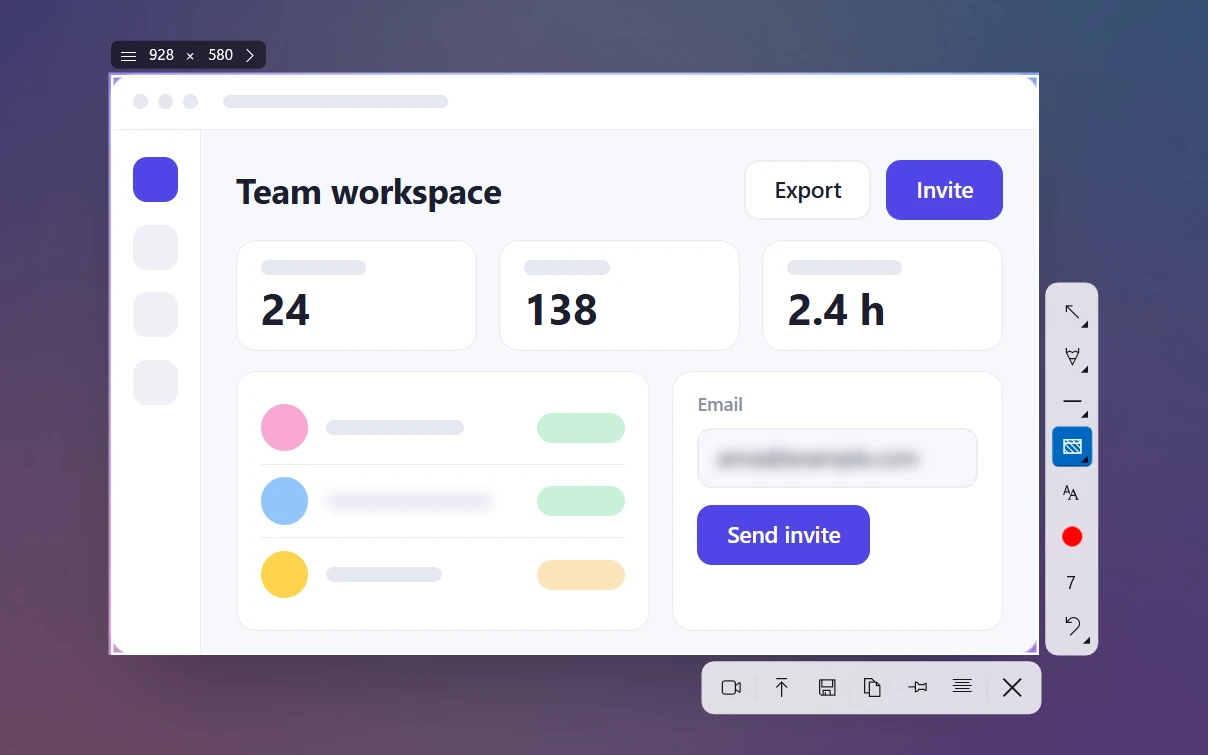
Blur and pixelation look like they hide text, but they're not always safe. Both change the image in predictable ways. Public tools like Depix (on GitHub since 2020) and Bishop Fox's Unredacter rebuild pixelated text by trying letters in the same font until they match. A see-through highlighter or a quick scribble is even weaker.
Fix: cover passwords, API keys and card and account numbers with a solid box you can't see through. Save blur for faces, profile pictures and background clutter, where a rough guess doesn't matter.
Cropping is safe too, as long as you save the result as a new file. In 2023, the aCropalypse bug let people recover cropped-out parts of images that Snipping Tool or Snip & Sketch had saved over the original. Microsoft fixed it in March 2023. Our guide to blurring part of a screenshot compares every method.
Mistake 3: Grabbing the whole screen when one part matters
Send a full-screen screenshot of a 27-inch monitor to answer "where's the Export button?", and the reader has to search the whole image. The button takes up 0.1% of it. On a phone, it's hopeless.
Fix: screenshot just the area or window you're talking about.
- Press Win + Shift + S, then drag over the area or switch to Window mode.
- Alt + PrtSc copies only the active window.
- In Sleekshot, press PrtSc and click a window, or drag over an area.
More options in how to screenshot one window.
Mistake 4: Cropping so tight nobody knows where it is
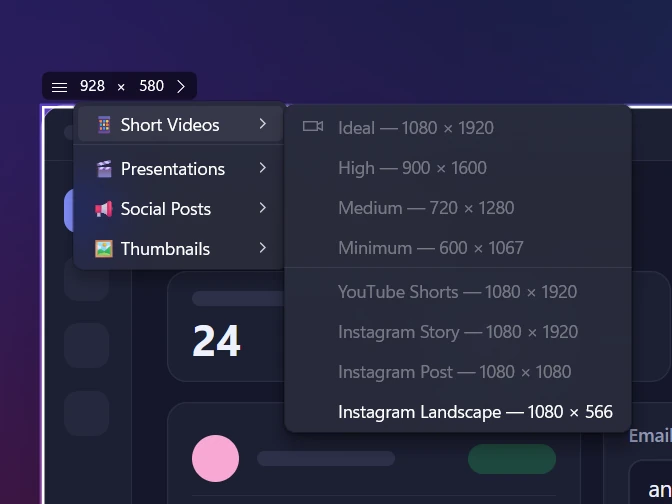
The opposite mistake is just as common. A screenshot shows a single checkbox, with no window title, no menu and no hint of which app or page it came from. The reader sees what to click, but not where to find it.
Fix: keep one landmark in the shot: the window title, the tab name, the breadcrumb or the menu path. If the important part is small, take a bit more and point at it with an arrow instead of cropping to the pixel. For instructions with several steps, a second, wider screenshot that shows where the panel opens helps more than one perfect close-up.
Mistake 5: Tiny, unreadable text
A screenshot can never be sharper than your screen. Screenshot a dense spreadsheet on a 4K monitor, drop it into a document at half width, and the reader sees gray noise. Enlarging the image later just makes the pixels bigger.
Fix: zoom in before you take the screenshot. In a browser or most apps, press Ctrl + + to get to 150–200%, take the screenshot, then press Ctrl + 0 to reset. Grab a smaller area instead of the whole screen, and put the image in documents at 100% or 50% instead of stretching it. The full checklist is in how to take a high-quality screenshot.
Mistake 6: JPEG artifacts and chat compression
JPEG was made for photos. On text and the sharp edges of buttons, it leaves smudgy halos and blocky noise, and every new save makes it worse. Chat apps add a second layer, because many compress images sent as photos again.
Fix: save screenshots as PNG. It's lossless and the default on Windows and macOS. Use JPEG only for photo-like screenshots, like a video frame or a game. If your messaging app compresses images, send the screenshot as a file or a link instead. Our comparison of PNG, JPG and WebP for screenshots explains when each format makes sense.
Mistake 7: No arrows, or so many that nothing stands out
A plain screenshot of a busy settings page makes the reader guess what you mean. The opposite is no better. Ten arrows, four colors and three text boxes make the image as confusing as the original screen.
Fix: one visual cue per point. An arrow to the button, a box around the field, numbered steps 1-2-3 for a sequence and at most one short text label. Use one bright color that stands out from the app.
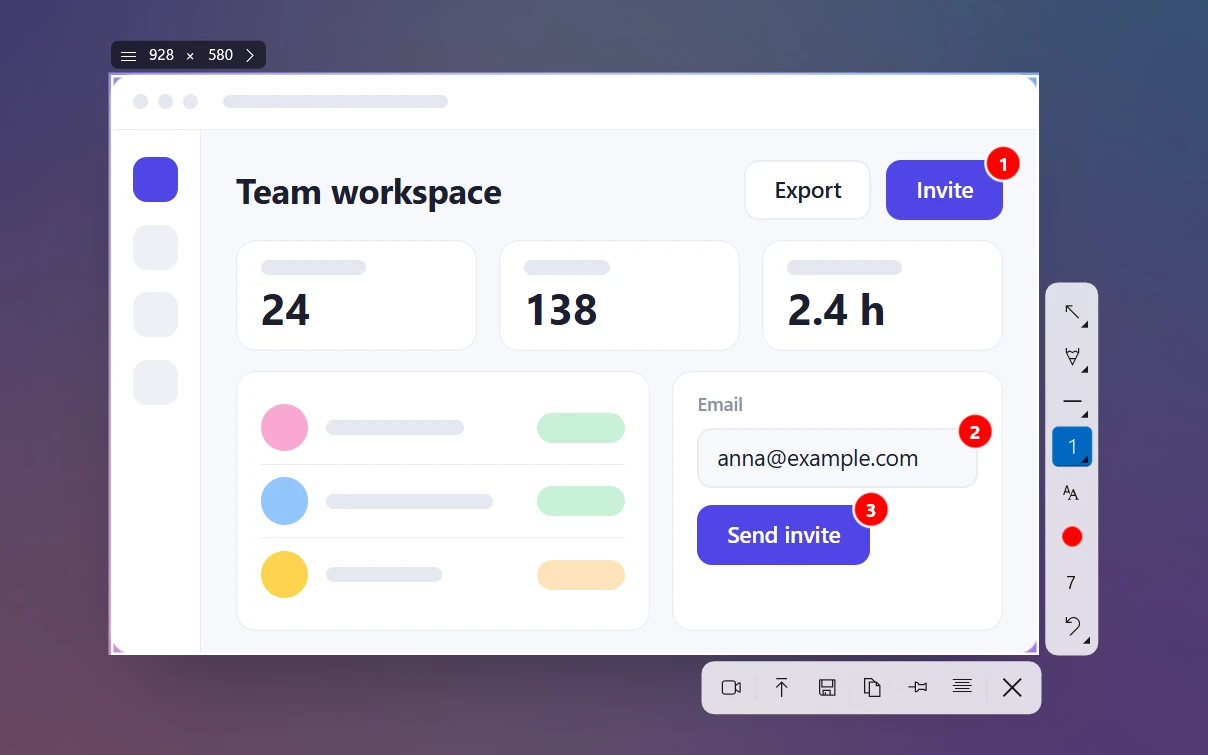
Tools and tips are in how to annotate a screenshot.
Mistake 8: Grabbing the wrong monitor, or both
On a PC with several monitors, PrtSc and Win + PrtSc take the entire Windows desktop. Two 1920 × 1080 screens become one 3840 × 1080 image. Shrunk to fit a chat window, both halves are unreadable, and the second monitor often shows something you didn't mean to share.
Fix: screenshot one display. Drag a Win + Shift + S rectangle over the screen you want, or press Alt + PrtSc on a maximized window there. In Sleekshot, move the mouse to the monitor you want and press Ctrl + A to take just that display.
Details are in how to screenshot only one monitor.
Mistake 9: Sending a screenshot where text would do
A screenshot of an error log, a stack trace or a block of code looks fine. But nobody can search it, copy it or paste it into a ticket. The developer ends up retyping it, typos and all.
Fix: paste the text, and if location matters, add the screenshot too. If you only have the image, pull the text out with OCR. Snipping Tool on Windows 11 has Text actions. Sleekshot copies text from the selected area with Ctrl + O, right on your PC. See how to copy text from a screenshot.
When the problem is something moving, not text, a short video beats both. See screenshot vs screen recording.
Mistake 10: Losing the screenshot on the clipboard
Some Windows shortcuts don't save a file at all. PrtSc on Windows 10 and Alt + PrtSc on both versions only copy to the clipboard, so your next Ctrl + C wipes the screenshot. Others save everything to one folder or the desktop, where it's hard to find anything a week later.
Fix: turn on clipboard history (Settings → System → Clipboard) and press Win + V to get back any of your last 25 copied items. For work screenshots, use a tool that saves to a folder you chose on its own. If you can't find a file, our guide to where screenshots go on Windows lists every location.
Avoid most of these mistakes in one step with Sleekshot
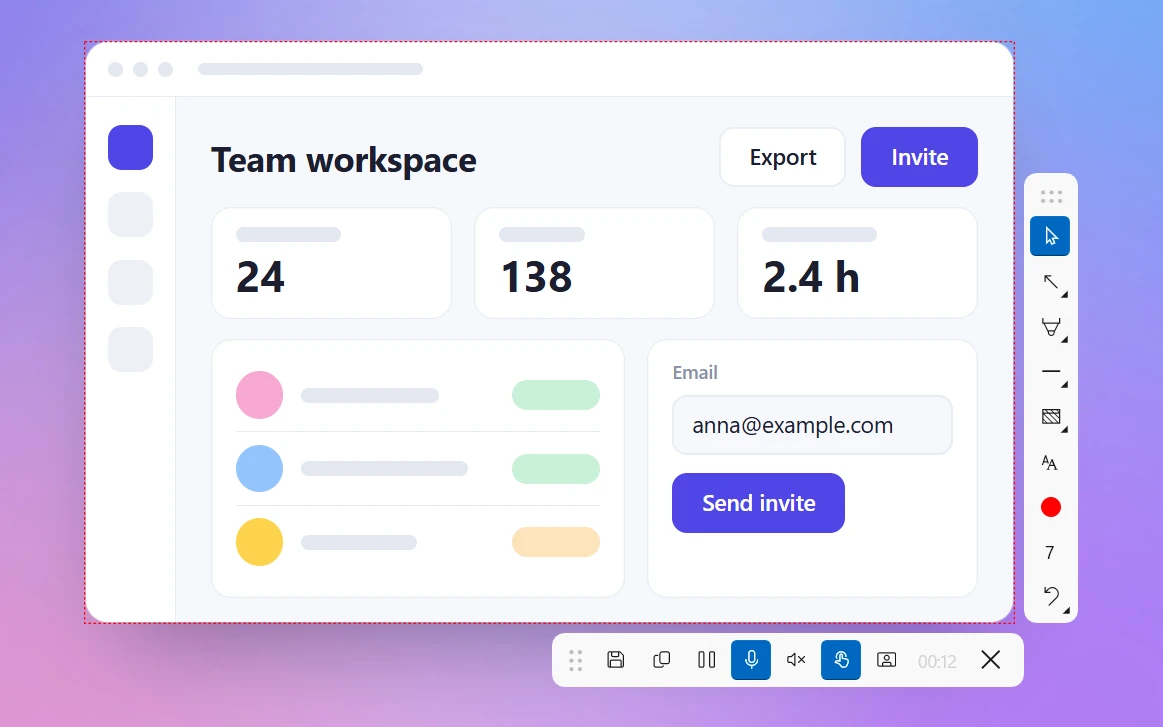
Many of these mistakes come from the number of steps: screenshot the full screen, open an editor, crop, blur, save, attach. The more steps, the easier it is to skip one. Sleekshot is a free screenshot and screen recording app for Windows 10 and 11. You do all of those steps right on the screenshot, the moment you take it.
- The right area and monitor: drag over an area, click a window or press Ctrl + A for the monitor under the mouse.
- Secrets hidden for real: press F for a solid Filled rectangle or B for a Blur rectangle, before anything is saved.
- Clear arrows and steps: 7 arrow styles, numbered steps (S), a highlighter, text labels and 20 colors.
- Sharp files: PNG by default, with JPEG and WebP if you want them. Auto-save keeps a copy in a folder you choose, and Ctrl + Shift + S saves straight to the last folder you used.
- Text when you need it: Ctrl + O copies the text in the selected area, with no internet needed.
What it doesn't do: no scrolling screenshots and no delay timer. You can't move arrows and shapes after you draw them, only undo them with Ctrl + Z. The built-in Windows tools can handle all the fixes above too. Sleekshot just makes them faster. See the full list of tools for arrows, steps and blur.
A 20-second check before you hit send
Go through this before any screenshot leaves your computer.
- Edges: anything in the corners or the taskbar you didn't mean to share?
- Secrets: are passwords, tokens and numbers covered by a solid box, not blur?
- Context: would a stranger know which app and screen this is?
- Readability: can you read the smallest important text at 100%?
- Focus: is there one clear arrow, box or number for each point?
- Format: PNG for apps and pages, sent as a file or link if the chat compresses images?
Frequently asked questions
What is the most common screenshot mistake?
Is blurring a screenshot enough to hide a password?
Why do my screenshots look blurry when I send them?
How do I take better screenshots for documentation?
Should I send a screenshot of an error or copy the text?
Why does my screenshot show both monitors?
Sleekshot Team
We build Sleekshot, a free screenshot and screen recording app for Windows and Mac. Every guide is checked on current Windows 11, Windows 10 and macOS builds.
Also available in: Русский