Screenshot vs Screen Recording: When to Use Each (With Real Examples)
 By Sleekshot Team
9 min read
By Sleekshot Team
9 min read
Short answer
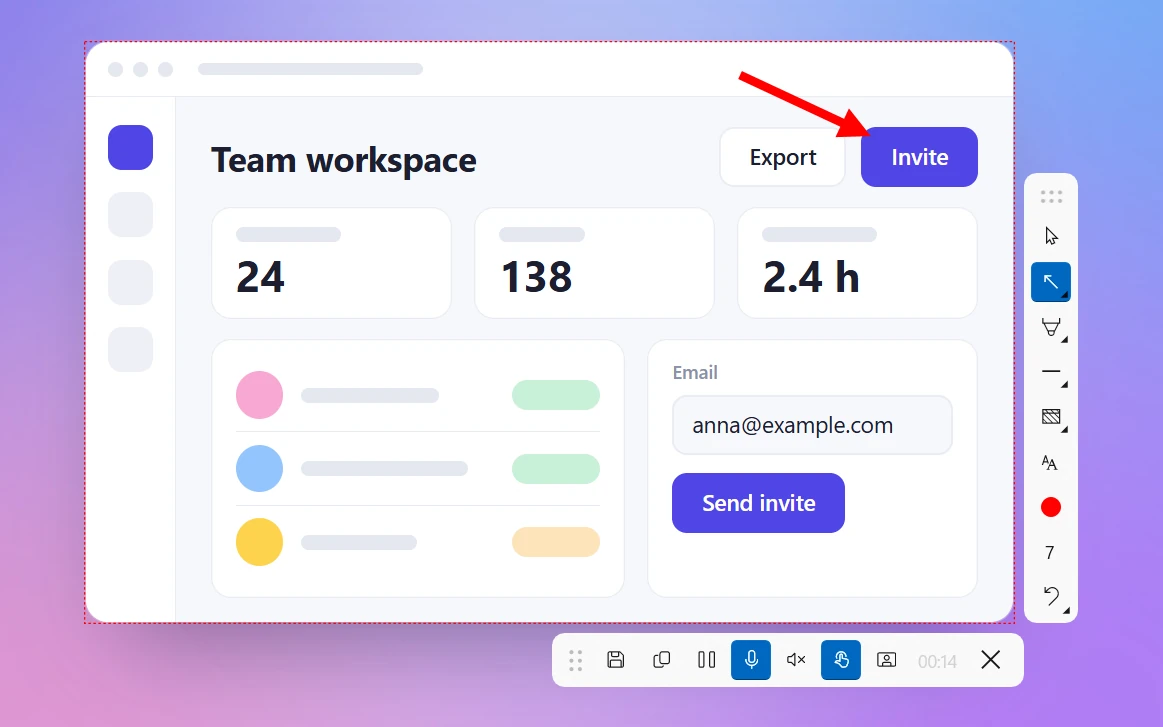
Send a screenshot when the information doesn't move: an error message, a setting, a layout or a number. It's faster to make, read and search. Record the screen when motion, timing or a longer series of steps is the point, like a glitch, an animation or a walkthrough with your voice. On Windows 11, Win + Shift + S takes a screenshot and Win + Shift + R records the screen. Sleekshot does both, and it can copy the finished MP4 to the clipboard so you can paste it into a chat.
On this page
- Screenshot or screen recording? The quick decision table
- Screenshots vs screen recordings compared
- When a screenshot is the better choice
- When a screen recording is the better choice
- Real examples: bug report, tutorial, feedback
- The middle ground: numbered screenshots, short clips and GIFs
- How to take a screenshot or record the screen on Windows and Mac
- Send a recording like a screenshot: copy the MP4 to the clipboard
- Tips that make either one easier to follow
Send a screenshot when one frame tells the whole story: an error message, a setting, a layout, a price. Record the screen when the story happens over time. That could be a flicker, a slow menu, a drag-and-drop that fails or a process with more than a few steps. Screenshots are faster to make and faster to read. Recordings show what a still image can't.
That rule covers most cases. Below is a table for everyday situations and a side-by-side comparison of both. Then come real examples for bug reports, tutorials and design feedback. Last are the shortcuts for both on Windows and Mac, including how to paste a recording into a chat as easily as a screenshot. Tools and shortcuts are current as of October 2026.
Screenshot or screen recording? The quick decision table
If the reader needs to see something, send a screenshot. If they need to see something happen, send a recording.
| Situation | Send | Why |
|---|---|---|
| Error message or dialog box | Screenshot | The text is what matters, and the reader can zoom in and quote it |
| "Where's this setting?" | Screenshot with an arrow | One arrow on one image answers it |
| Instructions with 3–5 steps | Numbered screenshots | Easy to scan and easy to reuse in docs |
| Bug that depends on timing (flicker, lag, wrong animation) | Screen recording | A still image can't show it |
| Bug with specific steps to reproduce | Short recording + a screenshot of the result | The video shows the steps, the image shows the proof |
| Feedback on a page or layout that doesn't move | Screenshot with arrows and labels | Arrows and labels point at the exact spot |
| Feedback on something interactive (hover, drag, transition) | Short recording | The motion is the problem |
| Long process or onboarding (10+ steps) | Recording with your voice | Easier to follow than a wall of images |
| Proof of a value (price, balance, confirmation number) | Screenshot | One image is enough and easy to file |
| Sound problem | Recording with system audio | Screenshots are silent |
Our rule of thumb: if you're about to send five or more screenshots in a row, record a 30-second clip instead. If you're about to send a 30-second clip where nothing moves, take a screenshot.
Screenshots vs screen recordings compared
The two differ less in what they show than in what they cost the person on the other end. A screenshot takes a glance. A recording has to be watched in real time.
| Screenshot | Screen recording | |
|---|---|---|
| Time to make | A few seconds | The length of the clip, plus setup |
| Time for the reader | A glance | Has to be watched in real time |
| Typical file size | Well under 1 MB as a PNG of a window | About 15–75 MB per minute, depending on quality |
| Shows motion and timing | No | Yes |
| Sound and voice | No | Microphone and system audio |
| Arrows and notes | Arrows, numbered steps, blur, text | Drawing while you record, click highlights (depends on the tool) |
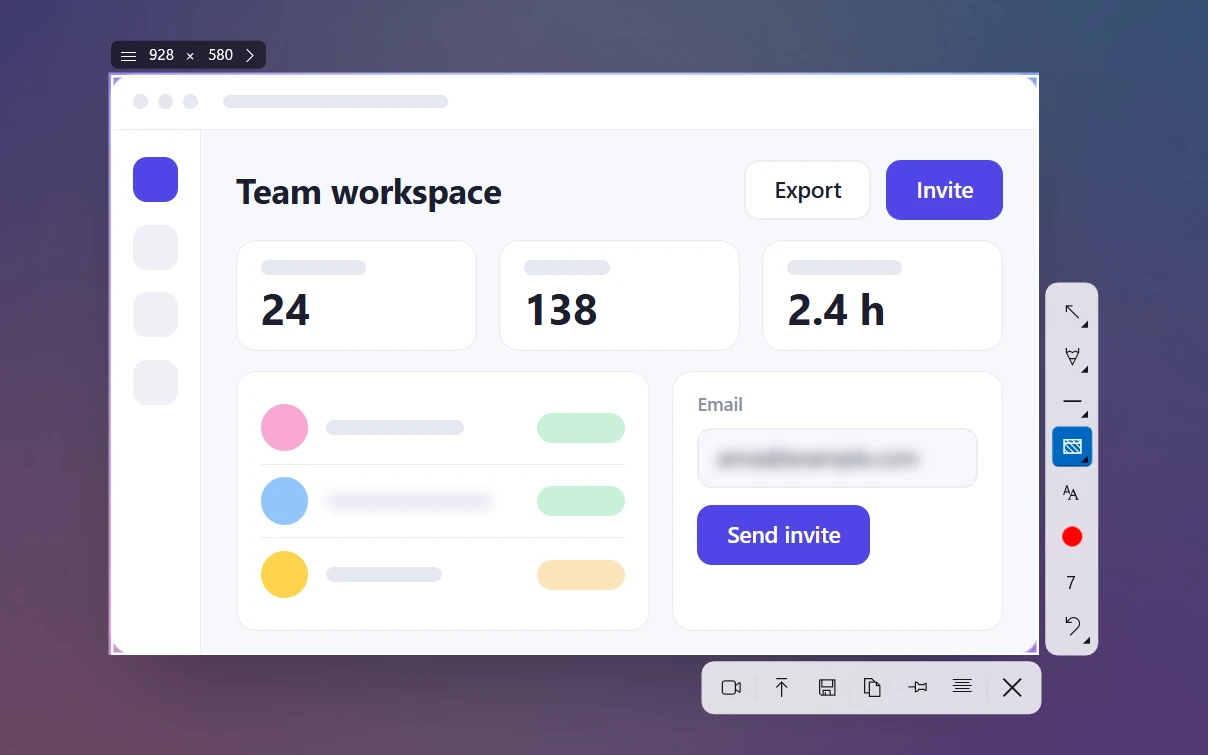
| Text can be copied or searched | Yes, with OCR | Barely |
| Privacy risk | What's inside the frame | Everything that shows up during the clip, notifications included |
| Works in docs, tickets, wikis | Everywhere | Needs a player or an upload, and size limits apply |
| Keeping it up to date | Replace one image | Record the whole clip again |
The video sizes here are bitrate math for Sleekshot's quality settings (2, 5 and 10 Mbps, plus 128 kbps sound). Other recorders end up in the same range.
When a screenshot is the better choice
A screenshot wins whenever the information doesn't move. It's quicker to take, opens instantly on any device, and the reader decides how long to look.
- Error messages. The exact wording matters more than how you got there. Crop to the dialog. If the reader will need the text, copy it with OCR so they don't have to retype it. See how to copy text from a screenshot.
- "Where do I click?" questions. A coworker asks where a setting is. One screenshot with an arrow answers it in two seconds.
- Documentation and help articles. Images are easy to skim, easy to keep when you translate the text and easy to replace when the app changes. Numbered screenshots are the backbone of step-by-step guides.
- Records and proof. An order confirmation, a configuration, a chart at a specific moment.
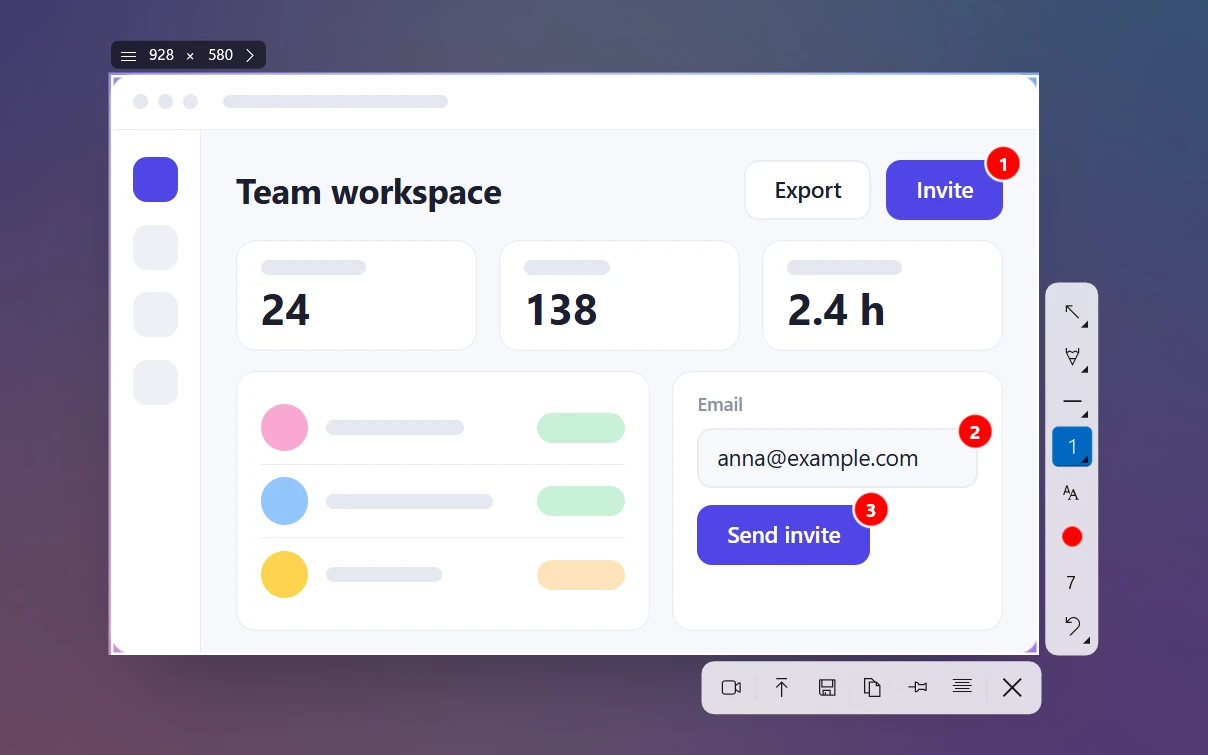
Arrows and steps close most of the gap. Numbers 1-2-3 on a single screenshot show a sequence, and an arrow shows where to click. Our guide to annotating screenshots covers the tools.
When a screen recording is the better choice
Record the screen when what you need to show is a change, not a state. A recording also catches things you didn't think to mention, which makes it great for bugs.
- Timing and motion bugs: flickering, jumping layouts, a spinner that never stops, a slow menu, a drag-and-drop that snaps back.
- "I did exactly what you said, and it doesn't work." A recording shows what the person actually clicked, which often isn't what they described.
- Long processes: onboarding a new teammate, setting up software across several screens, walking through a code review. With your voice over it, ten minutes of video can save an hour of back-and-forth.
- Anything with sound: a crackling headset, a notification that plays twice, a problem on a video call.
- Video updates and demos: your webcam in the corner makes a recorded demo feel like a meeting, without having to schedule one.
The cost: the viewer has to sit through it. Keep clips short and tell people what to look for ("the counter resets at 0:12").
Real examples: bug report, tutorial, feedback
Most real situations need a bit of both. Here's what we'd send in the three most common ones.
Bug report
Send a screenshot of the end result: the error, the wrong number, the broken layout. If the bug needs steps to reproduce, add a 20–60 second recording that starts from the last screen that still worked. Add one line of text: what you expected and what happened. The screenshot makes the ticket easy to scan in a list, and the video saves the developer from guessing your steps. More in how to write bug reports with screenshots.
Tutorial or how-to
For a help article or a wiki page, use numbered screenshots. Readers can jump to the step they're stuck on and copy settings from the image. To train a person or a team, record with your voice and turn on click highlights so viewers can follow the mouse. Many teams do both: screenshots in the written guide and one short video at the top.
Design and product feedback
For a page that doesn't move, a screenshot with arrows and labels beats any description. Circle the problem, add a label, done. If you're suggesting a change, circle the spot and describe the change in a text label right on the screenshot. For something interactive, like a hover state, a transition or a mobile menu, send a short recording.
The middle ground: numbered screenshots, short clips and GIFs
You don't always have to choose. Three in-between options solve a lot of cases:
- One screenshot with numbered steps. Shows 2–4 clicks on a single screen without any video.
- A 10–20 second clip. Long enough to show one interaction, short enough that people actually watch it.
- A GIF. Plays on its own in docs and some chat apps, but has no sound and is usually bigger than an MP4 of the same clip. Recent versions of Snipping Tool can turn recordings of up to 30 seconds into a GIF. Sleekshot records MP4 only.
How to take a screenshot or record the screen on Windows and Mac
On Windows and macOS, both are just a shortcut away. A separate app mostly adds arrows and steps, sound options and faster sharing.
| Task | Windows (built in) | Mac (built in) | Sleekshot for Windows |
|---|---|---|---|
| Screenshot of an area | Win + Shift + S | ⌘ + Shift + 4 | PrtSc, then drag |
| Record the screen | Win + Shift + R (Snipping Tool, Windows 11) or Win + Alt + R (Xbox Game Bar, one app) | ⌘ + Shift + 5, then a record option | PrtSc, select, V, then Ctrl + R |
| Add arrows and notes | Snipping Tool editor (screenshots) | Markup (screenshots) | Right on the screenshot, and while recording |
| Screenshots saved to | Pictures\Screenshots |
Desktop | Clipboard, a folder you choose or a link |
| Recordings saved to | Videos\Screen Recordings or Videos\Captures |
Desktop | Videos\Sleekshot or a folder you choose |
For details on each recorder, see how to screen record on Windows. On a Mac, Sleekshot for Mac takes screenshots only, so use ⌘ + Shift + 5 for video.
Send a recording like a screenshot: copy the MP4 to the clipboard
The main reason people send screenshots when a video would be better is the hassle: find the file, attach it, wait. Sleekshot skips that step. It's a free screenshot and screen recording app for Windows 10 and 11, and a finished recording goes to the clipboard just like an image.
- Press PrtSc and select the area you want to record, or click a window.
- Press V for Screen recorder mode. Pick your microphone, and turn on system audio, click highlights or the webcam if you need them.
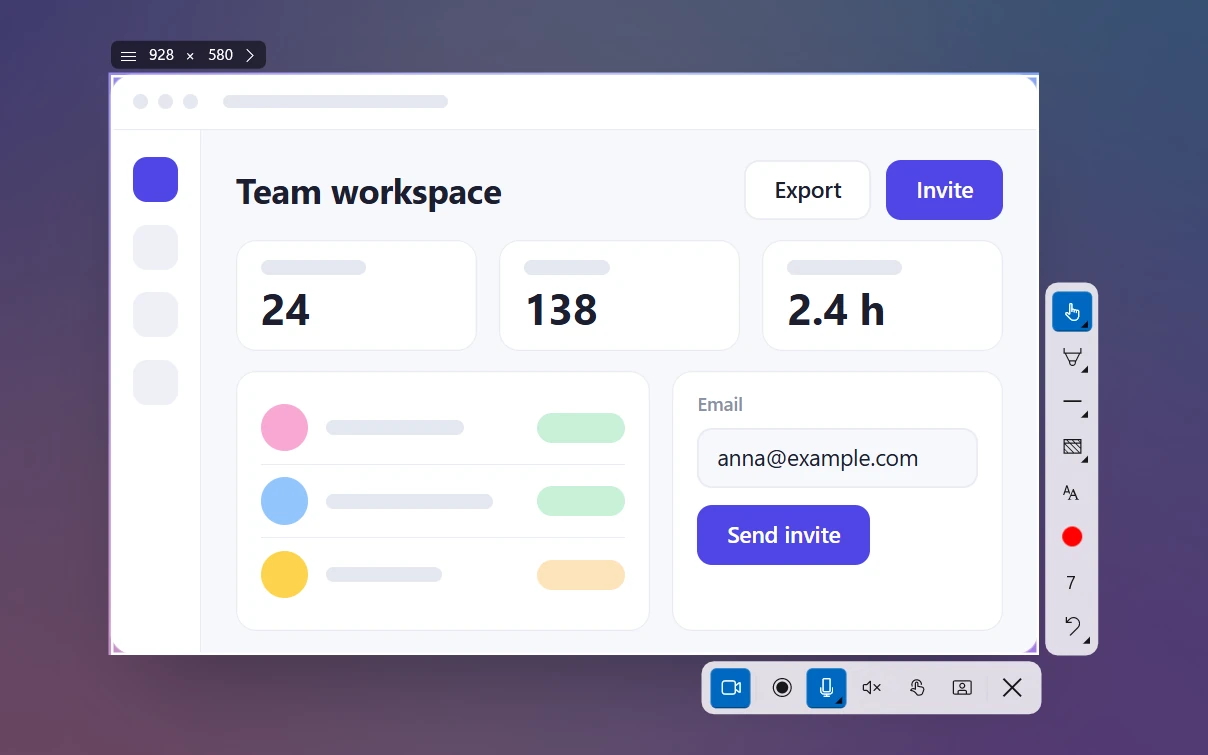
- Press Ctrl + R to start. While you record, you can draw arrows on the screen to point at things.
- Stop, then click Copy to clipboard and press Ctrl + V in your chat or email. The MP4 arrives as a file. Save to file is right next to it.
Pick the quality before you record, in Settings → Video:
| Quality | Frame rate | Bitrate | About per minute |
|---|---|---|---|
| Compact (default) | 20 fps | 2 Mbps | 15 MB |
| Optimal | 30 fps | 5 Mbps | 38 MB |
| High | 60 fps | 10 Mbps | 75 MB |
Compact is fine for walking through an app and for bug reports. Keep email in mind: personal Gmail accounts accept attachments up to 25 MB and turn anything bigger into a Google Drive link. A Compact clip of about a minute still attaches directly.
The limits: Sleekshot has no trimming, no GIF export and no video editor, and the Mac version doesn't record video. Full details are on the screen recorder page.
Tips that make either one easier to follow
- Silence notifications first. In Windows 11, click the bell in the notification center to turn on Do not disturb. A chat preview popping up mid-recording is the most common privacy slip in screen recordings.
- Show only what matters. One area or one window is easier to read than a whole 4K desktop, in a screenshot and in a video.
- Hide private info before you record. In a screenshot, you can blur it afterward. In a recording, close the tab with customer data before you press Record. See how to blur part of a screenshot.
- Add one line of context. "Expected: saved. Actual: error after 3 seconds" turns either one from a puzzle into a report.
- Keep videos short. Under two minutes for a bug, with a timestamp for the moment that matters.
Frequently asked questions
Is it better to send a screenshot or a screen recording?
When should I use a screen recording instead of a screenshot?
How big is a screen recording compared to a screenshot?
Can I paste a screen recording into a chat like a screenshot?
Can I draw on a screen recording?
Should I send a GIF instead of a video?
Sleekshot Team
We build Sleekshot, a free screenshot and screen recording app for Windows and Mac. Every guide is checked on current Windows 11, Windows 10 and macOS builds.
Also available in: Русский