
Screenshots in Telegram: Protected Content, Secret Chats and Notifications
 By Sleekshot Team
8 min read
By Sleekshot Team
8 min read
Short answer
You can screenshot regular Telegram chats, groups and channels on any phone or PC, and nobody gets notified. Screenshots are blocked in groups and channels with Restrict Saving Content, and in one-on-one chats where a Premium user turned on Disable Sharing. In secret chats, depending on the phone, Telegram blocks the screenshot or tries to alert the other person. These limits are on purpose, so ask the sender for the content instead of trying to get around them.
On this page
- Telegram screenshot rules at a glance
- How to take a screenshot in Telegram (regular chats)
- Restrict Saving Content: protected groups and channels
- Disable Sharing in one-on-one chats (2026)
- Secret chats and screenshot alerts: phone vs computer
- Screenshot not allowed? What you can do instead
- Before you share a Telegram screenshot: hide names, numbers and faces
- Sending screenshots in Telegram without losing quality
You can take a screenshot of any regular Telegram chat, group or channel, and Telegram doesn't notify anyone. On a phone, use the usual button combination. On a Windows PC, press Win + Shift + S.
Screenshots are blocked in three cases. In a group or channel, the owner can turn on Restrict Saving Content. In a one-on-one chat, a Premium user can turn on Disable Sharing. And in secret chats, depending on the phone, Telegram blocks the screenshot or alerts the other person.
Those blocks are on purpose: someone decided their content shouldn't be copied. This guide explains what each setting does and how screenshot notifications differ between phones and computers. It also covers how to protect your own chats and what to do when you really need something from a protected chat.
We checked the details against Telegram's FAQ and blog as of October 2026. We don't cover ways around the restrictions, and Sleekshot isn't built to get around them either.
Telegram screenshot rules at a glance
Whether a screenshot works depends on the type of chat, not on your device or screenshot app.
| Chat type | Can you take a screenshot? | Does anyone get notified? | Who decides |
|---|---|---|---|
| Regular one-on-one chat | Yes | No | — |
| Group or channel (default) | Yes | No | — |
| Group or channel with Restrict Saving Content | No; forwarding and saving media are limited too | — | The owner |
| One-on-one chat with Disable Sharing (since March 2026) | No; forwarding and saving media are limited too | — | A Telegram Premium user in the chat |
| Secret chat (phones and tablets) | Depends on the device: blocked, or allowed with an alert | Telegram tries to notify | Built in |
| Self-destructing photo or video | Depends on the device | Telegram tries to notify | The sender sets the timer |
How to take a screenshot in Telegram (regular chats)
In a regular chat, group or channel, Telegram doesn't get in the way of screenshots at all. Use your device's normal shortcut.
| Device | Shortcut | Result |
|---|---|---|
| iPhone with Face ID | Side button + Volume Up | Saved to Photos |
| iPhone with a Home button | Home + Side (or Top) button | Saved to Photos |
| Android | Power + Volume Down (on most phones) | Saved to the Screenshots album |
| Windows 10 and 11 | Win + Shift + S, then drag over the chat | Clipboard (and Pictures\Screenshots on Windows 11) |
| Windows: just the Telegram window | Click Telegram, then Alt + PrtSc | Clipboard |
| Mac | ⌘ + Shift + 4, then Space and click the Telegram window | PNG on the desktop |
To get only the chat, without the chat list, drag a rectangle with Win + Shift + S instead of taking the whole window. More options for PCs are in how to screenshot on Windows and how to screenshot one window.
Tip: Need a long conversation, not one screen? Twenty screenshots are hard to read. In Telegram Desktop, open the chat's ⋮ menu and choose Export chat history. Telegram saves the messages as HTML or JSON on your computer.
Restrict Saving Content: protected groups and channels
Restrict Saving Content is Telegram's content protection for groups and channels. When the owner turns it on, Telegram blocks forwarding from that chat, prevents screenshots and limits saving media from posts. Telegram added it in December 2021, and it works in the mobile apps and in Telegram Desktop.
To turn it on for a group or channel you own:
- Open the group or channel and tap its name to open the info page.
- Go to Group Type or Channel Type (on mobile, tap Edit first).
- Turn on Restrict Saving Content.
What members notice: they can't forward messages or save photos and videos. If they try to take a screenshot on a phone, they usually get a black image or a system message that the app doesn't allow screenshots. Course creators, paid communities and companies that share internal documents use it to keep their material inside the channel.
Disable Sharing in one-on-one chats (2026)
Since March 2026, private chats have the same kind of protection. Telegram calls it Disable Sharing. It limits forwarding and prevents screenshots or saving media from that chat.
To turn it on, open the other person's profile, tap ⋯ (iPhone) or ⋮ (Android) and choose Disable Sharing. When Telegram announced it, only Telegram Premium users could use it. If screenshots suddenly stop working in a private chat, this setting is the most likely reason.
Secret chats and screenshot alerts: phone vs computer
Secret chats are Telegram's end-to-end encrypted chats. You can't forward their messages, they can disappear on a timer and the chat only exists on the two devices it was started on. To start one, open a contact's profile and tap ⋯, then Start Secret Chat.
On phones, Telegram tries to stop or report screenshots in secret chats. Depending on the system, it either blocks the screenshot or allows it and posts a notice in the chat. The same goes for self-destructing photos and videos in regular chats.
Telegram's FAQ is upfront about the limits. There's "no bulletproof way of detecting screenshots on certain systems". And "nobody can stop a person from taking a picture of their screen with a different device or an old school camera."
On a computer, it's different:
- Telegram Desktop for Windows doesn't support secret chats. A secret chat you start on your phone never shows up on your PC. A request for this feature has been open on GitHub since 2015.
- Regular cloud chats sync to the PC, and Telegram doesn't report screenshots of them, on the computer or on the phone.
- Protected groups and channels stay protected in Telegram Desktop. Forwarding and saving media are limited there too.
So screenshot alerts in Telegram only happen in secret chats and with self-destructing media on phones. They don't exist for ordinary chats anywhere.
Screenshot not allowed? What you can do instead
When Telegram blocks a screenshot, someone made a choice about their content. We don't publish ways around it, and getting around protection can break Telegram's terms of service and the trust of the people in the chat. Here's what usually solves the actual problem:
- Ask the sender. If you need a document, a photo or a schedule, ask for the file itself. It's better quality than a screenshot anyway.
- Ask the admin. Owners of protected groups can lift the restriction, post the material somewhere you can share it or send it to you directly.
- Write down what you need. For an address, a date or an order number, a note takes ten seconds.
- Report abuse the right way. If a chat has threats or fraud in it, use Report in Telegram and contact the police. They can request data through official channels.
Other apps block screenshots too: banking apps, some company apps and streaming services, which give you a black image because of copy protection. It works the same way. If your screenshots come out black in an app that has no such restriction, see Print Screen not working.
Before you share a Telegram screenshot: hide names, numbers and faces
A screenshot of a group chat shows other people's names, profile photos, usernames and sometimes phone numbers. Before you post it anywhere public, blur or cover what isn't yours to share. On a PC, the fastest way is to do it while you take the screenshot, so the version with everything visible never ends up in a file.
Sleekshot is a free screenshot and screen recording app for Windows 10 and 11, and you can blur and add arrows right on the screenshot. It's a regular screenshot tool: it takes what Windows lets it take and doesn't touch Telegram's protections. For a regular chat:
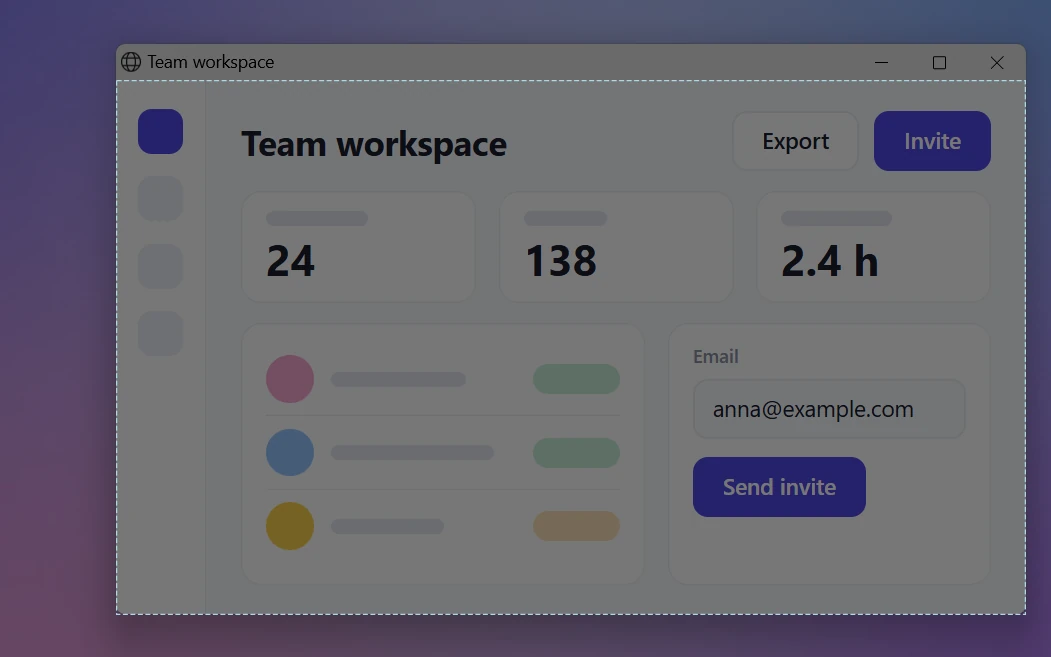
- Press PrtSc, Sleekshot's default shortcut. The screen dims.
- Hover over Telegram and click to grab the whole window, or drag over just the messages you need.
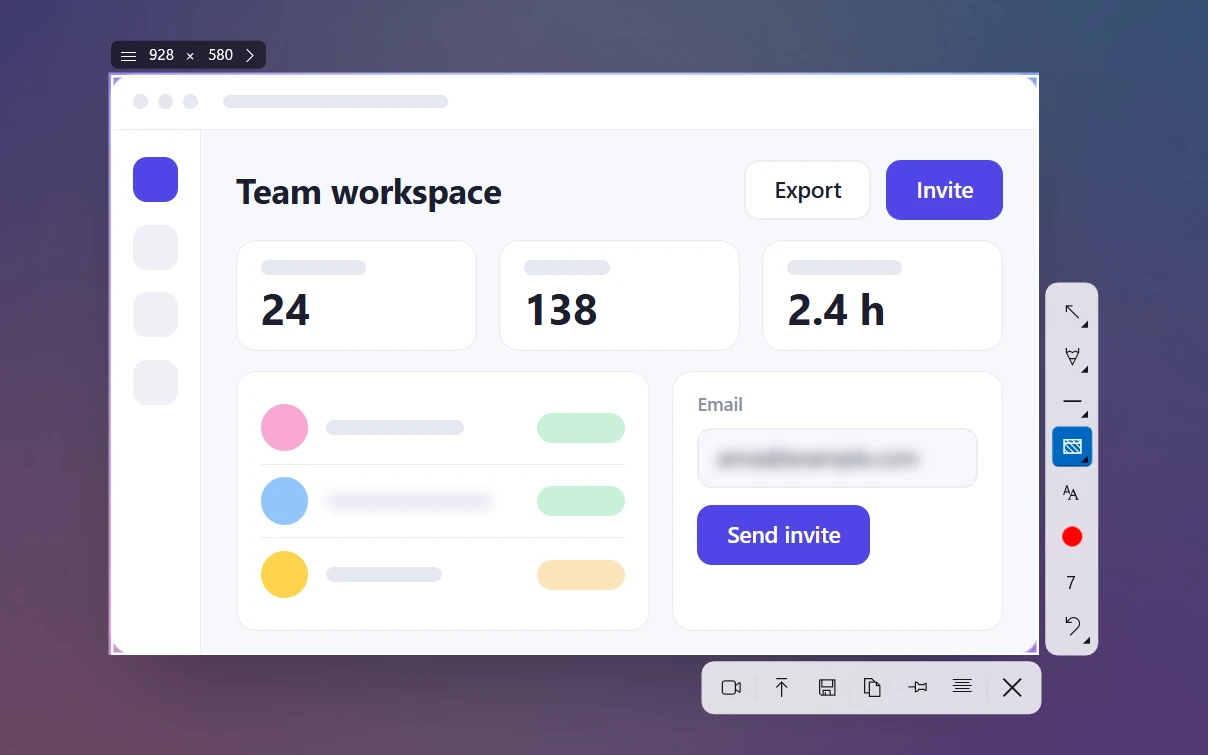
- Press B and drag a Blur rectangle over profile photos and names. For phone numbers and usernames, press F for a solid Filled rectangle, which can't be undone.
- If the screenshot needs to point at a specific message, add an arrow (1) or a text label (T).
- Press Ctrl + C and paste into Telegram with Ctrl + V, or press Ctrl + U for a short link.
What Sleekshot can't do: it has no scrolling screenshots, so long chats need several screenshots or the export described above. You can't move arrows and boxes after you draw them, only undo them with Ctrl + Z. How to blur part of a screenshot explains why we prefer a solid box for numbers. All the tools are on the arrows, steps and blur page.
Sending screenshots in Telegram without losing quality
Telegram compresses images you send as photos, which can make small text in a screenshot look soft. Two ways to keep it sharp:
- Send in HD. In the mobile apps, tap the SD button in the photo editor to switch to HD. The attachment menu also has Send in High Quality. Telegram says HD photos have four times as many pixels as standard ones.
- Send it as a file. Attach the screenshot as a file instead of a photo. The PNG arrives exactly as it was, but there's no preview in the chat.
For a screenshot you'll share in several places, a link is often easier than sending the image again. See how to share a screenshot as a link. More on sharp screenshots in how to take a high-quality screenshot.
Frequently asked questions
Does Telegram notify when you take a screenshot?
Why can't I take a screenshot in a Telegram group or channel?
How do I stop people from taking screenshots of my Telegram chats?
Can I see Telegram secret chats on my PC?
Is there a way to screenshot Telegram when it's not allowed?
Why do my screenshots look blurry after I send them in Telegram?
Sleekshot Team
We build Sleekshot, a free screenshot and screen recording app for Windows and Mac. Every guide is checked on current Windows 11, Windows 10 and macOS builds.
Also available in: Русский