How to Take a Screenshot of a Window on Windows 11 & 10
 By Sleekshot Team
6 min read
By Sleekshot Team
6 min read
Short answer
To screenshot just one window on Windows, click it and press Alt + PrtSc. Windows copies the window to the clipboard, so you can paste it with Ctrl+V. If you want a saved file, press Win + Shift + S, choose Window mode and click the window (Windows 11 also saves it to Pictures → Screenshots). On a Mac, press Shift + Command + 4, then Space, and click the window.
On this page
- 5 ways to screenshot a window: quick comparison
- Method 1: Alt + PrtSc (active window to the clipboard)
- Method 2: Win + Shift + S in Window mode (Snipping Tool)
- Method 3: Win + Alt + PrtSc (Xbox Game Bar saves a file)
- Method 4: Click a window or part of one in Sleekshot
- Rounded corners, shadows and stray pixels
- How to screenshot several windows at once
- How to screenshot a window on a Mac
Click the window you want, then press Alt + PrtSc. Windows copies just that window to the clipboard, without the taskbar or anything around it, and you paste it with Ctrl + V. That's the fastest way to take a screenshot of a window on Windows 11 and 10. If you need a saved file, cleaner edges or arrows on top, the methods below have you covered, including the Mac shortcut.
5 ways to screenshot a window: quick comparison
Each method grabs one window. The difference is where the image ends up.
| Method | Keys | Where the image goes | Best for |
|---|---|---|---|
| Alt + PrtSc | Alt + PrtSc | Clipboard only | Pasting straight into a chat, email or document |
| Snipping Tool, Window mode | Win + Shift + S, then Window | Clipboard + Pictures\Screenshots (Windows 11) |
Picking a window with the mouse, dialog boxes included |
| Xbox Game Bar | Win + Alt + PrtSc | PNG file in Videos\Captures |
Saving a file right away, games |
| Sleekshot | PrtSc, then click | Clipboard, file or share link | Windows or single parts of a window, with arrows and blur |
| Mac | Shift + Cmd + 4, then Space | File on the desktop | macOS |
Method 1: Alt + PrtSc (active window to the clipboard)
Alt + PrtSc takes the active window, the one you last clicked, and nothing else.
- Click the title bar of the window you want, so it's in front.
- Press Alt + PrtSc. On many laptops, PrtSc is a second function on another key, so press Alt + Fn + PrtSc.
- Paste with Ctrl + V into a chat, an email, Word or Paint.
Nothing happens on screen, and no file is created. The image lives on the clipboard until you copy something else. To keep it, paste it into Paint and save. The key may say PrtSc, PrtScn or Print Screen. Our Print Screen key guide shows where it usually is.
Note: If OneDrive's "Save screenshots I capture to OneDrive" option is on, Alt + PrtSc also saves a file to OneDrive. Details are in our article on screenshots and OneDrive.
Two things often go wrong. If you open a menu first, it closes before the screenshot, so use Snipping Tool with a delay for menus. And if a dialog box is open, Alt + PrtSc takes the dialog, not the main window behind it.
Method 2: Win + Shift + S in Window mode (Snipping Tool)
In Snipping Tool, you pick the window with the mouse. It doesn't have to be the active one, as long as you can see it.
- Press Win + Shift + S. The screen dims and a toolbar appears at the top.
- Click the Window mode icon on the toolbar.
- Move the mouse over the window you want and click it.
- The window is copied to the clipboard, and a notification pops up in the bottom-right corner. Click it to open the editor if you want to crop or draw.
On Windows 11, the snip is also saved to C:\Users\<you>\Pictures\Screenshots on its own. On Windows 10, you have to save it from the notification. Window mode also picks up dialog boxes on their own, which is handy for error messages. Every Snipping Tool shortcut is in our Snipping Tool shortcut guide.
Method 3: Win + Alt + PrtSc (Xbox Game Bar saves a file)
If you want a file without opening an editor, use Xbox Game Bar. Win + Alt + PrtSc takes the active window and saves it as a PNG in C:\Users\<you>\Videos\Captures. A small notification tells you it worked.
It's made for games, so keep two limits in mind. It always takes the whole active app window, with no picking or cropping. And it doesn't work on the desktop or in File Explorer. If nothing happens, press Win + G once to check that Game Bar is installed and opens.
Method 4: Click a window or part of one in Sleekshot
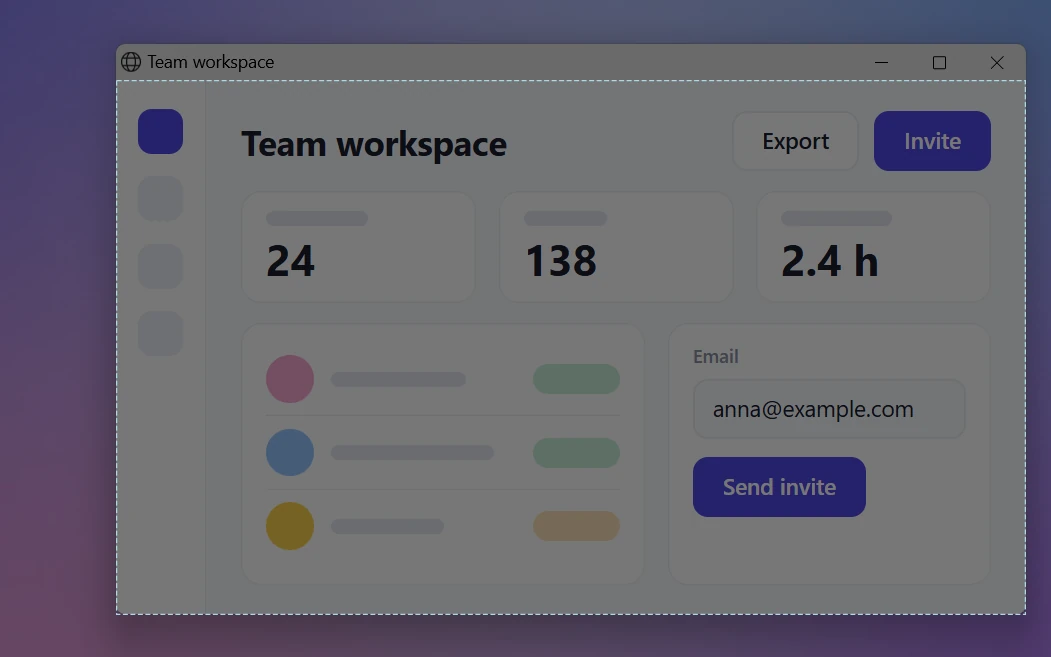
In Sleekshot, our free screenshot app for Windows 10 and 11, a window screenshot is one click. Press PrtSc (the default key, but you can pick any other), and the screen dims. As you move the mouse, a dashed blue outline follows the window under the cursor. Inside a window, it also outlines separate parts, like a sidebar, a toolbar or a dialog panel.
- Press PrtSc. A tip reminds you: drag for a rectangle, click for a window, Ctrl + A for the full screen, Esc to cancel.
- Hover until the outline matches what you want: the whole window or one part of it.
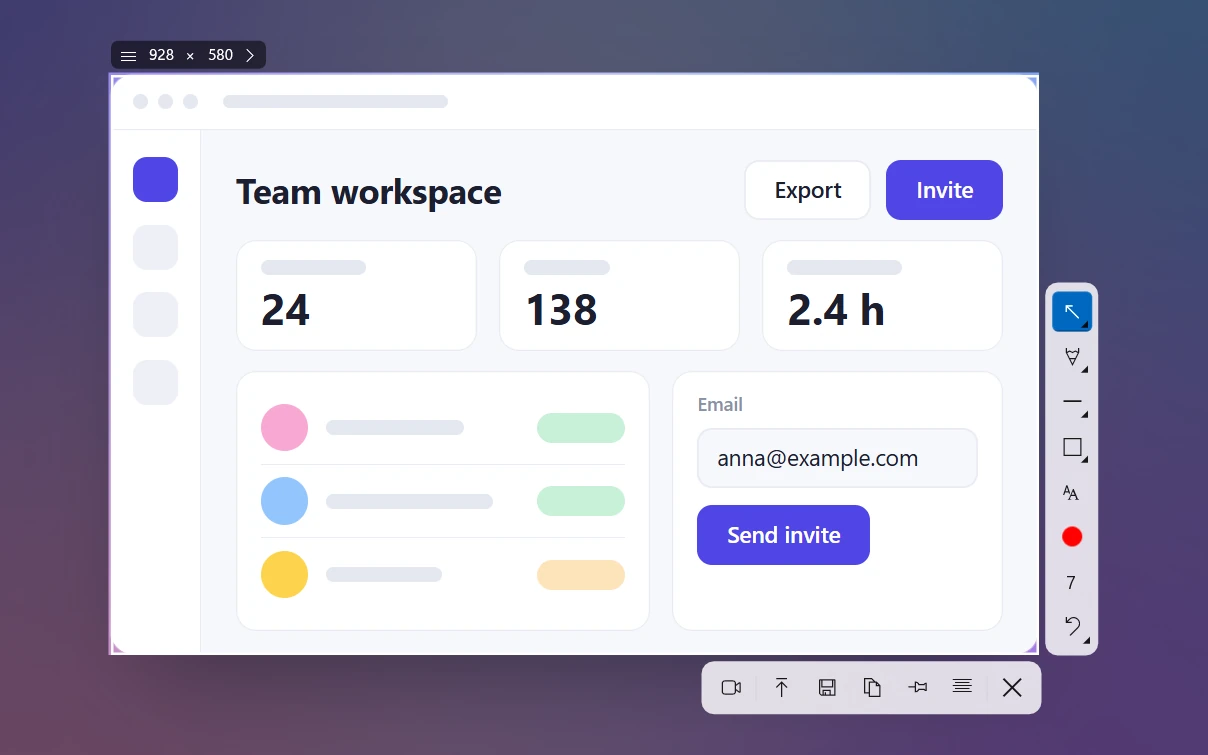
- Click. The outline turns into a selection with its size in pixels. Drag the edges if you want a little more or less.
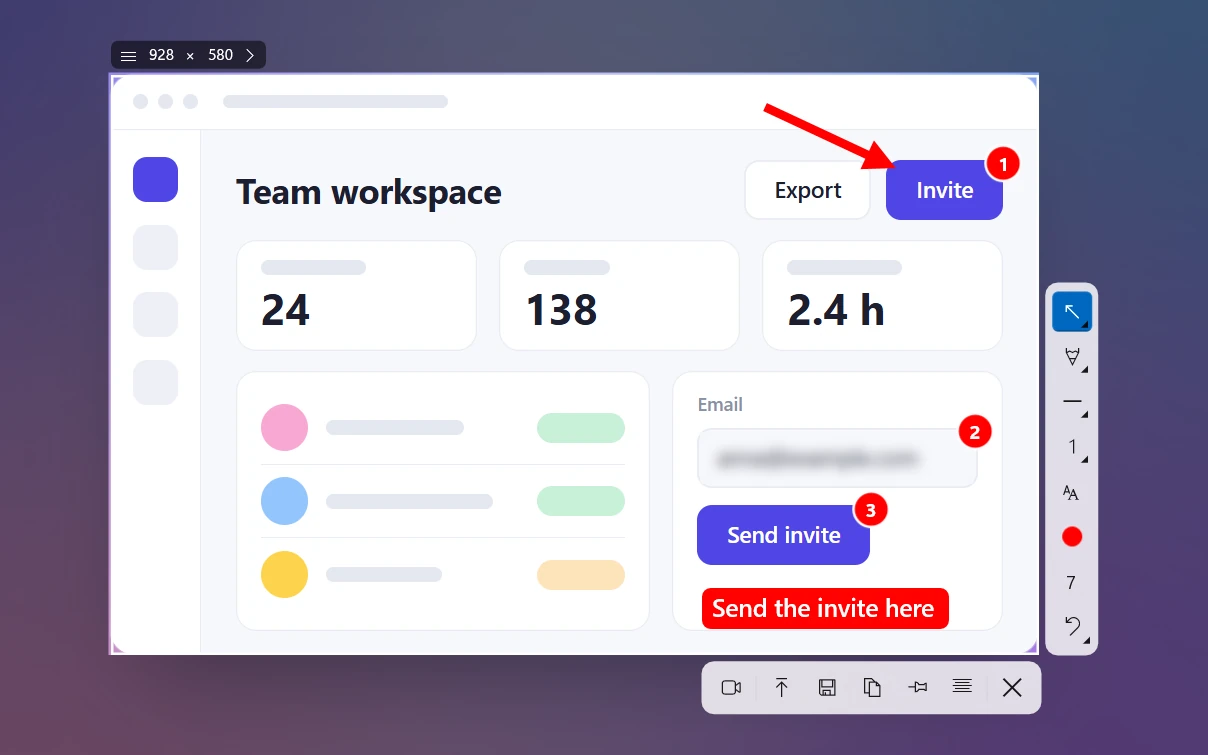
- Add what you need right there: arrows, numbered steps, a blur box over an email address, text.
- Press Ctrl + C to copy, Ctrl + S to save as PNG, JPEG or WebP, or Ctrl + U to get a short link.
Grabbing a single part of a window is handy for documentation and bug reports. You get just the settings panel or the error dialog, with no cropping afterward. Sleekshot has limits too. It takes what's visible on screen, so it can't do scrolling screenshots of long windows, and it has no delay. See all the tools for arrows, steps and blur or our guide to bug report screenshots.
Rounded corners, shadows and stray pixels
Windows 11 draws windows with rounded corners, but an image file is always a rectangle. So the four corners of a window screenshot hold a few pixels of whatever was behind the window, or a bit of its shadow. On a busy wallpaper, they show up as colored specks.
Three easy fixes:
- Maximize the window. Maximized windows in Windows 11 have square corners, so nothing shows through.
- Use a plain background. Minimize other windows or pick a solid-color wallpaper first. Light corners on a white page are almost invisible.
- Crop a few pixels in. Before you save, drag the edge of the selection in by 2–3 pixels in Snipping Tool's editor or in Sleekshot.
Macs handle window shadows differently. See the last section.
How to screenshot several windows at once
None of the window modes can pick two windows in one click. Arrange them and grab the area around both instead.
- Put the windows side by side. Drag one to the left edge of the screen and the other to the right, or use Win + ← / Win + →.
- Press Win + Shift + S in Rectangle mode, or PrtSc in Sleekshot, and drag one rectangle around both windows.
- If they fill the screen, a full-screen screenshot is faster: Win + PrtSc, or Ctrl + A in Sleekshot (it takes the current monitor).
If the windows are on different monitors, see how to screenshot one monitor. To join separate window screenshots into one image, follow our guide on combining screenshots.
How to screenshot a window on a Mac
On macOS, the window shortcut is part of the area screenshot.
- Press Shift + Command + 4, then press the Space bar.
- The pointer turns into a camera, and the window under it lights up. Click it.
- The screenshot is saved to the desktop. Hold Option while you click to leave out the window's shadow, or add Control to copy it to the clipboard instead.
By default, macOS adds the window's shadow to the image. Sleekshot for Mac can only grab an area for now, not a window with one click. All the Mac methods are in our guide on how to screenshot on a Mac.
Frequently asked questions
What is the shortcut to screenshot only one window?
Where does Alt + Print Screen save the screenshot?
Why does my window screenshot show the background in the corners?
Can I screenshot just a dialog box or a single button?
How do I take a screenshot of a window on a Mac?
Sleekshot Team
We build Sleekshot, a free screenshot and screen recording app for Windows and Mac. Every guide is checked on current Windows 11, Windows 10 and macOS builds.
Also available in: Deutsch Français Español Italiano Русский ភាសាខ្មែរ Bahasa Indonesia 简体中文 日本語