
Print Screen Not Working on Windows 11 or 10: 8 Fixes, Quickest First
 By Sleekshot Team
8 min read
By Sleekshot Team
8 min read
Short answer
If Print Screen seems dead, first check whether the screenshot went to the clipboard (paste with Ctrl+V) or to Pictures → Screenshots. On a laptop, press Fn + PrtSc or turn off Fn Lock. Still nothing? Check the Print screen switch in Settings → Bluetooth & devices → Keyboard. Then quit apps that take over the key (OneDrive, Dropbox, screenshot tools), reinstall the keyboard driver or repair Snipping Tool.
On this page
- Quick check: find your symptom
- Fix 1: Check the clipboard and the Screenshots folder
- Fix 2: Press Fn + PrtSc or turn off Fn Lock
- Fix 3: Check the Print screen switch in Windows Settings
- Fix 4: Find the app that took over the PrtSc key
- Fix 5: Turn off Win Lock on a gaming keyboard
- Fix 6: Test the key with the On-Screen Keyboard
- Fix 7: Reconnect the keyboard and reinstall its driver
- Fix 8: Repair or reset Snipping Tool
- Still not working? Use a different key
When Print Screen is not working on Windows 11, the key is usually fine. The screenshot just goes somewhere you don't expect. On Windows 11, PrtSc either opens the Snipping Tool bar or, with that option off, quietly copies the whole screen to the clipboard. There's no sound and no notification.
Open Paint or a chat and press Ctrl + V. If a screenshot appears, the key works. If nothing happens at all, the usual suspects are the Fn key on a laptop, another app that took over PrtSc, or a locked Windows key. Go through the fixes below in order. The first four solve most cases, and each takes about a minute.
Quick check: find your symptom
Find what you see in the table and jump to that fix.
| What you see | Likely cause | Go to |
|---|---|---|
| Nothing seems to happen, but Ctrl + V pastes a screenshot | It works: PrtSc copied the screen to the clipboard | Fix 1 |
| Nothing happens on a laptop | PrtSc is the key's second (Fn) function | Fix 2 |
| PrtSc opens Snipping Tool and you wanted something else, or the other way around | The Print screen switch in Windows | Fix 3 |
| Another app opens, or your screenshot app says the key is taken | Another program owns PrtSc | Fix 4 |
| PrtSc alone works, but Win + PrtSc and Win + Shift + S don't | The Windows key is locked | Fix 5 |
| Nothing with PrtSc works at all | Keyboard hardware or driver | Fixes 6–7 |
| Win + Shift + S does nothing, or Snipping Tool closes right away | Snipping Tool is broken | Fix 8 |
Fix 1: Check the clipboard and the Screenshots folder
Windows rarely tells you it took a screenshot. So before you change anything, check where each shortcut puts it.
- PrtSc (with the Snipping Tool option off) and Alt + PrtSc only copy to the clipboard. There's no file until you paste the image into Paint, Word or a chat and save it.
- Win + PrtSc dims the screen for a split second and saves a PNG to
Pictures\Screenshots. If OneDrive backs up your Pictures folder, look inOneDrive\Pictures\Screenshotsinstead. Our guide to where screenshots are saved on Windows lists every location. - Win + Shift + S, and PrtSc with the Snipping Tool option on, copy the snip and also save it to
Pictures\Screenshotsby default. You won't see the usual pop-up if Snipping Tool notifications are off (Settings → System → Notifications) or Do not disturb is on. The snip is still on the clipboard.
Tip: turn on clipboard history and press Win + V. You'll see every screenshot that made it to the clipboard, which answers "did it work?" in seconds. See how to paste screenshots and use clipboard history.
Fix 2: Press Fn + PrtSc or turn off Fn Lock
On many laptops, the PrtSc label shares a key with something else (often Insert, End or an F-key) and is printed in a different color. That makes it the key's second function, so you need Fn + PrtSc.
- Fn Lock: if the top row controls volume and brightness instead of acting as F-keys, Fn Lock may be swapping them. Many laptops toggle it with Fn + Esc (look for a small padlock on Esc). Others use the maker's app or a BIOS/UEFI setting.
- F Lock on desktop keyboards: some keyboards have an F Lock key. If PrtSc sits in the F-key row on yours, press F Lock and try again.
- Compact keyboards (60%, 65%, 75%): PrtSc is often on an Fn layer, on a letter or number key. Check the manual or the labels printed on the keys.
- No PrtSc key at all: Microsoft lists Fn + Win + Space as the screenshot shortcut for devices without one.
Not sure where the key is? See where the Print Screen key is on different keyboards.
Fix 3: Check the Print screen switch in Windows Settings
Windows 11 has one switch that decides what plain PrtSc does. An update or a reset can flip it.
- Press Win + I and go to Bluetooth & devices → Keyboard. On older builds it's under Accessibility → Keyboard. You can also type "print screen" into the Settings search.
- Find Use the Print screen key to open screen capture. On means PrtSc opens the Snipping Tool bar. Off means PrtSc copies the full screen to the clipboard.
- Set it the way you want. If it's on but nothing opens, turn it off and on again, then sign out and back in.
While this switch is on, other screenshot apps can't use plain PrtSc. On Windows 10 the same option lives in Settings → Ease of Access → Keyboard and is off by default. For the full walkthrough, with registry and PowerToys options, see how to change the Print Screen key.
Fix 4: Find the app that took over the PrtSc key
Only one program can own a keyboard shortcut at a time. If another app grabbed PrtSc first, Windows never gets the key press, or your favorite tool can't use it.
| App | What takes PrtSc | Where to change it |
|---|---|---|
| OneDrive | Save screenshots I capture to OneDrive | OneDrive icon → Settings → Sync and back up |
| Dropbox | Save screenshots to your Dropbox | Dropbox → Preferences → Screenshots |
| Screenshot apps: Sleekshot, Greenshot, Lightshot, ShareX, Snagit | PrtSc set as the screenshot key | The app's settings, or quit it from the tray |
| Microsoft PowerToys | Print Screen remapped in Keyboard Manager | PowerToys → Keyboard Manager |
| Keyboard or mouse software | Key remaps or macros | The maker's app |
To find the app, click the arrow next to the clock to show hidden icons. Quit the tray apps one at a time and press PrtSc after each. If the screen dims and a toolbar appears when you press PrtSc, that's Sleekshot working as intended. If you want PrtSc back for Windows, pick another key in Sleekshot under Settings → Screenshots → Change hotkey.
Fix 5: Turn off Win Lock on a gaming keyboard
Many gaming keyboards have a Win Lock or Game Mode that turns off the Windows key, so you can't minimize a game by accident. When it's on, Win + PrtSc and Win + Shift + S do nothing, but PrtSc alone still works.
Look for a key with a Windows logo and a padlock, or an Fn combination in the keyboard's manual, and turn it off. On some keyboards you can only do this in the maker's software.
Fix 6: Test the key with the On-Screen Keyboard
The On-Screen Keyboard tells you in ten seconds whether the problem is the physical key or Windows.
- Press Win + Ctrl + O to open the On-Screen Keyboard.
- Click its PrtScn key. Then paste with Ctrl + V, or watch for the Snipping Tool bar.
- Close it with the same shortcut.
If the on-screen key works and the real one doesn't, the problem is your keyboard: the hardware, an Fn layer or the maker's software. If neither works, it's a setting or an app. Go back to Fixes 3 and 4, then try Fix 8.
Fix 7: Reconnect the keyboard and reinstall its driver
If only the physical key fails, check the connection first, then the driver.
- External keyboard: unplug it and try another USB port, ideally on the PC itself rather than a hub. For a wireless keyboard, change the batteries or pair it again over Bluetooth. If you have a spare keyboard, test with that.
- Reinstall the driver: press Win + X and open Device Manager. Expand Keyboards, right-click your keyboard, choose Uninstall device and restart. Windows reinstalls the driver on its own.
- Install pending updates in Settings → Windows Update, then restart again.
Fix 8: Repair or reset Snipping Tool
If PrtSc (with the switch on) or Win + Shift + S opens nothing, or Snipping Tool closes right away, the app itself may be broken.
- Open Settings → Apps → Installed apps and find Snipping Tool. Click the three dots and choose Advanced options.
- Click Repair. Your settings stay.
- If that doesn't help, click Reset. This clears the app's settings.
- Check for updates in the Microsoft Store (Library → Get updates). If Snipping Tool is gone, reinstall it from the Store.
Still not working? Use a different key
If the key itself is dead, no setting will bring it back. But you don't need PrtSc to take screenshots.
- Built-in shortcuts: Win + Shift + S opens Snipping Tool. If the key half-works, try Win + Alt + PrtSc (Xbox Game Bar). You can also open Snipping Tool from Start.
- Remap a spare key to Print Screen with PowerToys Keyboard Manager. The steps are in how to change the Print Screen key.
- Use a screenshot app with its own shortcut. Sleekshot is a free screenshot tool for Windows 10 and 11. Set any key or combination in Settings → Screenshots → Change hotkey. Or skip the keyboard: left-click its tray icon to take a screenshot. You can grab an area, a window or the whole screen, add arrows and text right on the screenshot, then copy it, save it or get a short link.
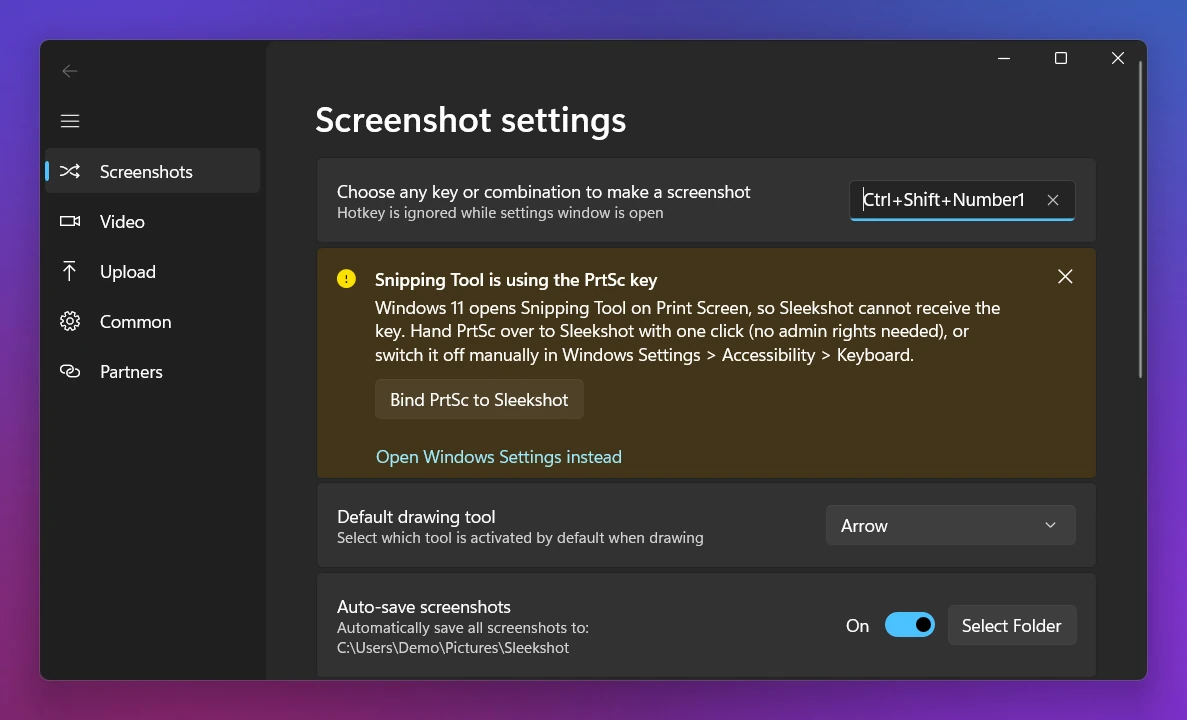
It won't fix a broken key, and it has no scrolling screenshots or timer. But you won't need PrtSc anymore. More options are in how to take a screenshot without Print Screen.
Two cases look like a broken key but aren't. Protected video, like most streaming services, shows up as a black rectangle by design. And on some work PCs, security software blocks screenshots. Ask your IT team.
Frequently asked questions
Why is my Print Screen not working on Windows 11?
Where do Print Screen screenshots go?
Why does Print Screen open Snipping Tool?
Why are my screenshots black?
How do I take a screenshot if the PrtSc key is broken?
Sleekshot Team
We build Sleekshot, a free screenshot and screen recording app for Windows and Mac. Every guide is checked on current Windows 11, Windows 10 and macOS builds.
Also available in: Русский