
How to Screenshot on an HP Laptop (Pavilion, Envy, Spectre, EliteBook)
 By Sleekshot Team
8 min read
By Sleekshot Team
8 min read
Short answer
On any HP laptop, press Win + Shift + S and drag over the area you need, or press Win + prt sc to save the whole screen to Pictures > Screenshots. Where HP prints prt sc depends on the model. It's usually a top-row key near F12 or Delete, or a key shared with ins. Some Envy and Spectre keyboards put it on the right Shift key. If pressing it on its own does nothing, hold Fn too.
On this page
- HP laptop screenshot shortcuts at a glance
- Where is the Print Screen key on an HP laptop?
- Do you need Fn? HP action keys explained
- Method 1: Win + Shift + S on any HP laptop
- Method 2: prt sc or Fn + prt sc
- Method 3: Win + prt sc to save a file
- Method 4: Alt + prt sc for one window
- HP x360 laptops and touchscreens
- Where screenshots are saved on an HP laptop
- A faster option for HP laptops: Sleekshot
- HP prt sc not working? Quick fixes
To take a screenshot on an HP laptop, press Win + Shift + S, drag over the area you want and paste it with Ctrl + V. To save the whole screen as a file instead, press Win + prt sc. The PNG lands in Pictures\Screenshots. If the prt sc key does nothing on its own, hold Fn and press it again. On many HP keyboards, prt sc is a second function.
The tricky part on HP laptops is the key itself. HP uses several keyboard layouts across Pavilion, Envy, Spectre, Victus, OMEN, EliteBook, ProBook and the newer OmniBook models. So "press PrtSc" means different things on different laptops. Below: how to find prt sc on your HP keyboard and when you need Fn. We also cover every built-in method, x360 laptops and where the files go. Everything is checked against HP's and Microsoft's support pages as of October 2026.
HP laptop screenshot shortcuts at a glance
"prt sc" in this table means whichever key your HP prints prt sc on. If it's a second label, add Fn to every combination.
| What you want | Keys on an HP laptop | Where the screenshot goes |
|---|---|---|
| Select an area (works on every HP) | Win + Shift + S | Clipboard + Pictures\Screenshots (Windows 11) |
| Quick screenshot with the key | prt sc or Fn + prt sc | Windows 11: opens the Snipping Tool toolbar. Windows 10: whole screen to clipboard |
| Save the whole screen as a file | Win + prt sc (or Win + Fn + prt sc) | Pictures\Screenshots (PNG) |
| Copy only the active window | Alt + prt sc (or Alt + Fn + prt sc) | Clipboard |
| x360 in tablet mode | Power + Volume Up (where supported), or the pen menu | Pictures\Screenshots |
| Add arrows and share right away | Sleekshot (free), any key you choose | Clipboard, a folder, or a share link |
If you only remember one: Win + Shift + S. It doesn't care about the prt sc key, Fn or Fn lock, so it works the same on a ten-year-old Pavilion and a new OmniBook.
Where is the Print Screen key on an HP laptop?
On most HP laptops, the Print Screen key says prt sc (lowercase, HP style). It's in the top row, to the right of F12 or near Delete. HP's own guide says it's "usually in the upper-right section". The label can also read PrtScn or Print Screen.
Look at your keyboard and match it to one of these layouts:
| Layout | What it looks like | What to press |
|---|---|---|
| A key of its own | A top-row key that only says prt sc | prt sc |
| Shared with Insert | One key labeled ins and prt sc | prt sc first; if nothing happens, Fn + that key |
| On the right Shift key | prt sc printed on the right Shift (some recent Envy and Spectre keyboards, including x360 models) | Fn + right Shift |
| No label | Detachable or compact keyboards without prt sc | Win + Shift + S |
HP doesn't stick to one layout per product line, and two Envy models from different years can differ. Go by what's printed on your keys, not by the model name. If you're not sure, our guide to where the Print Screen key is shows the common layouts.
Do you need Fn? HP action keys explained
You need Fn whenever prt sc is the second label on its key. The rule on HP keyboards: whatever is printed as a key's second function needs Fn.
The top row is a separate story. Most HP home laptops come with Action Keys Mode turned on. Pressing F1–F12 changes brightness, volume and so on, and you need Fn for the real F-keys. That matters if prt sc is on or next to the top row. When the mode is switched, the key you used to press on its own suddenly needs Fn.
Here's how to change it, according to HP's support article on locking and unlocking the fn key:
- Turn on the laptop and immediately tap F10 to open BIOS Setup.
- Open System Configuration and select Action Keys Mode.
- Choose Enabled (actions without Fn) or Disabled (F1–F12 without Fn).
- Press F10 to save and restart.
On some EliteBook and ProBook models, Fn + Shift turns Fn lock on and off directly, and a light on the Fn key shows which mode you're in. Some business BIOS versions call the setting "Hotkeys" instead. If you see a small padlock with "fn" on one of your keys, Fn + that key is your Fn lock.
Method 1: Win + Shift + S on any HP laptop
Win + Shift + S opens the Snipping Tool toolbar. It's built into Windows 10 and 11, so it works on every HP laptop, with or without prt sc.
- Press Win + Shift + S. The screen dims.
- Pick Rectangle, Window, Full screen or Freeform on the toolbar at the top.
- Drag over the area with the touchpad, or click a window.
- Paste with Ctrl + V, or click the notification to open the editor.
On Windows 11, the screenshot is also saved to Pictures\Screenshots on its own. On Windows 10, it stays on the clipboard until you save it.
Method 2: prt sc or Fn + prt sc
On Windows 11, pressing prt sc opens the same toolbar as Method 1. Microsoft made this the default in 2023. On Windows 10, prt sc copies the whole screen to the clipboard without any sign that it worked. Paste it with Ctrl + V.
HP's own guide gives the same advice we do: if prt sc doesn't seem to work on its own, try Fn + prt sc. Want prt sc to copy the whole screen on Windows 11 like it used to? Open Settings → Bluetooth & devices → Keyboard (on older builds, Settings → Accessibility → Keyboard). Turn off Use the Print screen key to open screen capture. More options: how to change what the Print Screen key does.
Method 3: Win + prt sc to save a file
Win + prt sc saves the whole screen as a PNG right away. The screen dims for a moment to show it worked. If prt sc needs Fn, hold Win + Fn and tap prt sc. On keyboards where prt sc is on the right Shift key, that's Win + Fn + right Shift.
Method 4: Alt + prt sc for one window
Click the window you want, then press Alt + prt sc (plus Fn if needed). Only that window goes to the clipboard, with no taskbar and no desktop. Paste it with Ctrl + V. For other ways, see how to screenshot a window.
HP x360 laptops and touchscreens
On an Envy x360, Spectre x360, Pavilion x360 or another HP 2-in-1 folded into tablet mode, you can't reach the keyboard. You still have three options:
- Pen menu. With an HP pen, the Windows 11 pen menu includes Snipping Tool by default. Tap it and draw the area with the pen.
- Power + Volume Up. Windows supports this button combination for screenshots on devices with hardware buttons. Whether it works depends on the model, so try it once. If the screen dims, the PNG is in
Pictures\Screenshots. - Snipping Tool app. Open it from Start, tap New and drag with your finger.
When the keyboard is attached, use the shortcuts above. On x360 keyboards where prt sc is on the right Shift key, remember the Fn.
Where screenshots are saved on an HP laptop
HP doesn't change the Windows defaults, so screenshots go where they go on any PC:
- Win + prt sc and the Windows 11 Snipping Tool:
C:\Users\<your name>\Pictures\Screenshots. - If OneDrive backs up Pictures:
OneDrive\Pictures\Screenshots. - prt sc on Windows 10, Alt + prt sc: clipboard only, until you paste.
Still can't find a file? See where screenshots go on Windows.
A faster option for HP laptops: Sleekshot
With the built-in tools, a screenshot that explains a bug, a setting or a tutorial step takes several stops: take it, open the editor, save, upload. Sleekshot is a free screenshot and screen recording app for Windows 10 (1809+) and 11. You add arrows and text right on the screenshot, then copy, save or share it in one step.
Two things make it a good fit for HP keyboards:
- Any key you like. Sleekshot uses prt sc by default, but you can set any key or combination. If your prt sc is Fn + right Shift, pick something you can press with one hand.
- Tray icon. One click on the Sleekshot icon takes a screenshot. That's handy on an x360 or when you're only using the touchpad.
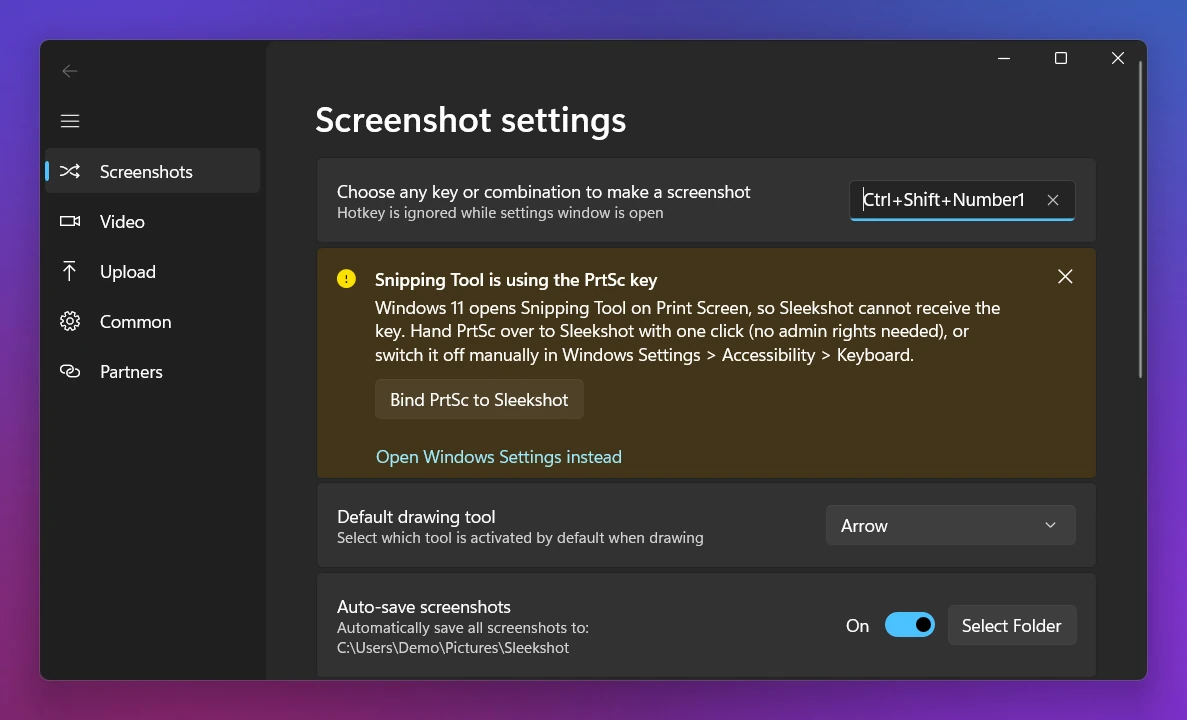
Then you get arrows (7 styles), numbered steps, blur for personal data, a highlighter and text, right on the screenshot. Press Ctrl + C to copy, Ctrl + S to save, or Ctrl + U for a share link, with no account. It doesn't take scrolling screenshots, delayed screenshots or GIFs. If you need a delay, Snipping Tool is the better choice.
HP prt sc not working? Quick fixes
Go through these in order:
- Try Fn + prt sc. That's the most common fix on HP laptops.
- Switch Action Keys Mode or Fn lock (in the BIOS, or Fn + Shift on some business models), and test both prt sc and Fn + prt sc again.
- Check what Windows does with the key. On Windows 11, prt sc opens the Snipping Tool toolbar unless you turned that off. Another app (OneDrive, Dropbox, another screenshot tool) may have taken over the key.
- Update the keyboard driver. HP suggests checking the keyboard in Device Manager. Windows Update or HP's support site has the current drivers for your model.
- Use Win + Shift + S while you sort it out. It doesn't need prt sc at all.
The full checklist is in our guide to Print Screen not working. For other brands, see the laptop screenshot guide.
Frequently asked questions
What is the screenshot key on an HP laptop?
Why do I have to press Fn to take a screenshot on my HP laptop?
How do I screenshot on an HP laptop without the prt sc key?
Where do screenshots go on an HP laptop?
How do I take a screenshot on an HP Envy x360 or Spectre x360?
Sleekshot Team
We build Sleekshot, a free screenshot and screen recording app for Windows and Mac. Every guide is checked on current Windows 11, Windows 10 and macOS builds.
Also available in: Deutsch Français Español Italiano Русский ភាសាខ្មែរ Bahasa Indonesia 简体中文 日本語