How Long Can You Screen Record on Windows? Time Limits and Disk Space
 By Sleekshot Team
8 min read
By Sleekshot Team
8 min read
Short answer
Xbox Game Bar stops a recording at its maximum recording length, which is 2 hours by default. You can change it to 30 minutes, 1 hour or 4 hours in Settings → Gaming → Captures. Snipping Tool also has a maximum that Microsoft doesn't publish, and it saves what it recorded when it gets there. Sleekshot and OBS Studio have no time limit, so the real limit is disk space. Count on about 1 GB per hour at 2 Mbps and 4.5 GB per hour at 10 Mbps.
On this page
- Screen recording time limits on Windows
- Xbox Game Bar: how to raise the 2-hour limit
- Snipping Tool: a limit Microsoft doesn't publish
- The real limit: disk space
- Sleekshot: no time limit and predictable file sizes
- OBS Studio: no limit, plus automatic file splitting
- Before a long recording: a 2-minute checklist
- Why a screen recording stops on its own
How long you can screen record on Windows depends on the screen recorder. Xbox Game Bar (Win + Alt + R) stops at its maximum recording length: 2 hours by default and 4 hours at most. Snipping Tool on Windows 11 has a maximum too, but Microsoft doesn't publish the number. Free screen recorders like Sleekshot and OBS Studio have no time limit at all. They keep going until you stop them or the disk fills up.
So for long sessions, the real question is disk space, and the math is simple: every 1 Mbps of bitrate costs 0.45 GB per hour. Below, you'll find each recorder's limit, how to raise Game Bar's cap, how many hours fit on your drive and why recordings stop on their own.
Screen recording time limits on Windows
Here's how each common recorder handles long recordings, as of October 2026.
| Recorder | Time limit | What happens at the limit | Can you change it? |
|---|---|---|---|
| Xbox Game Bar (Win + Alt + R) | 2 hours by default; 30 min, 1 h or 4 h | Stops and saves the clip | Yes, up to 4 hours |
| Xbox Game Bar, background (Win + Alt + G) | Keeps only the last stretch you set | Older footage is thrown away | Yes, under Record the last |
| Snipping Tool (Win + Shift + R) | A built-in maximum that isn't published | Stops and saves what it recorded | No |
| Snipping Tool GIF export | 30 seconds | Offers to export the first 30 seconds | No |
| Sleekshot | None | Records until you stop or the disk is full | — |
| OBS Studio | None | Records until you stop or the disk is full | Can split long recordings into several files |
The Game Bar and Snipping Tool limits are the only hard caps built into Windows. Everything else comes down to free space, power settings and the drive you record to.
Xbox Game Bar: how to raise the 2-hour limit
Game Bar ends every recording when it hits the Max recording length, which Windows describes as "the duration for recordings you start". The default is 2 hours, and the longest option is 4 hours.
- Open Settings → Gaming → Captures.
- Find Max recording length.
- Choose 30 minutes, 1 hour, 2 hours or 4 hours.
You can't go past 4 hours. For a longer session, start a new recording before you hit the limit, or use a recorder with no cap. And remember that Game Bar records only the app you started it in, never the desktop or File Explorer.
Background recording is a different feature. With Record what happened turned on, Win + Alt + G saves the last moments of play. By default that's the last 30 seconds, or whatever you picked under Record the last. It's meant for highlights, not long sessions.
Tip: If Game Bar recorded once or twice and then stopped working, close the game. Xbox Support recommends ending the
bcastdvr.exeprocess in Task Manager and trying again.
More about this tool in our Xbox Game Bar recording guide.
Snipping Tool: a limit Microsoft doesn't publish
Snipping Tool on Windows 11 has no setting for recording length, but it does have a maximum. When a recording hits it, the app stops and shows "You've reached the maximum length for a recording. We've saved your progress." Microsoft doesn't give the number in its docs, and it may change between versions.
Two other messages also stop a Snipping Tool recording and keep what it recorded so far:
- "Free up some disk space, then try again." The drive with your Screen Recordings folder is full.
- "A display has been disconnected. Check the connection, then try again." A monitor was unplugged, turned off or changed mode while you were recording.
For anything longer than a typical meeting, do a test run first or use a screen recorder with no limit. GIF export has its own limit: only the first 30 seconds of a video can become a GIF.
The real limit: disk space
Without a time limit, the question is how many hours fit on your drive. File size is bitrate × time: GB per hour ≈ Mbps × 0.45, plus about 60 MB per hour for 128 kbps sound.
| Recording | Bitrate (video + sound) | Per hour | Hours on 50 GB free | Hours until a 4 GB file (FAT32 limit) |
|---|---|---|---|---|
| Sleekshot Compact (default), 20 fps | 2 + 0.128 Mbps | ≈ 0.96 GB | ≈ 52 h | ≈ 4½ h |
| Sleekshot Optimal, 30 fps | 5 + 0.128 Mbps | ≈ 2.3 GB | ≈ 21 h | ≈ 1 h 50 min |
| Sleekshot High, 60 fps | 10 + 0.128 Mbps | ≈ 4.6 GB | ≈ 11 h | ≈ 55 min |
| Snipping Tool, 1080p area (our tests) | ≈ 7–9 Mbps, varies | ≈ 3–4 GB | ≈ 12–16 h | ≈ 1–1⅓ h |
For comparison, Microsoft puts a one-hour Teams meeting recording at about 400 MB. Recordings of a busy desktop are bigger, because the picture changes more and the resolution is usually higher. For how bitrate, resolution and frame rate affect file size, see our screen recording quality guide.
Watch out for FAT32. USB sticks and SD cards often come formatted as FAT32, and a single file on FAT32 can't be bigger than 4 GB. A long recording saved there can't grow past that, so it fails or stops early. To check a drive, right-click it in File Explorer → Properties and look at the file system. Record to an internal drive (NTFS), or reformat the stick as exFAT. Reformatting erases it.
Sleekshot: no time limit and predictable file sizes
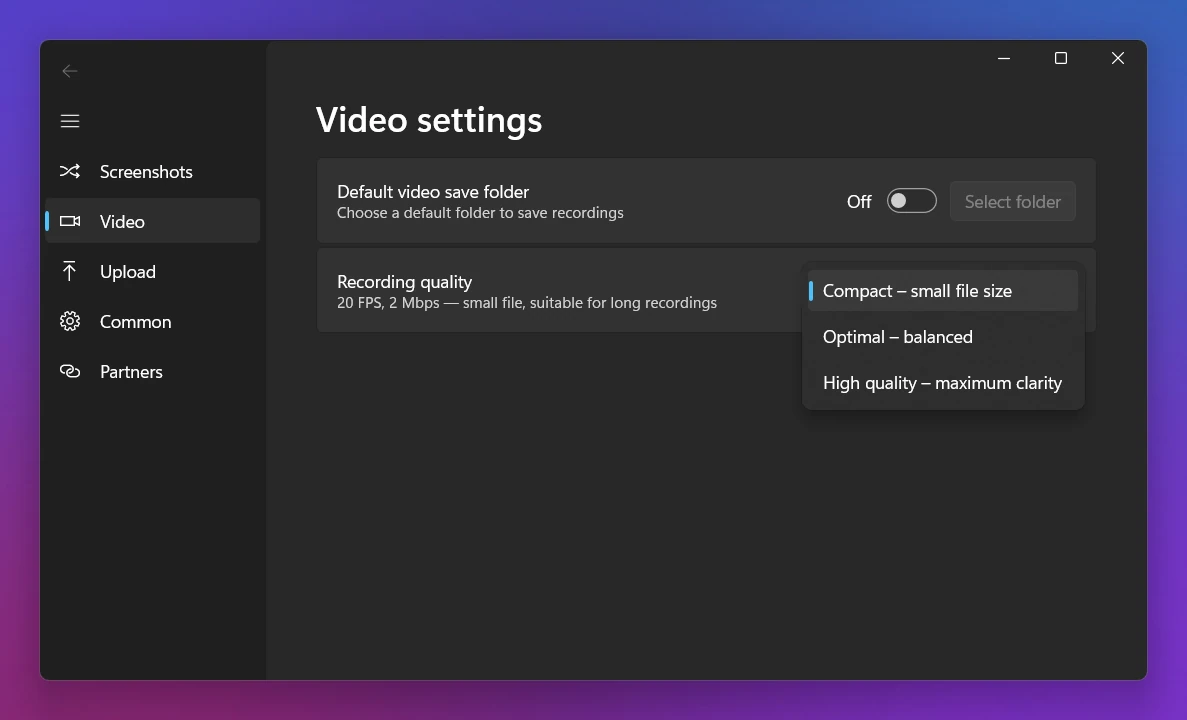
Sleekshot is a free screen recorder for Windows 10 and 11 with no watermark and no time limit. Each of its three quality settings uses a fixed bitrate, so you know in advance how much space an hour takes. Count on about 1 GB with Compact, 2.3 GB with Optimal and 4.6 GB with High.
For long sessions:
- Pick the quality in Settings → Video → Recording quality. Compact (20 fps, 2 Mbps) is the default and works well for long recordings.
- For breaks, use Pause / Resume on the toolbar instead of starting a new file.
- Record an area instead of a full 4K monitor. It stays sharper at the same bitrate.
- Keep Save all recordings on, so the MP4 goes to
Videos\Sleekshotor the folder you picked in Settings → Video.
Sleekshot records one selected area to MP4. It has no trimming, no scheduled recording and no automatic file splitting. For streams that run for hours with several sources, OBS Studio is a better fit. Everything the recorder can do is on the Sleekshot screen recorder page.
OBS Studio: no limit, plus automatic file splitting
OBS Studio has no time limit either. Two settings matter for very long recordings:
- Recording format. New profiles (OBS 32 and later) record to Hybrid MP4, which still plays if the PC crashes. Older profiles may still use plain MP4. OBS itself warns that a plain MP4 can't be recovered if OBS doesn't finish writing it because of a crash or power loss.
- Automatic File Splitting. In Settings → Output (Advanced output mode, Recording tab), turn it on and choose Split by Time or Split by Size. You get, say, one file per hour instead of one huge file, so a problem late in the session doesn't cost you the whole recording.
Before a long recording: a 2-minute checklist
- Check free space. Open Settings → System → Storage and make sure you have at least twice the space you expect to need.
- Record to an internal drive. Avoid FAT32 USB sticks and SD cards for anything over an hour.
- Plug in the laptop and keep it awake. In Settings → System → Power & battery (Windows 10: Power & sleep), set the screen and sleep timeouts to Never while you record. If the PC goes to sleep, every recorder stops.
- Turn on Do not disturb so notifications don't pop up in the video.
- Close what you don't need. Browser tabs with video, game launchers and updates all compete for the CPU, the graphics card and the disk.
- Record one minute and play it back. Check the picture, the sound and the file size, then multiply by how long you plan to record.
- Long meeting? If you're recording a Teams or Zoom call, the meeting app's own recording is often the better choice, and everyone can see that it's on.
Why a screen recording stops on its own
- It hit the maximum length. If it stopped at exactly 2 hours in Game Bar, that's the default cap. Snipping Tool shows its "maximum length" message.
- The disk is full. Free up space or record to another drive. Can't find the partial file? See where screen recordings are saved.
- A monitor was unplugged or changed. Docking, undocking or plugging in a projector can end a Snipping Tool recording.
- The PC went to sleep or you closed the lid. Change the power settings before long sessions.
- The file hit 4 GB on a FAT32 drive. Use NTFS or exFAT.
- Game Bar stopped working after one or two clips. End
bcastdvr.exein Task Manager and restart the game.
New to recording on Windows? Start with how to screen record on Windows, which compares all four free ways to do it.
Frequently asked questions
Is there a time limit for screen recording on Windows?
How long can Xbox Game Bar record?
How long can Snipping Tool record?
How much storage does a 1-hour screen recording take?
Why did my screen recording stop by itself?
Can I screen record for 10 hours?
Sleekshot Team
We build Sleekshot, a free screenshot and screen recording app for Windows and Mac. Every guide is checked on current Windows 11, Windows 10 and macOS builds.
Also available in: Русский