The 9 Best Screen Recorders for Windows PC in 2026, Free and Paid
 By Sleekshot Team
10 min read
By Sleekshot Team
10 min read
Short answer
For quick clips, Windows 11's Snipping Tool (Win + Shift + R) and Xbox Game Bar (Win + Alt + R) are free and already installed. Sleekshot is the quickest free screen recorder for a tutorial or bug report with your voice, a webcam bubble and arrows drawn on screen. OBS Studio is the free pick for long recordings, several sources and streaming. Camtasia is the paid pick if you also need a full video editor.
On this page
- Our verdict: the best screen recorder for each job
- Screen recorders for Windows compared
- 1. Snipping Tool: best built-in recorder on Windows 11
- 2. Xbox Game Bar: best built-in for games and Windows 10
- 3. Sleekshot: best free recorder for tutorials and bug reports
- 4. OBS Studio: best free recorder for long sessions and streaming
- 5. ShareX: best free recorder for GIFs and power users
- 6. Clipchamp: best for editing right after recording
- 7. Loom: best for video messages people watch later
- 8. Bandicam: best for gameplay with a one-time license
- 9. Camtasia: best paid recorder with a video editor
- How we chose
- Which screen recorder should you use?
The best screen recorder for a Windows PC depends on what you're recording. For a quick clip, use what's already there. On Windows 11, Snipping Tool (Win + Shift + R) records any area, and Xbox Game Bar (Win + Alt + R) records a game or app. For tutorials and bug reports with your voice, a webcam and arrows on screen, a free recorder like Sleekshot is faster. For long sessions, several sources or streaming, OBS Studio is the free standard. Camtasia is only worth paying for if you also need a real video editor.
Disclosure: Sleekshot is our app. We checked every recorder below against its official site in October 2026. Each entry, ours included, lists the limits you'll run into.
Our verdict: the best screen recorder for each job
- Best built-in recorder on Windows 11: Snipping Tool. Select an area, record with your mic and computer sound, and you're done.
- Best built-in for games and Windows 10: Xbox Game Bar. One shortcut, 30 or 60 fps, records the app you're in.
- Best free for tutorials and bug reports: Sleekshot. Webcam bubble, highlighted clicks, drawing while you record, no watermark.
- Best free for long recordings and streaming: OBS Studio. Scenes, multiple sources, live streaming.
- Best free for GIFs and power users: ShareX. MP4 and GIF recording, plus a huge set of screenshot tools.
- Best for editing right after recording: Clipchamp. The free plan exports up to 1080p with no watermark.
- Best for video messages people watch later: Loom. Record, stop, paste the link.
- Best for gameplay with a one-time license: Bandicam. Game mode and an FPS counter. The free version stops at 5 minutes.
- Best paid recorder with an editor: Camtasia. Separate tracks and a full editing suite.
Screen recorders for Windows compared
| Recorder | Price (Oct 2026) | Watermark | Time limit | Webcam | What it records | Output |
|---|---|---|---|---|---|---|
| Snipping Tool | Free (Windows 11) | No | None stated by Microsoft | No | A selected area | MP4, GIF export up to 30 s |
| Xbox Game Bar | Free (Windows 10, 11) | No | 2 h by default, up to 4 h | No | One app window | MP4 |
| Sleekshot | Free | No | No | Yes, round bubble | Area, window or monitor | MP4 |
| OBS Studio | Free, open source | No | No | Yes, as a source | Anything, in scenes | MP4, MKV and more |
| ShareX | Free, open source | No | No | No bubble | Area, window or monitor | MP4, GIF |
| Clipchamp | Free plan; Premium with Microsoft 365 | No (free exports up to 1080p) | 30 min per recording | Yes | Screen, window or tab, plus camera | MP4 |
| Loom | Free Starter; Business $18/user/month | Loom branding on free | 5 min per video, 25 videos | Yes | Screen and camera | Hosted link, 720p on free |
| Bandicam | Free version; $36.95/year or $77 one-time (list) | Not on recordings; on edited exports | 5 min per recording (free) | Yes | Screen, games, webcam | MP4, AVI |
| Camtasia | Subscription, about $180/year (Essentials) | Yes on free exports | No | Yes, separate track | Screen, camera, audio tracks | MP4 and more |
"Time limit" and "Watermark" mean the free version or free plan. Paid plans remove both for Bandicam, Loom and Camtasia.
1. Snipping Tool: best built-in recorder on Windows 11
Snipping Tool records any rectangle you draw on Windows 11, with your microphone and computer sound, and there's nothing to install. Press Win + Shift + R and drag over the area. Turn on the mic and system audio buttons, click Start, then Stop. The MP4 lands in Videos\Screen Recordings right away, and you can trim the start and end in the window that opens. Current versions also export a GIF of up to 30 seconds.
- Pros: built in; records any area; mic and computer sound; no watermark.
- Cons: no webcam, no highlighted clicks, no drawing while you record. Snipping Tool on Windows 10 can't record video at all.
- Best for: a 20-second "look, this button doesn't work" clip.
Steps for every built-in method are in how to screen record on Windows.
2. Xbox Game Bar: best built-in for games and Windows 10
Xbox Game Bar comes with Windows 10 and 11 and records one app at a time. In a game or program, press Win + Alt + R to start and again to stop. Win + Alt + M turns the microphone on or off. Videos are saved to Videos\Captures as MP4.
- Pros: built into Windows 10 and 11; 30 or 60 fps; can save the last few moments after they happen.
- Cons: can't record the desktop or File Explorer; can't select an area; no webcam. It stops at 2 hours by default (up to 4 hours in Settings → Gaming → Captures). On some older PCs and virtual machines, the record button stays grayed out.
- Best for: games and a single app on Windows 10.
Every setting is covered in our Xbox Game Bar recording guide.
3. Sleekshot: best free recorder for tutorials and bug reports
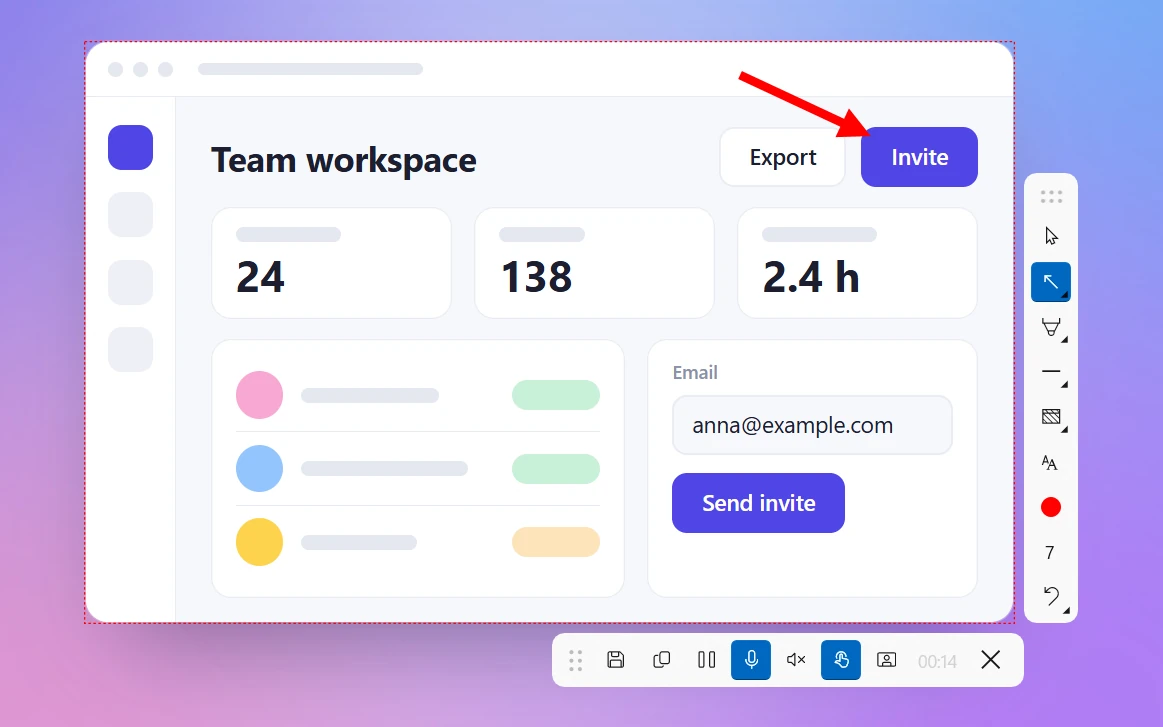
Sleekshot is a free screenshot and screen recording app for Windows 10 and 11. It records an area, a window or a whole monitor to MP4 with your mic, computer sound, a webcam bubble and highlighted clicks. You can also draw arrows and boxes on screen while you record. There's no watermark, no time limit and no account.
You start a recording the same way you take a screenshot. Press PrtSc, select the area and press V to switch to the screen recorder. Pick your microphone. A live level meter shows it can hear you. Turn on computer sound, click highlighting and the camera, then press Ctrl + R. When you stop, Save to file keeps the MP4, and Copy to clipboard lets you paste it straight into a chat or email.
| Quality setting | Frame rate | Video bitrate |
|---|---|---|
| Compact (default) | 20 fps | 2 Mbps |
| Optimal | 30 fps | 5 Mbps |
| High | 60 fps | 10 Mbps |
- Pros: all the drawing tools work while you record, and Sleekshot's own toolbars stay out of the video. Webcam bubble from 120 to 800 px; pause and resume; MP4 (H.264, AAC audio) encoded on the graphics card, with the processor as a fallback; no watermark or time limit.
- Cons: one area at a time, MP4 only. No GIF export, trimming, video editor, scheduled recording or streaming. The Mac version only takes screenshots.
- Best for: tutorials, product demos, support replies and bug reports up to a few minutes long.
More on the Sleekshot screen recorder page.
4. OBS Studio: best free recorder for long sessions and streaming
OBS Studio is a free, open-source recording and streaming app for Windows 10 and 11, macOS 13 or later and Linux. You build scenes from sources (a monitor, a window, a webcam, images, text), mix the audio, then record or go live. The latest stable version is 32.2.2 (August 14, 2026), and version 33 is in beta.
- Pros: no watermark or time limit; as many sources and scenes as you like; live streaming to YouTube, Twitch and others. New installs record to Hybrid MP4, which survives a crash.
- Cons: setup takes time. There are no recording shortcuts until you set them in Settings → Hotkeys. You can't draw on screen, and you'll want a separate editor for trimming.
- Best for: hour-long lessons, webinars, gameplay and streaming.
Download it only from obsproject.com.
5. ShareX: best free recorder for GIFs and power users
ShareX is a free, open-source screenshot app for Windows with a huge list of features. It also records an area, window or monitor to MP4 or straight to GIF. The latest version is 21.0.0 (July 3, 2026).
- Pros: records GIFs without a separate converter; no watermark or time limit; can upload the file and copy the link when you stop.
- Cons: recording uses FFmpeg, which ShareX downloads for you. Recording computer sound needs an extra "recorder devices" package. No webcam bubble, lots of settings, and it only runs on 64-bit Windows 10 or 11.
- Best for: short looping GIFs for documentation, pull requests and chats.
6. Clipchamp: best for editing right after recording
Clipchamp is Microsoft's video editor. It runs as a Windows app and in the browser. Its recorder grabs the screen, a window or a browser tab, with or without your camera, and drops the clip straight onto the editing timeline.
- Pros: the free plan exports up to 1080p with no watermark; trimming, captions and music in the same app; screen and camera together.
- Cons: each screen or webcam recording stops at 30 minutes, and you need to sign in with a Microsoft account. Premium stock media and 4K export need Microsoft 365 Personal or Family.
- Best for: a short recording you want to cut, caption and export in one go.
7. Loom: best for video messages people watch later
Loom records your screen and camera and turns the video into a link. You paste it into Slack, an email or a ticket. It has desktop apps for Windows and Mac and a Chrome extension.
- Pros: the link is ready the moment you stop; transcripts in 50+ languages; unlimited screenshots on the free plan.
- Cons: the free Starter plan allows 25 videos per person, 5 minutes per screen recording and 720p. Your videos live on Loom's servers. To drop the Loom branding and the limits, you need Business at $18 per user per month (less if you pay yearly).
- Best for: teams that swap short meetings for video updates.
8. Bandicam: best for gameplay with a one-time license
Bandicam is a long-running Windows recorder with screen, game and webcam/HDMI modes and an FPS counter for games. There's a Mac version now too. The current version is Bandicam 2027 (v27.0.6, September 9, 2026).
- Pros: game mode with FPS control; scheduled recording; stable and simple.
- Cons: the free version stops each recording at 5 minutes and adds a watermark to edited or subtitled exports. The older Bandicam 2024 and 2025 free versions record 10 minutes with a watermark. Using it for work requires a Business license.
- Price: for one PC, $36.95 a year or $77 for a lifetime license at list price. Discounts are frequent.
9. Camtasia: best paid recorder with a video editor
Camtasia from TechSmith records the screen, webcam, mic and computer sound on separate tracks. It opens them in a full editor with cursor effects, transitions and captions. AI tools add editing by transcript and background-noise removal. It runs on Windows and macOS.
- Pros: recording and pro-level editing in one app; separate tracks you can edit on their own; templates and themes.
- Cons: subscription only; videos from the free version export with a watermark; far more than you need for a quick clip.
- Price: plans start at about $180 a year for Essentials. TechSmith shows local prices.
How we chose
We picked recorders people actually use on Windows in 2026, then compared what matters day to day:
- What "free" really costs: watermarks, time limits, export resolution and required accounts.
- What it records: an area, a window, a whole monitor, games, a webcam.
- Audio: mic and computer sound without extra setup.
- How fast you get a usable file: the steps from the shortcut to a saved or shared MP4.
- Extras that change the choice: drawing on screen, highlighted clicks, editing, streaming.
There are no lab tests or made-up scores here. Features, limits and prices come from each company's site and help pages, checked in October 2026. Prices change, so check before you buy.
Which screen recorder should you use?
- A quick clip of part of the screen on Windows 11: Snipping Tool.
- A game, or anything on Windows 10: Xbox Game Bar.
- A tutorial or bug report with your voice, webcam and arrows: Sleekshot.
- A one-hour lesson, a webinar or a live stream: OBS Studio.
- A looping GIF: ShareX.
- A clip you want to trim and caption right away: Clipchamp.
- A video message your team watches from a link: Loom.
- A polished course or marketing video: Camtasia.
Only want tools that are truly free? See free screen recorders without a watermark. Before a long session, check how long you can screen record and how to record your screen with audio. For screenshots instead of video, read the best screenshot tools for Windows.
Frequently asked questions
What is the best free screen recorder for PC?
Does Windows have a built-in screen recorder?
Which screen recorders have no watermark and no time limit?
What is the best screen recorder for gaming on PC?
Can I record my screen and webcam at the same time for free?
Is OBS Studio better than other screen recorders?
Sleekshot Team
We build Sleekshot, a free screenshot and screen recording app for Windows and Mac. Every guide is checked on current Windows 11, Windows 10 and macOS builds.
Also available in: Русский