The Best Screenshot Apps for Mac: 7 Options Compared
 By Sleekshot Team
10 min read
By Sleekshot Team
10 min read
Short answer
For quick screenshots and screen recordings, the built-in Screenshot app (Shift-Command-5) is enough. CleanShot X ($35 one-time) is the best all-round upgrade. Shottr is the best free or cheap option, with scrolling screenshots and text recognition. Snagit suits documentation teams that also work on Windows. Sleekshot for Mac is the simplest free way to add arrows and blur to an area right after you take the screenshot. It doesn't record video or take scrolling screenshots.
On this page
- Mac screenshot apps compared
- Which one should you choose?
- 1. macOS Screenshot (⌘⇧5): best if you need nothing extra
- 2. CleanShot X: best all-round screenshot app for Mac
- 3. Shottr: best free (or cheap) power tool
- 4. Sleekshot for Mac: simplest free app for quick arrows and blur
- 5. Snagit: best for documentation and mixed Mac and Windows teams
- 6. Xnapper: best for polished screenshots for social posts
- 7. Monosnap: best for cloud sharing and short videos
- How we chose
For most Mac users, the best screenshot app is the one that's already installed. Press ⌘ + ⇧ + 5, and macOS gives you screen, window and area screenshots, video recording and Markup. If you need more, CleanShot X ($35 one-time) is the best all-round upgrade. Shottr is the best free or cheap tool for power users. Snagit is the pick for documentation teams that also use Windows. Sleekshot for Mac is the simplest free way to add arrows and blur to a screenshot the moment you take it.
We compared seven apps using their official sites and App Store pages as of October 2026. For each one, we checked the price, the macOS version it needs, and what it can and can't do. The table gives you the short answer. Below it, each app gets its own section: who it's for and where it falls short.
Mac screenshot apps compared
| App | Price (October 2026) | Requires | Scrolling screenshots | Screen recording | Text recognition (OCR) | Best for |
|---|---|---|---|---|---|---|
| macOS Screenshot (⌘⇧5) | Free, built in | macOS 10.14+ | No | Yes | Live Text, in Preview or Photos | Quick screenshots and recordings |
| CleanShot X | $35 one-time with 1 year of updates, or Pro $10 per user per month billed yearly | macOS 13+ | Yes | Yes, MP4 and GIF | Yes | Best all-round |
| Shottr | Free; $12 one-time license, required for commercial use | macOS 10.15+ | Yes | No | Yes, plus QR codes | Free power tool, designers |
| Sleekshot for Mac | Free, no in-app purchases | macOS 12+ | No | No | Yes, ⌘⇧C, on your Mac | Quick arrows, blur and copy |
| Snagit | Subscription, from about $39 per user per year | macOS 14+, also Windows | Yes | Yes | Yes | Documentation and training |
| Xnapper | Free with watermark; $29.99 one-time for 1 Mac | macOS 10.15+ | No | No | Yes | Polished images for social posts |
| Monosnap | Free for non-commercial use; paid from $2.50 a month | macOS 14.6+ | No | Yes, including GIF | No | Cloud sharing and short videos |
Which one should you choose?
- You take a screenshot now and then: the built-in tool. Learn ⌘ + ⇧ + 4 and ⌘ + ⇧ + 5, and you're set.
- Screenshots and recordings are part of your job: CleanShot X.
- You want lots of features for little or no money: Shottr.
- You just want arrows, a blurred email and copied text, for free: Sleekshot for Mac.
- You write manuals or train people, on Mac and Windows: Snagit.
- You post screenshots on social media or in slides: Xnapper.
- Your team shares screenshots through the cloud: Monosnap, or CleanShot Cloud.
1. macOS Screenshot (⌘⇧5): best if you need nothing extra
The Screenshot app built into macOS does more than most people think. ⌘ + ⇧ + 3 takes the whole screen. ⌘ + ⇧ + 4 lets you drag over an area. Press Space to switch to a window. ⌘ + ⇧ + 5 opens a toolbar with every screenshot and recording mode. Add Control to the first two shortcuts to copy the screenshot to the clipboard instead of saving a file.
What's good: it's free, always there and fast. The Options menu sets the save location, a 5- or 10-second timer, the floating thumbnail and whether the pointer shows up. It records the whole screen or part of it. Since macOS Tahoe 26, it can record a single window, and since macOS 27 it can record computer sound. Click the thumbnail, and Markup gives you shapes, text, a pen and cropping. Live Text copies text from images in Preview and Photos.
What's missing: there's no blur or pixelate tool, no numbered steps and no scrolling screenshots. You mark up the screenshot only after you take it, as a separate step. Files land on the desktop as PNG unless you change that. Our guides to Mac screenshot shortcuts and where Mac screenshots are saved have the details.
Price: included with macOS.
2. CleanShot X: best all-round screenshot app for Mac
CleanShot X is the screenshot app many Mac power users install first. It does almost everything, and it feels like part of macOS.
What's good: area, window and full-screen screenshots, with a small panel of quick actions after each one, plus scrolling screenshots. It records the screen to MP4 or GIF with your webcam, highlighted clicks, keystrokes, mic and computer sound. A video editor adds automatic zooms. For marking up, you get tools to hide private data, a spotlight, step outlines, text highlighting and 20 built-in backgrounds. It also recognizes text on your Mac and reads QR codes. There's a screenshot history, pinned screenshots, a way to hide desktop icons, and CleanShot Cloud for instant links.
What's missing: it's Mac-only and it's paid. The Basic license costs $35 once and includes one year of updates and 1 GB of cloud storage. After that, you keep your version or pay $19 a year for updates. CleanShot Pro is $10 per user per month billed yearly, with unlimited cloud storage and team features. It needs macOS 13 or later and is also available through Setapp.
Price: $35 one-time (Basic) or $10 per user per month (Pro, billed yearly).
3. Shottr: best free (or cheap) power tool
Shottr is a tiny, fast app made for designers and developers. It does a surprising amount for its size and price.
What's good: scrolling screenshots in any app, text and QR code recognition, pixelation and a mode that erases objects. You can pin screenshots on top of other windows, add backgrounds and measure distances in pixels with a ruler. It also has a color picker, can combine several screenshots on one canvas, and uploads to S3-compatible storage. It runs on macOS 10.15 and later.
What's missing: it doesn't record the screen. Video and GIF recording are still on the developer's wish list. Uploads go to S3-compatible storage you set up yourself, so you don't get a ready-made share link right after you install it.
Price: free to use for as long as you like, but after 30 days it asks now and then if you'd like to buy. The Basic license is $12 one-time and is required for commercial use. The Friends Club tier is $30. One license covers one person on up to five Macs.
4. Sleekshot for Mac: simplest free app for quick arrows and blur
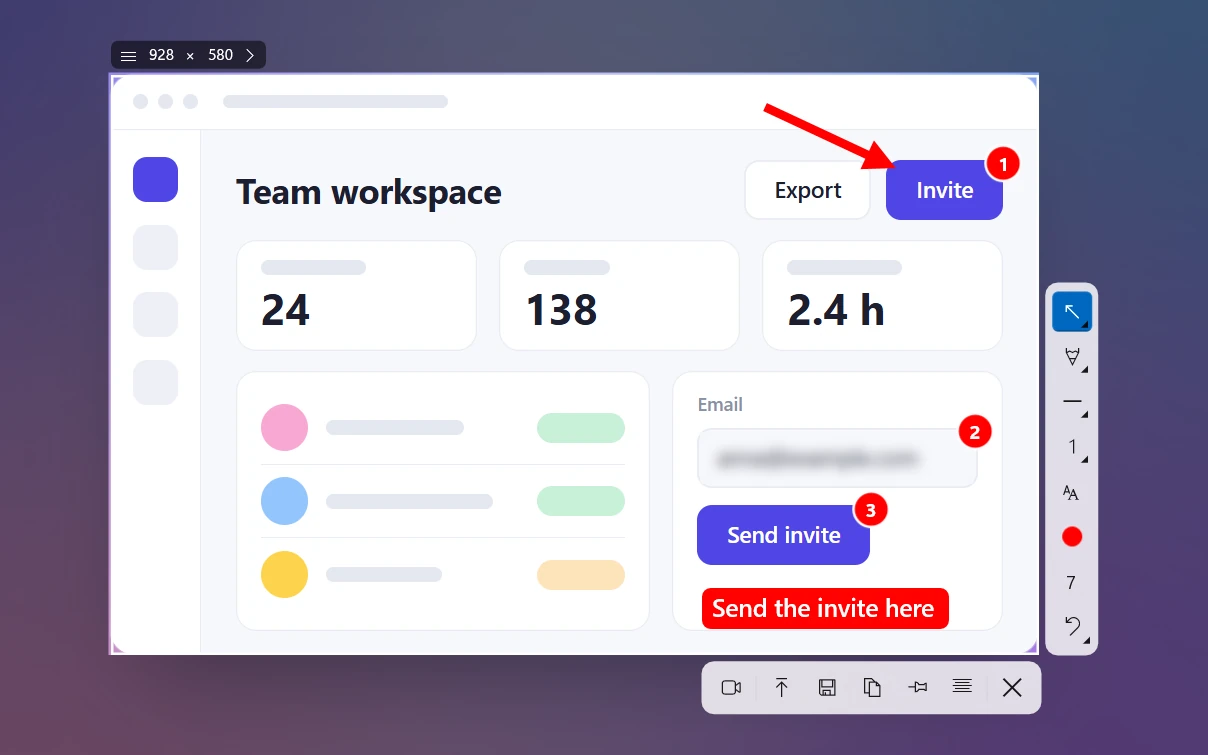
Sleekshot for Mac is our own app, so here are the downsides along with the upsides. It's a free menu bar app that does one job quickly, and it's much simpler than Sleekshot for Windows. Press ⌘ + ⇧ + 2, and the screen dims. Drag over an area and draw right on it. Then copy it, save it or copy the text inside it.
What's good:
- Free on the Mac App Store, with no in-app purchases, no limits and no account. Runs on macOS 12 Monterey and later.
- ⌘ + ⇧ + 2 doesn't clash with the system shortcuts, and you can change it.
- You draw right on the screenshot, and every tool has a one-letter shortcut. You get an arrow, rectangle, filled rectangle, ellipse, line and dashed line, smoothed pencil, text labels and 20 colors.
- The Blur tool (B) pixelates an area for good. The built-in Markup can't do that.
- ⌘ + ⇧ + C copies the text inside the area you selected, using Apple's Vision framework on your Mac. More in how to copy text from an image on a Mac.
- Full Retina resolution, setups that mix Retina and standard displays, PNG or JPEG, and an optional auto-save folder.
What's missing: you can only select an area. There's no window screenshot, full-screen button or timer. It doesn't record video, take scrolling screenshots or make share links. It has one arrow style (the Windows app has seven), and no step numbers or highlighter. You can't move an arrow or shape after you draw it. You undo it with ⌘ + Z. The mouse pointer doesn't show up in screenshots, the app is in English only, and our download page still labels the Mac version as beta.
Price: free. See the Sleekshot for Mac page for everything it does.
5. Snagit: best for documentation and mixed Mac and Windows teams
Snagit, now sold by TechSmith as Camtasia Snagit, has been the standard for training and documentation for years. It runs on both macOS and Windows.
What's good: scrolling screenshots, screen and webcam recording, GIFs, text recognition and Smart Redact, which blurs or blacks out emails, phone numbers and card numbers. Step Capture turns your clicks through a process into a guide. Templates and a searchable library help when you make a lot of material. Some features are Mac-only, like taking pictures from the webcam and blurring the webcam background.
What's missing: it's a subscription, and it's heavier than the other apps here. If you only need quick screenshots, you'll pay for a lot you don't use. Our Snagit alternative page compares cheaper options.
Price: Snagit Individual is a yearly subscription, from about $39 per user per year depending on your region. It needs macOS 14 or later.
6. Xnapper: best for polished screenshots for social posts
Xnapper is built for one thing: a screenshot that looks good in a post, a slide or a blog without opening a design app.
What's good: it balances the layout and picks a background color for you. You get custom gradients and images, sizes and ratios for social networks, and saved styles. It finds and hides emails, card numbers, IP addresses and API keys on its own, and it copies text with on-device recognition. It also has window screenshots, arrows, shapes, text, blur and a screenshot history. It runs on macOS 10.15 and later.
What's missing: no screen recording or scrolling screenshots, and the free version adds a watermark. If you don't need the polished look, the other apps do more for less.
Price: free with a watermark. Basic costs $29.99 one-time for one Mac with a year of updates. Personal (2 Macs) is $54.99 and Standard (3 Macs) is $79.99. Renewals after the first year are 40% off.
7. Monosnap: best for cloud sharing and short videos
Monosnap combines screenshots, screen and GIF recording and cloud storage. It's available for Mac and Windows.
What's good: full-screen, area and window screenshots with an 8x magnifier, delayed screenshots and recording with highlighted details. You get a pen, text, arrows, shapes and blur. You can share to Monosnap storage with short links in one click. Paid plans connect Dropbox, Google Drive, Box, FTP, SFTP, WebDAV and Amazon S3.
What's missing: the free plan is for non-commercial use only, with 2 GB of storage. Monosnap's pricing page also caps free videos at 5 minutes. Short links need you to log in, and the current Mac App Store version needs macOS 14.6 or later. If those limits get in your way, read our Monosnap alternative guide.
Price: free for personal use. Paid plans start at $2.50 a month on Monosnap's website, and commercial use starts at $5 a month. App Store prices are higher.
How we chose
We checked each app's official site, pricing page and Mac App Store listing in October 2026. Then we compared what matters day to day:
- Speed from shortcut to finished image: how many steps it takes to take the screenshot, mark it up and copy or share it.
- Drawing tools: arrows, text, shapes, and above all blur or pixelation for private data.
- Extras: scrolling screenshots, screen recording and text recognition.
- How you pay: one-time license, subscription or free, what happens to updates after the first year, and whether commercial use is free.
- System requirements: the oldest macOS version each app supports.
- Privacy: whether text recognition runs on your Mac and whether anything uploads without you asking.
We didn't run lab tests, and we left out apps whose current prices and features we couldn't confirm. Prices change, so check the company's site before you buy. If you also use a PC, see our list of the best screenshot apps for Windows. For the built-in basics, read how to take a screenshot on a Mac.
Frequently asked questions
What is the best free screenshot app for Mac?
Is there a Snipping Tool for Mac?
Is CleanShot X worth it?
Which Mac screenshot apps can capture a scrolling page?
How do I blur part of a screenshot on a Mac?
Which screenshot app works on both Mac and Windows?
Sleekshot Team
We build Sleekshot, a free screenshot and screen recording app for Windows and Mac. Every guide is checked on current Windows 11, Windows 10 and macOS builds.
Also available in: Русский