Best Snagit Alternative 2026: Sleekshot vs Snagit
Best Snagit Alternative in 2026: Sleekshot vs Snagit Comparison
If you're looking for a Snagit alternative that doesn't require a yearly subscription, Sleekshot is the strongest contender right now. It offers a comparable annotation toolkit, screen recording with webcam overlay, and cloud sharing, all without the $39/year price tag that TechSmith now charges for Snagit.
We've spent weeks testing both tools side by side on Windows 11 and macOS to give you an honest breakdown of where each one excels and where it falls short.
Quick Answer
Sleekshot is a free screenshot and screen recording tool for Windows and macOS that covers most of what Snagit does. You get annotation tools, video recording without time limits, cloud upload, and a native Windows 11 interface. For users who don't need Snagit's AI-powered features like Smart Move or Smart Redact, Sleekshot delivers everything you need at zero cost.
Feature Comparison Table
| Feature | Sleekshot | Snagit 2026 |
|---|---|---|
| Price | Free (optional $29 one-time) | $39/year subscription |
| Platform | Windows + macOS | Windows + macOS |
| Screen Capture | ✓ | ✓ |
| Window Detection | ✓ | ✓ |
| Screen Freeze | ✓ | ✗ |
| Preset Capture Sizes | ✓ | ✗ |
| Arrows & Shapes | ✓ | ✓ |
| Text Annotations | ✓ (with/without background) | ✓ |
| Blur / Pixelate | ✓ | ✓ |
| Stepper (Numbered Circles) | ✓ | ✓ (Step Tool) |
| Pencil with Stabilization | ✓ | ✗ |
| Highlighter / Marker | ✓ | ✓ |
| Screen Recording | ✓ (no time limit) | ✓ |
| Webcam Overlay | ✓ | ✓ |
| Cursor Highlighting | ✓ | ✓ |
| Cloud Upload & Sharing | ✓ | ✓ (Screencast) |
| AI Features (Smart Move/Redact) | ✗ | ✓ |
| OCR | Coming soon | ✓ |
| Dark/Light Theme | ✓ (follows system) | ✗ |
| App Size (Windows) | ~50 MB | ~406 MB |
| Subscription Required | ✗ | ✓ |
Pricing: The Biggest Difference
TechSmith made a controversial decision in early 2025 when they switched Snagit to a subscription-only model. Previously, you could buy Snagit once for around $63 and use it indefinitely. Now, the Personal plan costs $39/year and the Business plan runs $48/year. Students get a discount at $20/year with a valid .edu email.
Over three years, you'll pay $117 to $144 just to keep using Snagit. If you stop paying, you lose access.
Sleekshot takes a different approach. The core screenshot and annotation features are completely free. If you want to remove the small watermark from screen recordings and unlock a few extras, there's a one-time payment of $29 per PC. No recurring charges, no account required for basic use.
In our testing, the free version of Sleekshot covered every annotation task we threw at it without restrictions. The paid upgrade is genuinely optional.
Annotation Tools: How They Compare
Both tools offer a solid set of annotation features, but the experience differs significantly.
Arrows and Shapes
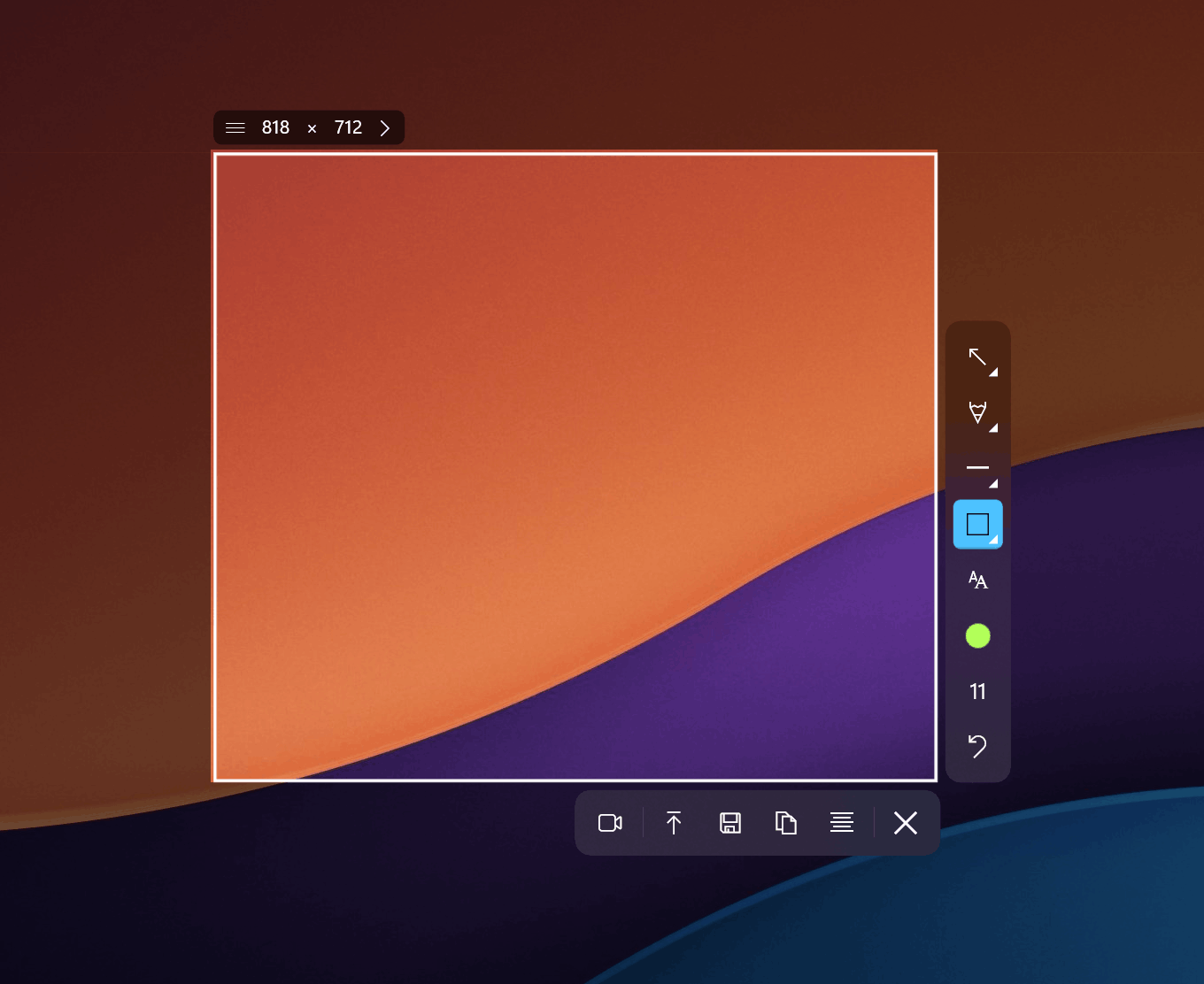
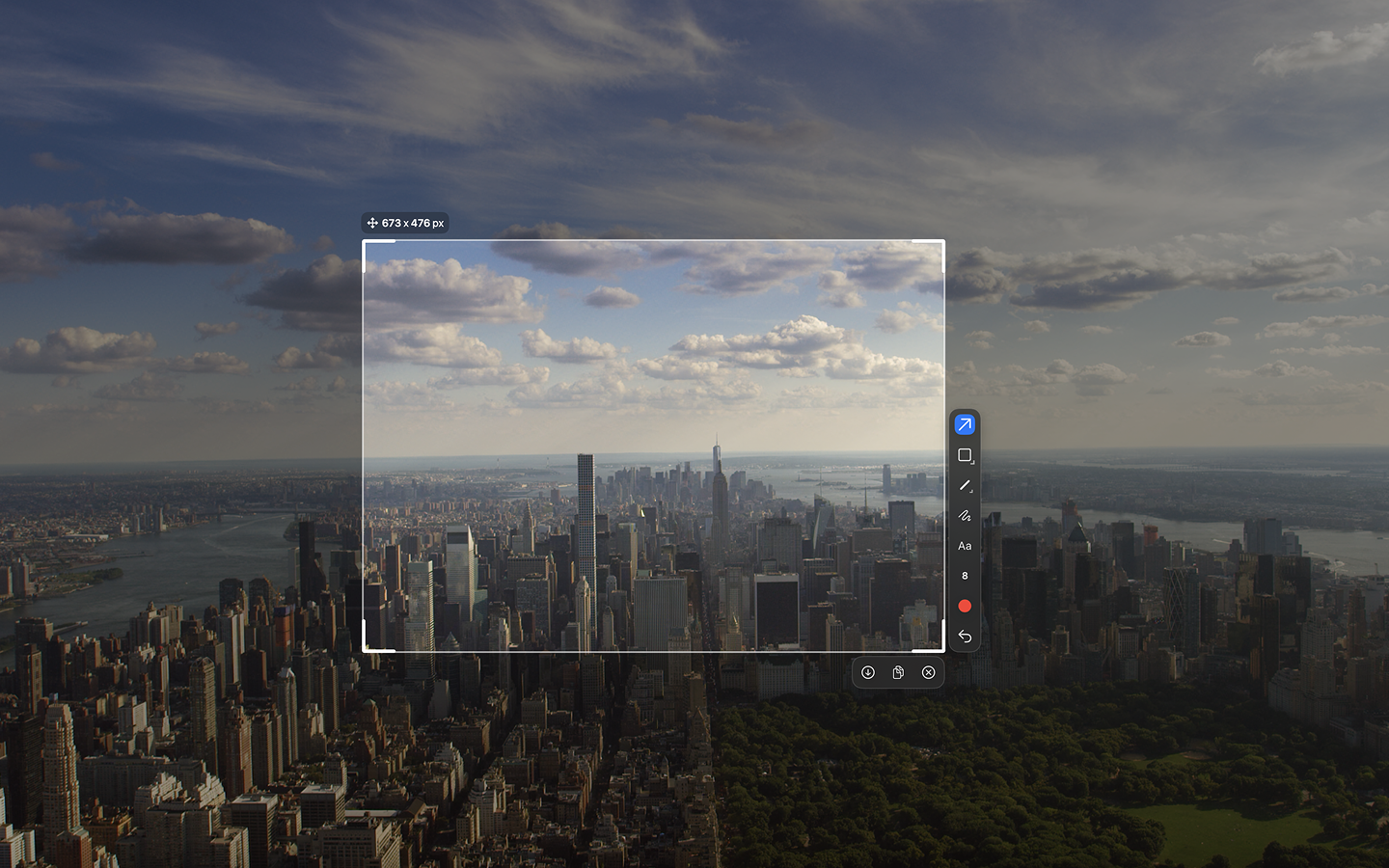
Sleekshot's arrows have a distinctive, slightly stylized look that makes them stand out in documentation. You get rectangles, circles, and lines (both solid and dashed). Holding Shift snaps arrows and lines to 45-degree angles, which is something we found ourselves using constantly for clean, aligned annotations.
Snagit offers similar shapes but adds its AI-powered Smart Move feature, which lets you rearrange UI elements within a screenshot. It's clever, though we found it works best on simple interfaces and can produce odd results on complex layouts.
Text and Blur
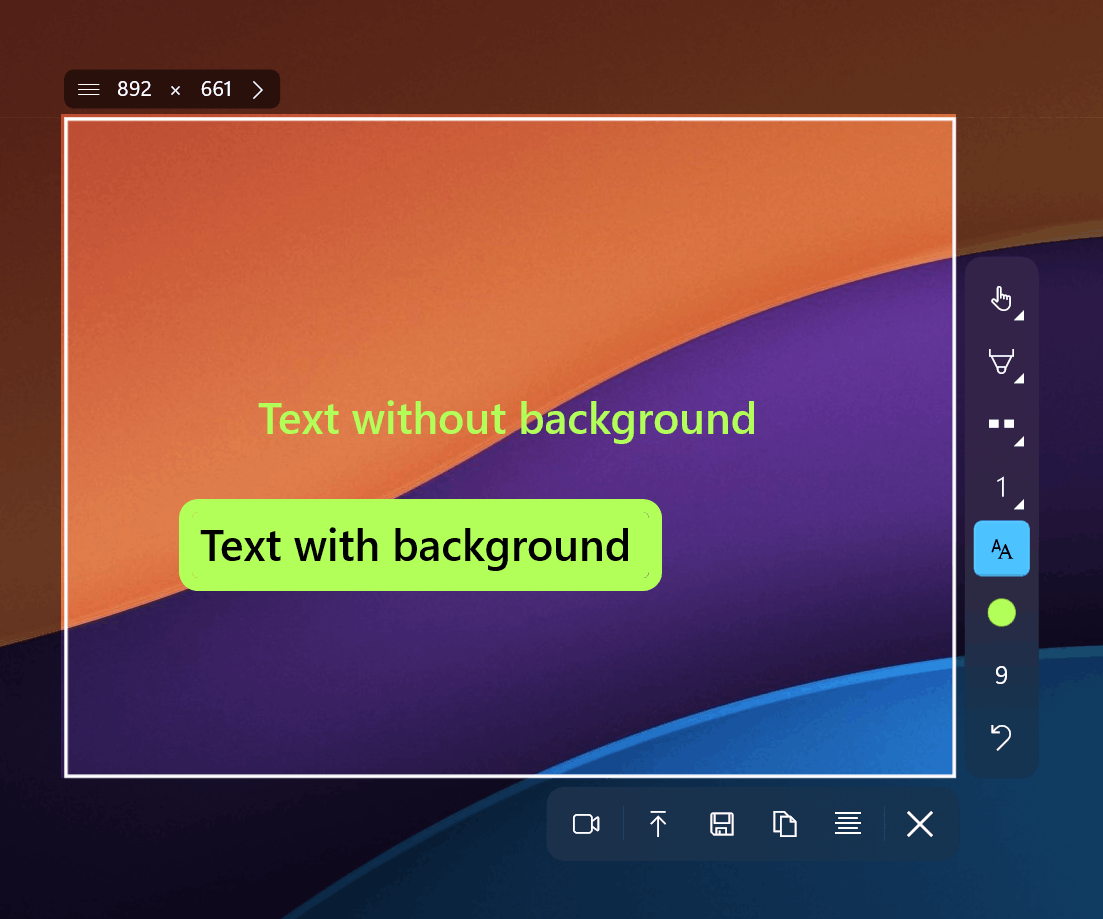
Sleekshot provides text annotations with or without a background fill, and the text boxes are freely movable after placement. The blur and pixelate tools work well for hiding sensitive information. Snagit counters with Smart Redact, which automatically detects and hides sensitive data like credit card numbers and email addresses.
Freehand Drawing
One area where Sleekshot genuinely surprised us is the pencil tool. It includes smooth stabilization that makes freehand lines look cleaner than what your hand actually drew. The highlighter/marker tool is equally polished. Snagit has freehand drawing too, but without the same level of stabilization.
Stepper Circles
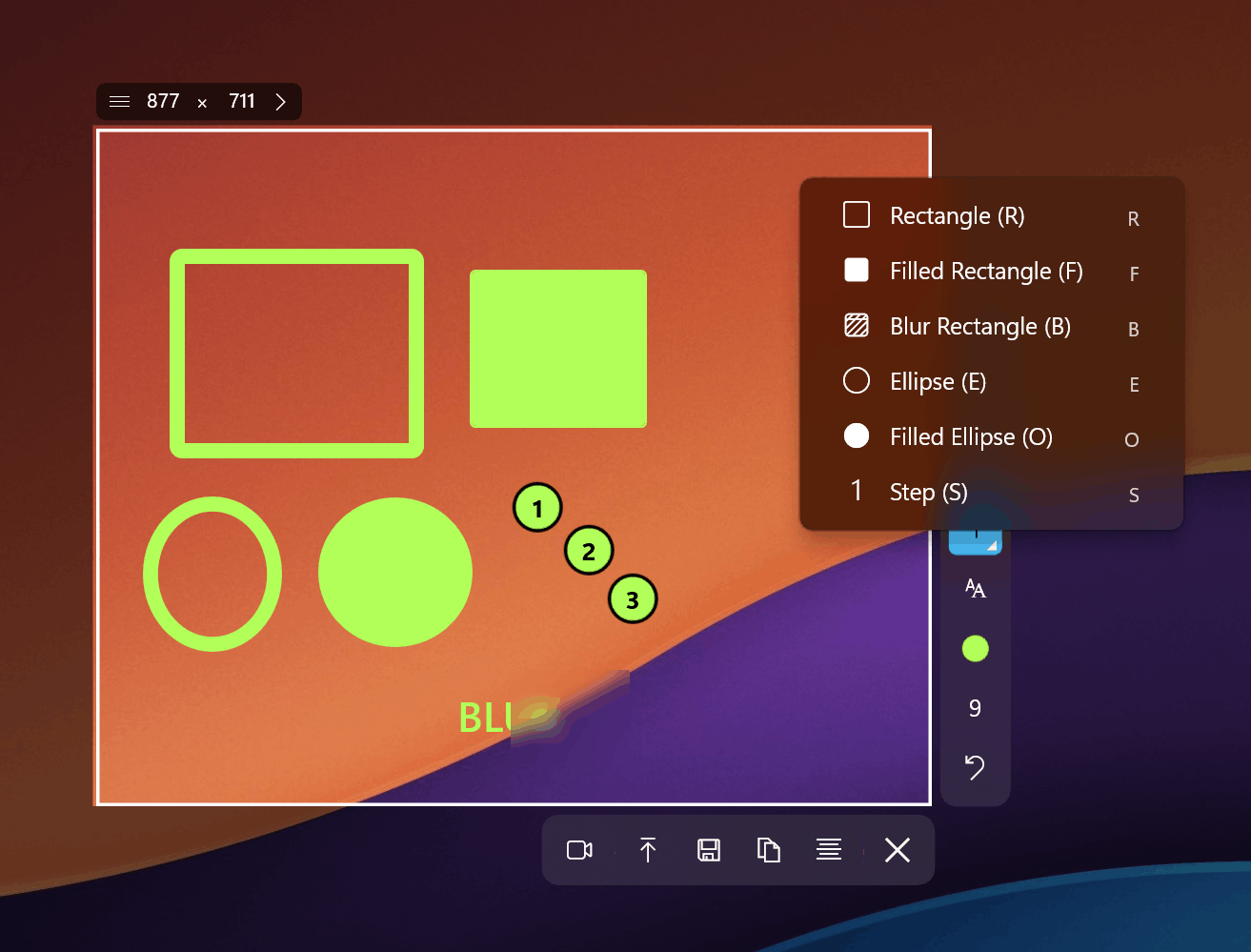
Both tools include numbered step indicators for creating how-to guides. Snagit's Step Tool automatically increments numbers as you click through a process during capture. Sleekshot's stepper circles are applied during annotation, giving you more control over placement and numbering.
Screen Recording
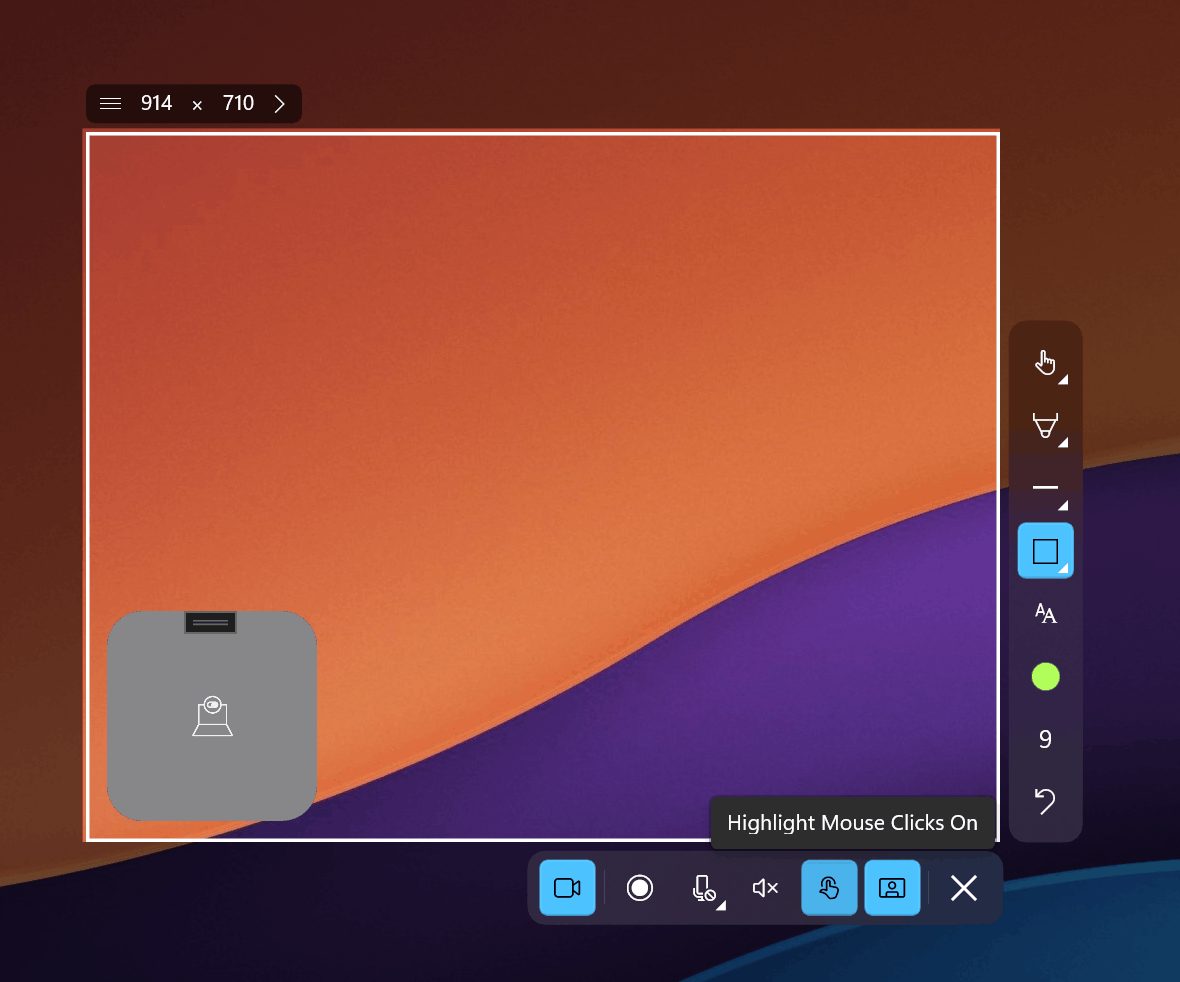
This is where things get interesting. Sleekshot offers screen recording with no time limits on the free plan. The only limitation is a small watermark. You get cursor highlighting, microphone selection, and a webcam circle overlay for picture-in-picture recordings.
Snagit's recording capabilities are solid too, with video trimming, clip combining, and automatic background noise removal. However, all of these features sit behind the $39/year paywall.
In our testing, Sleekshot's recording quality was comparable to Snagit's. The webcam overlay worked smoothly, and we didn't notice any dropped frames during 20-minute test recordings. Snagit's noise removal is a genuine advantage if you record in noisy environments, though.
Interface and User Experience
Sleekshot is built on WinUI 3, which means it looks and feels like a native Windows 11 application. It follows your system theme (light or dark) and picks up your Windows accent color. The result is an editor that blends seamlessly with the rest of your desktop.
Snagit has its own interface style that hasn't changed dramatically in years. It's functional but feels slightly dated compared to modern Windows 11 apps. At 406 MB, the installer is roughly eight times larger than Sleekshot's.
The screen freeze feature in Sleekshot deserves a mention. When you trigger a capture, the screen freezes momentarily so you can precisely select your region without worrying about content shifting. Snagit doesn't offer this, and once you've used it, going back feels clunky.
macOS Support
Both tools support macOS. Snagit's Mac version is fairly mature, though some new features appear on Windows first. Sleekshot's macOS version includes all features except screen recording, which is currently in development. If Mac screen recording is a dealbreaker for you, Snagit has the edge here for now.
Expert Tips
- Set your default tool in Sleekshot's settings. If you always reach for the arrow tool first, make it the default. This saves a click on every single capture and adds up quickly over a workday.
- Use Shift-snap for professional-looking annotations. Hold Shift while drawing arrows or lines to lock them to 45-degree increments. Your documentation will look significantly cleaner.
- Leverage preset capture sizes if you regularly need screenshots at specific dimensions for blog posts or documentation templates.
- Try the canvas resize feature after adding annotations. If your text or arrows extend beyond the original screenshot boundaries, you can expand the canvas rather than starting over.
Common Mistakes When Switching from Snagit
- Expecting .snagx file support. Snagit uses a proprietary format that no other tool can open. Export your existing Snagit captures to PNG or JPG before switching.
- Overlooking the window detection feature. Many Snagit users manually drag selection regions. Sleekshot can auto-detect window boundaries with a single click, which is faster for most use cases.
- Not exploring the cloud sharing workflow. Sleekshot uploads screenshots and generates a shareable link, similar to Snagit's Screencast integration. It's worth setting up from day one.
Where Snagit Still Wins
We want to be fair. Snagit's AI features are genuinely useful for certain workflows. Smart Move lets you rearrange buttons and text in screenshots without Photoshop, and Smart Redact automatically catches sensitive data you might miss manually. If you work with confidential documents frequently, these features save real time.
Snagit also has a more mature video editor with trimming, combining clips, and noise removal built in. Sleekshot's recording is unlimited and free, but post-production editing is more basic.
Frequently Asked Questions
Is Sleekshot really free to use?
Yes. All screenshot and annotation features are available at no cost. Screen recording is also free but includes a small watermark. The optional $29 one-time license removes the watermark and is tied to a single PC. There is no subscription.
Can Sleekshot replace Snagit for creating how-to guides?
For most users, yes. Sleekshot includes stepper numbered circles, arrows, text annotations, and blur tools, which cover the core workflow for step-by-step tutorials. The main feature you'd miss is Snagit's automatic step capture during recording.
Does Sleekshot work on Windows 10?
Sleekshot runs on Windows 10 and Windows 11. The WinUI 3 framework ensures a modern look on both operating systems, though it feels most at home on Windows 11 where it matches the system design language perfectly.
What happens to my Snagit captures if I stop paying the subscription?
You keep your existing captures, but you lose access to Snagit's editing and capture tools. Any files saved in .snagx format will need to be opened with Snagit, so we recommend exporting important captures to standard formats before your subscription lapses.
Is Sleekshot's screen recording good enough for tutorials?
We recorded several 15-20 minute tutorials during testing and the quality was solid. You get cursor highlighting (so viewers can follow your mouse), microphone input selection, and a webcam overlay. The only limitation on the free plan is the watermark, which is unobtrusive but visible.
Conclusion
Snagit remains a capable tool with genuinely innovative AI features. But at $39/year with no perpetual option, it's a hard sell for individuals and small teams who just need reliable screenshot annotation and recording.
Sleekshot covers the core workflow (capture, annotate, record, share) without charging anything. The annotation tools are on par with Snagit's, the screen recording has no time limit, and the native Windows 11 interface is genuinely pleasant to use. For the vast majority of screenshot and recording tasks, it does the job just as well.
Download Sleekshot free and test it against your current workflow. If you find you need the watermark removed from recordings, the one-time $29 license is still less than a single year of Snagit.


