Greenshot vs Sleekshot: Free Screenshot Tool (2026)
Greenshot vs Sleekshot: Which Free Screenshot Tool Is Better in 2026?
Greenshot has been a go-to free screenshot tool for Windows users since 2007, but it is showing its age. Sleekshot offers a modern alternative with a native Windows 11 interface, advanced annotation tools, screen recording, and macOS support. Here is how they compare feature by feature.
Quick Answer
Both tools are free for basic use. Greenshot is open source and lightweight (3.78 MB installer) but Windows-only, has an outdated interface, and lacks screen recording. Sleekshot is a modern screen capture tool for Windows and macOS with professional annotations, screen recording with webcam overlay, cloud sharing, and a native WinUI 3 design. Sleekshot's full license costs $29 one-time.
Feature Comparison Table
| Feature | Greenshot | Sleekshot |
|---|---|---|
| Price | Free (Windows), $1.99 (macOS) | Free / $29 one-time |
| Platform | Windows (macOS abandoned) | Windows + macOS |
| Latest version | v1.3.304 (Nov 2025) | Actively updated |
| Installer size | 3.78 MB | ~45 MB |
| Region capture | ✓ | ✓ |
| Window capture | ✓ | ✓ (click-to-capture) |
| Fullscreen capture | ✓ | ✓ |
| Scrolling capture | ✓ (IE only) | ✗ |
| Preset capture sizes | ✗ | ✓ |
| Screen freeze during capture | ✗ | ✓ |
| Arrow annotations | ✓ (basic) | ✓ (distinctive style) |
| Rectangles/ellipses | ✓ | ✓ |
| Text annotations | ✓ (basic) | ✓ (with/without background, movable) |
| Blur/pixelate (obfuscate) | ✓ | ✓ |
| Numbered stepper circles | ✗ | ✓ |
| Pencil with stabilization | ✗ | ✓ |
| Marker/highlighter | ✓ | ✓ |
| Dashed lines | ✗ | ✓ |
| Shift-snap to 45° angles | ✗ | ✓ |
| Canvas resize after annotations | ✗ | ✓ |
| Screen recording | ✗ | ✓ (no time limit, webcam, mic) |
| Cloud upload & share link | ✗ (Flickr/Picasa plugins) | ✓ |
| Dark/light theme | ✗ | ✓ (follows system + accent colors) |
| Export to Office apps | ✓ | ✗ |
Greenshot: What It Does Well
Greenshot earned its reputation for good reasons. The installer is just 3.78 MB. It runs in the system tray without demanding attention. Region, window, and fullscreen captures work reliably. The built-in editor includes shapes, text, obfuscation, and a highlighter. For a free, open-source tool that has been around since 2007, that is a solid package.
Export options are one of Greenshot's genuine strengths. You can send screenshots directly to a printer, clipboard, email client, or Microsoft Office applications. Plugins extend this to Flickr, Imgur, and other services. If your workflow revolves around pasting screenshots into Word documents or Outlook emails, Greenshot makes that seamless.
Where Greenshot Falls Short
The problems become apparent when you look at what has changed in the screenshot tool landscape since 2007. Greenshot's interface uses legacy Windows forms and looks visibly dated on Windows 11. There is no dark mode. There is no screen recording. The macOS version on the App Store ($1.99) was built by a different developer and has not been updated since 2019.
In our testing, we noticed that taking multiple screenshots in quick succession occasionally caused Greenshot to become unresponsive. Opening many editing windows simultaneously compounded this issue. Users on high-DPI displays (common on modern laptops) have reported issues with the color picker and interface elements appearing jumbled.
A security vulnerability was found in Greenshot up to version 1.3.304, and the developers released a fix with an urgent recommendation to update. Additionally, the Greenshot installer opens a donation page in your web browser after installation, which cannot be disabled. For IT teams deploying across multiple machines, this is a real annoyance.
What Sleekshot Brings to the Table
Modern Interface Built on WinUI 3
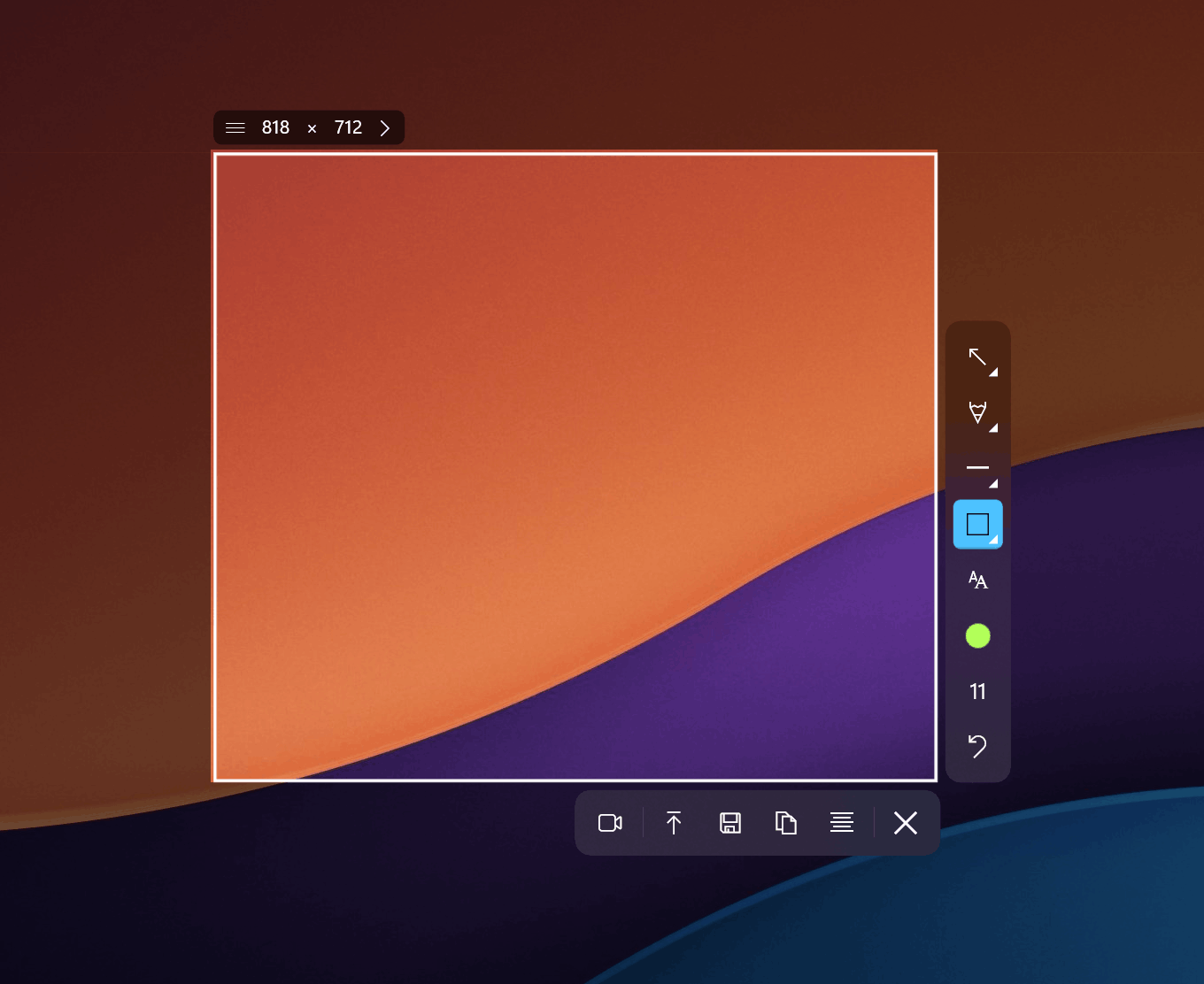
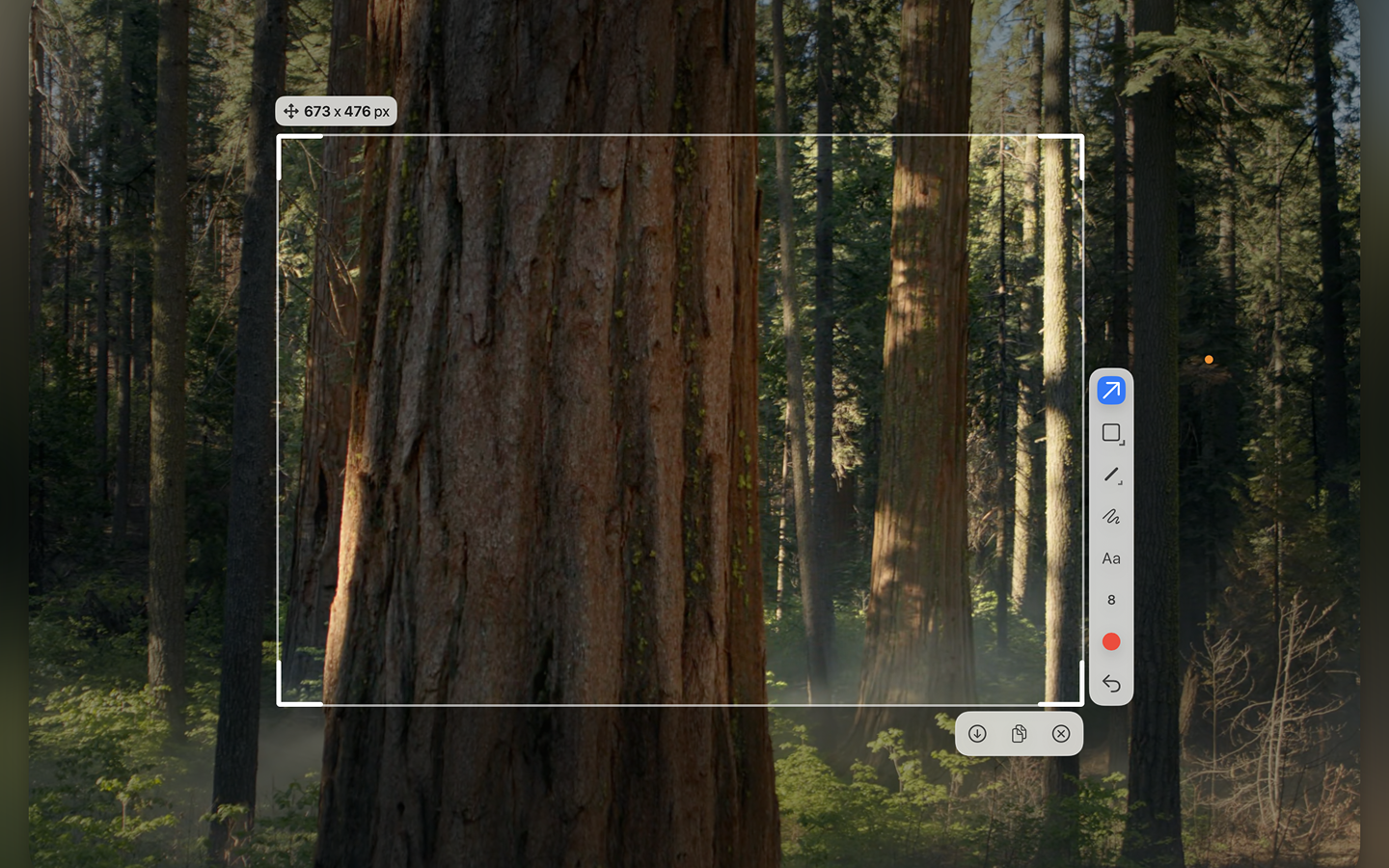
Sleekshot is built on Microsoft's WinUI 3 framework, which means it looks and behaves like a native Windows 11 application. It follows your system theme (light or dark) automatically and picks up your Windows accent color. After using Greenshot's dated interface, the difference is immediately noticeable. Everything feels crisp, the toolbar is logically organized, and the editor workspace does not fight you.
Advanced Annotation Tools
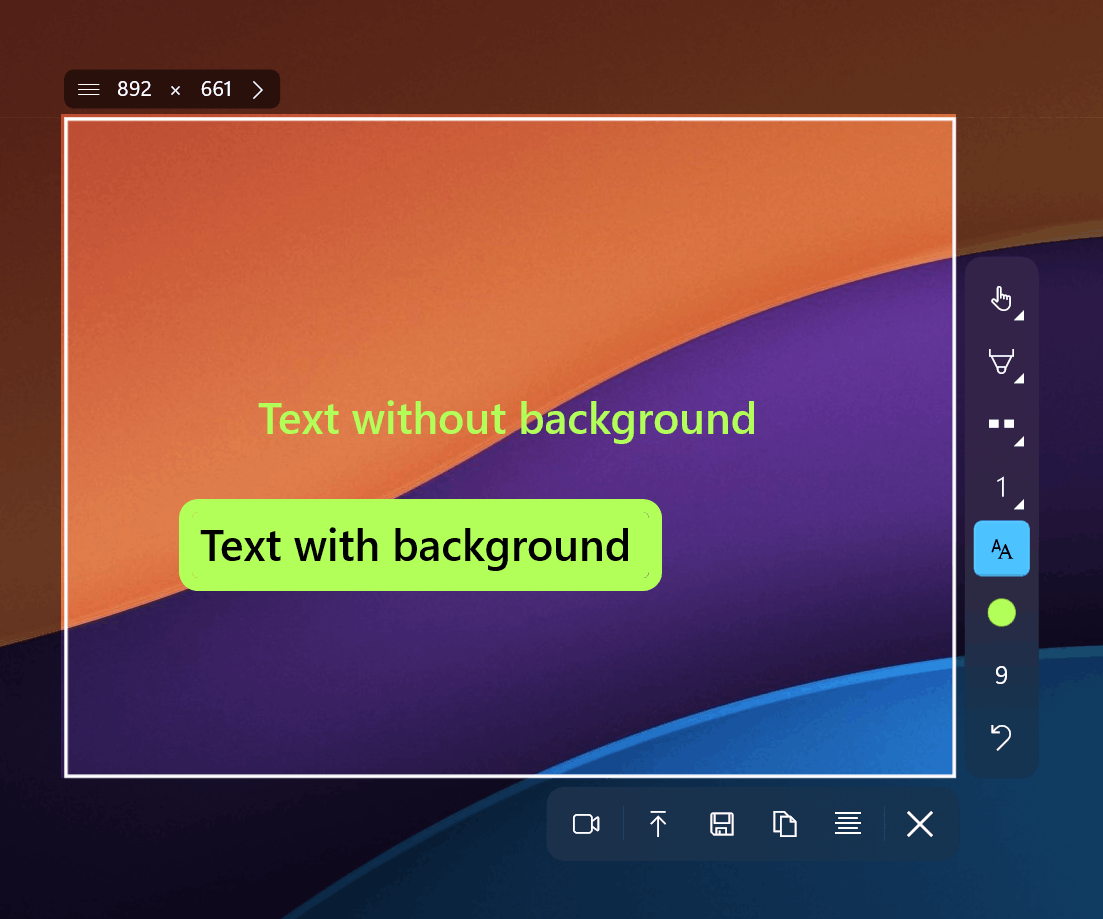
Both tools offer arrows, shapes, text, and obfuscation. The difference is in the details. Sleekshot's arrows have a distinctive visual style that looks professional in documentation and presentations. Text annotations come with optional backgrounds and are fully movable after placement. The pencil tool includes smooth stabilization, so freehand lines actually look decent instead of shaky.
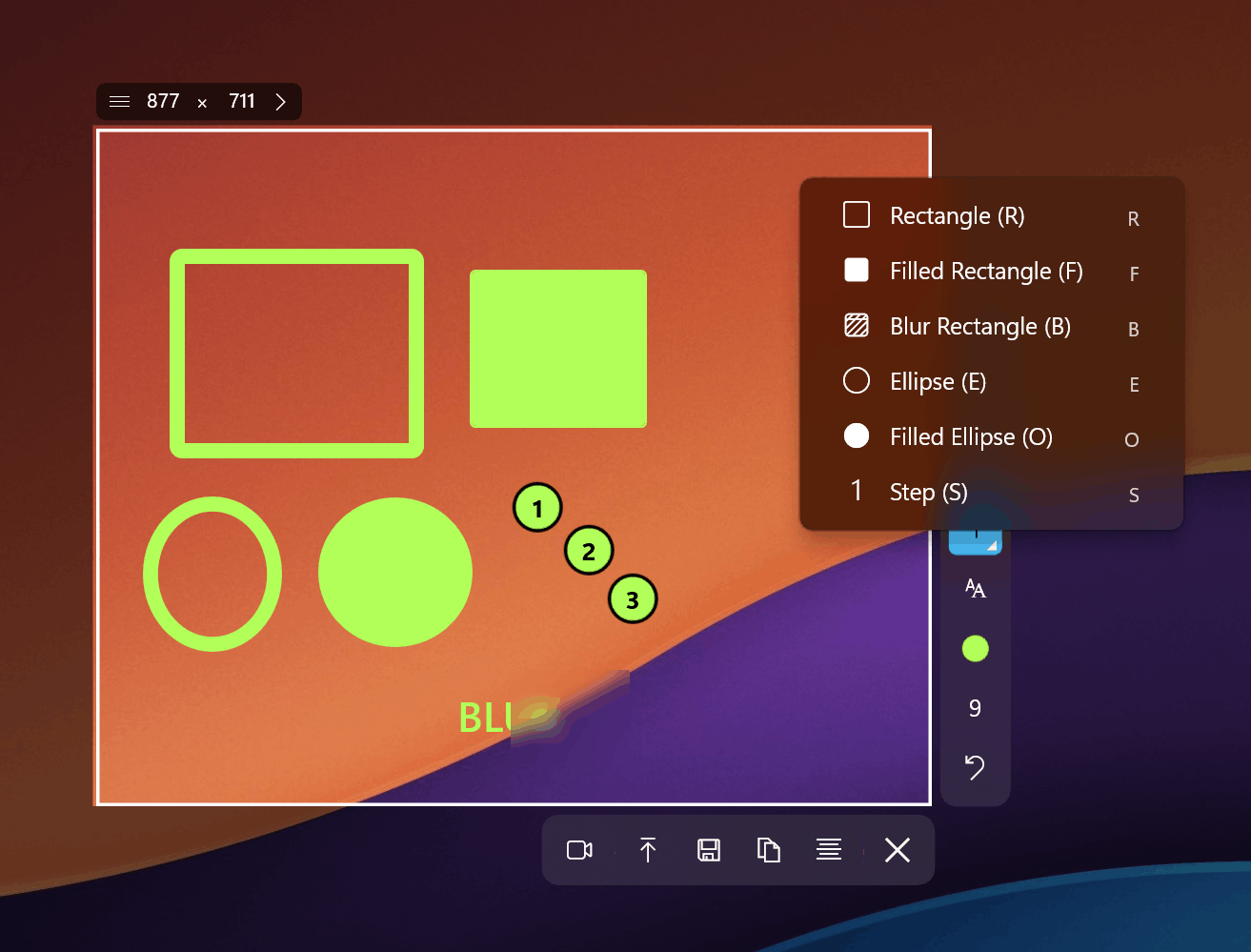
Sleekshot also includes tools Greenshot simply does not have: numbered stepper circles for step-by-step tutorials, dashed lines for indicating boundaries or selections, and Shift-snap that locks lines and arrows to 45-degree angles. These might sound minor, but they save significant time when creating professional-quality annotated screenshots.
Canvas Resize After Annotations
This is a feature unique to Sleekshot that we think deserves special mention. After capturing a screenshot and adding annotations, you can expand the canvas to add more space. Need room for a text label below the capture? Just drag the bottom edge. Most screenshot tools, including Greenshot, lock the canvas to the original capture size. Once you start using canvas resize, going back feels limiting.
Screen Recording
Greenshot does not record screens. Period. If you need screen recording alongside your screenshot workflow, you need a separate tool.
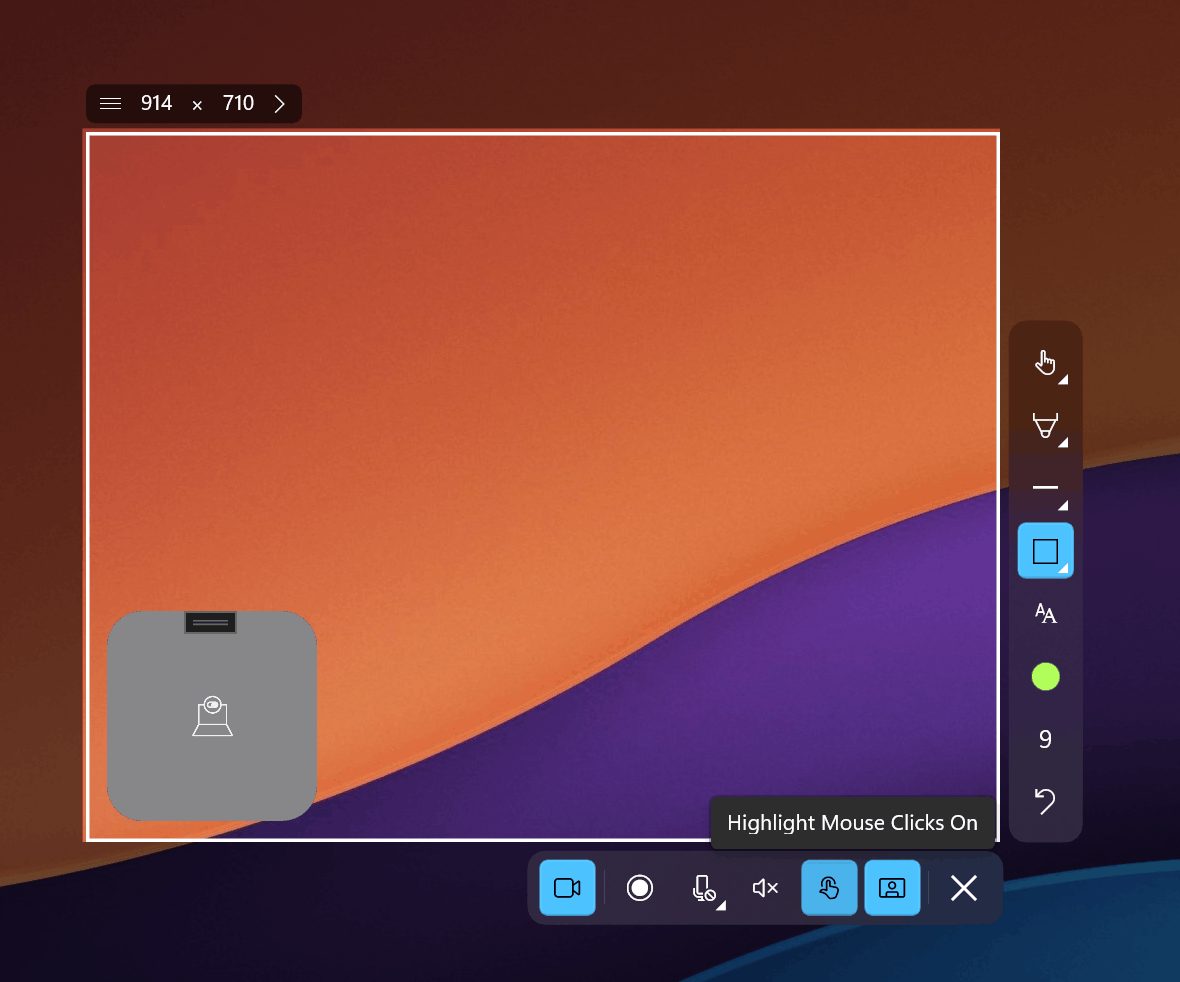
Sleekshot handles both. Its recording features include cursor highlighting so viewers can follow mouse movements, microphone selection for voice narration, a webcam circle overlay for tutorials and presentations, and no time limits on recordings. The free version adds a watermark, but the recording is otherwise unrestricted.
Cloud Sharing
Greenshot's sharing relies on plugins for services like Flickr and Imgur, some of which reference discontinued services like Picasa. Sleekshot has built-in cloud upload that generates a shareable link with one click. For quick sharing in team chats, bug reports, or client communications, this is noticeably faster than saving a file and uploading it separately.
Cross-Platform Reality
Greenshot markets macOS support, but the reality is complicated. The macOS version in the App Store costs $1.99, was developed by a separate team, and has not received updates since 2019. It is effectively abandoned software.
Sleekshot runs natively on both Windows and macOS with the same feature set. The macOS version currently supports all features except screen recording, which is being actively developed. For users who work across both platforms, this matters.
Pricing: Both Free, Different Models
Greenshot is free and open source on Windows under the GPL license. The abandoned macOS version costs $1.99.
Sleekshot's free tier includes screenshot capture, annotations, and screen recording with watermark. The full license is $29 per PC as a one-time purchase. No subscription, no recurring charges. For users who only need screenshots with basic annotations, the free version of either tool works. For screen recording, advanced annotations, and cloud sharing, Sleekshot's free tier already exceeds what Greenshot offers.
Expert Tips
- Migrating from Greenshot? Set up your hotkeys first. Sleekshot lets you configure global keyboard shortcuts. Match them to your existing Greenshot shortcuts so muscle memory transfers instantly.
- Use numbered stepper circles for tutorials. If you create how-to guides or documentation, stepper circles with automatic numbering eliminate the tedious process of manually placing and numbering text labels.
- Take advantage of screen freeze. When you need to capture a tooltip, dropdown menu, or hover state, Sleekshot freezes the entire screen so the element does not disappear when you start selecting your capture area.
- Set your default annotation tool. In Sleekshot's settings, pick which tool activates when the editor opens. If 80% of your annotations start with an arrow, skip the extra click.
- Use cloud links instead of file attachments. For bug reports and team communication, a shareable link is faster and keeps email attachments manageable.
Common Mistakes When Switching from Greenshot
- Missing direct Office integration. Greenshot can paste directly into Word, Excel, and Outlook. Sleekshot does not have this plugin, but cloud links and clipboard copy cover most of the same workflow. Copy to clipboard then Ctrl+V works everywhere.
- Not exploring the full annotation toolkit. Greenshot users are accustomed to arrows, rectangles, and obfuscation. Sleekshot adds dashed lines, stepper circles, pencil stabilization, and canvas resize. Take five minutes to explore the toolbar.
- Overlooking screen recording. If you have been using a separate tool for screen recording alongside Greenshot, consolidate into Sleekshot. One tool for captures and recordings simplifies your workflow.
Frequently Asked Questions
Is Sleekshot open source like Greenshot?
No. Sleekshot is developed by a solo developer as a commercial product with a free tier. While it is not open source, its free version is generous enough for most users. The trade-off is professional polish, active development, and dedicated support.
Does Sleekshot support Greenshot's plugin system?
Sleekshot does not use a plugin architecture. Features like cloud upload, various export formats, and annotation tools are built directly into the application. This means less configuration but also means you cannot extend it with third-party plugins.
Which tool uses fewer system resources?
Greenshot's installer is 3.78 MB and it runs with minimal memory usage, which was a bigger advantage when PCs had 4 GB of RAM. Sleekshot is larger but still efficient. On a modern system with 8+ GB of RAM, you will not notice a performance difference in daily use.
Can Sleekshot do scrolling captures like Greenshot?
Greenshot supports scrolling captures, but only in Internet Explorer, a browser Microsoft discontinued. For practical purposes, neither tool offers useful scrolling capture in 2026. Both handle region, window, and fullscreen captures.
Is it safe to keep using Greenshot?
Greenshot is generally safe, though a security vulnerability was discovered in versions up to 1.3.304 and users were advised to update immediately. The bigger concern is long-term maintenance. Open source projects depend on active contributors, and Greenshot's development pace has slowed. Sleekshot is actively developed with regular updates.
Conclusion
Greenshot served Windows users well for nearly two decades. It is lightweight, functional, and free. But in 2026, its interface feels dated, its macOS version is abandoned, it has no screen recording, and its development has slowed. Sleekshot picks up where Greenshot leaves off: modern WinUI 3 design, professional annotations with unique features like stepper circles and canvas resize, screen recording with webcam, cross-platform support, and active development.
Download Sleekshot free and try it alongside Greenshot. The free version lets you evaluate every capture and annotation feature without commitment. When you are ready for the full experience, the one-time $29 license covers everything with no recurring fees.


