Best Gyazo Alternative 2026: Sleekshot vs Gyazo
Best Gyazo Alternative in 2026: Sleekshot vs Gyazo Comparison
Looking for a Gyazo alternative with better annotation tools and no monthly subscription? Sleekshot offers instant screen capture with cloud sharing, just like Gyazo, but adds a full annotation editor, unlimited screen recording, and a native desktop experience without recurring fees.
We tested both tools extensively on Windows 11 and macOS, comparing capture speed, sharing workflows, annotation quality, and overall value. Here's what we found.
Quick Answer
Gyazo is fast at capturing and sharing screenshots via link, but its annotation tools are limited and the free plan restricts video recording length. Sleekshot matches Gyazo's capture-and-share workflow while adding professional annotation tools, unlimited screen recording, and a polished native interface. Everything is free, with an optional one-time $29 upgrade to remove the recording watermark.
Feature Comparison Table
| Feature | Sleekshot | Gyazo |
|---|---|---|
| Price | Free (optional $29 one-time) | Free / $3.99-$4.99/month Pro |
| Platform | Windows + macOS | Windows, macOS, Linux, iOS, Android |
| Instant Capture & Share | ✓ | ✓ |
| Cloud Upload | ✓ | ✓ |
| Shareable Links | ✓ | ✓ |
| Window Detection | ✓ | ✗ |
| Screen Freeze | ✓ | ✗ |
| Built-in Annotation Editor | ✓ (full toolkit) | ✓ (basic, Pro only) |
| Arrows (distinctive style) | ✓ | ✓ (basic) |
| Rectangles & Circles | ✓ | ✓ (basic) |
| Lines (solid/dashed) | ✓ | ✗ |
| Text Annotations | ✓ (with/without background) | ✓ (basic) |
| Blur / Pixelate | ✓ | ✗ |
| Stepper Numbered Circles | ✓ | ✗ |
| Pencil with Stabilization | ✓ | ✗ |
| Highlighter / Marker | ✓ | ✓ (basic) |
| Screen Recording | ✓ (no time limit) | ✓ (7s free / 10 min Pro) |
| Webcam Overlay | ✓ | ✗ |
| Cursor Highlighting | ✓ | ✗ |
| OCR Search | Coming soon | ✓ (Pro) |
| Dark/Light Theme | ✓ (follows system) | ✗ |
| Browser Extension | ✗ | ✓ |
| Mobile App | ✗ | ✓ (iOS, Android) |
| App Size | ~50 MB | ~10 MB |
| Subscription Required | ✗ | ✗ (but free plan is limited) |
Pricing Breakdown
Gyazo's free plan lets you capture screenshots and upload them to the cloud, but video recording is limited to 7-second GIFs. To get HD video clips up to 10 minutes, annotation tools, and unlimited image access, you need Gyazo Pro at $3.99 to $4.99 per month. That's $47.88 to $59.88 per year. Gyazo Teams costs $35/month with a 5-user minimum, putting it at $420/year for small teams.
Sleekshot's approach is simpler. Everything is free: screenshots, annotations, and screen recording without time limits. The free recording includes a small watermark. If that bothers you, a one-time $29 license removes it permanently. No monthly billing, no annual renewal.
Over two years, Gyazo Pro costs roughly $96 to $120. Sleekshot costs either $0 or $29 total. The math speaks for itself.
Capture and Sharing: The Core Workflow
Gyazo built its reputation on one thing: capture a screenshot and instantly get a shareable link. You press a hotkey, select a region, and within seconds you have a URL on your clipboard. It's genuinely fast and frictionless.
Sleekshot offers the same capture-to-cloud workflow. Take a screenshot, optionally annotate it, then upload and get a link. The extra step of annotation is optional but available. In our timing tests, the difference between capturing and getting a link was about 1-2 seconds longer in Sleekshot when skipping annotation, which is negligible in practice.
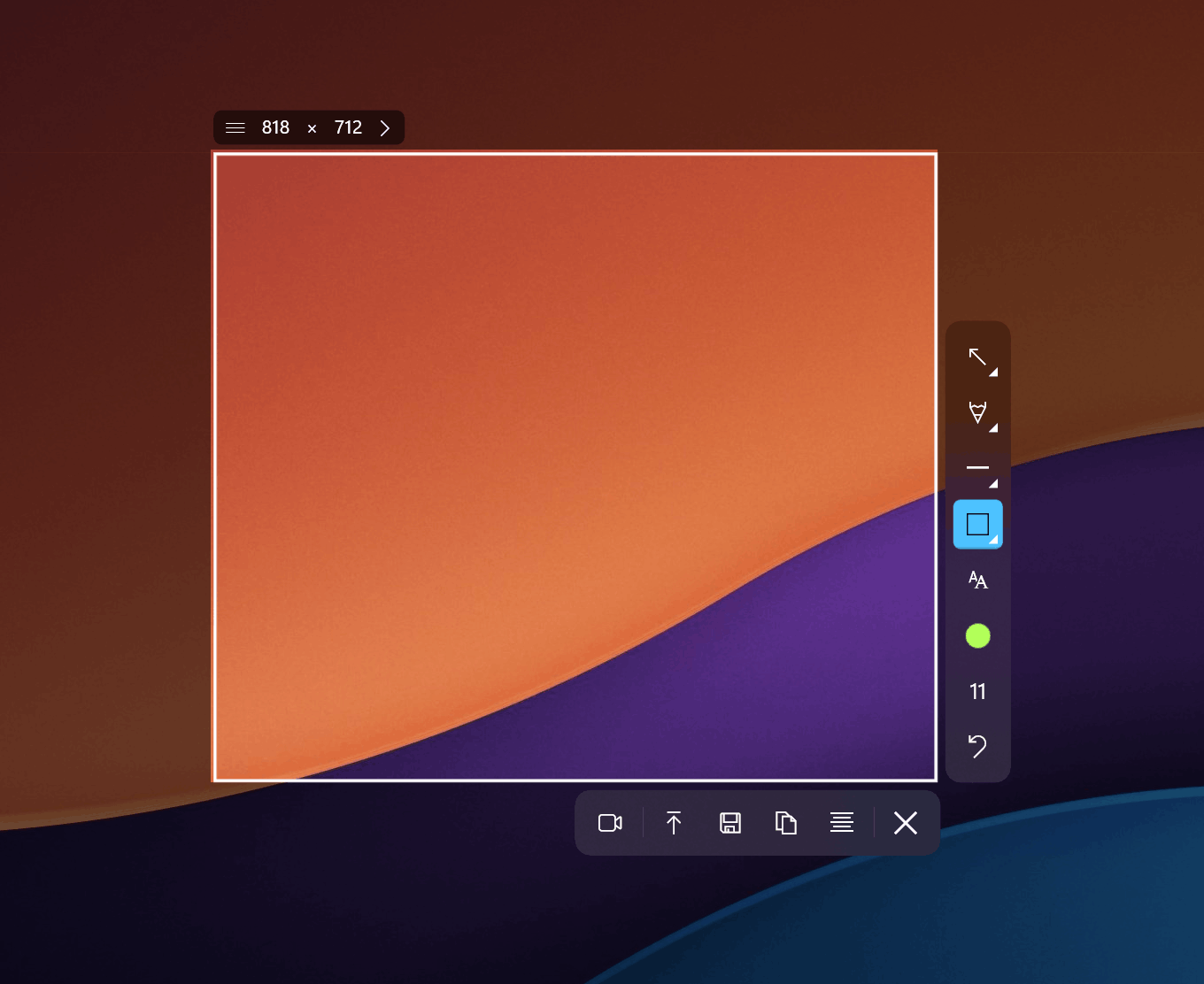
Where Sleekshot pulls ahead is the capture experience itself. Window detection lets you click on any window to capture it perfectly, without manually drawing a selection box. The screen freeze feature pauses everything on screen so you can carefully select dynamic content like dropdown menus or tooltips that would otherwise disappear.
Annotation: Where Sleekshot Dominates
This is the biggest gap between the two tools. Gyazo's annotation features are basic and only available to Pro subscribers. You get simple arrows, text, and highlights, but that's about it.
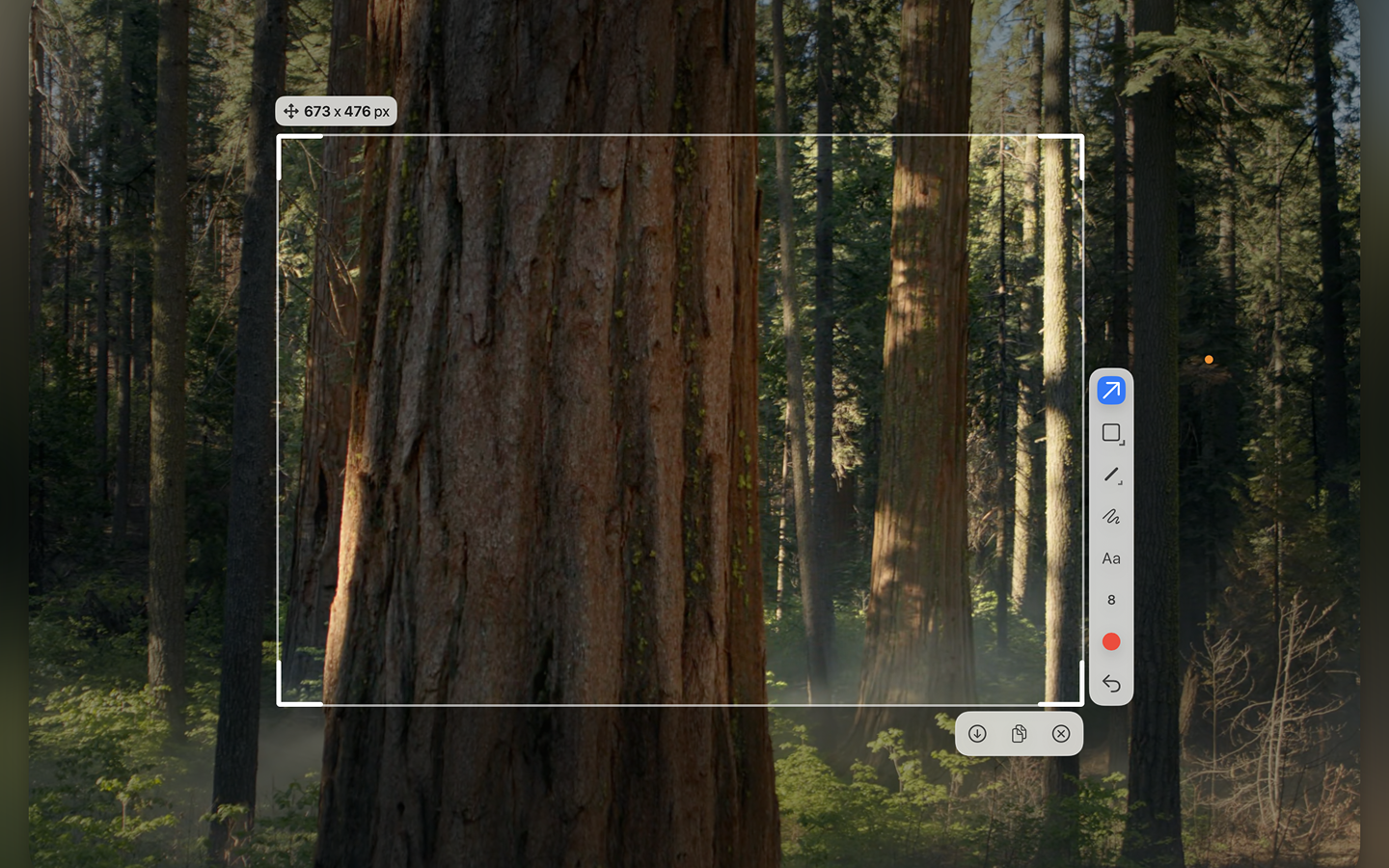
Sleekshot's annotation editor is a different league entirely.
Professional Arrow and Shape Tools
The arrows in Sleekshot have a distinctive style that looks polished in documentation. Rectangles, circles, and lines come in both solid and dashed variants. Holding Shift while drawing snaps to 45-degree angles, making it easy to create perfectly aligned annotations.
Text That Actually Works
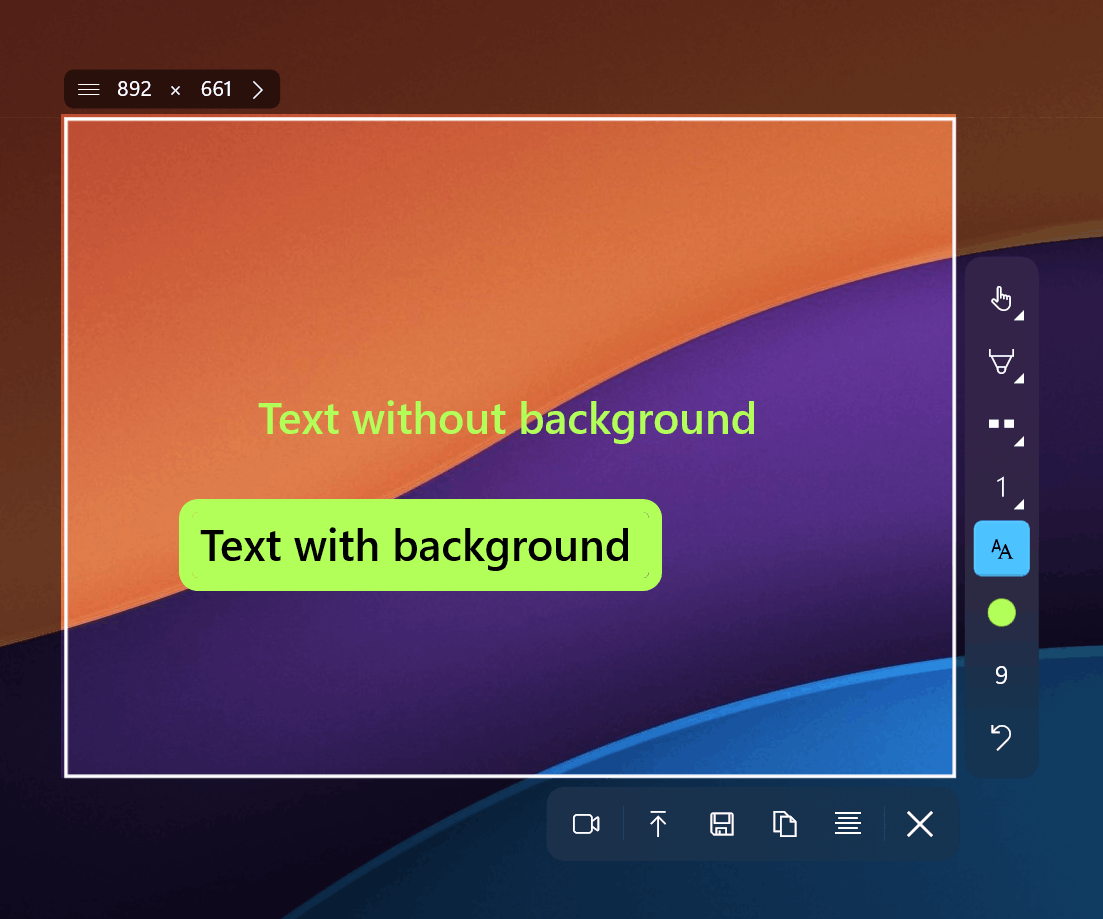
You can add text with or without a background fill. Text boxes remain movable after placement, so you can reposition them without starting over. This is something Gyazo's basic text tool doesn't handle well.
Blur and Privacy Tools
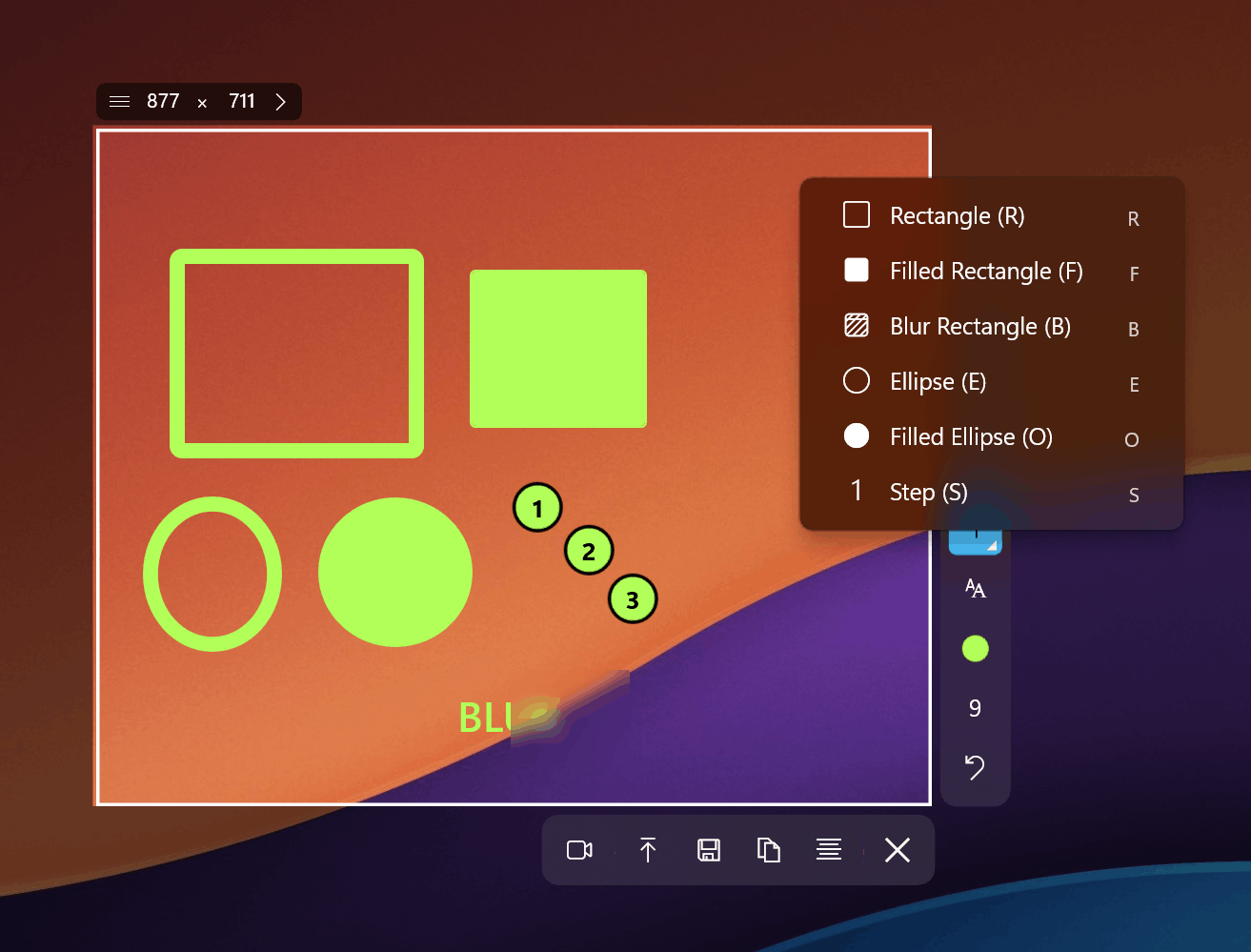
Sleekshot includes blur and pixelate tools for hiding sensitive information. Gyazo simply doesn't offer this. If you share screenshots that contain personal data, email addresses, or passwords, you'd need a separate tool with Gyazo. With Sleekshot, it's built right into the annotation workflow.
Stepper Circles and Freehand
Numbered step circles are perfect for how-to guides and tutorials. The pencil tool includes smooth stabilization that cleans up freehand lines, and the highlighter/marker lets you draw attention to specific areas without obscuring them.
Screen Recording
Gyazo's free plan limits video capture to 7-second GIFs. Gyazo Pro extends this to HD clips up to 10 minutes, plus 30-second Replay videos without watermark. For anything longer, you're out of luck.
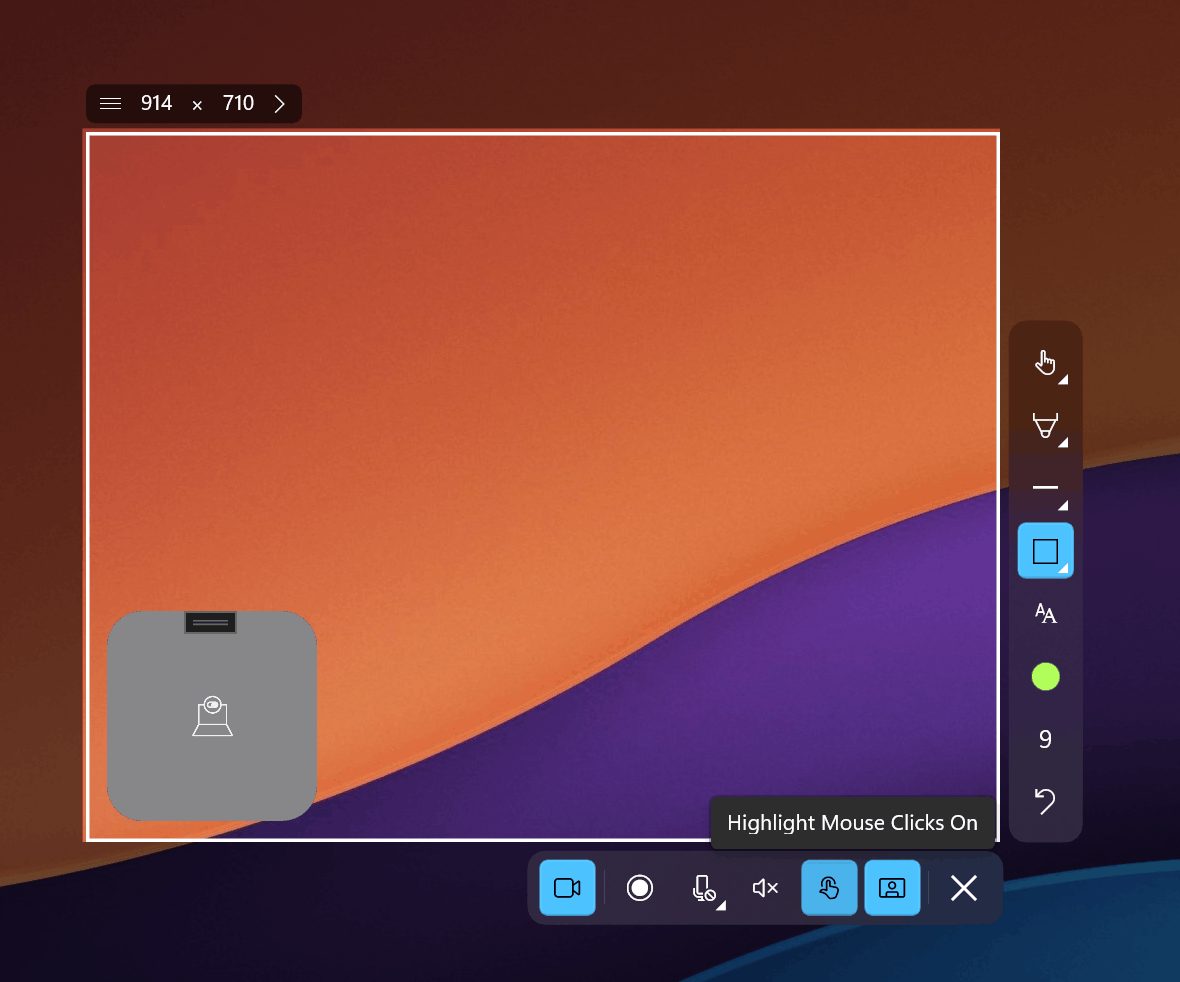
Sleekshot removes time limits entirely. Record for 5 minutes or 5 hours, on the free plan, with cursor highlighting, microphone selection, and a webcam circle overlay. The only trade-off is a small watermark on free recordings.
In our testing, we recorded a 25-minute tutorial walkthrough with webcam overlay active. The output was smooth, cursor highlighting was clearly visible, and the file size was reasonable. Gyazo Pro couldn't match this because of the 10-minute cap.
Interface and Design
Gyazo is lightweight (around 10 MB) and runs quietly in the background. Its interface is minimal by design: capture, upload, done. There isn't much of an editor to speak of.
Sleekshot is larger (~50 MB) but offers significantly more. Built on WinUI 3, it follows your Windows 11 system theme and accent colors. The editor feels like a native Windows application because it is one. You get a proper toolbar with all annotation tools visible and accessible.
On macOS, Sleekshot provides all features except screen recording (which is in development). The interface adapts to macOS design conventions and supports both light and dark themes.
Where Gyazo Still Has an Edge
We should be honest about Gyazo's strengths. It has a broader platform reach with native apps for iOS, Android, and Linux, plus browser extensions for Chrome, Firefox, and Edge. If you need to capture screenshots on your phone or from within a browser tab, Gyazo covers that.
Gyazo Pro also includes OCR text search, letting you find old screenshots by searching for text that appears in them. Sleekshot has OCR on its roadmap but hasn't shipped it yet.
The lightweight nature of Gyazo (10 MB vs 50 MB) means it takes less disk space and system resources, which matters on older machines.
Expert Tips
- Use window detection instead of manual selection. If you're coming from Gyazo where you always drag a box, try clicking directly on the window you want to capture. It's faster and gives you pixel-perfect boundaries every time.
- Set a default annotation tool. In Sleekshot's settings, you can choose which tool activates first after capture. If you mostly add arrows, set it as default and skip the extra click.
- Leverage the screen freeze for capturing menus. Dropdown menus, tooltips, and hover states disappear when you move your mouse. Screen freeze holds everything in place so you can capture these reliably.
- Use canvas resize for adding context. After annotating, expand the canvas to add whitespace and text explanations around your screenshot. This is useful for documentation that needs additional callouts.
- Take advantage of Shift-snap. When drawing arrows or lines, hold Shift to lock them to 45-degree angles. Your annotations will look dramatically more professional.
Common Mistakes When Switching from Gyazo
- Skipping the annotation step. Gyazo trains you to capture and share immediately. With Sleekshot, take a moment to annotate before sharing. A screenshot with a clear arrow pointing to the relevant area communicates much better than a raw capture.
- Not setting up cloud sharing. Sleekshot's cloud upload gives you the same instant-link workflow as Gyazo. Configure it early so sharing is just as fast as what you're used to.
- Forgetting about blur for sensitive data. With Gyazo, there's no blur tool, so you might not think about it. Sleekshot makes it easy to pixelate passwords, emails, or personal information before sharing. Build this into your workflow.
Frequently Asked Questions
Can Sleekshot upload and share screenshots as fast as Gyazo?
Nearly. Gyazo's single-purpose design means capture-to-link is about 1-2 seconds faster. But Sleekshot gives you the option to annotate before sharing, which Gyazo Pro charges $3.99/month for. If you skip annotation, the sharing speed is comparable.
Does Sleekshot have a browser extension like Gyazo?
Not currently. Sleekshot works as a desktop application with global hotkeys. For most use cases, the hotkey approach is just as convenient as a browser extension, and it captures any application, not just your browser.
What about my existing Gyazo screenshots in the cloud?
Your Gyazo images stay on Gyazo's servers as long as your account is active. Free accounts have had issues with limited access to older images, though. We recommend downloading important captures before making any switch.
Is Sleekshot's screen recording really unlimited?
Yes. There is no time cap on the free plan. The only limitation is a small watermark on recordings. Compare this to Gyazo's 7-second free limit or 10-minute Pro limit. The $29 one-time license removes the watermark if needed.
Does Sleekshot work on Linux?
Currently, Sleekshot supports Windows and macOS. There is no Linux version at this time. If Linux support is essential, Gyazo does offer a Linux client, though it's less polished than the Windows and Mac versions.
Conclusion
Gyazo is a solid tool for quick capture-and-share workflows, and its lightweight design has earned it a loyal following. But its annotation tools are limited, the free video recording cap of 7 seconds is restrictive, and Pro pricing adds up to nearly $48-60 per year.
Sleekshot gives you a more complete package: professional annotations, unlimited screen recording, window detection, screen freeze, and cloud sharing. All for free, or $29 once if you want the watermark removed.
If your workflow involves annotating screenshots before sharing them, or if you record screen tutorials of any length, Sleekshot is the better choice. Download it free and see for yourself. If you decide to upgrade later, the one-time $29 license costs less than eight months of Gyazo Pro.


