
Social Media Image Sizes (October 2026): Cheat Sheet and How to Screenshot Them
 By Sleekshot Team
11 min read
Short answer
As of October 2026, the safe social media image sizes are 1080 × 1080 or 1080 × 1350 for Instagram posts and 1600 × 900 for X. Stories, Reels, Shorts and TikTok take 1080 × 1920. Use 1200 × 627 on LinkedIn, 1200 × 630 for Facebook link images and Open Graph, 1000 × 1500 on Pinterest and 1280 × 720 for YouTube thumbnails (YouTube now recommends up to 3840 × 2160). The aspect ratio matters most: a bigger image with the same ratio is fine, but a different ratio gets cropped or padded.
On this page
As of October 2026, these social media image sizes work everywhere they're meant for. Use 1080 × 1080 or 1080 × 1350 for Instagram and Facebook feed posts, and 1080 × 1920 for Stories, Reels, YouTube Shorts and TikTok. Use 1600 × 900 for X, 1200 × 627 for LinkedIn and 1200 × 630 for link previews (Open Graph). Pinterest wants 1000 × 1500, and YouTube thumbnails 1280 × 720 or bigger.
If you remember one rule, make it this: match the aspect ratio first. A bigger image with the same ratio is fine. A different ratio gets cropped or padded.
We checked every number below against each platform's own help center, ads guide or developer docs (links at the end). Where a platform doesn't publish a pixel size, we say so and give a common choice.
Social media image sizes cheat sheet (October 2026)
This table is the short answer. Sizes are in pixels, width × height.
| Platform | Format | Size to use | Aspect ratio | Official note (October 2026) |
|---|---|---|---|---|
| Square post | 1080 × 1080 | 1:1 | 1080 px has been Instagram's standard photo width since 2015 | |
| Portrait post | 1080 × 1350 | 4:5 | More room in the feed than square; Meta's ads guide recommends 1440 × 1800 | |
| Landscape post | 1080 × 566 | 1.91:1 | The widest ratio the feed accepts | |
| Stories and Reels | 1080 × 1920 | 9:16 | Meta's ads guide: 1440 × 2560 | |
| Feed image post | 1080 × 1350 | 4:5 | Meta's ads guide: 1440 × 1800, at least 600 px wide | |
| Link image, landscape post | 1200 × 630 | 1.91:1 | Same as Open Graph | |
| X (Twitter) | Image in a post | 1600 × 900 | 16:9 | Up to 4 images per post, 5 MB each |
| Post or link image | 1200 × 627 | 1.91:1 | LinkedIn Help; square 1200 × 1200 also recommended | |
| Standard pin | 1000 × 1500 | 2:3 | Taller pins may be cut off in the feed | |
| YouTube | Video thumbnail | 1280 × 720 | 16:9 | At least 640 px wide; YouTube now recommends up to 3840 × 2160 |
| YouTube | Shorts | 1080 × 1920 | 9:16 | Up to 3 minutes, uploads up to 1080p |
| TikTok | Video | 1080 × 1920 | 9:16 | TikTok's ads help: vertical, at least 540 × 960 |
| Website | Open Graph (og:image) | 1200 × 630 | 1.91:1 | At least 1200 × 630, file up to 8 MB |
Aspect ratio matters more than pixels
Every platform scales your image to fit the screen, so the exact pixel count matters less than the shape. A 1080 × 1350 image and a 1440 × 1800 image both have a 4:5 ratio and look the same in the Instagram feed. The bigger one just has more detail. Upload a 9:16 photo to the feed instead, and Instagram makes you crop it.
These six ratios cover almost everything:
| Ratio | Shape | Used for | Common sizes |
|---|---|---|---|
| 1:1 | Square | Instagram, Facebook, LinkedIn and X feed posts | 1080 × 1080, 1200 × 1200 |
| 4:5 | Tall rectangle | Instagram and Facebook portrait posts | 1080 × 1350, 1440 × 1800 |
| 9:16 | Vertical full screen | Stories, Reels, Shorts, TikTok | 1080 × 1920, 1440 × 2560 |
| 16:9 | Widescreen | X posts, YouTube thumbnails, slides | 1280 × 720, 1600 × 900, 1920 × 1080 |
| 1.91:1 | Wide banner | Link previews, LinkedIn and Facebook link images | 1200 × 630, 1200 × 627 |
| 2:3 | Tall poster | Pinterest pins | 1000 × 1500 |
When the ratio doesn't match, each platform handles it differently. LinkedIn shows images with other ratios in full on mobile, with thin white bars. Pinterest may cut off pins taller than 2:3, and Meta's ads guide keeps Instagram feed images between 1.91:1 and 4:5.
Platform by platform: what to know in 2026
The table has the sizes. These are the details that trip people up.
Instagram has used 1080-pixel-wide photos since 2015, when it moved beyond square-only posts. In the feed, a 4:5 portrait post (1080 × 1350) takes up more of a phone screen than a square or landscape post.
Meta's current ads guide recommends higher-resolution versions of the same ratios: 1440 × 1800 for feed images and 1440 × 2560 for Stories and Reels. For Stories and Reels, Meta also suggests keeping roughly the top 14% and bottom 35% free of text and logos. That's where the profile name, buttons and captions go.
For a photo post, use the same sizes as Instagram: 1080 × 1350 (4:5) or 1080 × 1080. Meta's ads guide lists 1440 × 1800 as the recommended resolution and 600 pixels as the minimum width. When you share a link, Facebook pulls the page's Open Graph image, so that one should be 1200 × 630.
X (Twitter)
X's public developer docs list limits, not a recommended size: up to 4 images per post and 5 MB per image. For a single landscape image, 16:9 at 1600 × 900 is a common choice, and it's also the X size in Sleekshot. Square images work too.
LinkedIn Help recommends a 1.91:1 ratio, 1200 × 627 pixels, for images in posts that share a link. Images narrower than 200 pixels show up as a small thumbnail instead. Its ads guide lists 1200 × 628 for the same ratio (one pixel doesn't matter) and 1200 × 1200 for square images. LinkedIn calls square the best format for showing up well on every device.
Pinterest recommends a 2:3 ratio, 1000 × 1500 pixels, for standard pins, in PNG or JPEG, up to 20 MB on desktop. Pins taller than that may be cut off in people's feeds.
YouTube: thumbnails and Shorts
YouTube's help center changed its advice. It now recommends thumbnails "as large as possible": up to 3840 × 2160 for videos and 2160 × 3840 for Shorts, at least 640 pixels wide. 1280 × 720 still works (it's the YouTube thumbnail size in Sleekshot). If your source allows it, a 1920 × 1080 thumbnail looks sharper on big screens.
Use JPG or PNG. The limit is 50 MB when you upload from a computer and 2 MB from the mobile app. Shorts can be up to 3 minutes long and upload at up to 1080p, so aim for 1080 × 1920.
Open Graph and link previews
The Open Graph image (the og:image tag) is what Facebook, LinkedIn and messaging apps show when someone shares a link to your page. Meta's docs ask for at least 1200 × 630 pixels and a ratio close to 1.91:1. The large preview layout needs at least 600 × 315, and the file can't be bigger than 8 MB.
How to screenshot an exact size with Sleekshot
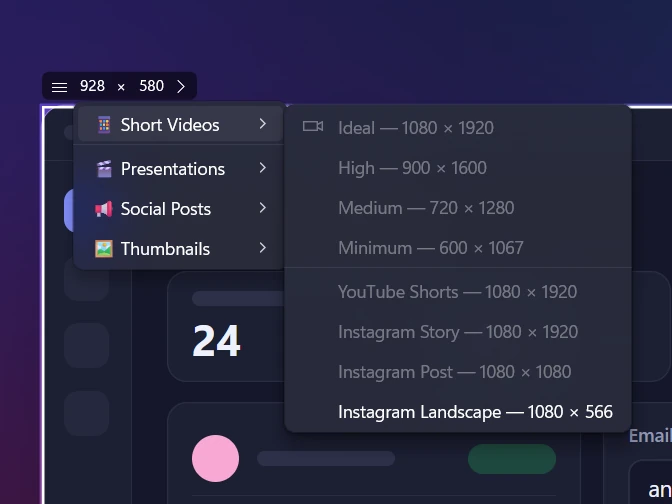
Sleekshot is a free screenshot and screen recording app for Windows 10 and 11. It takes a screenshot at an exact size in pixels, so you don't have to grab too much and crop later. Next to the selection, there's a W × H size box you can type into, plus a list of ready-made sizes for social posts, short videos, presentations and thumbnails.
- Press PrtSc, Sleekshot's default shortcut. The screen dims.
- Drag a rough selection around what you want to post.
- Click the small arrow next to the W × H numbers in the size box and pick a size. For example, Instagram Post (1080 × 1080) or YouTube thumbnail (1280 × 720). For a size that isn't on the list, like 1080 × 1350, click a number and type it.
- To move the selection over the right content without changing its size, drag the grip on the size box.
- Add a text label (T), an arrow (1) or blur (B) if you need to.
- Press Ctrl + C and paste straight into the post, or press Ctrl + S to save.
These are the sizes that matter for social media. The full list of 22 is on the ready-made sizes page.
| Where you'll post | Size name in Sleekshot | Size |
|---|---|---|
| Instagram square post | Instagram Post | 1080 × 1080 |
| Instagram landscape post | Instagram Landscape | 1080 × 566 |
| Stories, Reels, TikTok | Instagram Story or Ideal | 1080 × 1920 |
| YouTube Shorts | YouTube Shorts | 1080 × 1920 |
| X | Twitter/X post | 1600 × 900 |
| LinkedIn post | 1200 × 627 | |
| Facebook link or landscape image | Facebook post | 1200 × 630 |
| Pinterest pin | 1000 × 1500 | |
| YouTube thumbnail | YouTube thumbnail (or Full HD for 1920 × 1080) | 1280 × 720 |
| Link preview | Open Graph (link preview) | 1200 × 630 |
| Instagram or Facebook portrait post | Not on the list: type 1080 × 1350 | 1080 × 1350 |
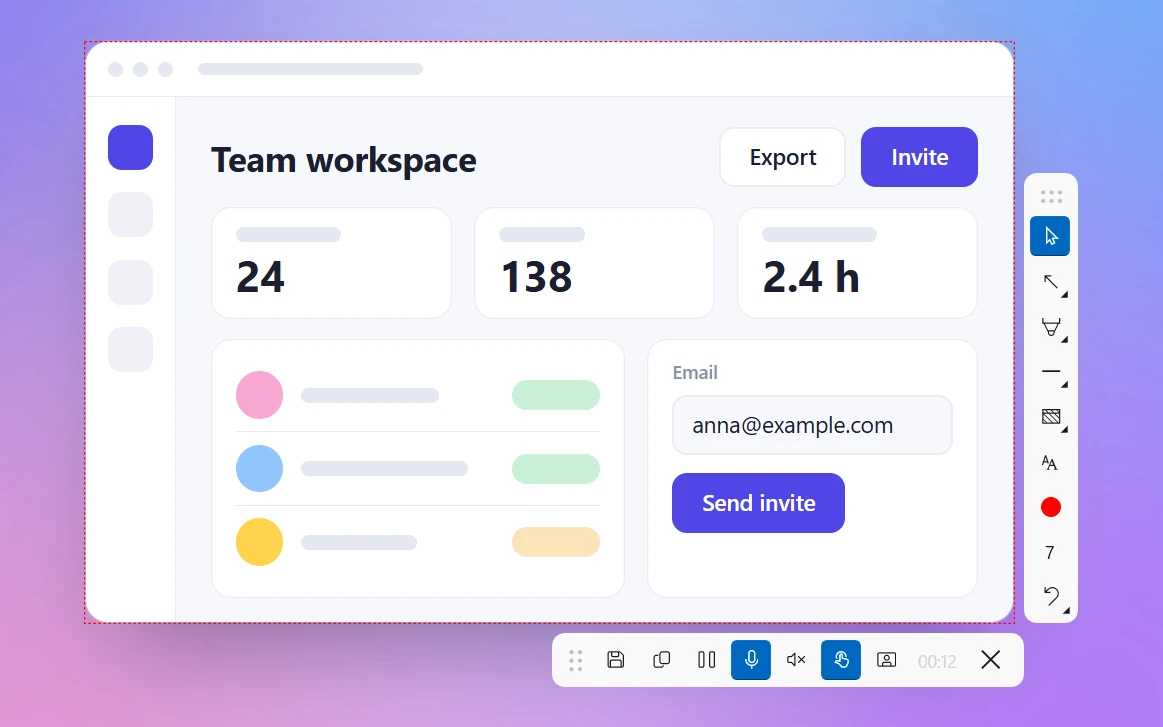
The same selection works for video. After you set the size, press V for the screen recorder and Ctrl + R to record an MP4 of exactly that area. That's handy for a vertical Reel or Short of an app demo. More in how to record part of the screen.
If your screen is smaller than the size
A screenshot can't be bigger than the monitor you take it on. If a size doesn't fit, Sleekshot cuts the selection at the edge of the screen. On a common 1920 × 1080 display, every landscape and square size in the table fits, but the vertical ones don't. 1080 × 1350, 1000 × 1500 and 1080 × 1920 are all taller than 1080 pixels. A 2560 × 1440 monitor fits 1080 × 1350 but not the taller two, and a 4K display fits everything.
Three ways around it:
- Turn a monitor to portrait. In Windows, open Settings → System → Display and set the display orientation to Portrait. A 1920 × 1080 monitor becomes 1080 × 1920, which fits every vertical size in the table.
- Use a bigger display. A 4K monitor (3840 × 2160) fits every size here, including 1080 × 1920.
- Screenshot a smaller area with the same ratio. For example, 864 × 1080 for 4:5, 720 × 1080 for 2:3 or Sleekshot's Minimum size (600 × 1067) for 9:16. The site scales it up, so text comes out a bit softer, but the shape is right and nothing gets cropped.
Display scaling and readable text
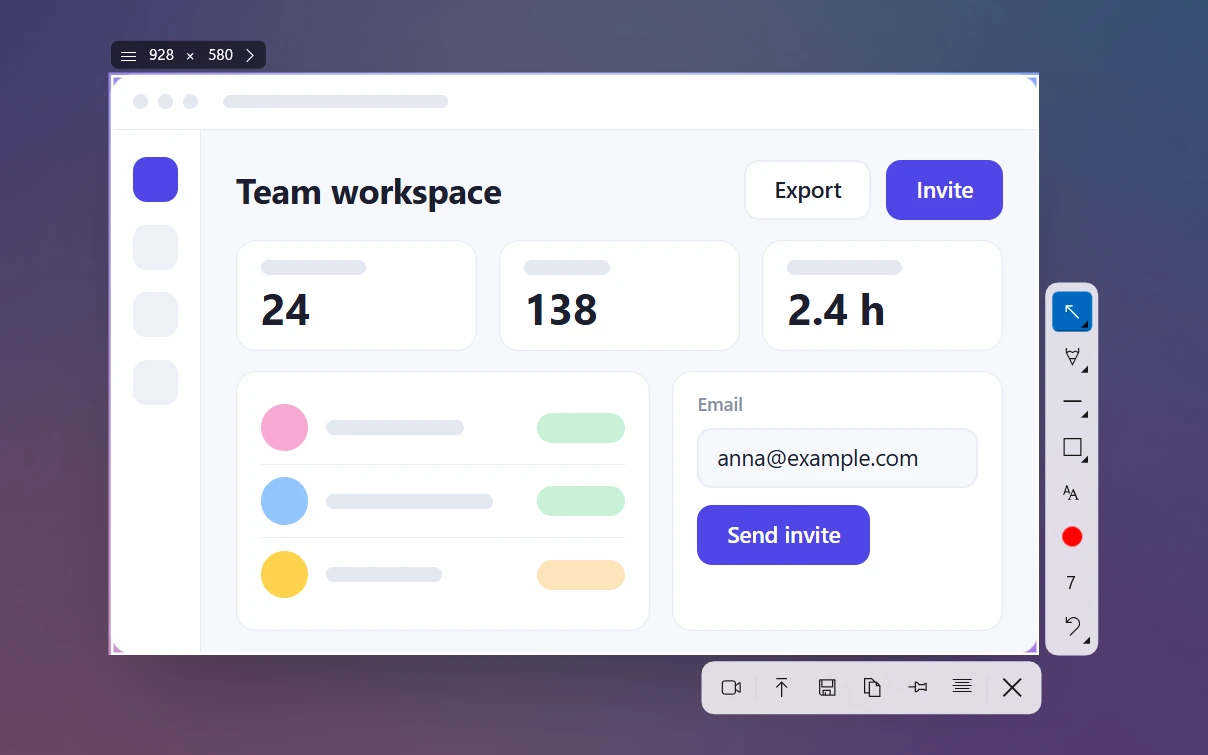
Sleekshot's size box counts real pixels, so a 1200 × 630 selection gives you a 1200 × 630 file even at 125% or 150% Windows scaling. The catch is the opposite of what people expect. On a high-resolution screen, that selection covers a small part of the app, so the text can end up tiny on a phone. Zoom in the app or browser (Ctrl + +) before you take the screenshot. Our guide to high-quality screenshots has more on sharp text.
Limits to know: you can type any size, but you can't save your own sizes to the list. The ready-made sizes crop the screen. They don't put a smaller screenshot on a bigger background.
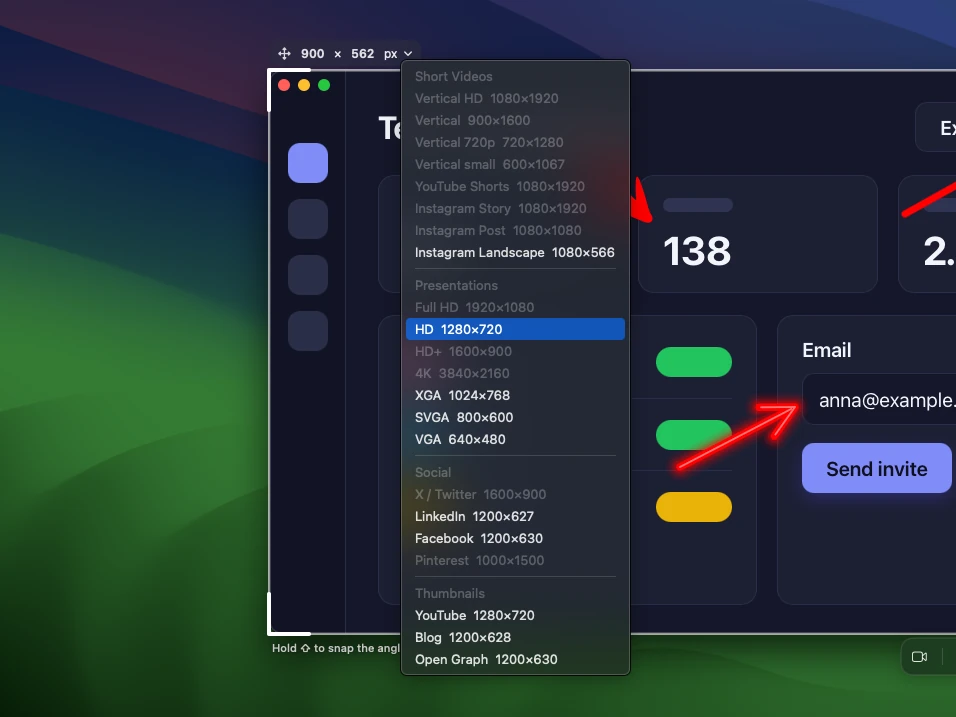
On a Mac, Sleekshot for Mac has a size bar as well. Press ⌘ + ⇧ + 2 and drag a selection. You can type an exact size into the "W × H px" badge above it or pick a preset for Shorts, Stories, slides or social posts. Press ⌘ + R to record that exact area as MP4 or GIF (macOS 13 Ventura or later).
No extra software: crop to size in Paint or Preview
If you already have the image, the built-in editors can get it to the right size, just with more clicks.
Windows (Paint): open the image, choose Select and drag a rectangle. Watch the selection size in the status bar at the bottom of the window, then crop with Ctrl + Shift + X. To scale the whole image, press Ctrl + W, switch to Pixels and type the width with Maintain aspect ratio on. Getting an exact ratio by hand takes a few tries, which is why we'd rather take the screenshot at the right size in the first place.
Mac (Preview): open the image and drag a selection (Preview shows its size as you drag), then choose Tools → Crop. Tools → Adjust Size scales the whole image to exact pixels.
Checklist before you post
- Ratio first. Check the ratio against the table. The pixel size can be bigger.
- Keep important content in the middle. Profile names, buttons and captions cover the top and bottom of Stories and Reels.
- Make text readable on a phone. If you can't read it on a small preview, crop tighter or zoom in before you take the screenshot.
- Pick the right format. PNG for screenshots with text and buttons, JPEG for photos. The spec pages we checked list JPG and PNG, not WebP, so save in one of those. Our guide to screenshot formats explains the difference.
- Check file size limits. 5 MB per image on X, 8 MB for Open Graph images, 2 MB for YouTube thumbnails uploaded from the mobile app.
- Hide private details. Names, emails and notifications in a screenshot become public the moment you post. See how to blur part of a screenshot and our list of common screenshot mistakes.
Sources
Platforms change their recommendations without much warning, so if a number looks off, check the source. We used these pages, all checked in October 2026:
- Meta Ads Guide: Instagram Feed, Instagram Stories, Instagram Reels and Facebook Feed
- Meta for Developers: Images in Link Shares
- LinkedIn Help: image specifications for posts and LinkedIn single image ads specs
- Pinterest Help: product specs
- YouTube Help: add video thumbnails and YouTube Shorts
- X Developer Platform: media best practices
- TikTok Ads Manager: video ads specifications
Frequently asked questions
What size should an Instagram post be in 2026?
What is the best YouTube thumbnail size?
What size is an Open Graph image?
Is there one image size that works on every social network?
Why does my image look blurry after I post it?
Can I capture 1080 × 1920 on a 1920 × 1080 monitor?
Sleekshot Team
We build Sleekshot, a free screenshot and screen recording app for Windows and Mac. Every guide is checked on current Windows 11, Windows 10 and macOS builds.
Also available in: Deutsch Français Español Italiano Русский ភាសាខ្មែរ Bahasa Indonesia 简体中文 日本語
