Where Do Screen Recordings Go on a Mac? How to Find and Change the Folder
 By Sleekshot Team
6 min read
Short answer
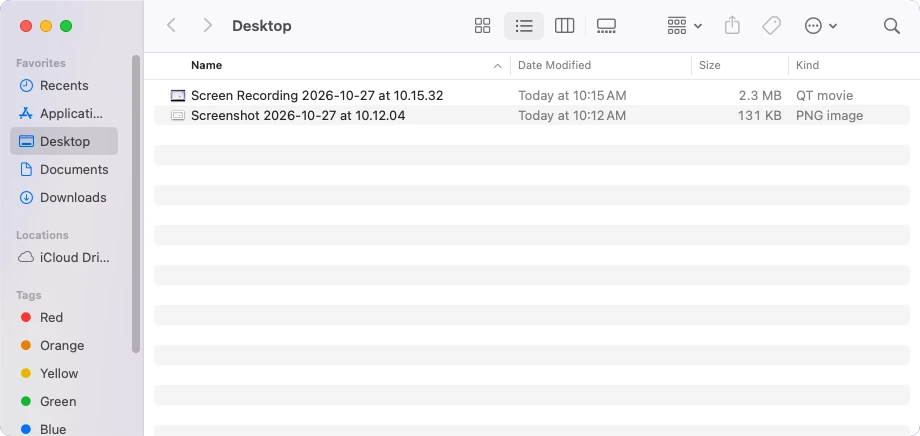
macOS saves screen recordings to the desktop by default, as .mov files named "Screen Recording [date] at [time].mov". To use another folder, press Shift-Command-5, click Options and choose a place under Save to. Screenshots follow the same setting. If a recording isn't on the desktop, search Spotlight for "Screen Recording" or kind:movie.
On this page
Screen recordings on a Mac go to the desktop by default. Each one is a .mov file with a name like Screen Recording 2026-10-26 at 14.30.15.mov, and it shows up once the thumbnail in the bottom-right corner slides away. To keep recordings somewhere else, press ⌘ + ⇧ + 5, click Options and choose a folder under Save to.
QuickTime Player opens the same toolbar, so its recordings follow the same rule. Menu names match macOS 27 Golden Gate as of October 2026 and look the same in Sonoma, Sequoia and Tahoe. For recording itself, see how to screen record on a Mac.
Where Mac screen recordings are saved by default
The built-in recorder writes to your desktop folder, /Users/<your name>/Desktop (~/Desktop in Terminal), unless the Save to setting says otherwise. Here's where a recording ends up in each case:
| How you recorded | Where the file goes | File |
|---|---|---|
| ⌘ + ⇧ + 5 toolbar | The place checked under Options → Save to (Desktop by default) | Screen Recording [date] at [time].mov |
| QuickTime Player → File → New Screen Recording | Same Save to place, then QuickTime opens it | Same .mov |
| Save to set to QuickTime Player, Mail or Messages | Opens in that app instead of landing in a folder | Saved only when you save or send it |
| Floating thumbnail dragged into a Finder window | The folder you dropped it in | .mov |
| Sleekshot for Mac | Asks every time and suggests Movies, or the folder set in Settings → Video, or the clipboard if you copy | Sleekshot Recording [date] [time], MP4 or GIF |
If your Mac runs in another language, the file name is translated: "Bildschirmaufnahme" in German, "Enregistrement d'écran" in French. The date and time stay in the name, so sorting by name also sorts by time.
How to find a screen recording on your Mac
When a recording isn't on the desktop, it's almost always in one of these places. Check them in order.
- Press ⌘ + ⇧ + 5, pick one of the record buttons and click Options. The checkmark under Save to shows where recordings go right now.
- Press ⌘ + Space and type "Screen Recording" in Spotlight. To list every video on the Mac, type
kind:movieinstead, which also catches MP4 files from other apps. - Click Recents in the Finder sidebar. It shows files you created or opened lately, wherever they're saved.
- In Finder, choose Go → Desktop (⇧ + ⌘ + D). You'll see the files even when windows cover the desktop or Stacks have grouped them.
- Check iCloud Drive. With iCloud sync for Desktop & Documents Folders turned on, the desktop lives there. If Optimize Mac Storage is on too, older videos may show a cloud icon and download only when you open them.
- Look in the Trash if you or someone else tidied the desktop recently.
The thumbnail explains a lot of "lost" recordings. When you stop, it sits in the corner for a few seconds, and the .mov is written to disk when it disappears. Swipe it to the right to save at once. If you dragged it into an email, a note or a Finder window, the file went there instead of to the Save to location. Clicking the thumbnail opens a window where you can trim or share the clip before it's saved.
If you'd rather skip that step, turn off Show Floating Thumbnail in the same Options menu, and recordings go straight to the Save to location.
How to change where screen recordings are saved
The Options menu on the Screenshot toolbar sets the folder for every new recording, and screenshots follow the same setting. It stays until you change it again.
- Create the folder first, for example Screen Recordings inside Movies (in Finder: File → New Folder).
- Press ⌘ + ⇧ + 5 and click one of the record buttons.
- Click Options.
- Under Save to, choose Documents, or Other Location and select your folder. In recording mode, QuickTime Player takes the place of Preview in this list, and Clipboard isn't offered.
- Press Esc to close the toolbar, then make a short test recording.
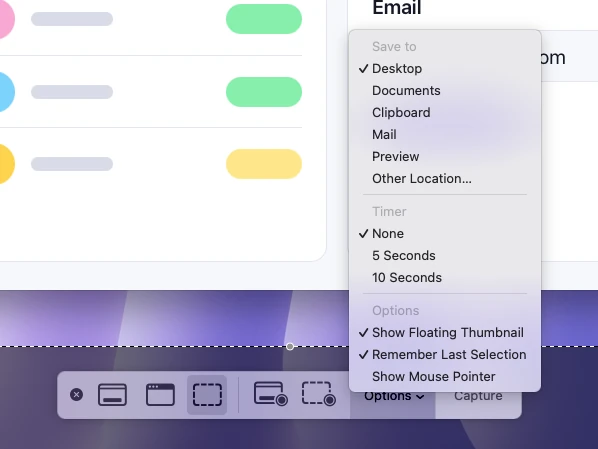
Your folder then appears in the Save to list, so you can switch back to the desktop with two clicks. If you set up Macs from the command line, defaults write com.apple.screencapture location changes the same setting. The full commands are in where screenshots go on a Mac.
Where QuickTime Player screen recordings go
QuickTime Player doesn't keep a folder of its own. File → New Screen Recording (⌃ + ⌘ + N) opens the same Screenshot toolbar, so the video is saved to the Save to location, the desktop by default. After you stop, QuickTime Player opens the recording on its own so you can play or trim it.
If Save to is set to QuickTime Player, though, the recording opens in the app rather than in a folder. Choose File → Save (⌘ + S) and pick a place before you close the window.
Where Sleekshot for Mac saves recordings
Sleekshot for Mac is a free menu bar app for screenshots and screen recording (Mac App Store; screenshots on macOS 12 or later, recording on macOS 13 Ventura or later). It doesn't use the macOS Save to setting. By default it asks where to save each video. To finish a recording, click save or copy on the recording bar. A copied video sits on the clipboard, so paste it into the chat or email right away.
Save opens a standard macOS Save dialog. The name is already filled in as "Sleekshot Recording" plus the date and time, the folder is Movies (~/Movies), and the Format menu offers MP4 or GIF. Change the folder or the name there if you like.
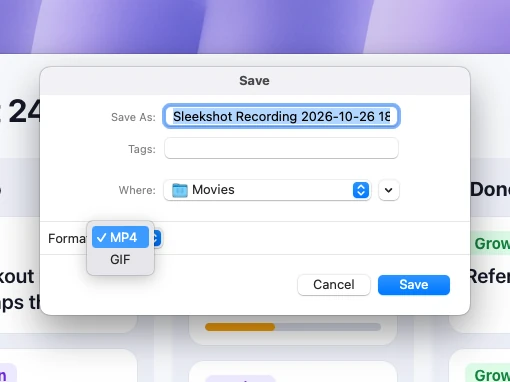
To skip the dialog, open Settings → Video and turn on Save recordings to a folder. Sleekshot then saves each new recording to the folder set there, without asking. With the switch off, it asks every time.
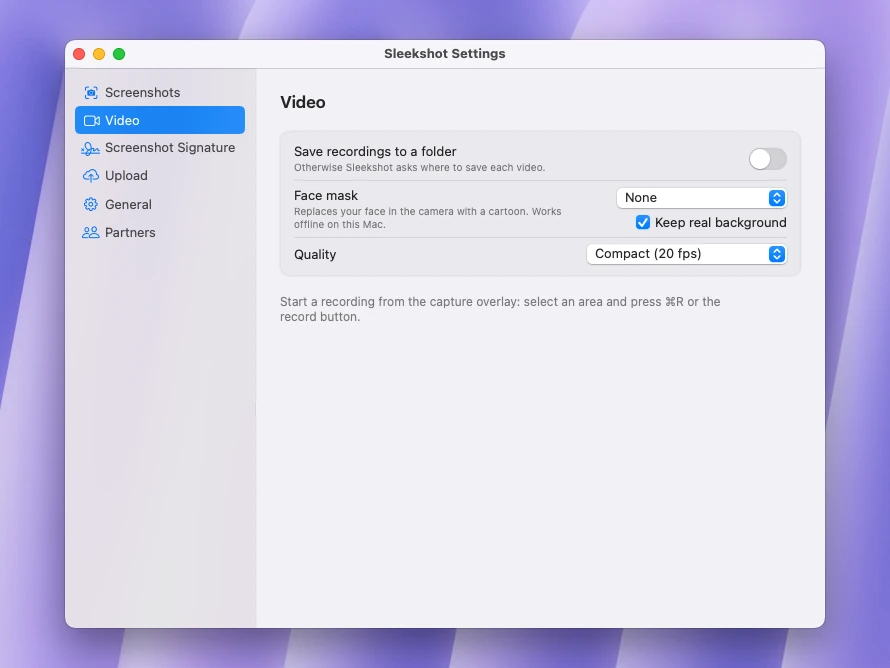
Sleekshot can't trim a recording. Open the MP4 in QuickTime Player and use Edit → Trim for that. To turn a clip into a GIF later, see how to make a GIF on a Mac.
Screen recording missing or cut short?
If the recording stopped by itself or never showed up, one of these is the usual reason.
- The startup disk was nearly full. macOS can end a recording when free space runs low. Users and app makers report this, and Apple doesn't publish a threshold, so check System Settings → General → Storage before a long session.
- The file was still being saved. A long recording can take a moment to write, so wait for the thumbnail to go away before you shut the lid, log out or move the file.
- The app didn't allow it. Apple notes that some apps, such as the Apple TV app, might not let you record their windows.
- A shortcut stopped it. ⌘ + ⌃ + Esc ends a recording at once. All the ways to stop are in how to stop a screen recording on a Mac.
Recording on a PC too? Windows saves videos to different folders depending on the app. Here's where screen recordings go on Windows.
Frequently asked questions
Where do screen recordings go on a Mac?
Why can't I find my screen recording on my Mac?
How do I change where screen recordings are saved on a Mac?
Where do QuickTime screen recordings go?
Can a Mac save screen recordings as MP4 or GIF?
Sleekshot Team
We build Sleekshot, a free screenshot and screen recording app for Windows and Mac. Every guide is checked on current Windows 11, Windows 10 and macOS builds.
Also available in: Deutsch Français Español Italiano Русский ភាសាខ្មែរ Bahasa Indonesia 简体中文 日本語