How to Stop a Screen Recording on Mac, Even When the Button Is Hidden
 By Sleekshot Team
5 min read
Short answer
To stop a screen recording on a Mac, click the Stop button (a small square in a circle) in the menu bar, or press Command-Control-Esc. Both work for the Shift-Command-5 toolbar and QuickTime Player. The video is saved to your desktop as Screen Recording <date> at <time>.mov. If a full-screen app or the notch hides the button, the keyboard shortcut still works.
On this page
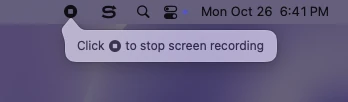
To stop screen recording on a Mac, click the Stop button in the menu bar at the top of the screen. It's a small square inside a circle. You can also press ⌘ + Control + Esc. Both work for recordings you started with ⌘⇧5 and for QuickTime Player, and the video then appears on your desktop as a .mov file.
If you can't see the button or the recording seems stuck, work through the sections below, from the quickest fix to force quitting. Sleekshot and other recording apps have their own controls, covered near the end.
Two ways to end a screen recording on Mac
Apple gives two ways to stop: the Stop button in the menu bar and the shortcut ⌘ + Control + Esc (Command-Control-Escape). Which one is easier depends on what's on your screen.
| Your situation | How to stop |
|---|---|
| Recording from ⌘⇧5, menu bar visible | Click the Stop button in the menu bar |
| Full-screen app or hidden menu bar | Press ⌘ + Control + Esc, or move the pointer to the top edge |
| QuickTime Player recording | Same button or shortcut, then QuickTime opens the video |
| Nothing responds | Force quit (see below) |
| Sleekshot or another recording app | Use that app's own recording bar (in Sleekshot, save or copy) |
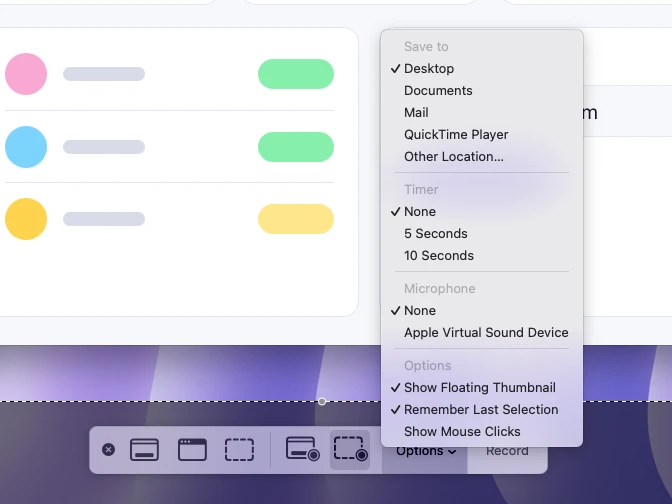
Changed your mind before recording? Press Esc before you click Record and nothing is recorded.
Stop a QuickTime Player recording
QuickTime recordings stop the same way, because on current macOS QuickTime hands screen recording to the Screenshot toolbar. Click Stop in the menu bar or press ⌘ + Control + Esc.
QuickTime then opens the recording automatically. You can play it right there and cut the start or end with Edit → Trim. A recording started from ⌘⇧5 doesn't open in any app. The file goes to the desktop or to the folder set in Options → Save to.
Can't see the Stop button? Where it hides
The Stop button lives in the menu bar, so whatever hides the menu bar hides the button too. ⌘ + Control + Esc works in every case below, and these steps bring the button back:
- In a full-screen app or a slideshow, the menu bar slides out of view. Move the pointer to the very top of the screen and it comes back, Stop button included.
- If you set the menu bar to hide automatically, the fix is the same: pointer to the top edge.
- On a MacBook with a notch, a crowded menu bar pushes some icons behind the camera housing. Quit a few menu bar apps you don't need right now, or use the shortcut.
- With two displays, look at the menu bar on the other screen too.
The recording won't stop: force quit
If neither the button nor the shortcut works, the recording process is stuck, and force quitting ends it. You may lose the recording, so try ⌘ + Control + Esc once more before you start.
- Press ⌥ + ⌘ + Esc (Option-Command-Escape), or choose Apple menu → Force Quit.
- If you recorded with QuickTime Player, select it in the list and click Force Quit.
- If you recorded with ⌘⇧5, open Activity Monitor (Applications → Utilities) and type "screencapture" in the search field. The Screenshot toolbar runs as screencaptureui. Select it, click the Stop button (×) at the top of the window and choose Force Quit.
- If the Stop button is still in the menu bar after that, restart the Mac from the Apple menu.
How to tell if your Mac is still recording
As long as a ⌘⇧5 or QuickTime recording is running, the Stop button stays in the menu bar. Once it's gone, the recording has ended.
The privacy indicators to the right of Control Center give a second hint when sound is involved. An orange dot means the microphone is in use, and a purple dot means system audio is being recorded. Only one dot shows at a time, so open Control Center to see which apps are using the mic or system audio. Third-party recorders also need permission in System Settings → Privacy & Security → Screen & System Audio Recording, and that list shows every app that has it.
Stop a recording in Sleekshot for Mac
Sleekshot for Mac is a free menu bar app for screenshots and screen recording (Mac App Store; screenshots on macOS 12 or later, recording on macOS 13 Ventura or later). The menu bar Stop button and ⌘ + Control + Esc are part of Apple's Screenshot tool, so in Sleekshot you use its own recording bar under the recorded area.
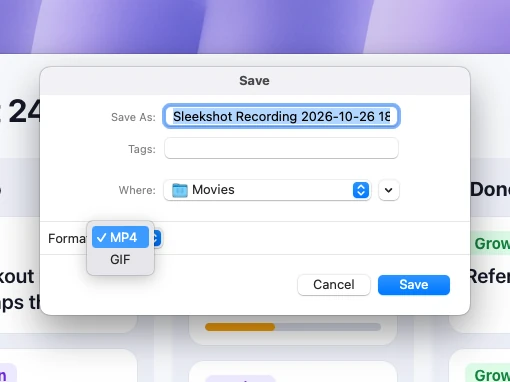
To finish, click save or copy on the recording bar. Save opens a Save dialog with the name "Sleekshot Recording" plus the date and time, the Movies folder and a Format menu with MP4 or GIF. If you turned on Save recordings to a folder in Settings → Video, the file goes straight to that folder with no dialog. Copy puts the recording on the clipboard, ready to paste into a chat. Need a break first? Click pause, then click it again to continue. While you record, a red dashed outline shows what's being captured, and the timer next to the red dot shows how long you've been going.
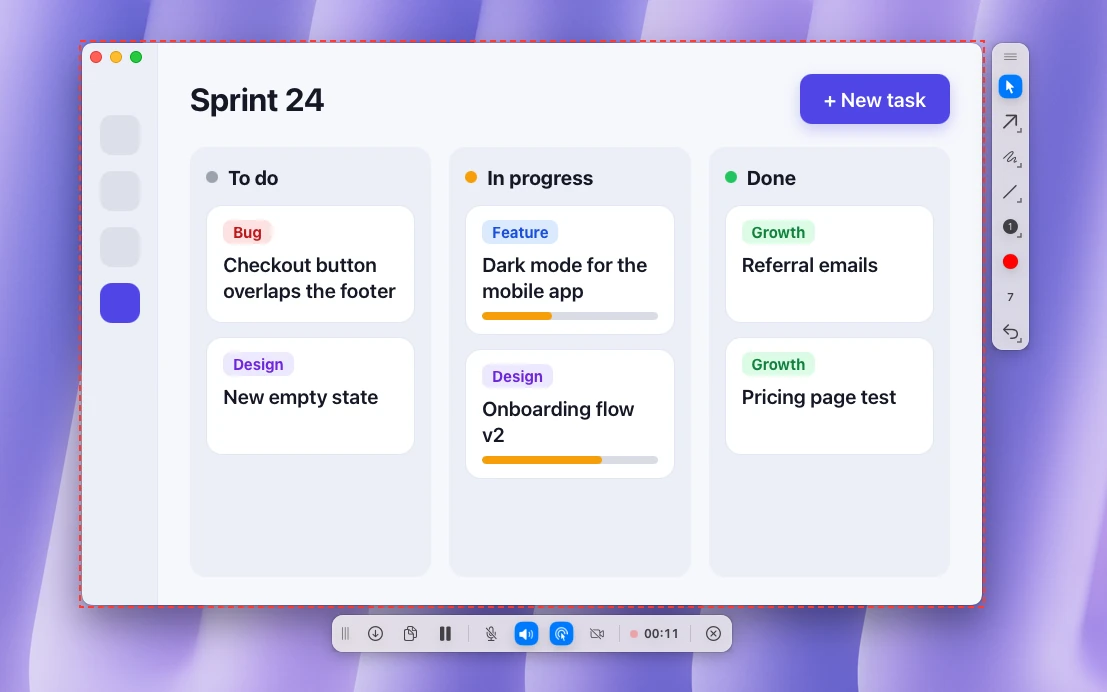
Sleekshot records system audio and your microphone, can show your webcam in the corner and highlights clicks. It's free, has no time limit and needs no account. It has no video editor, so trim a long clip in QuickTime Player or another app. More about the free Mac app.
Where the recording goes after you stop
By default, macOS saves a ⌘⇧5 recording to your desktop as "Screen Recording
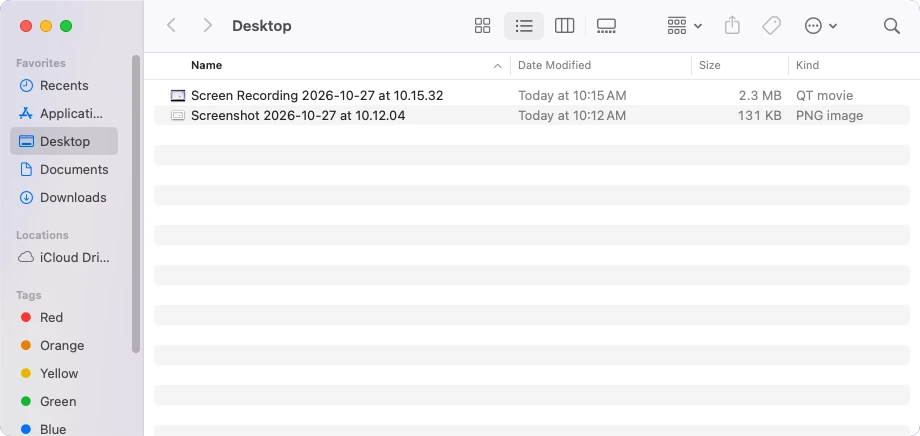
Can't find the file? Our guide to where screen recordings go on a Mac covers every app's folder. If the video turned out silent, see how to screen record on a Mac with audio. All recording methods are in how to screen record on a Mac.
Frequently asked questions
What is the shortcut to stop screen recording on a Mac?
Why can't I find the stop button for my screen recording?
How do I stop a QuickTime screen recording?
Where does a screen recording go after I stop it?
How do I cancel a screen recording without saving it?
Sleekshot Team
We build Sleekshot, a free screenshot and screen recording app for Windows and Mac. Every guide is checked on current Windows 11, Windows 10 and macOS builds.
Also available in: Deutsch Français Español Italiano Русский ភាសាខ្មែរ Bahasa Indonesia 简体中文 日本語