How to Make a GIF on a Mac: Record Your Screen as a GIF or Convert a Video
 By Sleekshot Team
8 min read
Short answer
macOS can't save a screen recording as a GIF: Shift-Command-5 and QuickTime Player only make .mov files. The quickest free way is to record with an app that saves GIFs, such as Sleekshot for Mac on macOS 13 Ventura or later (record, click save, choose GIF in the Format menu). To convert a .mov you already have, use the Make GIF action in the Shortcuts app, the free Gifski app or ffmpeg.
On this page
- Ways to make a GIF on a Mac compared
- What macOS can and can't do with GIFs
- Method 1: Record a GIF with Sleekshot for Mac
- Method 2: Convert a screen recording with Shortcuts
- Method 3: Gifski, a free converter with better quality
- Method 4: Make a GIF with ffmpeg in Terminal
- Other GIF apps: Gifox, Kap and online converters
- Tips for small, sharp GIFs
- Where GIFs work best
A Mac can't save a screen recording as a GIF on its own. ⌘ + ⇧ + 5 and QuickTime Player only produce .mov files. The quickest free way to make a GIF on a Mac is to record with an app that saves GIFs: in Sleekshot for Mac you select an area, record, click save and pick GIF in the Format menu. If you already have a recording, convert it with the Make GIF action in the Shortcuts app, the free Gifski app or one ffmpeg command.
Prices and app versions below are as of October 2026. The tips at the end keep a GIF small enough to paste into GitHub or Slack.
Ways to make a GIF on a Mac compared
| Method | Cost | Starts from | Best for | Catch |
|---|---|---|---|---|
| Sleekshot for Mac | Free | A new recording | Recording a GIF in one go | Can't convert a video you already have; recording needs macOS 13 or later |
| Shortcuts → Make GIF | Built into macOS | A .mov or .mp4 | Converting now and then without installing anything | Few quality settings |
| Gifski | Free, Mac App Store | A video file | The best-looking conversions | Current version needs macOS 26 or later |
| ffmpeg | Free, open source | A video file | Batch jobs and exact control | Command line only |
| Gifox 2 | Free Basic, Pro $14.99 | A new recording | A dedicated GIF recorder | Basic stops at 10 seconds and adds a watermark |
For a quick clip of a bug or a new button, record straight to GIF. For a recording you made yesterday with ⌘ + ⇧ + 5, convert it.
What macOS can and can't do with GIFs
macOS has no "save as GIF" in its screen recorder. The Screenshot toolbar and QuickTime Player save .mov files, and QuickTime's File → Export As offers only video resolutions and audio. Other built-in apps can make GIFs, though:
- Shortcuts has a Make GIF action that turns photos or a video into an animated GIF. That's Method 2 below.
- Photos can export a GIF from a Live Photo with the Bounce effect (File → Export → Export GIF). That helps with iPhone photos, not screen recordings.
- Keynote exports slides as an animated GIF (File → Export To → Animated GIF), which suits a slide build but not a recording.
Preview opens GIFs and shows each frame, but it can't create one.
Method 1: Record a GIF with Sleekshot for Mac
Sleekshot for Mac is a free menu bar app for screenshots and screen recording (Mac App Store; screenshots on macOS 12 or later, recording on macOS 13 Ventura or later). We make it. It records an area, a window or the full screen, and when you stop, you save the clip as an MP4 or a GIF, or copy it.
- Press ⌘ + ⇧ + 2 and drag over the area you want in the GIF, or click a window. The "W × H px" badge above the selection shows its size, and you can type an exact size there.
- Click the record button (the camera icon on the action bar) or press V.
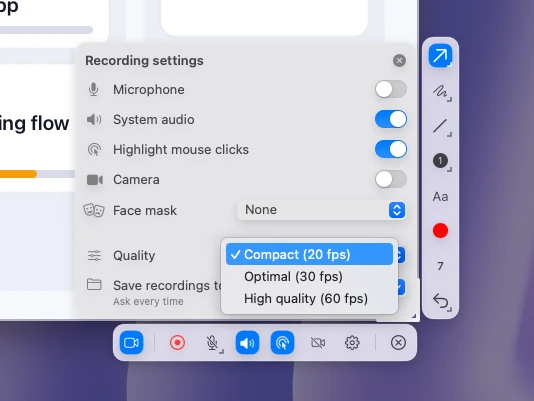
- Click the gear on the bar to open the recording settings. A GIF has no sound, so leave Microphone and System audio off, and set Quality to Compact (20 fps) to keep the file small.
- Press ⌘ + R or click the red record button. A red dashed outline marks the area, and a timer runs on the recording bar. Pause whenever you need to set up the next step.
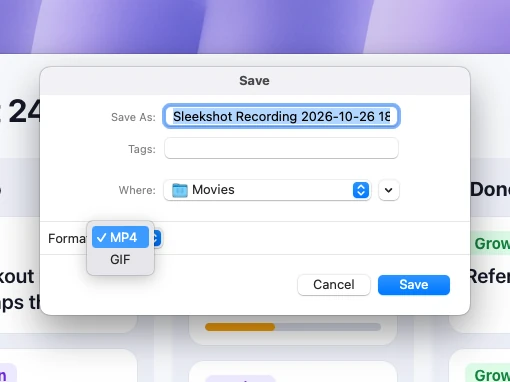
- When you're done, click save on the recording bar. In the Save dialog, open the Format menu and choose GIF instead of MP4. The name starts with "Sleekshot Recording" and the folder is Movies unless you change them.
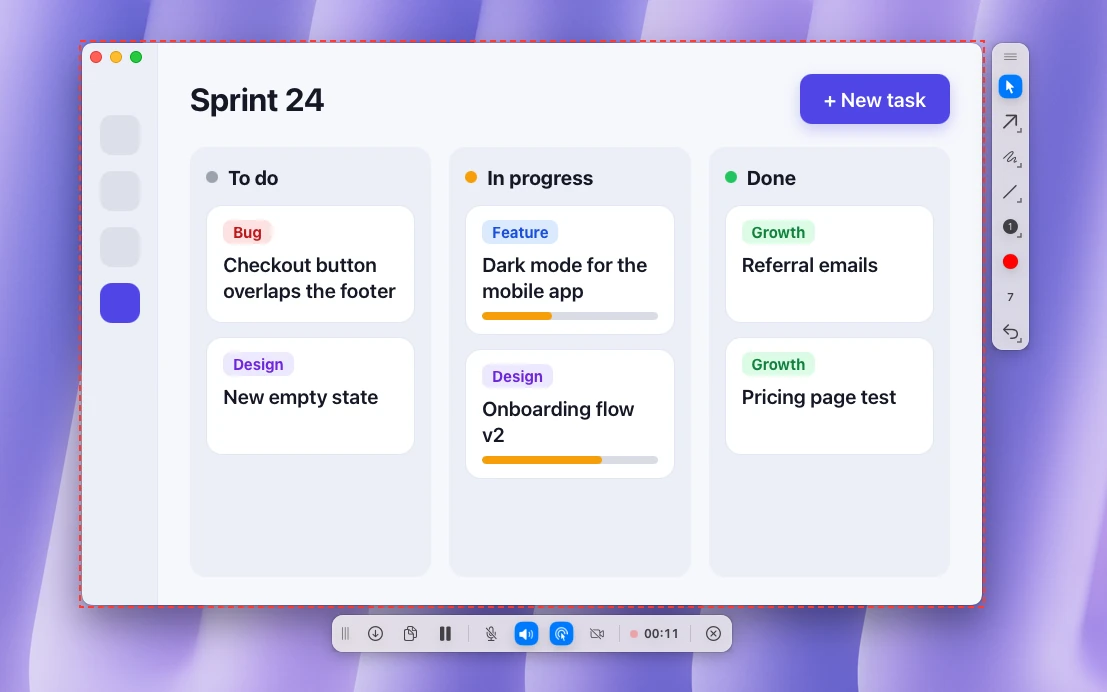
While recording, you can highlight clicks and draw arrows or boxes on the live screen. Both show up in the GIF, which helps when the clip has to explain itself without a voiceover.
What it can't do: Sleekshot has no trimming or video editor, so plan the clip and use pause. It also can't open a video you made earlier. For that, use one of the converters below. The full recording guide, including the built-in tools, is in how to screen record on a Mac.
Method 2: Convert a screen recording with Shortcuts
The Shortcuts app comes with macOS 12 and later, and its Make GIF action converts a video without anything else to install. Set it up once as a Quick Action, and every video in Finder gets a GIF command.
- Open Shortcuts and click + to create a new shortcut.
- Search the actions for "Make GIF" and add it. Its input should be the shortcut input.
- Add a Save File action after it, so the shortcut asks where to put the GIF.
- Open the shortcut details (the ⓘ button), turn on Use as Quick Action and select Finder.
- Name the shortcut, for example "Convert to GIF".
- In Finder, Control-click a .mov and choose Quick Actions → Convert to GIF.
Click the arrow on the Make GIF action to see its options. Turn off Auto Size to set a smaller width and height, which is the easiest way to cut the file size.
Trim the video before you convert it. Select the .mov in Finder, press Space to open Quick Look and click the Trim button. Drag the yellow handles, click Done, and only the part you need goes into the GIF.
Method 3: Gifski, a free converter with better quality
Gifski is a free Mac App Store app that turns a video into a GIF. It uses the gifski encoder, which picks a palette for each frame, so gradients and app windows come out with less banding than in most converters. Drop a .mov or .mp4 onto the window, set the dimensions, frame rate and quality, and save. The current version requires macOS 26 Tahoe or later.
Gifski only converts. It doesn't add text or arrows, so draw those during the recording or in the video first.
Method 4: Make a GIF with ffmpeg in Terminal
ffmpeg is a free command-line tool, and it's the fastest route if you convert GIFs often or need exact control. Install it with Homebrew (brew install ffmpeg), then run this in the folder with your recording:
ffmpeg -i input.mov -vf "fps=15,scale=800:-1:flags=lanczos,split[a][b];[a]palettegen[p];[b][p]paletteuse" -loop 0 output.gif
The command keeps 15 frames per second and scales the clip to 800 pixels wide. It builds a color palette from the clip first, which gives far fewer speckles than a direct conversion. -loop 0 makes the GIF loop forever. Change fps and the width to trade quality for size.
Other GIF apps: Gifox, Kap and online converters
- Gifox 2 records the screen straight to GIF and can also convert videos. The free Basic version stops recordings at 10 seconds and adds a watermark. Gifox 2 Pro is a $14.99 in-app purchase on the Mac App Store, and the app is also on Setapp. Its website says Gifox 3 is coming.
- Kap is a free, open-source screen recorder that exports GIF, MP4, WebM and APNG and needs macOS 12 or later. Its last release, 3.6.0, came out in October 2022.
- Online converters such as Ezgif work in any browser, but you upload the video to someone else's server. Don't use them for recordings that show email addresses, customer data or internal tools.
A full comparison of recorders is in the best screen recorders for Mac.
Tips for small, sharp GIFs
A GIF stores every frame as an image with at most 256 colors, and it compresses moving pictures poorly. The same clip as an MP4 is usually several times smaller. These habits keep a GIF light:
- Show one action per GIF, a few seconds long. If the clip runs for a minute, send an MP4.
- Record the window or panel that matters, not the whole Retina screen. Fewer pixels per frame means a smaller file.
- Stay at 15 or 20 fps for clicks, menus and typing. In Sleekshot, that's the Compact (20 fps) preset. Go up to 30 fps only for scrolling or animation.
- Hide busy wallpapers and anything animated you don't need, since every changing pixel costs space.
- Cut the dead time at the start and end. The first second of most recordings is the pointer moving to the Record button.
Sometimes a screenshot with an arrow explains it faster. Screenshot vs screen recording covers when to use which.
Where GIFs work best
A GIF loops and plays without a video player, so it works in places where a video file would be one more download:
- GitHub: drag a GIF into an issue, a pull request or a README to show a bug or a new feature.
- Slack and Teams: the GIF plays inline in the chat, and people see the steps without opening a file.
- Notion, Confluence and Google Docs: animated GIFs play right in the page.
- Email: most email apps play GIFs, though some desktop versions of Outlook show only the first frame, so make sure that frame makes sense alone.
- Social posts: check each network's dimensions first. Our social media image sizes list has them.
Frequently asked questions
Can a Mac make a GIF without extra apps?
How do I record a GIF on my Mac?
How do I convert a screen recording to a GIF on a Mac?
Why is my GIF so big?
Should I send a GIF or an MP4?
Sleekshot Team
We build Sleekshot, a free screenshot and screen recording app for Windows and Mac. Every guide is checked on current Windows 11, Windows 10 and macOS builds.
Also available in: Deutsch Français Español Italiano Русский ភាសាខ្មែរ Bahasa Indonesia 简体中文 日本語