The 8 Best Screen Recorders for Mac in 2026, Free and Paid
 By Sleekshot Team
11 min read
Short answer
For a quick clip, the free built-in recorder (Shift-Command-5 or QuickTime Player) is enough, but it records the Mac's own sound only on macOS 27 Golden Gate and later. Sleekshot for Mac is the best free screen recorder for Mac (macOS 13 or later) when you also want system audio, a webcam, GIF export and drawing on screen. Screen Studio makes the most polished product demos, OBS Studio is the free pick for streaming and long recordings, and Loom is built for video messages people watch from a link.
On this page
- Our verdict: the best Mac screen recorder for each job
- Screen recorders for Mac compared
- 1. Shift-Command-5 and QuickTime: best free built-in recorder
- 2. Sleekshot for Mac: best free recorder with system audio and webcam
- 3. CleanShot X: best all-round paid app for screenshots and recording
- 4. Screen Studio: best for polished product demos
- 5. OBS Studio: best free recorder for streaming and long sessions
- 6. Loom: best for async video messages
- 7. ScreenFlow: best for edited tutorials and courses
- 8. Kap: free GIF recorder, but no recent updates
- How we chose
The best screen recorder for Mac depends on what the video is for. For a quick clip, use the one your Mac already has: press ⌘ + ⇧ + 5, pick an area and click Record. It can't show your webcam or save a GIF, and it records the Mac's own sound only on macOS 27 Golden Gate and later. Sleekshot for Mac fills those gaps for free. Screen Studio makes the most polished product demos, OBS Studio is the free choice for streaming and hour-long sessions, and Loom suits video messages people watch from a link.
Sleekshot is our app, so weigh its section with that in mind. We checked every recorder here against its official site, pricing page or release notes in October 2026. Each entry lists the limits you'll run into, ours included.
Our verdict: the best Mac screen recorder for each job
- Best free built-in: the Screenshot toolbar (⌘ + ⇧ + 5) and QuickTime Player. Nothing to install; files are saved as .mov.
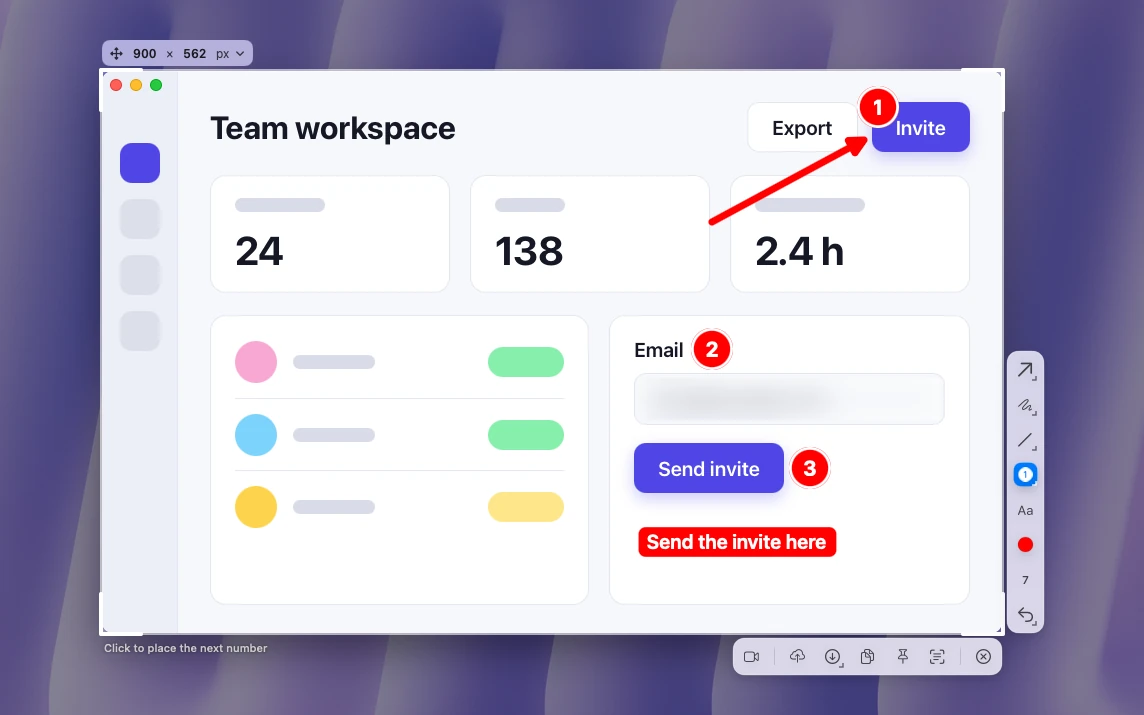
- Best free app with system audio and a webcam: Sleekshot for Mac (macOS 13 or later). MP4 or GIF, computer sound and mic, a webcam with optional face masks, and drawing on screen while you record.
- Best all-round paid app: CleanShot X. Screenshots and recordings in one app, with a video editor since version 5.0.
- Best for polished demos: Screen Studio. It zooms in where you click and smooths the cursor for you.
- Best for streaming and long recordings: OBS Studio. Free, open source, with scenes built from any number of sources.
- Best for async video messages: Loom. You stop recording and the link is ready to paste.
- Best for edited tutorials and courses: ScreenFlow. A full Mac video editor that can also record an iPhone or iPad screen.
- Free GIF recorder, with a caveat: Kap. Open source, but there hasn't been a new release since 2022.
Screen recorders for Mac compared
Prices and limits come from each official site as of October 2026.
| Recorder | Price | System audio | Webcam | GIF | Editor | Watermark and limits |
|---|---|---|---|---|---|---|
| ⇧⌘5 and QuickTime | Free, built in | macOS 27 and later | No | No | Trim only | No watermark; .mov only |
| Sleekshot for Mac | Free | Yes, plus mic | Yes, with face masks | Yes | No | No watermark or time limit; recording needs macOS 13+ |
| CleanShot X | $35 one-time, or Pro at $10/user/month | Yes | Yes | Yes | Yes, smart zooms | No trial; 30-day refund |
| Screen Studio | $9/month billed yearly, or $29 monthly | Yes | Yes | Yes, up to 1080p | Yes, automatic zooms | Subscription only |
| OBS Studio | Free, open source | Yes (OBS 30+, macOS 13+) | Yes, as a source | No | No | No limits; setup takes time |
| Loom | Free Starter; Business $18/user/month | Yes, desktop app | Yes | No | Trim on Business | Free: 25 videos, 5 min each, 720p |
| ScreenFlow | $199 | Yes, since 10.5 | Yes | Yes | Yes, full editor | Trial exports are watermarked |
| Kap | Free, open source | Not specified | Not listed | Yes | Trim before export | Last release October 2022 |
1. Shift-Command-5 and QuickTime: best free built-in recorder
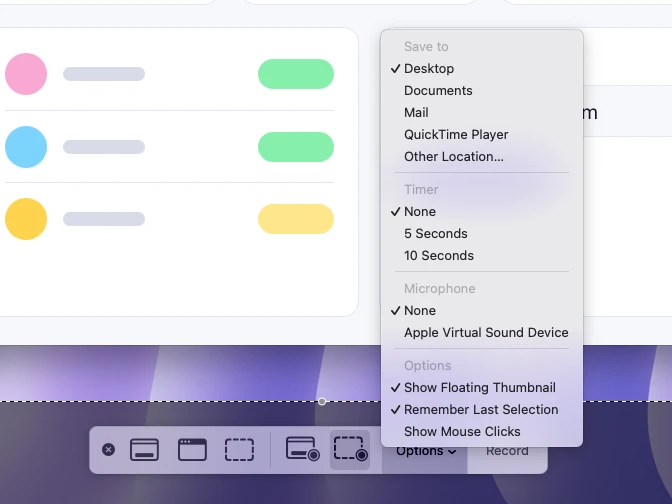
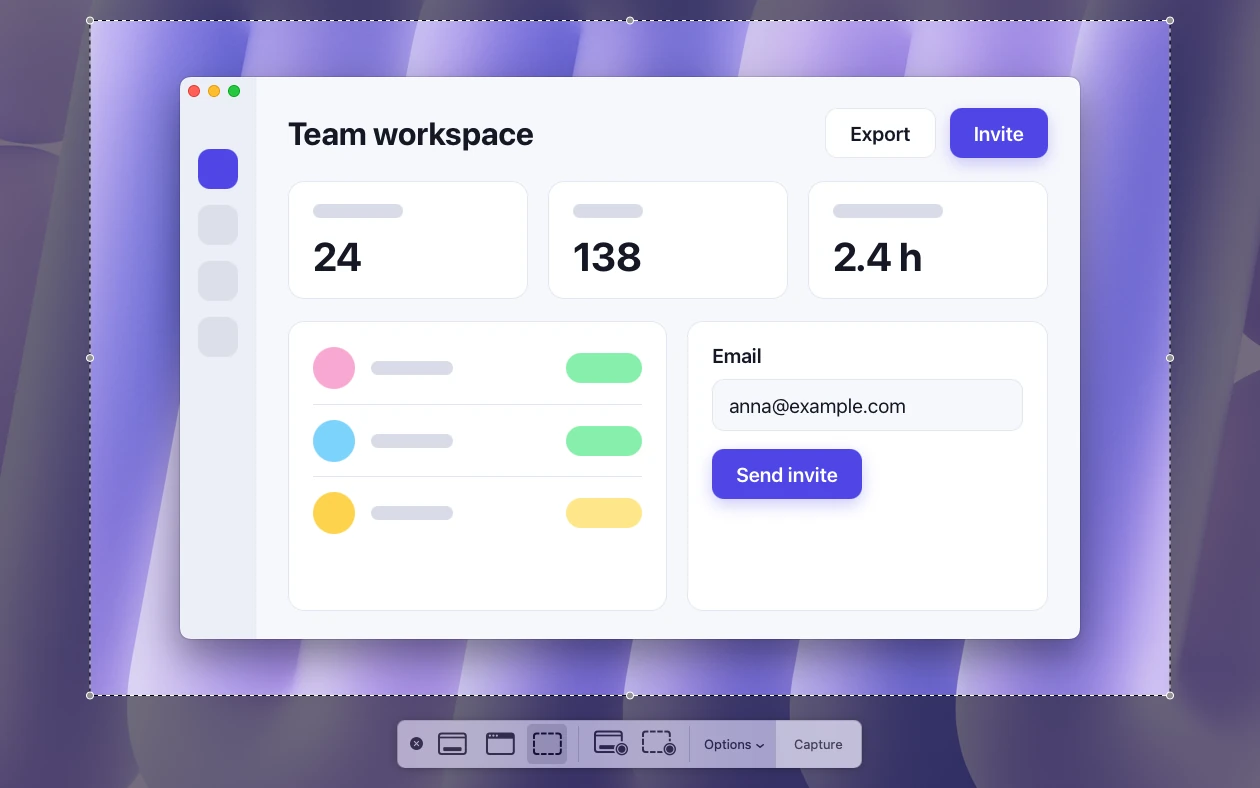
The recorder built into macOS is the right tool for a 20-second clip that nobody will edit. Press ⌘ + ⇧ + 5 and choose Record Entire Screen, Record Selected Portion or, on macOS Tahoe 26 and later, Record Selected Window. Click Record. To stop, click the Stop button in the menu bar or press ⌘ + ⌃ + Esc. The file lands on the desktop as "Screen Recording" plus the date and time, in .mov format.
QuickTime Player opens the same toolbar from File → New Screen Recording (⌃ + ⌘ + N). The difference comes after you stop: QuickTime opens the recording right away, so you can play it and trim the ends.
Good: it's free, it comes with every Mac, and the Options menu covers the basics. You pick a microphone, a timer and a save folder there, and Show Mouse Clicks draws a black circle around the pointer each time you click. On macOS 27 Golden Gate there's also Include System Audio.
Missing: before macOS 27, it can't record the Mac's own sound at all, only a microphone. There's no pause, no webcam in the corner, no drawing on screen and no GIF. Every file is a .mov. Step-by-step instructions are in how to screen record on a Mac.
2. Sleekshot for Mac: best free recorder with system audio and webcam
Sleekshot for Mac is a free menu bar app for screenshots and screen recording (Mac App Store; screenshots on macOS 12 or later, recording on macOS 13 Ventura or later). It's for tutorials, demos and bug reports where people need to hear the app and see where you click. It records an area, a window or the full screen with system audio and your microphone. When you stop, you save the video as MP4 or GIF, or copy it straight into a chat.
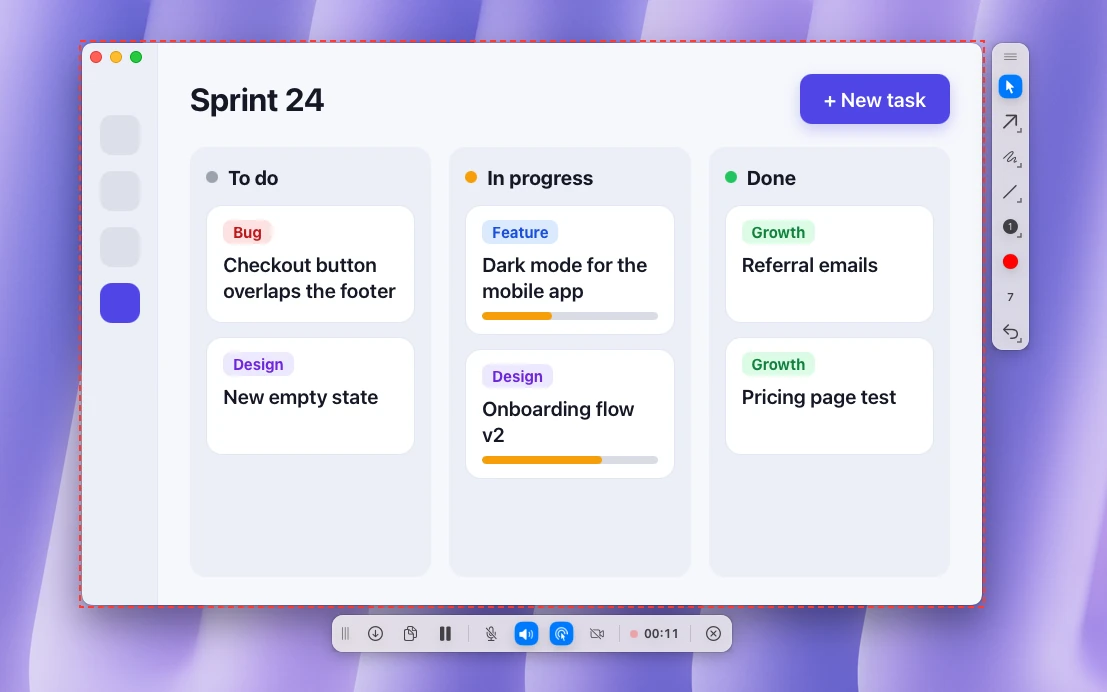
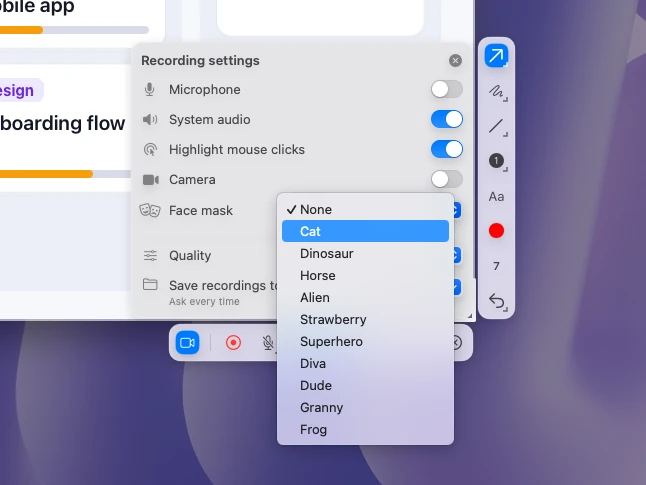
Recording starts the same way as a screenshot. Press ⌘ + ⇧ + 2, drag over an area, click a window or press ⌘ + A, then press ⌘ + R or click the record button. The gear on the recording bar opens the settings: microphone, system audio, camera, click highlighting, a face mask and the quality, Compact (20 fps), Optimal (30 fps) or High quality (60 fps). A red dashed outline shows exactly what goes into the video. It's a fixed rectangle, so a window you move during the recording leaves the frame.
Good:
- System audio and microphone together, with pause and resume.
- Click highlighting, plus arrows and shapes you draw on the live screen during the recording.
- Your webcam in the corner. You see the preview before you start, so you can fix the framing first.
- Face masks if you'd rather not show your face: 10 of them, from Cat and Dinosaur to Granny and Frog. They blink, smile and raise their eyebrows with you, and the face tracking runs on your Mac with no internet.
- Save as MP4 or GIF, or copy the recording. By default it asks where to save each video and suggests the Movies folder. Free, with no account, no watermark and no time limit.
Missing: recording needs macOS 13 Ventura or later; on macOS 12 the app takes screenshots only. There's no trimming or video editor, so cut the ends in QuickTime Player (Edit → Trim). It records one area at a time and has no timer. It's only on the Mac App Store, with no direct download or Setapp. For long streams with several cameras, OBS Studio is the better tool.
Sleekshot is free, with no in-app purchases. More on the Sleekshot for Mac page.
3. CleanShot X: best all-round paid app for screenshots and recording
CleanShot X is the app to buy if you want screenshots and recordings from one paid tool. It records the whole screen, a window or an area you size yourself, as MP4 (H.264) or GIF. It can capture the Mac's sound and your microphone, add a webcam (position, size and shape are adjustable), show clicks and keystrokes, and turn on Do Not Disturb while you record.
Good: version 5.0 (September 1, 2026) added Studio Mode and a new video editor. It has smart zooms that follow the cursor, smoother cursor movement, motion blur, backgrounds and trimming. Recordings, including 4K video, upload to CleanShot Cloud as a share link. You also get the screenshot side: scrolling capture, text recognition in 30+ languages, a capture history and pinned screenshots.
Missing: it's Mac-only and needs macOS 13 or later. There's no free version or trial; CleanShot offers a 30-day money-back guarantee instead. If you only record once a week, much of what you pay for will go unused.
CleanShot Basic costs $35 once, with one year of updates and 1 GB of cloud storage; after that, updates are an optional $19 a year. CleanShot Pro is $10 per user per month, billed annually, with unlimited cloud storage and team features. It's also included in a Setapp subscription. Our CleanShot X alternative guide compares it with free apps.
4. Screen Studio: best for polished product demos
Screen Studio is for people who post product demos and launch videos. After you record, it zooms in on the places you clicked and turns shaky mouse movement into a steady glide, so a plain screen recording looks edited.
Good: records your screen with your webcam, microphone and the Mac's sound. It exports MP4 at 720p, 1080p or 4K at up to 60 fps, and looping GIFs up to 1080p. You can also share a link that plays in the browser. Camera layouts include an overlay, split screen and a cutout.
Missing: Mac only, with no Windows version planned. It's sold as a subscription; one-time licenses are no longer available for new buyers. The developer recommends macOS 13.1 or later. For a quick bug report it's more than you need.
Screen Studio costs $9 a month billed yearly, or $29 month to month. Every feature is in both plans, and students and educators get 40% off.
5. OBS Studio: best free recorder for streaming and long sessions
OBS Studio is free, open-source software for recording and live streaming on macOS, Windows and Linux. You build a scene from sources (a display, a window, your webcam, images, text), mix the audio, then record or go live. The current stable version is 32.2.2 (August 14, 2026), and it needs macOS 13 or later.
Good: no watermark and no time limit. Mac sound works without extra software: since OBS 30, the macOS Audio Capture source on macOS 13 and later records all desktop audio or a single app. Scenes let you switch between layouts mid-recording, and streaming to YouTube or Twitch is built in.
Missing: setup takes a while, and there are no recording shortcuts until you set them. You can't draw on the screen, and you'll need another app to trim. It doesn't save GIFs. For a two-minute clip, it's slower to get going than ⇧⌘5 or Sleekshot.
OBS Studio is free. Download it only from obsproject.com.
6. Loom: best for async video messages
Loom turns a screen recording into a link the moment you stop, which is why teams use it instead of short meetings. It has apps for Mac, Windows, iOS and Android. The Mac desktop app records your screen, camera and microphone. It can include system audio, which you switch on in its recording settings.
Good: no file to upload or send. Viewers watch in the browser, and the free plan includes transcriptions and closed captions.
Missing: the free Starter plan allows 25 videos per person, 5 minutes per screen recording and up to 720p. Trimming and removing the Loom branding need Business. Your videos live on Loom's servers, and you can't export a GIF.
Loom's Starter plan is free. Business costs $18 per user per month and Business + AI $24 (up to 17% less when billed yearly).
7. ScreenFlow: best for edited tutorials and courses
ScreenFlow from Telestream is a Mac-only recorder with a full video editor, made for people who edit every lesson before it goes out. It records the screen, camera and microphone at the same time, and it can record an iPhone or iPad screen for app demos.
Good: transitions, text and video animations, freehand annotations and multi-channel audio in the editor. Version 10.5 added native system audio recording with no audio driver to install, and it can record each app's sound separately. It exports animated GIFs and APNGs from any project.
Missing: it's a professional editor with a learning curve. The 10.5.2 release notes (February 2026) list macOS 15 Sequoia and macOS 26 Tahoe as supported, so check the current requirements if you're on macOS 27. The free trial is fully functional and has no time limit, but it watermarks every export.
ScreenFlow costs $199 on Telestream's store. The stock media library is a separate $99-a-year subscription.
8. Kap: free GIF recorder, but no recent updates
Kap is a free, open-source screen recorder that lives in the menu bar. You select an area, record, and export as GIF, MP4, WebM or APNG. Before export you can trim the clip and add highlighted clicks and optional audio. Plugins can share GIFs to Giphy or upload to Streamable.
Good: it's free, small and simple, and fine for short looping GIFs in documentation, pull requests and chats.
Missing: the latest release, 3.6.0, came out on October 27, 2022. Four years without a release means you shouldn't count on fixes for new macOS versions. The site doesn't say what kind of audio it records, and it has no webcam feature that we could find.
How we chose
We picked the recorders Mac users actually compare in 2026 and checked them against what matters when you record often:
- Sound: whether it records the Mac's own audio as well as a microphone, and on which macOS version.
- What "free" costs: watermarks, time limits, export resolution and required accounts.
- Webcam and pointer: a camera in the corner, highlighted clicks, drawing on screen.
- Output: MP4, GIF or a hosted link, and how many steps it takes to get there.
- Editing and price model: built-in editor or none, one-time license or subscription.
There are no lab tests or made-up scores here. Features, prices and version numbers come from each company's website, pricing page, help center or release notes, checked in October 2026. We left out recorders whose current price or features we couldn't confirm. Snagit records too, but it's a screenshot tool first; see our Snagit alternative page.
Need step-by-step help with sound? Read how to screen record on a Mac with audio. For screenshots rather than video, see the best screenshot apps for Mac.
Frequently asked questions
What is the best free screen recorder for Mac?
Does a Mac have a built-in screen recorder?
How do I screen record on a Mac with internal audio?
Which Mac screen recorders have no watermark?
Which screen recorder for Mac can make a GIF?
Is CleanShot X worth it for screen recording?
Sleekshot Team
We build Sleekshot, a free screenshot and screen recording app for Windows and Mac. Every guide is checked on current Windows 11, Windows 10 and macOS builds.
Also available in: Deutsch Français Español Italiano Русский ភាសាខ្មែរ Bahasa Indonesia 简体中文 日本語