How to Screenshot on an ASUS Laptop: PrtSc, the F11 Capture Key and MyASUS
 By Sleekshot Team
9 min read
Short answer
On an ASUS laptop, press Win + Shift + S to screenshot part of the screen, or Win + PrtSc to save the whole screen to Pictures > Screenshots. PrtSc is at the top right of the keyboard. Many ASUS models also have a screen capture key in the F-row (F11 in ASUS's keyboard guide) that opens the Windows screenshot tool. If the F-keys do something unexpected, switch the function key lock with Fn + Esc or in MyASUS > Device Settings.
On this page
- ASUS screenshot shortcuts at a glance
- Two screenshot keys on ASUS keyboards
- Method 1: Win + Shift + S (works on every ASUS)
- Method 2: The PrtSc key
- Method 3: The ASUS screen capture key
- Method 4: Win + PrtSc (save the whole screen to a file)
- Method 5: Alt + PrtSc (one window only)
- Function key lock: Fn + Esc and MyASUS
- ROG and TUF gaming laptops
- Faster way: Sleekshot on an ASUS laptop
- ASUS Chromebook
- If the screenshot keys don't work on your ASUS
To take a screenshot on an ASUS laptop, press Win + Shift + S, drag over the area you want and paste it with Ctrl + V. To save the whole screen as a file, press Win + PrtSc, and the PNG lands in Pictures\Screenshots. ASUS puts the PrtSc key at the top right of the keyboard.
What's different on ASUS is that many models have a second screenshot key. It's an F-key with a screen capture icon (F11 in ASUS's own keyboard guide) that opens the Windows screenshot tool. Whether that key works on its own or needs Fn depends on the function key lock, which you switch with Fn + Esc or in MyASUS. This guide covers both keys, every built-in method, the MyASUS setting, ROG specifics and ASUS Chromebooks. Facts come from ASUS and Microsoft support pages, checked in October 2026.
ASUS screenshot shortcuts at a glance
These are Windows shortcuts, so they work the same on a Zenbook, Vivobook, ExpertBook, ROG or TUF laptop. Only the top row of keys differs from model to model.
| What you want | Keys | Where the screenshot goes |
|---|---|---|
| Part of the screen | Win + Shift + S | Clipboard + Pictures\Screenshots (Windows 11) |
| Open the screenshot tool from the top row | Screen capture key (F11 on many models) | Same as above |
| Whole screen as a file | Win + PrtSc | Pictures\Screenshots (PNG) |
| Whole screen or the Snipping Tool toolbar | PrtSc | Windows 11: opens the toolbar. Windows 10: clipboard |
| Only the active window | Alt + PrtSc | Clipboard |
| Screenshot in a game | Win + Alt + PrtSc | Videos\Captures |
Our advice: learn Win + Shift + S first. It doesn't depend on the function key lock, or on which F-key ASUS used for the capture icon on your model.
Two screenshot keys on ASUS keyboards
Most ASUS laptops give you two keys for screenshots: the classic PrtSc key and a separate screen capture key. Knowing which is which saves a lot of guessing.
PrtSc is in the top row at the upper right, usually next to Delete. On Windows 11, it opens the Snipping Tool toolbar by default. On Windows 10, it copies the whole screen to the clipboard. If the PrtSc label is printed smaller or in a different color on a shared key, hold Fn with it.
The screen capture key is an F-key with a screen capture icon. ASUS's keyboard guide lists it on F11 ("Activates screen capture tool"), next to F12, which opens MyASUS. It's not in the same place on every model. On the 2024 ROG Zephyrus G14 (GA403), for example, ASUS lists the screenshot tool on F6. Look for the icon, not a number.
| ASUS laptop | PrtSc | Screen capture key | How Fn works |
|---|---|---|---|
| Zenbook, Vivobook, ExpertBook | Top row, upper right | An F-key with a capture icon (F11 in ASUS's guide) | Fn + Esc if the Fn key has a light; MyASUS setting |
| ROG and TUF gaming laptops | Top row on most models; some compact layouts have no PrtSc | Varies (F6 on the 2024 Zephyrus G14) | Fn + Esc where supported; not in MyASUS |
| ASUS Chromebook | No PrtSc; some have a Screenshot key | — | ChromeOS shortcuts (see below) |
Method 1: Win + Shift + S (works on every ASUS)
Win + Shift + S works on every ASUS laptop with Windows 10 or 11, including keyboards without a PrtSc key.
- Press Win + Shift + S. The screen dims and the Snipping Tool toolbar appears at the top.
- Pick Rectangle, Window, Full screen or Freeform.
- Drag over the area, or click a window.
- Paste with Ctrl + V, or click the notification in the corner to crop it and draw on it.
On Windows 11, every screenshot is also saved to C:\Users\<your name>\Pictures\Screenshots. On Windows 10, it only goes to the clipboard.
On ASUS Copilot+ PCs, the toolbar has an extra Perfect screenshot button. These are models with a Snapdragon X, AMD Ryzen AI 300 or Intel Core Ultra 200V processor. Hold Ctrl while you drag, and the selection snaps tightly around what's under it, so you don't have to crop afterwards. ASUS's support page notes it needs an NPU of at least 40 TOPS.
Method 2: The PrtSc key
What PrtSc does is set by Windows. On an up-to-date Windows 11 laptop, it opens the same toolbar as Win + Shift + S. On Windows 10, it quietly copies the whole screen. Paste it with Ctrl + V.
Want PrtSc to copy the whole screen in one press again on Windows 11? Go to Settings → Bluetooth & devices → Keyboard (on older builds, Settings → Accessibility → Keyboard). Turn off Use the Print screen key to open screen capture. The same switch matters if you want another app to use PrtSc. Details in how to change what the Print Screen key does.
Method 3: The ASUS screen capture key
The capture key is the quickest option on ASUS laptops that have it, because it's one key in the top row.
- Find the F-key with the screen capture icon (F11 on many models).
- Press it. If the function key lock is set to the printed functions (the default on many ASUS laptops), the key works on its own. If your F-keys are set to F1–F12, press Fn + the key instead.
- The Windows screenshot tool opens. Select an area as in Method 1.
If the key does nothing, ASUS's keyboard software is usually missing. See the troubleshooting section below.
Method 4: Win + PrtSc (save the whole screen to a file)
Win + PrtSc saves the whole screen as a PNG right away. The screen dims for a moment to show it worked. With an external monitor connected, both screens end up side by side in one image.
On models where PrtSc is a second function, press Win + Fn + PrtSc. Files go to C:\Users\<your name>\Pictures\Screenshots, or OneDrive\Pictures\Screenshots if OneDrive backs up your Pictures folder. Our guide on where screenshots go on Windows lists every location.
Method 5: Alt + PrtSc (one window only)
Alt + PrtSc copies only the active window to the clipboard, with no taskbar and no second screen. Click the window first, press the keys, then paste. No file is saved. If you want one saved automatically, use Window mode in Win + Shift + S.
Function key lock: Fn + Esc and MyASUS
On ASUS laptops, the top row has two jobs: the printed functions (volume, brightness, screen capture, MyASUS) and F1–F12. The function key lock decides which one you get without holding Fn.
- Fn + Esc switches it right away. ASUS says this only works on models with a small light on the Fn key. If yours has none, use MyASUS.
- MyASUS saves the setting. Open MyASUS → Device Settings → Input Device Settings and pick one of two options. Locked Fn key makes F1–F12 run the printed functions, including screen capture. Normal Fn key gives you standard F1–F12, with Fn + key for the printed functions. Changing it with Fn + Esc updates MyASUS too.
ASUS notes two limits. The MyASUS option needs ASUS System Control Interface V2 or later, and gaming laptops (ROG, TUF) don't support it. On older models, the same choice was in the separate ASUS Keyboard Hotkeys app.
ROG and TUF gaming laptops
Gaming laptops use the same Windows shortcuts, with a few differences worth knowing.
- Games: Win + Alt + PrtSc takes an Xbox Game Bar screenshot of the game you're in and saves it to
Videos\Captures. Press Win + G for the Capture widget. - ScreenXpert: on ASUS gaming laptops, the ScreenXpert control center has a Print Screen button that saves the desktop as a file. Its Snipping Tool button copies an area you select to the clipboard. It's handy if your compact keyboard has no PrtSc.
- The capture key's position varies more on ROG models. Check the icons on the top row or your model's user manual.
Faster way: Sleekshot on an ASUS laptop
Sleekshot is a free screenshot and screen recording app for Windows 10 and 11. You press a shortcut, add arrows and text right on the screenshot, and copy, save or share it with one key. We make it, so here's the plain truth: the Windows tools are fine for simple screenshots. Sleekshot pays off when you need arrows, numbered steps or a blurred email address.
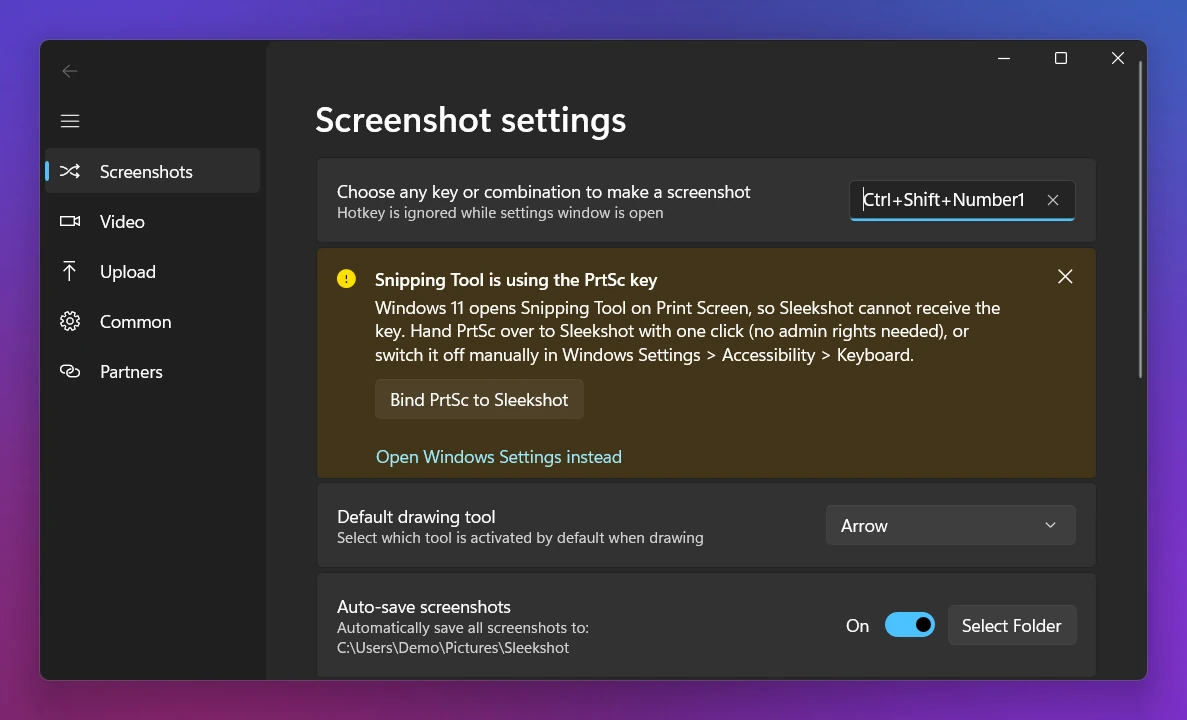
A setup that works well on ASUS keyboards: leave the top-row capture key for Snipping Tool, and give PrtSc to Sleekshot (it's the default). On Windows 11, if Snipping Tool holds PrtSc, the app's Bind PrtSc to Sleekshot button takes it back in one click. Or set any other key or combination.
- Install it from the download page or the Microsoft Store. It's free, with no account and no watermark, and there are x64, x86 and ARM64 builds.
- Press the shortcut. Drag over an area, click a window, or press Ctrl + A for the whole screen. With an external monitor, you can select on either screen.
- Add arrows (7 styles), step numbers, a blur rectangle, text, highlighter and shapes in 20 colors. See the drawing tools.
- Finish with one key: Ctrl + C copies, Ctrl + S saves as PNG, JPEG or WebP, Ctrl + U gives you a short link, and Ctrl + O copies the text, recognized on your PC.
What it doesn't do: scrolling (full-page) screenshots, a delay timer or GIF export. Arrows and shapes can't be moved once drawn, only undone with Ctrl + Z.
ASUS Chromebook
ASUS Chromebooks run ChromeOS, so the Windows shortcuts don't apply. Google lists these methods:
- Press the Screenshot key if your keyboard has one.
- Or press Shift + Ctrl + Show windows, choose Screenshot, then full screen, partial or window.
- On an external keyboard without a Show windows key, use Ctrl + Shift + F5.
Screenshots are saved to the Downloads folder.
If the screenshot keys don't work on your ASUS
Check these in order:
- Switch the function key lock with Fn + Esc (or in MyASUS), and try the key again with and without Fn.
- Check the Windows 11 switch for the Print screen key. If it's off, PrtSc quietly copies to the clipboard instead of showing the toolbar.
- Look for an app that took over PrtSc: OneDrive, Dropbox or another screenshot app.
- Reinstall ASUS's keyboard support. The top-row functions, including screen capture, need the ASUS System Control Interface driver (or the older ASUS Keyboard Hotkeys app). Get it from MyASUS or your model's page on the ASUS support site.
Still stuck? See Print Screen not working, our Windows screenshot shortcuts cheat sheet, or the brand-by-brand overview in how to screenshot on a laptop.
Frequently asked questions
Where is the Print Screen key on an ASUS laptop?
What does the screen capture key on an ASUS laptop do?
How do I turn off the Fn lock on an ASUS laptop?
Where do screenshots go on an ASUS laptop?
How do I take a screenshot on an ASUS Chromebook?
Sleekshot Team
We build Sleekshot, a free screenshot and screen recording app for Windows and Mac. Every guide is checked on current Windows 11, Windows 10 and macOS builds.
Also available in: Deutsch Français Español Italiano Русский ភាសាខ្មែរ Bahasa Indonesia 简体中文 日本語