
How to Screenshot on an Acer Laptop: Prt Sc, Fn Keys and Chromebooks
 By Sleekshot Team
9 min read
Short answer
On an Acer laptop, press Win + Shift + S to screenshot part of the screen, or Win + Prt Sc to save the whole screen to Pictures > Screenshots. The key says Prt Sc and sits in the top row on the right. On some models, it's a second function you press with Fn. If your Acer has no Prt Sc key at all, Win + Shift + S and the On-Screen Keyboard still work. Acer Chromebooks use the Screenshot key or Shift + Ctrl + Show windows.
On this page
- Acer screenshot shortcuts at a glance
- Where Prt Sc is on an Acer keyboard
- Method 1: Win + Shift + S (works on every Acer)
- Method 2: The Prt Sc key
- Method 3: Win + Prt Sc (save the whole screen to a file)
- Method 4: Alt + Prt Sc (one window only)
- Method 5: The Snipping Tool app and Acer's Snipping Tool key
- Acer F-keys: media mode vs function mode
- No Prt Sc on your Acer? Three workarounds
- Faster way: Sleekshot on an Acer laptop
- How to screenshot on an Acer Chromebook
- If Prt Sc doesn't work on your Acer
To take a screenshot on an Acer laptop, press Win + Shift + S, drag over the area you need and paste it with Ctrl + V. To save the whole screen as a file, press Win + Prt Sc. The PNG lands in Pictures\Screenshots. That works on every Aspire, Swift, Spin, Nitro and Predator running Windows 10 or 11.
What trips up Acer owners is the keyboard. The key says Prt Sc (with a space) and sits in the top row on the right. On some models, it's a second function you press with Fn. Acer also sets its F-keys to "media" mode out of the box, so the top row works differently from what many guides assume. Below: where the key is, every built-in method and the BIOS setting that swaps the F-keys. We also cover laptops without Prt Sc and Acer Chromebooks. Facts come from Acer's user manuals and Microsoft and Google support pages, checked in October 2026.
Acer screenshot shortcuts at a glance
These are Windows shortcuts, so they work the same on every Acer Windows laptop. The only Acer-specific part is how you press Prt Sc.
| What you want | Keys | Where the screenshot goes |
|---|---|---|
| Part of the screen | Win + Shift + S | Clipboard + Pictures\Screenshots (Windows 11) |
| Whole screen as a file | Win + Prt Sc | Pictures\Screenshots (PNG) |
| Whole screen or the Snipping Tool toolbar | Prt Sc | Windows 11: opens the toolbar. Windows 10: clipboard |
| Only the active window | Alt + Prt Sc | Clipboard |
| No Prt Sc on the keyboard | Fn + Win + Space | Same as Prt Sc |
| Screenshot in a game | Win + Alt + Prt Sc | Videos\Captures |
If Prt Sc on your Acer needs Fn, add it to any combination above: Win + Fn + Prt Sc, Alt + Fn + Prt Sc.
Where Prt Sc is on an Acer keyboard
On Acer laptops, look at the right end of the top row, near Insert, Delete and Pause. The key says Prt Sc (sometimes PrtSc or prt sc). Whether you need Fn depends on how the label is printed.
- Prt Sc is the main label on its key: press it on its own. Acer's Aspire user manual lists Prt Sc among the special keys ("Take quick screen shots"), separately from the keys that need Fn.
- Prt Sc is printed smaller, in a corner or in a different color on a shared key. That makes it a second function, so press Fn + that key. The Nitro V 15 manual, for example, lists print screen, Insert and a Snipping Tool key among the keys you press with Fn.
- No Prt Sc anywhere: some compact Acer keyboards leave it out. The workarounds are further down this guide.
| Acer laptop | Where to look | Usual key press |
|---|---|---|
| Aspire, Swift, Spin | Top row, right side | Prt Sc on its own |
| Nitro and other gaming models | Top row, right side; check whether Prt Sc is a second label | Fn + key if Prt Sc is a second label |
| Compact models without Prt Sc | — | Win + Shift + S or Fn + Win + Space |
| Acer Chromebook | Screenshot key, if there is one | Or Shift + Ctrl + Show windows |
Method 1: Win + Shift + S (works on every Acer)
Win + Shift + S is the method we'd teach any Acer owner first. It doesn't care about the Fn key or where Prt Sc is.
- Press Win + Shift + S. The screen dims and the Snipping Tool toolbar appears at the top.
- Choose Rectangle, Window, Full screen or Freeform.
- Drag over the area, or click a window.
- Paste with Ctrl + V, or click the notification in the corner to crop it and draw on it.
On Windows 11, each screenshot is also saved to C:\Users\<your name>\Pictures\Screenshots. On Windows 10, it only goes to the clipboard. Click the notification and press Ctrl + S to keep a file.
Method 2: The Prt Sc key
What Prt Sc does is set by Windows, not Acer. On an up-to-date Windows 11 laptop, it opens the same toolbar as Method 1. On Windows 10, it quietly copies the whole screen to the clipboard. Paste it into Paint, a chat or a document with Ctrl + V.
To get the classic behavior back on Windows 11, go to Settings → Bluetooth & devices → Keyboard (on older builds, Settings → Accessibility → Keyboard). Turn off Use the Print screen key to open screen capture. If you'd rather give Prt Sc to another app, see how to change what the Print Screen key does.
Method 3: Win + Prt Sc (save the whole screen to a file)
Win + Prt Sc saves the whole screen as a PNG right away. The screen dims for a moment to show it worked. With an external monitor, both screens end up in one wide image. If Prt Sc is a second label on your Acer, press Win + Fn + Prt Sc.
Files go to C:\Users\<your name>\Pictures\Screenshots, or to OneDrive\Pictures\Screenshots if OneDrive backs up your Pictures folder. Our guide on where screenshots go on Windows covers every location.
Method 4: Alt + Prt Sc (one window only)
Alt + Prt Sc copies only the window you're working in to the clipboard. Click the window, press the keys (with Fn if needed), then paste. No file is saved. If you want one saved automatically, use Window mode in Win + Shift + S on Windows 11.
Method 5: The Snipping Tool app and Acer's Snipping Tool key
Open Start, type Snipping Tool and press Enter when you need more than a quick screenshot:
- a 3-, 5- or 10-second delay, to screenshot menus and tooltips;
- a basic editor with pen, highlighter and crop;
- Text actions, to copy text out of the image;
- screen recording to MP4 with Win + Shift + R (Windows 11).
Some newer Acer keyboards also have their own Snipping Tool key. The Nitro V 15 manual says it snips "a rectangle, freeform, window or full screen to your clipboard". Look for a Snipping Tool icon in the top row, and press it with Fn if that's how your model's top-row keys work.
Acer F-keys: media mode vs function mode
Acer laptops come with the top row in media mode. Pressing F1–F12 on their own runs whatever is printed on them (volume, brightness, Wi-Fi), and the actual F1–F12 need Fn. Acer's manuals put it simply: Fn + F1–F12 "activates the F1 to F12 keys".
Acer documents a BIOS setting to swap that:
- Restart the laptop and tap F2 as soon as the Acer logo appears. You don't need Fn here.
- Open the Main tab.
- Change Function key behavior from Media (the default) to Function keys, or back.
- Press F10 to save and exit.
This only changes the F-keys. A key that just says Prt Sc works the same in both modes, and a Prt Sc printed as a second label still needs Fn.
No Prt Sc on your Acer? Three workarounds
Some compact Acer keyboards have no Prt Sc at all. You don't need one.
- Win + Shift + S: the full Snipping Tool toolbar, no Prt Sc needed.
- Fn + Win + Space: Microsoft lists this as the Print Screen alternative on devices without a PrtScn key.
- On-Screen Keyboard: press Win + Ctrl + O and click its PrtScn key. It's slow, but it works when nothing else does.
More options, including turning another key into Print Screen, are in how to screenshot without a Print Screen key.
Faster way: Sleekshot on an Acer laptop
Sleekshot is a free screenshot and screen recording app for Windows 10 and 11. You add arrows and text right on the screenshot, then copy, save or share it with one key. We make it, so here's the plain truth: the Windows tools are enough for simple screenshots. Sleekshot pays off when you need arrows, numbered steps or a blurred email address.
It also gets around Acer keyboard quirks. Does Prt Sc need Fn on your model, or is there no Prt Sc at all? Set any key or combination as the shortcut in Settings, or just click the Sleekshot icon in the tray to take a screenshot.
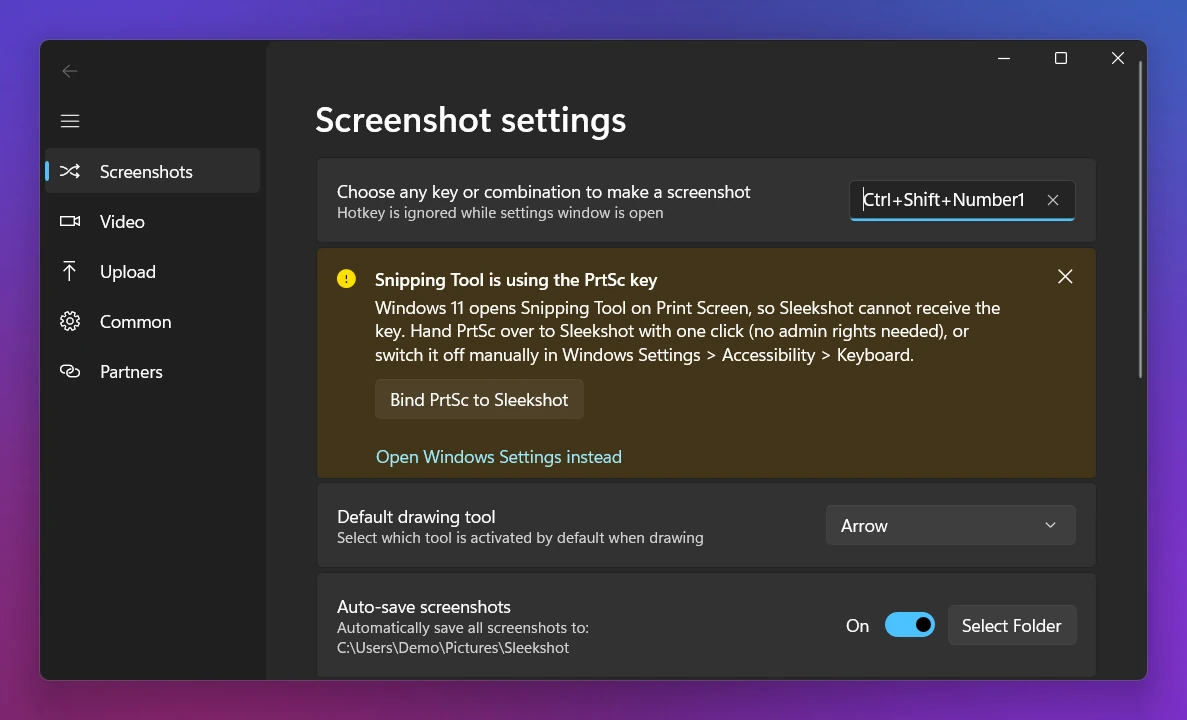
- Install it from the download page or the Microsoft Store. It's free, with no account and no watermark, and there are x64, x86 and ARM64 builds.
- Press your shortcut (PrtSc by default). On Windows 11, if Snipping Tool has that key, the app's Bind PrtSc to Sleekshot button takes it back in one click.
- Drag over an area, click a window, or press Ctrl + A for the whole screen.
- Add arrows (7 styles), step numbers, blur, text, highlighter and shapes in 20 colors. See the drawing tools. Then press Ctrl + C to copy, Ctrl + S to save as PNG, JPEG or WebP, or Ctrl + U for a short link.
What it doesn't do: scrolling (full-page) screenshots, a delay timer or GIF export. Arrows and shapes can't be moved once drawn, only undone with Ctrl + Z.
How to screenshot on an Acer Chromebook
Acer Chromebooks run ChromeOS, so none of the Windows keys apply. Google lists these methods:
- Press the Screenshot key if your keyboard has one, or press Shift + Ctrl + Show windows.
- In the menu at the bottom, choose Screenshot.
- Pick full screen, partial or window, then click or drag.
- On an external keyboard without a Show windows key, use Ctrl + Shift + F5.
You can also open the same tool from quick settings: select the time at the bottom of the screen, then Screen capture. Screenshots are saved to the Downloads folder.
If Prt Sc doesn't work on your Acer
Go through these in order:
- Try it with Fn, and without. A Prt Sc printed as a second label always needs Fn.
- Check the Windows 11 switch. If Use the Print screen key to open screen capture is off, Prt Sc copies to the clipboard without showing anything. Paste into Paint to check.
- Look for an app that took the key: OneDrive, Dropbox or another screenshot app.
- Update the drivers and BIOS from your model's page on Acer's support site, especially after a Windows upgrade.
For the full checklist, see Print Screen not working. For other brands, see how to screenshot on a laptop.
Frequently asked questions
Where is the Print Screen key on an Acer laptop?
Do I need to press Fn to take a screenshot on an Acer?
How do I screenshot on an Acer laptop without a Prt Sc key?
Where do screenshots go on an Acer laptop?
How do I take a screenshot on an Acer Chromebook?
Sleekshot Team
We build Sleekshot, a free screenshot and screen recording app for Windows and Mac. Every guide is checked on current Windows 11, Windows 10 and macOS builds.
Also available in: Deutsch Français Español Italiano Русский ភាសាខ្មែរ Bahasa Indonesia 简体中文 日本語