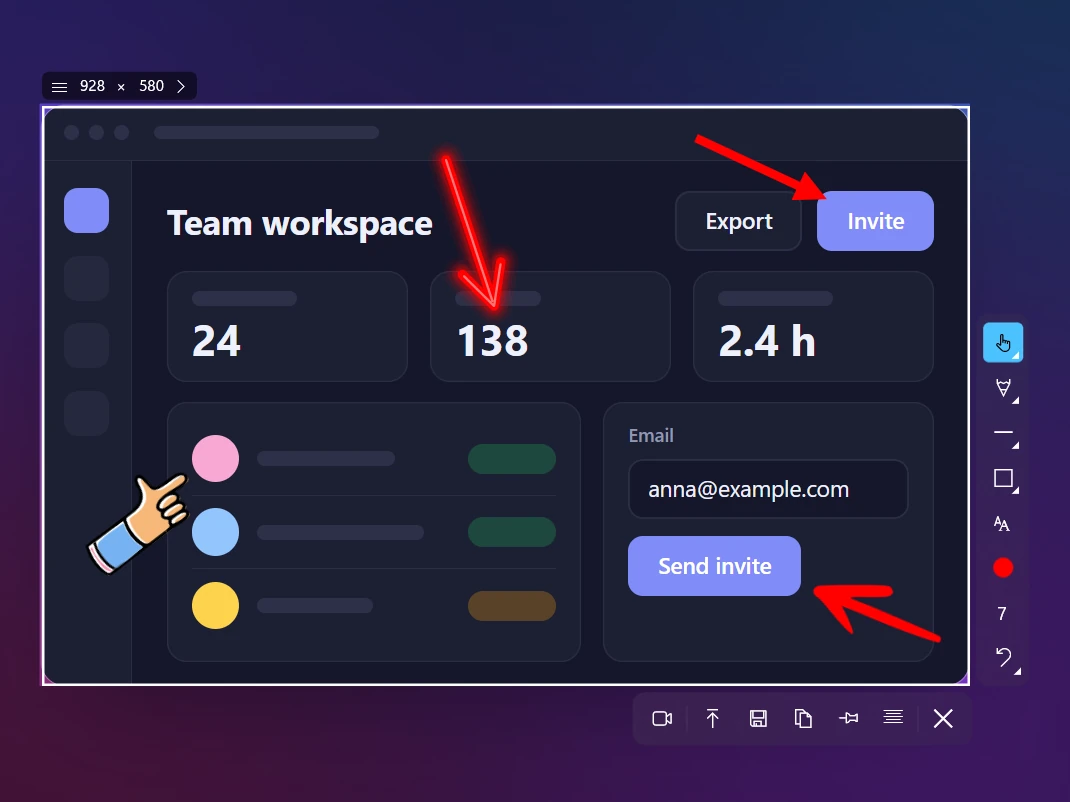
How to Add Text to a Screenshot on Windows 11 & 10
 By Sleekshot Team
6 min read
By Sleekshot Team
6 min read
Short answer
As of October 2026, the stable Windows 11 Snipping Tool can't add typed text. Open the screenshot in Paint (Edit → Edit with Paint), click the A (Text) button, click the image and type. Pick the font, size and background fill before you click away. In a free screenshot app like Sleekshot, you press T, click and type right on the screenshot. You can drag the label, double-click it to switch between a filled label and plain text, and resize it with the mouse wheel.
On this page
To add text to a screenshot on Windows, open it in Paint, click the A (Text) button, click where the words should go and type. Windows 11's Snipping Tool can't do this yet. As of October 2026, the stable version has pens, shapes and crop, but no text. Use Edit → Edit with Paint to send the screenshot over. If you label screenshots often, an app with its own text tool is faster. In Sleekshot, you press T, click and type right on the screenshot.
Want the opposite, copying text out of a screenshot? That's OCR. See how to copy text from a screenshot.
Which tools can add text to a screenshot
Only some of the built-in apps can type text at all. Here's the short version.
| Tool | Typed text | Font and size | Background behind text | After you place it |
|---|---|---|---|---|
| Paint | Yes, Text (A) | Any installed font, any size, bold, italic, underline | Optional background fill | Editable until you click outside, then it's pixels |
| Sleekshot | Yes, T | Size with the mouse wheel, 20 colors | Filled label or plain text (double-click) | You can drag it to a new spot |
| Snipping Tool (Windows 11) | No (as of Oct 2026) | — | — | Handwriting with the pen only |
| Photos | No | — | — | Pens and highlighter only |
| Snip & Sketch (Windows 10) | No | — | — | Pens only |
Method 1: Add text with Paint
Paint comes with every Windows 10 and 11 PC. Its text tool has fonts, sizes and an optional background box.
- Get the screenshot into Paint. In Snipping Tool, choose Edit → Edit with Paint. Or open Paint and press Ctrl + V to paste the screenshot, or use File → Open.
- Click the A (Text) button.
- Click on the image, or drag out a text box where the words should go.
- Before you type, pick the font, size and bold or italic in the text toolbar. Pick the text color in the Colors palette.
- If the area behind the text is busy, turn on background fill. A solid box behind the words keeps them readable on any screenshot.
- Type. If the text wraps onto a second line you didn't want, drag the box edges.
- Click outside the box to place the text. Then save with File → Save as → PNG.
Warning: The moment you click outside the text box, Paint turns the text into ordinary pixels. You can't select it later to fix a typo or change the size. Check it before you click away, or press Ctrl + Z right away and type it again.
Paint also has shapes and block arrows, so you can put a pointer next to your label. For thin, diagonal arrows, see how to draw an arrow on a screenshot.
Method 2: Type labels right on the screenshot with Sleekshot
Sleekshot is a free screenshot and screen recording app for Windows 10 and 11. Its text tool is there as soon as you select an area, so you add labels before you save, without opening another program.
- Press PrtSc and drag over an area, click a window, or press Ctrl + A for the whole screen.
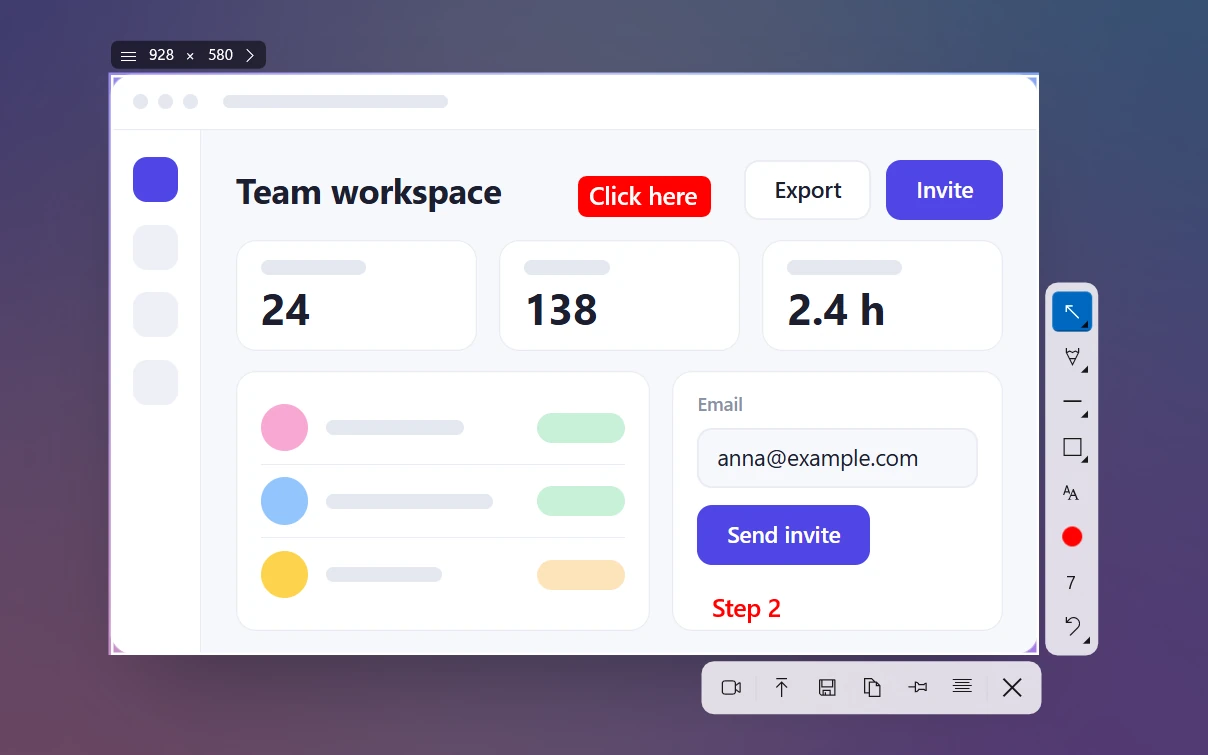
- Press T to pick the Text tool.
- Click where the label should go and type.
- Double-click the text to switch between a filled label (text on a solid background) and plain text. The hint in the app says the same: "Drag or double-click to change style".
- Scroll the mouse wheel to make the text bigger or smaller.
- Press C to change the color. Drag the label to nudge it into place. Arrows and shapes stay where you draw them, but text labels can be moved.
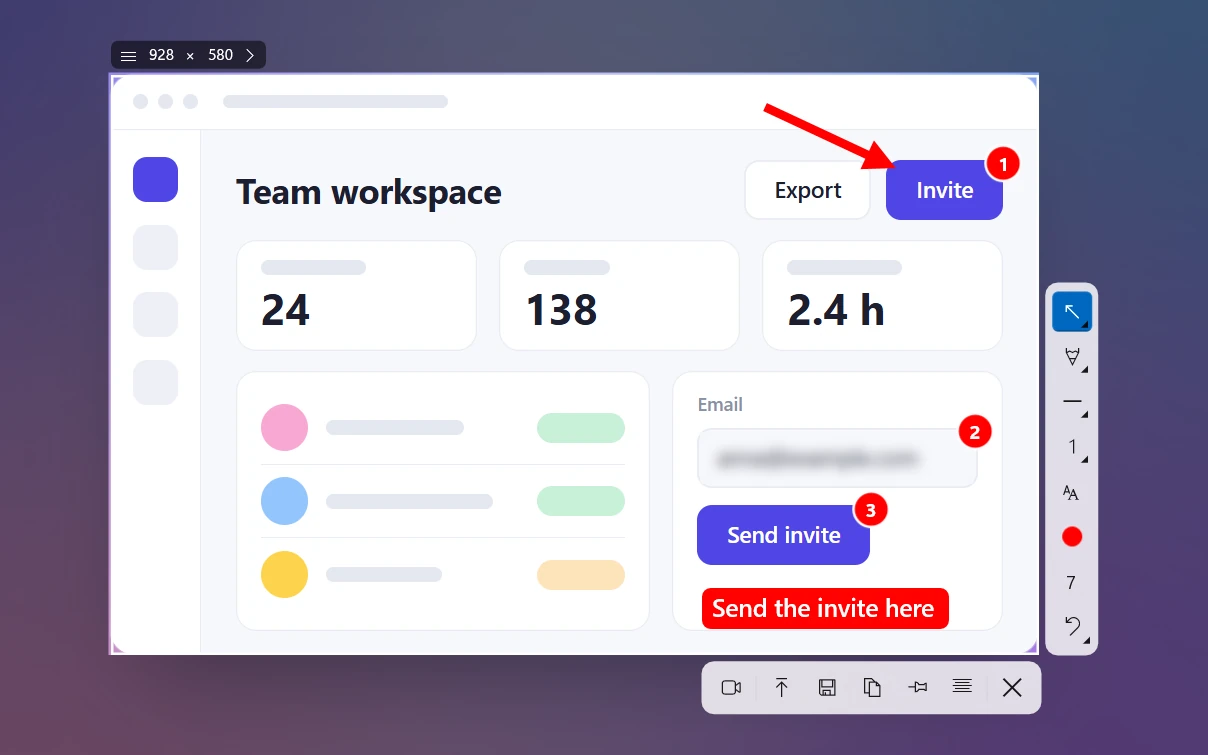
- Add an arrow (1) or step numbers (S) next to it if you need them. Then copy (Ctrl + C), save (Ctrl + S) or upload it for a link (Ctrl + U).
Do most of your screenshots get a label? Make Text the default drawing tool in Settings → Screenshots. It's ready the moment you finish selecting.
The styling is simple on purpose: label or plain text, size and color. If you need a specific font, Paint gives you more control. Also, Sleekshot only works on screenshots as you take them. It doesn't open images you saved earlier. The other drawing tools are on the arrows, steps and blur page.
Snipping Tool and Photos: no text tool yet
As of October 2026, neither can type text in its stable version. Here's what they do instead.
- Snipping Tool (Windows 11): Microsoft's docs list pen, highlighter, shapes, eraser, crop and Text actions. Text actions is OCR. It finds the text already in the image so you can copy it or hide it. It doesn't add new text. You can write a note by hand with the pen, which works with a stylus but looks rough with a mouse. Windows Insider test builds have had a Text button with font, size, style and color since late 2025. If a T icon shows up in your toolbar, it has reached you. Until then, use Edit → Edit with Paint.
- Photos: the Markup tab has two pens and a highlighter, plus a pen setting that adds an arrowhead. There's no text tool.
- Snip & Sketch (Windows 10): pens, highlighter, ruler and crop only. Paste the screenshot into Paint to add text.
For everything else these apps can and can't do, see how to edit a screenshot on Windows.
Adding text to a screenshot on a Mac
On a Mac, press Shift + Command + 4 and click the thumbnail that appears to open Markup. Click the Text tool, type, then drag the text box into place. Text Style changes the font, size and color. Sleekshot for Mac has a text tool too: press ⌘ + ⇧ + 2, drag over an area and press T for a white rounded label.
Tips for screenshot text people can actually read
A label only works if people can read it at a glance. These habits help.
- Keep it to two to six words. "Click Save", "Old price", "Error here". Save the explanation for your message, not the image.
- Use the exact words on the screen. If the button says "Export", write "Export", not "Download". People scan the screen for the words you used.
- Use a filled label on busy backgrounds. Plain text is fine on empty space. Over a toolbar or a photo, a solid background keeps it readable.
- Size it for where it'll be seen. A full-screen screenshot pasted into a chat or a document gets shrunk. Make your label at least as big as the app's own text around it.
- Watch the contrast. Use dark text on a light label or white text on a dark one. Red text on a colorful app is hard to read.
- Don't cover the thing you're pointing at. Put the label in empty space and connect it with an arrow, with the text at the arrow's tail.
- Save as PNG. JPEG compression blurs the edges of small text. More in screenshot formats.
To mark text that's already on the screen instead of adding new words, see how to highlight text in a screenshot. For arrows, boxes, steps and blur together, read how to annotate a screenshot.
Frequently asked questions
Can you add text in Snipping Tool?
How do I type on a screenshot in Windows 10?
Can I edit text after adding it in Paint?
How do I change the font size of text in Sleekshot?
How do I add text to a screenshot on a Mac?
Sleekshot Team
We build Sleekshot, a free screenshot and screen recording app for Windows and Mac. Every guide is checked on current Windows 11, Windows 10 and macOS builds.
Also available in: Русский