Screen Recording or Screenshot Shows a Black Screen? 9 Fixes
 By Sleekshot Team
10 min read
By Sleekshot Team
10 min read
Short answer
A black screen recording usually means the content is protected. Netflix, Disney+, Prime Video and other streaming services turn black in every screen recorder and screenshot tool on purpose (DRM), and no setting on your PC is meant to change that. If normal apps record black, turn off hardware acceleration in the browser and, on a laptop with two graphics chips, run the recorder on the right one. Switch games from exclusive full screen to borderless windowed, and check the Screenshots and screen recording permission in Windows Settings.
On this page
- Find the cause in 30 seconds
- Fix 1: Check for protected content (DRM)
- Fix 2: Make sure you're recording the right screen or window
- Fix 3: Switch games to borderless windowed
- Fix 4: Turn off hardware acceleration in the browser
- Fix 5: Laptops with two graphics chips: run the recorder on the right one
- Fix 6: In OBS, change the capture method
- Fix 7: Check screen recording permissions (Windows and Mac)
- Fix 8: Turn off HDR while you record
- Fix 9: Update the graphics driver (and add media features on N editions)
- Still not working?
A black screen in a screen recording almost always comes down to one of two things. Either the content is protected, or the recorder can't see what the graphics card draws. Netflix, Disney+, Prime Video and other streaming services black out their video in every recorder and screenshot tool on purpose. The second kind comes from hardware acceleration, the wrong graphics chip on a laptop or a game in exclusive full screen. You can't "fix" the first, and you're not supposed to. The second takes a minute.
Start with the 30-second test below to tell them apart. Then go through the fixes in order, from quickest to most involved. Black screenshots have the same causes, so the steps work for those too.
Find the cause in 30 seconds
Take a screenshot of the same spot with Win + Shift + S and paste it into Paint or a chat.
- The screenshot is black too: the content is protected, or the app hides its window from screenshots. No recorder setting will change that (Fix 1).
- The screenshot is fine, but the recording is black: the problem is in the recorder. Check how it records the screen, which graphics chip it runs on or the browser's hardware acceleration (Fixes 4 to 6).
Then find what you see in the table.
| What you see | Most likely cause | Go to |
|---|---|---|
| Only the video player is black, the rest of the page is fine | DRM-protected stream (Netflix, Disney+, Prime Video…) | Fix 1 |
| Snipping Tool says "Screen capture blocked" | Protected content or a company policy | Fix 1, Fix 7 |
| One app window is black (password manager, banking app, exam software) | The app hides itself from recorders | Fix 1 |
| The whole recording is black, but the cursor moves | Wrong monitor, a minimized window or the wrong source | Fix 2 |
| A game is black, but its menu or the desktop isn't | Exclusive full screen, or the game blocks recording | Fix 3 |
| A browser window or web app is black | Hardware (graphics) acceleration | Fix 4 |
| OBS Display Capture is black on a laptop | The recorder runs on the wrong graphics chip | Fix 5, Fix 6 |
| Another recorder records only black or the wallpaper | Missing screen recording permission | Fix 7 |
| The video looks washed out, gray or too dark | HDR | Fix 8 |
| Game Bar won't record at all, or the file plays black | Driver, encoder or player problem | Fix 9, "Still not working?" |
Fix 1: Check for protected content (DRM)
Streaming services protect their video with DRM (digital rights management). The browser or app shows the video in a way that Windows keeps out of every screenshot and recording. Screen recorders and screenshot tools get a black rectangle where the picture should be, though the sound may still come through. This is on purpose, and it's the same in Snipping Tool, Xbox Game Bar, OBS Studio and Sleekshot.
Signs that DRM is the cause:
- Only the player is black. Menus, subtitles and the rest of the page look normal.
- It happens with Netflix, Disney+, Prime Video, Apple TV, many sports and TV apps, and some online course and company video sites.
- Snipping Tool shows "Screen capture blocked" and says that "the content may be protected or your organization may not allow screen capture".
Two practical notes:
- Close streaming tabs before you record something else. Xbox Support warns that protected content open anywhere on the PC can make a Game Bar screenshot blank.
- Some apps hide their own window. Windows lets developers mark a window so it shows on the monitor but comes out empty, or not at all, in screenshots and recordings. Password managers, banking apps and exam apps do this. Microsoft's docs also mention using it to keep a recorder's own buttons out of the video. That's why Sleekshot's toolbars never show up in its recordings. This is on purpose too.
We won't explain how to get around DRM. Recording a protected stream breaks the service's terms and, in many countries, copyright law. To watch offline, use the download button in the service's official app.
Fix 2: Make sure you're recording the right screen or window
If the recording is all black except the cursor, you've often just recorded the wrong thing.
- Several monitors? Check that the recorder is pointed at the monitor you're looking at. In OBS, open the Display Capture properties and pick the right display.
- Minimized windows can't be recorded. Windows doesn't draw a minimized window, so Window Capture shows black or a still frame. Restore the window and keep it open, even if it's behind other windows.
- Game Bar records one app. It records the window you started it in, not the desktop or File Explorer. If you switch to another app, that app won't be in the clip.
- Remote desktops and virtual machines may stop drawing when their window is minimized or locked. Keep the session visible while you record.
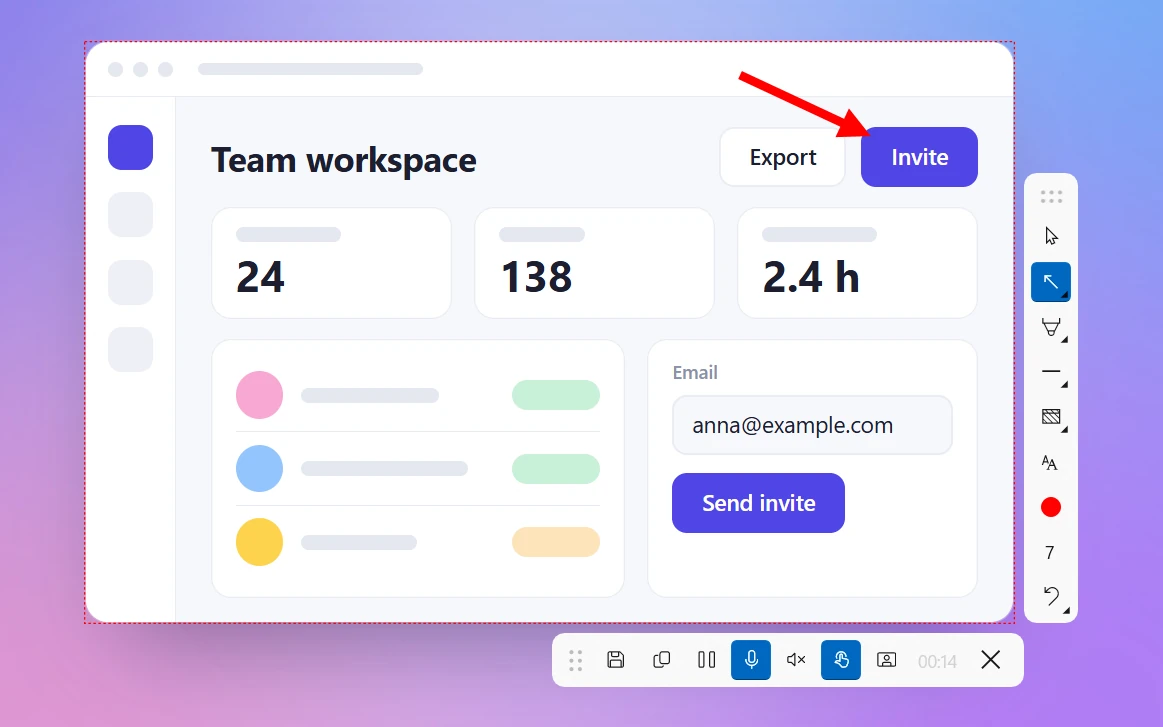
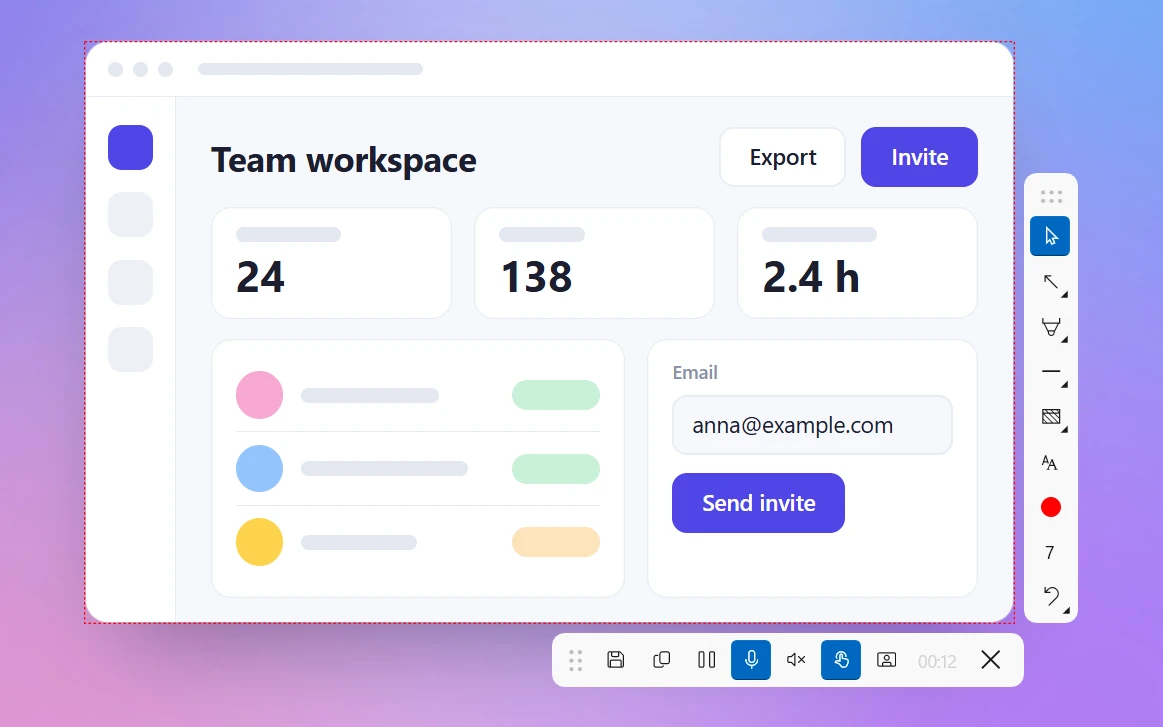
It helps when the recorder shows you the area it records. Sleekshot draws a red dashed outline around the selected area, so you can see what's being recorded before anything goes wrong.
Fix 3: Switch games to borderless windowed
Games in exclusive full screen take over the display in a way some recorders can't see. You get a black video or a still frame that never changes.
- Open the game's video or display settings.
- Change Fullscreen to Borderless, Borderless windowed or Windowed fullscreen. The name depends on the game.
- Record again.
For Xbox Game Bar, Xbox Support recommends the same thing ("try choosing a different display option for your game, such as borderless windows"). It also gives a trick. Press Win + G once in the game, so the screen flashes twice and Windows recognizes it. Then go back to full screen and press Win + Alt + R. Some games turn off recording on purpose, and anti-cheat systems may block recording tools. Those clips stay black.
Fix 4: Turn off hardware acceleration in the browser
Does a normal web page, web app or video call turn black in the recording, even though it isn't a protected stream? Then the browser's graphics acceleration is the usual suspect. Turn it off, and the browser draws the page in a way every recorder can see.
- Google Chrome: Settings → System → Use graphics acceleration when available → off → Relaunch.
- Microsoft Edge: Settings → System and performance → Use graphics acceleration when available → off → Restart.
- Mozilla Firefox: Settings → General → Performance → clear Use recommended performance settings, then clear Use hardware acceleration when available → restart Firefox.
Other desktop apps built on browser technology often have a similar switch in their advanced settings. Turn acceleration back on when you're done, because it makes video smoother and saves battery. This won't help with DRM-protected streams. They stay black by design.
Fix 5: Laptops with two graphics chips: run the recorder on the right one
Many laptops have a built-in graphics chip (Intel or AMD) that drives the screen and a dedicated NVIDIA or AMD chip for games. A recorder running on one chip can't see what the other one draws, and you get black. This is the classic OBS black screen.
- Open Settings → System → Display → Graphics. On Windows 10, click Graphics settings at the bottom of the Display page.
- Click Add desktop app, then Browse, and pick your recorder, for example
C:\Program Files\obs-studio\bin\64bit\obs64.exe. - Click the app in the list → Options.
- Choose the graphics chip and click Save:
- Power saving GPU for recording the desktop (OBS Display Capture).
- High performance GPU for recording games (OBS Game Capture and Window Capture).
- Restart the recorder.
This is the setup the OBS knowledge base recommends. It also points out the catch: with OBS on the built-in chip, Game Capture can't record games running on the dedicated one. Pick the chip for what you record most.
Fix 6: In OBS, change the capture method
OBS Studio has more than one way to record windows and displays, and the wrong one often gives you a black source.
- Window Capture: open the source properties and set Capture Method to Modern (WGC). The older Legacy (BitBlt) method doesn't work with many browsers and modern apps, and OBS warns you about that next to the setting. On laptops with two graphics chips, also try Multi-adapter Compatibility.
- Display Capture: switch between Modern (WGC) and Legacy (DXGI) and see which one shows the picture.
- Game Capture is black? Try Window Capture on the game instead. Some games block Game Capture, and OBS shows a hint when it knows a game can't be recorded that way.
Fix 7: Check screen recording permissions (Windows and Mac)
Recent versions of Windows and macOS let you decide which apps can record the screen. If a recorder isn't allowed, it gets black frames or only the wallpaper.
Windows 11. Recent versions have a page just for this: Settings → Privacy & security → Screenshots and screen recording. Make sure Screenshots and screen recording access is on. Then turn on Let apps take screenshots and record the screen and Let desktop apps take screenshots and record the screen. Check that your recorder isn't turned off in the list.
Work or school PC. If Snipping Tool says "your organization may not allow screen capture", an IT policy is blocking it. Ask your admin. Nothing you change on your side will override it.
Mac. Open System Settings → Privacy & Security → Screen & System Audio Recording (Screen Recording on older macOS versions). Turn the app on, then quit and reopen it. For Mac screenshots, see why Mac screenshots don't work.
Fix 8: Turn off HDR while you record
On an HDR monitor, Windows draws the desktop with a wider range of colors. Recorders and players that expect standard (SDR) color then show the video washed out, gray, too bright or very dark, sometimes almost black.
- Turn off Use HDR in Settings → System → Display before you record, and turn it back on afterward.
- In OBS, check Force SDR in the Window Capture or Display Capture properties.
- For screenshots, newer versions of Snipping Tool have an HDR color corrector.
Fix 9: Update the graphics driver (and add media features on N editions)
Recording depends on the graphics driver and its video encoder. An old or broken driver can give you black or empty files.
- Install the latest driver from your laptop maker or from NVIDIA, AMD or Intel, and run Windows Update.
- Xbox Game Bar needs a hardware encoder: Intel Quick Sync H.264, NVIDIA NVENC or AMD VCE. Without one, it says "Sorry, this PC doesn't meet the hardware requirements for recording clips".
- Windows N editions are sold in Europe without media apps. On them, Snipping Tool may say "Screen recording unavailable, missing media features", and Game Bar may not work. Install the Media Feature Pack from Microsoft.
- If Game Bar recorded once or twice and then stopped, close the game and end
bcastdvr.exein Task Manager.
Still not working?
- Check the file, not just the player. Open it in another player, like VLC or the Windows Media Player app. If a video plays black in one player but fine in another, the file was OK all along. Some editors won't open OBS MKV files until you run File → Remux Recordings.
- Try a different recorder. If a setting in one app is the problem, another app often just works. Sleekshot is a free screen recorder for Windows 10 and 11. It records an area, a window or a full monitor to MP4, with sound and your webcam if you want it. A red dashed outline shows what's being recorded. Like Snipping Tool, Game Bar and OBS Studio, it can't record DRM-protected video. For setup and options, see how to screen record on Windows. For sound, see how to screen record with audio.
If the video plays but looks blurry rather than black, see our guide to screen recording quality.
Frequently asked questions
Why is my screen recording black?
Why are my screenshots black?
Can you screen record Netflix without a black screen?
Why does OBS show a black screen?
Why is only one window black in my recording?
Why does my screen recording look washed out or dark?
Sleekshot Team
We build Sleekshot, a free screenshot and screen recording app for Windows and Mac. Every guide is checked on current Windows 11, Windows 10 and macOS builds.
Also available in: Русский