Free Screen Recorders With No Watermark for Windows: 6 That Are Actually Free
 By Sleekshot Team
6 min read
Short answer
Six screen recorders for Windows are free and never add a watermark: Snipping Tool (Windows 11), Sleekshot, OBS Studio, Xbox Game Bar, ShareX and Clipchamp's free plan. Sleekshot, OBS Studio and ShareX also have no time limit. Game Bar stops at 2 hours by default (4 at most), and Clipchamp at 30 minutes per recording. The free versions of Bandicam, Loom and Camtasia come with time limits, branding or watermarked exports.
On this page
- Free screen recorders without a watermark compared
- "Free" recorders with a catch
- 1. Snipping Tool: built into Windows 11
- 2. Sleekshot: free recorder with webcam and drawing on screen
- 3. OBS Studio: free, open source, no limits
- 4. Xbox Game Bar: built in, for games and single apps
- 5. ShareX: free MP4 and GIF recording
- 6. Clipchamp: free plan without a watermark, 30 minutes per recording
- How to tell whether a recorder is really free
- Which free recorder should you use?
Six screen recorders for Windows are truly free and never put a watermark on your video: Snipping Tool (built into Windows 11), Sleekshot, OBS Studio, Xbox Game Bar, ShareX and the free plan of Clipchamp. Sleekshot, OBS Studio and ShareX also have no time limit. Many other "free" recorders are really trials. The watermark shows up when you export, recording stops after 5 minutes, or the video is capped at 720p.
We make Sleekshot, so take our pick with a grain of salt. We checked every limit below on the company's own site or help pages in October 2026.
Free screen recorders without a watermark compared
| Recorder | Watermark | Time limit | Webcam | Account | Windows |
|---|---|---|---|---|---|
| Snipping Tool | No | None stated by Microsoft | No | No | 11 |
| Sleekshot | No | No | Yes, round bubble | No | 10 (1809+) and 11 |
| OBS Studio | No | No | Yes, as a source | No | 10 and 11 |
| Xbox Game Bar | No | 2 h by default, up to 4 h | No | No | 10 and 11 |
| ShareX | No | No | No bubble | No | 10 and 11, 64-bit |
| Clipchamp (free plan) | No, exports up to 1080p | 30 min per recording | Yes | Microsoft account | Windows app or browser |
All six can record your microphone. Computer sound works right away in Snipping Tool, Sleekshot, OBS Studio and Game Bar (which records the app's own sound). ShareX needs an extra download for it.
"Free" recorders with a catch
These are good products, but their free versions are limited. Know what you're getting before you record a 20-minute lesson.
| Recorder | The catch in the free version |
|---|---|
| Bandicam 2027 | 5 minutes per recording. No watermark on recordings, but edited or subtitled exports get one. Bandicam 2024 and 2025 free versions: 10 minutes with a watermark |
| Loom Starter | 5 minutes per screen recording, 25 videos per person, 720p, Loom branding, account required |
| Camtasia | Videos exported from the free version have a watermark until you subscribe |
| Screenpresso Free | HD video with Screenpresso branding; Windows 11 only |
1. Snipping Tool: built into Windows 11
Snipping Tool is the quickest way to record part of the screen on Windows 11, and it adds no watermark. Press Win + Shift + R and drag over the area. Turn on the microphone and system audio buttons and click Start. The MP4 lands in Videos\Screen Recordings as soon as you stop. In the window that opens, you can trim the ends or export a GIF of up to 30 seconds.
Limits: Windows 11 only (the Windows 10 version can't record video). No webcam, no highlighted clicks and no drawing while you record.
2. Sleekshot: free recorder with webcam and drawing on screen
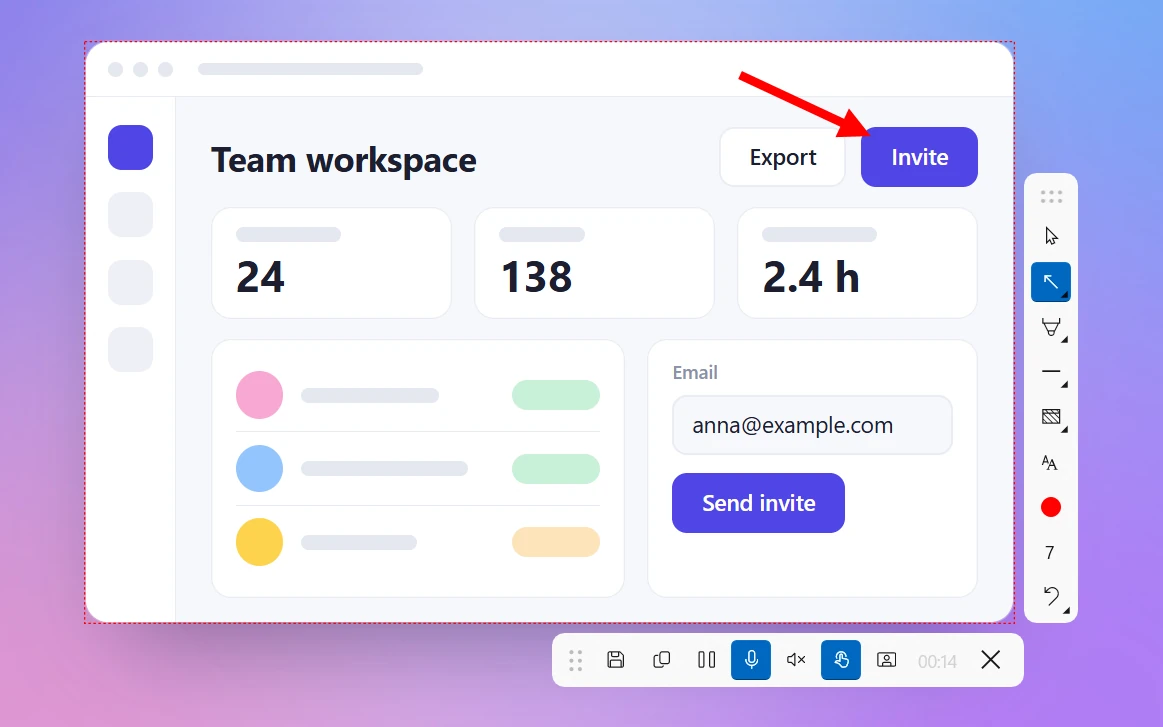
Sleekshot is a free screenshot and screen recording app for Windows 10 and 11, with no watermark, no time limit and no account. The screen recorder records an area, a window or a whole monitor to MP4. It adds your mic, computer sound, a round webcam bubble and highlighted mouse clicks. You can also draw arrows and boxes on screen while you record.
Press PrtSc and select the area. Press V to switch to the screen recorder, then Ctrl + R to record. When you're done, choose Save to file or Copy to clipboard. Videos go to Videos\Sleekshot by default.
Quality settings: Compact (20 fps, 2 Mbps, the default), Optimal (30 fps, 5 Mbps) and High (60 fps, 10 Mbps). All the drawing tools, the webcam bubble and highlighted clicks are free.
Limits: one area at a time. No trimming, no scheduled recording or streaming. The Windows app saves MP4 only, with no GIF export.
Sleekshot for Mac records the screen too, free and with no account, on macOS 13 Ventura or later. Select an area, click a window or press ⌘ + A for the full screen, then press ⌘ + R. It saves the video as MP4 or GIF with system audio and your mic, and can add your webcam in the corner, with a face mask if you like. It also highlights clicks, lets you draw on screen and pause, and records at 20, 30 or 60 fps. Steps are in how to screen record on a Mac.
More on the Sleekshot screen recorder page.
3. OBS Studio: free, open source, no limits
OBS Studio is free, open-source software for recording and live streaming on Windows, macOS and Linux, with no watermark and no time limit. Add a Display Capture or Window Capture source, plus a webcam if you want one. Check the audio meters and click Start Recording. New installs record to MP4 in your Videos folder.
Limits: it takes some setup, and there are no recording shortcuts until you set them. You can't draw on screen, and there's no built-in trimming. Download it only from obsproject.com.
4. Xbox Game Bar: built in, for games and single apps
Xbox Game Bar comes with Windows 10 and 11. In a game or program, press Win + Alt + R to start and stop. The MP4 goes to Videos\Captures with no watermark.
Limits: it records one app window, not the desktop or File Explorer. You can't select an area or add a webcam. Recording stops at the maximum length: 2 hours by default, up to 4 hours in Settings → Gaming → Captures. Details in our Xbox Game Bar guide.
5. ShareX: free MP4 and GIF recording
ShareX is a free, open-source screenshot app for Windows. It records an area, window or monitor to MP4 or straight to GIF, with no watermark or time limit. It's the easiest way to make a short looping GIF for documentation or a chat.
Limits: the first recording downloads FFmpeg. Recording computer sound needs ShareX's extra "recorder devices" package. No webcam bubble, lots of settings to learn, and it only runs on 64-bit Windows 10 or 11.
6. Clipchamp: free plan without a watermark, 30 minutes per recording
Clipchamp is Microsoft's video editor for Windows and the browser. It records the screen, a window or a browser tab, with or without your camera, and drops the clip straight into the editor. The free plan exports up to 1080p with no watermark.
Limits: each screen or webcam recording stops at 30 minutes, and you have to sign in with a Microsoft account. Premium stock media and 4K export need Microsoft 365 Personal or Family.
How to tell whether a recorder is really free
Before you trust a recorder with something important, spend two minutes on these checks:
- Record 6 minutes, not 30 seconds. Several free versions stop at 5 minutes, and you won't notice in a short test.
- Export, then watch the file. Some apps record cleanly and only add the watermark when you export or edit.
- Look for "unregistered", "trial" or "Pro" labels in the title bar or settings. That's usually where the limits are.
- Check the export resolution. A free plan capped at 720p turns small text into mush.
- Read the license if it's for work. Bandicam, for example, requires a Business license for commercial use, even though the download is free.
- Download from the official site. Look-alike download pages often bundle extra software.
Which free recorder should you use?
- Part of the screen on Windows 11, nothing to install: Snipping Tool.
- Tutorials and bug reports with your voice, webcam and arrows: Sleekshot.
- Long sessions, several sources or streaming: OBS Studio.
- A game or one app on Windows 10: Xbox Game Bar.
- A looping GIF: ShareX.
- A short recording you want to cut and caption right away: Clipchamp.
For paid options and more on each tool, see the best screen recorders for Windows. Step-by-step instructions are in how to screen record on Windows. Planning a long session? Read how long you can screen record and how to record your screen and webcam first.
Frequently asked questions
Is there a completely free screen recorder with no watermark?
Does Windows 11 have a screen recorder without a watermark?
Which free screen recorder has no time limit?
Does Bandicam's free version add a watermark?
Does Clipchamp add a watermark?
Can I record my webcam for free without a watermark?
Sleekshot Team
We build Sleekshot, a free screenshot and screen recording app for Windows and Mac. Every guide is checked on current Windows 11, Windows 10 and macOS builds.
Also available in: Deutsch Français Español Italiano Русский ភាសាខ្មែរ Bahasa Indonesia 简体中文 日本語