
Skip to content
Free for Windows 10 & 11 · Also on Mac

Free screenshot tool and screen recorder for Windows 10 & 11

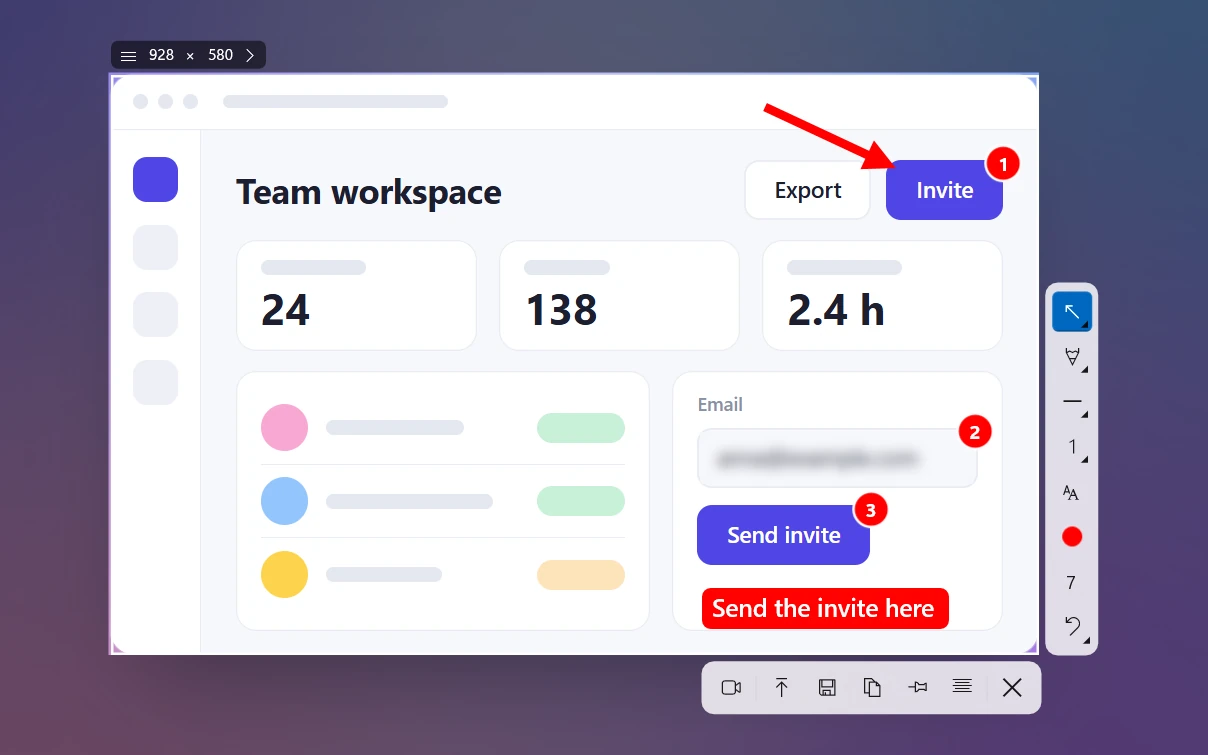
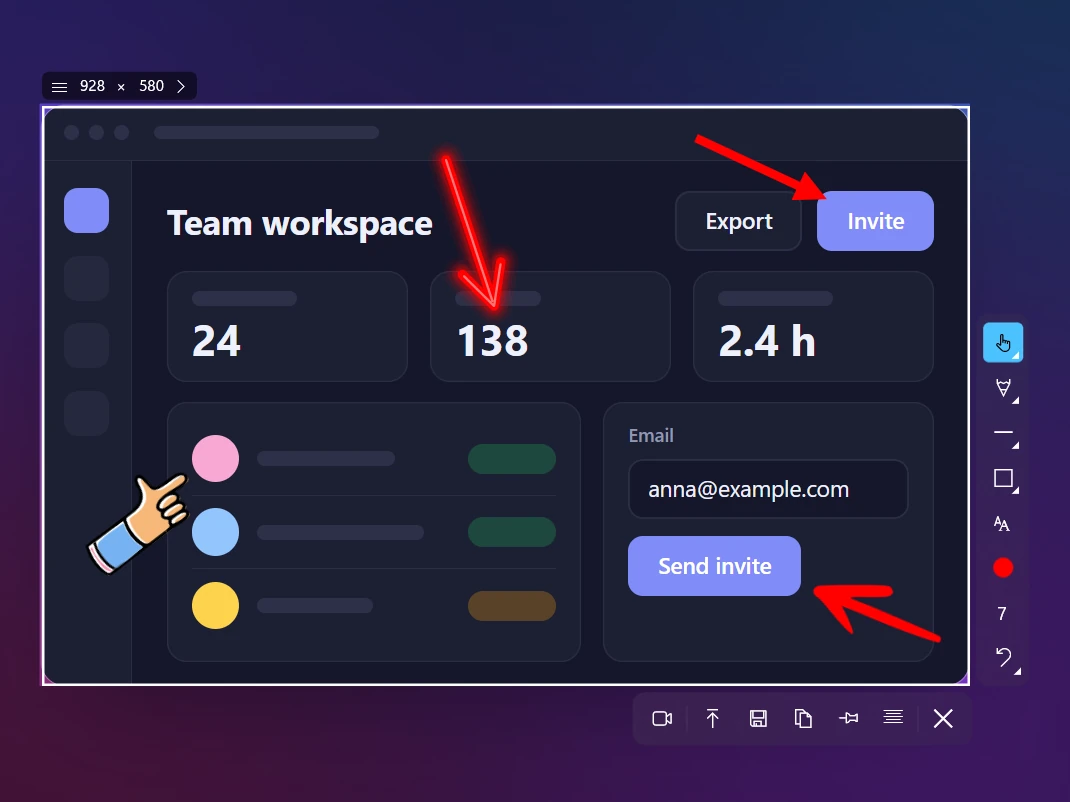
Press PrtSc and drag over the part of the screen you need. Draw arrows, number the steps or blur private info right on the screenshot, with no separate editor. Then copy it, save it or share a link. Sleekshot also records your screen and copies text from anything on it.

  • No account
  • No watermark
  • x64 · x86 · ARM64
  • 20,000+ users
A screenshot in Sleekshot with arrows, numbered steps and blur on Windows 11
PrtSc→Press PrtSc Ctrl+U→Share by link

A screenshot with arrows in 5 seconds

  1. 1

    Press PrtSc

    Drag over the part of the screen you need. Click a window to grab just that window, or press Ctrl+A for the whole screen.

  2. 2

    Add arrows and notes

    Draw an arrow, number the steps, blur anything private, add text. It all happens right on the screenshot.

  3. 3

    Copy, save or share

    Ctrl+C copies it so you can paste it into a chat. Ctrl+S saves a file. Ctrl+U gives you a link anyone can open.

5sec

to add an arrow and share

30hrs

saved every year

0

extra clicks

How long it takes in each app

We timed the most common job: take a screenshot, draw an arrow and add a label.

* Task: screenshot part of the screen, draw an arrow, add a text label. Timed on Windows 11.

Sleekshot 5 sec
Lightshot 7 sec
ShareX 10 sec
Windows Snipping Tool 45 sec

Sleekshot vs Snipping Tool, Lightshot and ShareX

Where each app stands, checked in October 2026.

Feature Sleekshot Snipping Tool Lightshot ShareX
Price Free Free, built in Free Free, open source
Arrows, numbered steps and blur All three Pen and shapes only Arrows, no blur or steps All three
Screen recording with sound Yes Yes No Yes, with FFmpeg
Webcam in recordings Yes No No Yes, with FFmpeg
Copy text from the screen Yes, no internet needed Yes (Text actions) No Yes
Share by link Ctrl+U, no account No Yes (public prnt.sc links) Yes, to many services
Mac version Yes (simpler, free) No Yes No
Time to learn A few minutes A few minutes A few minutes Longer: lots of settings
Read the full comparison →

Who it's for

Anyone who has to show how something works: to coworkers, customers or students.

Developers and testers

Bug reports with numbered steps, blurred API keys and a link you can paste into Jira or Slack.

Support and IT

Show people exactly where to click. A 20-second video beats a paragraph of instructions.

Designers and product managers

Circle the spot on a page or in an app, then add an arrow and a note to suggest a change.

Teachers and students

Screenshot slides, highlight the key line and copy text straight out of a picture.

Creators and marketers

Images in the right size for Shorts, Stories and posts. Video tutorials with your face in the corner.

Office work

Skip the long email about where to click. Screenshot, arrow, Ctrl+V, done.

Also on Mac

Sleekshot for Mac is free on the App Store

Press ⌘⇧2, then add arrows, boxes and text, or blur anything private. It can copy text from the screen, too. A small menu bar app for macOS 12 and later.

Learn about the Mac version →

Guides to screenshots and screen recording

All guides →

Questions people ask

We are a small team and read every message. Usually we reply within one or two working days.

Contact us →
Is Sleekshot really free?
Yes. Sleekshot for Windows and Mac is free to download and use. You don't need an account, and there's no watermark on screenshots or videos. An optional one-time Pro license helps pay for development.
Which versions of Windows does it work on?
Windows 10 (version 1809 or later) and Windows 11, on x64, x86 and ARM64 PCs. Get it from the Microsoft Store to receive updates automatically, or download the installer directly.
How do I make the Print Screen key open Sleekshot?
Sleekshot uses PrtSc by default. If Snipping Tool opens instead, Sleekshot's settings have a Bind PrtSc to Sleekshot button that fixes it in one click. To do it by hand, go to Settings → Bluetooth & devices → Keyboard and turn off the Print screen option (on older versions of Windows, it's under Settings → Accessibility → Keyboard).
Can Sleekshot record my screen with sound?
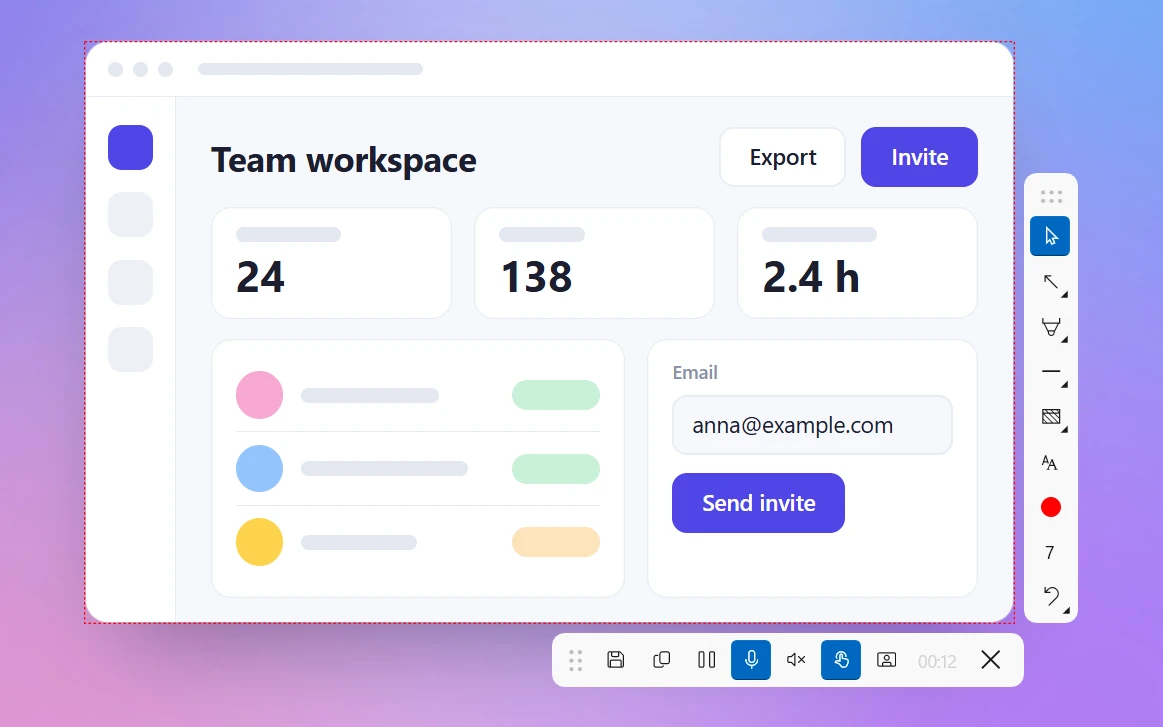
Yes. Press V to switch to the screen recorder, select an area and press Ctrl+R. It records to MP4 with your microphone and computer sound, and you can add your webcam and highlighted mouse clicks. There's no time limit and no watermark.
Can I copy text from a screenshot?
Yes. Select an area and press Ctrl+O (⌘⇧C on Mac). The text is recognized on your computer, so nothing gets uploaded.
Where are my screenshots saved?
Nowhere, until you choose. Ctrl+C copies the image so you can paste it, Ctrl+S asks where to save it, and Ctrl+Shift+S saves it to the last folder you used. You can also turn on auto-save to a folder in Settings.
Who can see a screenshot I share by link?
Anyone who has the link. Sleekshot only uploads when you press Upload (Ctrl+U). Don't upload screenshots with passwords or personal info. Blur them first.
Is there a Mac version?
Yes. Sleekshot for Mac is free on the Mac App Store (macOS 12 or later). It takes screenshots, adds arrows, boxes, text and blur, copies text from the screen and saves images. Screen recording is Windows-only for now.

Fewer clicks. Clearer screenshots.

Free for Windows 10 and 11. Installs from the Microsoft Store in seconds.

Join 20,000+ people already using Sleekshot