Why the PrtSc Button Stopped Working and What to Do About It
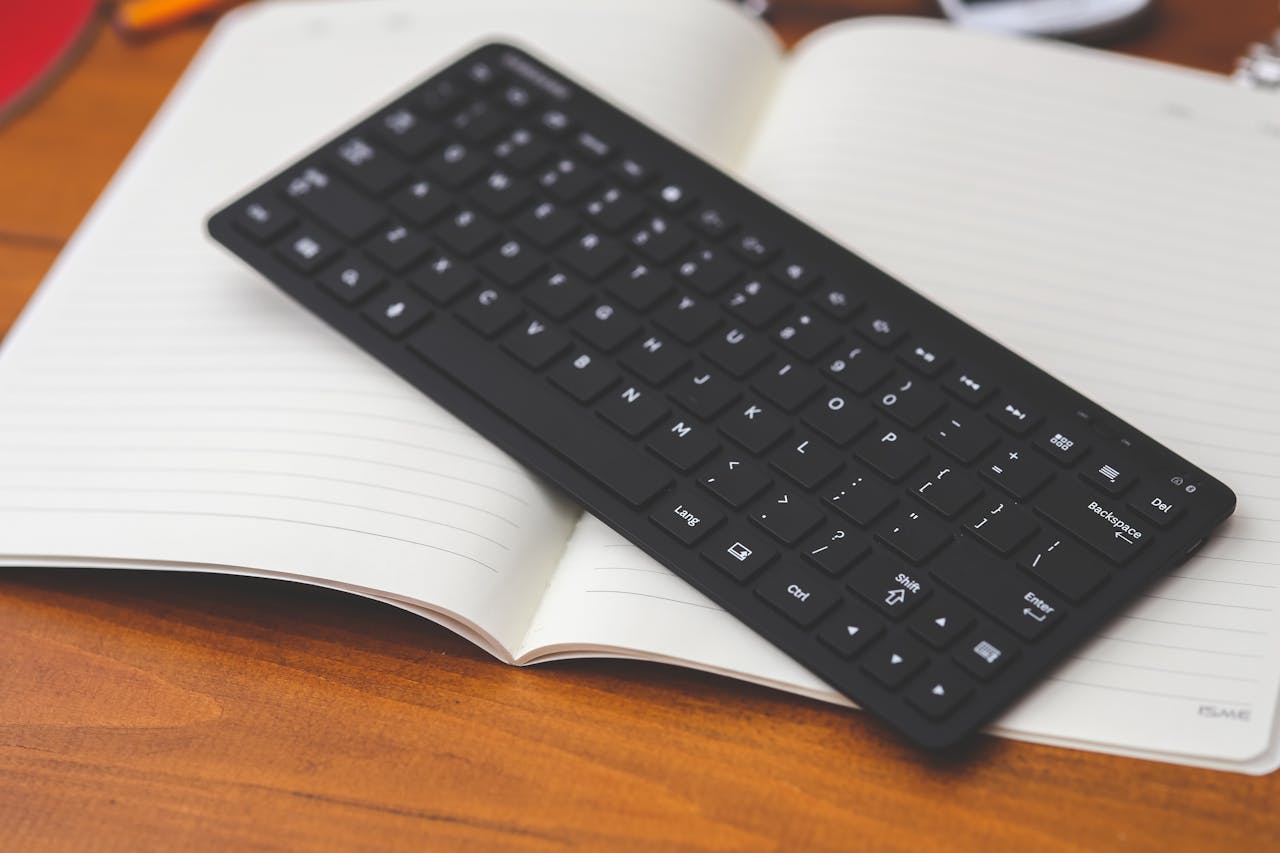
The PrtSc (Print Screen) button is one of the simplest ways to take a screenshot on a computer. Usually, a single press is enough to capture the screen. However, sometimes users encounter a situation where the PrtSc key stops working or does not produce the expected result.
There can be several reasons for this — from system settings to conflicts with other programs. Let’s look at the most common causes and possible solutions.
The Screenshot Is Taken, but You “Don’t See” It
One of the most common reasons is that the PrtSc button is actually working, but the user does not see the result. With a regular press, the screenshot is not saved to a folder — it is copied to the clipboard.
If you do not paste the image using Ctrl + V after pressing PrtSc, it may seem like the key is not functioning. In this case, try pasting the screenshot into a document or message.
The Screenshot Method in Windows Has Changed
In some versions of Windows, the screenshot function may be associated with different key combinations. For example, the system may use Win + Shift + S instead of the standard PrtSc behavior.
Because of this, pressing a single key may not trigger the usual response, even though the screenshot function itself is still working in another way.
The Key Works Only with an Additional Button
On some keyboards, the Print Screen function is combined with another key. In such cases, you need to press Fn + PrtSc to take a screenshot.
If you press only PrtSc, the system may not respond, and it can appear as though the button is broken.
Conflict with Other Programs
Sometimes the PrtSc key stops working due to conflicts with installed applications. Certain programs intercept key presses and use them for their own functions.
As a result, the standard screenshot is not created, or the key performs a different action.
Temporary System or Keyboard Glitch

Temporary issues are also possible:
a system malfunction
incorrect keyboard driver behavior
connection problems with an external keyboard
In such cases, restarting the computer or reconnecting the keyboard may help.
A Convenient Solution — Using SleekShot
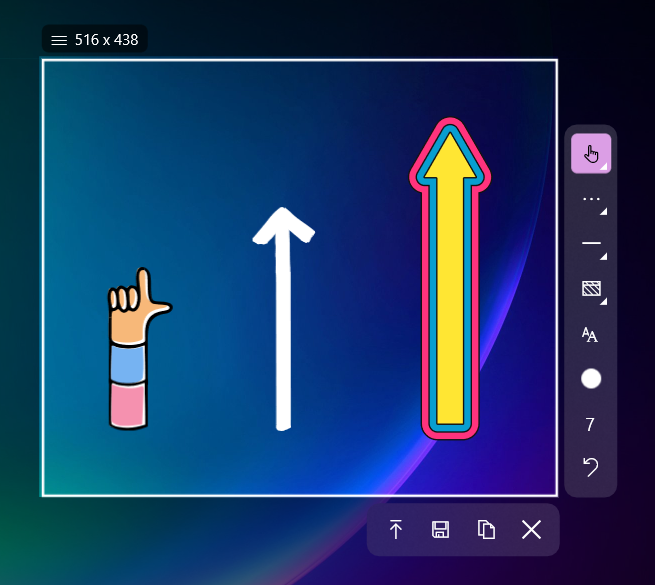
If the PrtSc key works inconsistently or you do not want to deal with system settings, a convenient alternative is the SleekShot application.
SleekShot allows you to:
take screenshots without relying on the PrtSc key
use custom hotkeys
quickly save images to a selected folder
avoid conflicts with system settings
The application is especially useful if standard screenshot methods are not functioning properly.
Conclusion
The PrtSc button may stop working for various reasons:
the screenshot is saved to the clipboard
a different key combination is being used
Fn must be pressed
there is a conflict with other programs
a temporary system issue has occurred
If you want stable and straightforward screenshot functionality, SleekShot can help you capture your screen quickly and without unnecessary complications.


