Why a Black Screen Appears During Screen Recording and How to Fix It
Many users have experienced a situation where a screen recording shows a black screen instead of the actual image. The recording seems to start normally, the indicator is active, audio may be captured, but when you play the video, you see only a black background. This can be confusing and frustrating, especially when the recording is needed urgently.
There can be several reasons for this issue, and in most cases it is not caused by a computer malfunction but by system behavior or the chosen recording method.
Recording Protected Content
One of the most common reasons for a black screen is an attempt to record protected content. Some websites, video players, and applications intentionally block image capture.
In such cases:
the recording starts as usual;
the cursor may still be visible;
the actual image is replaced by a black screen.
This limitation is related to copyright protection and is not a user error.
Recording the Wrong Screen or Area
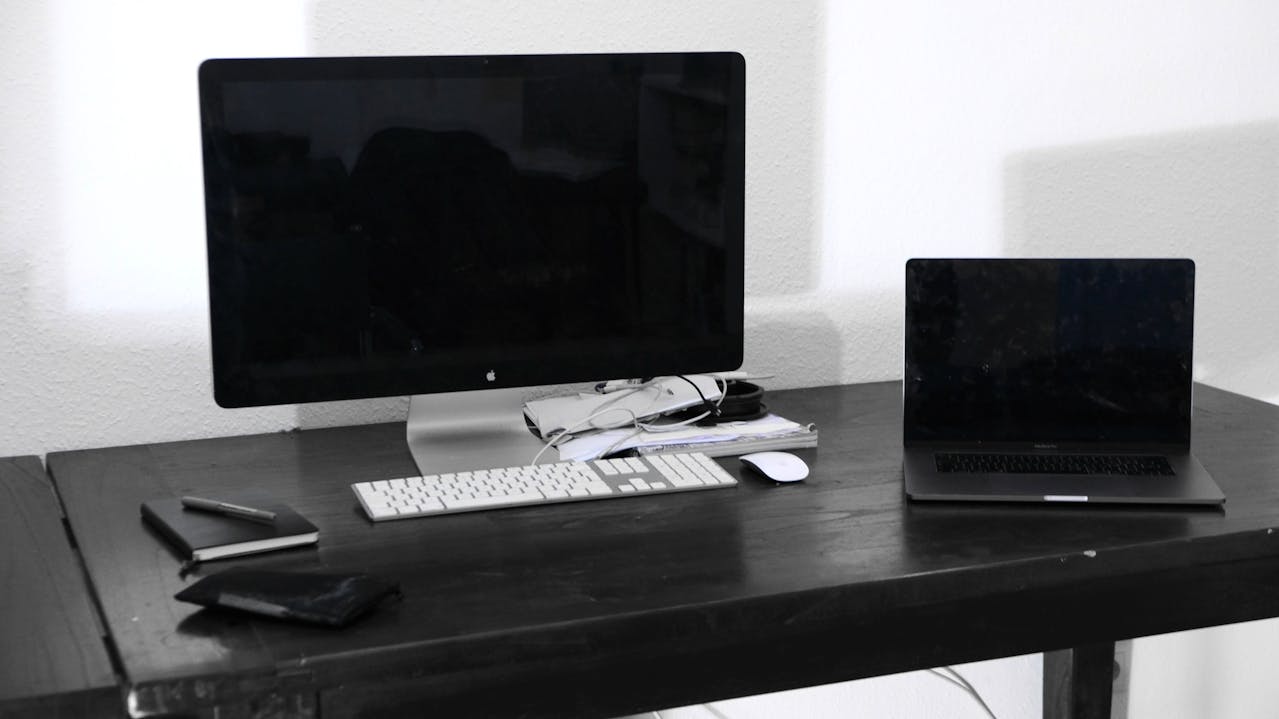
If multiple monitors are connected to the computer, a black screen may appear because:
a non-active monitor is selected;
the recording area is placed outside the target window;
the selected screen shows no visible content.
As a result, the software records video correctly but captures an empty area.
Hardware Acceleration Issues
Some applications and browsers use hardware acceleration. Because of this, screen recording tools may fail to capture the image and record a black background instead.
This most often happens when recording:
web browsers;
video players;
graphics-intensive interfaces.
Missing Permissions or Software Conflicts
Sometimes a black screen appears due to:
missing required permissions;
conflicts between multiple screen recording applications;
outdated graphics card drivers.
In these cases, recording starts, but the image is not transmitted correctly.
Why This Happens Less Often with SleekShot
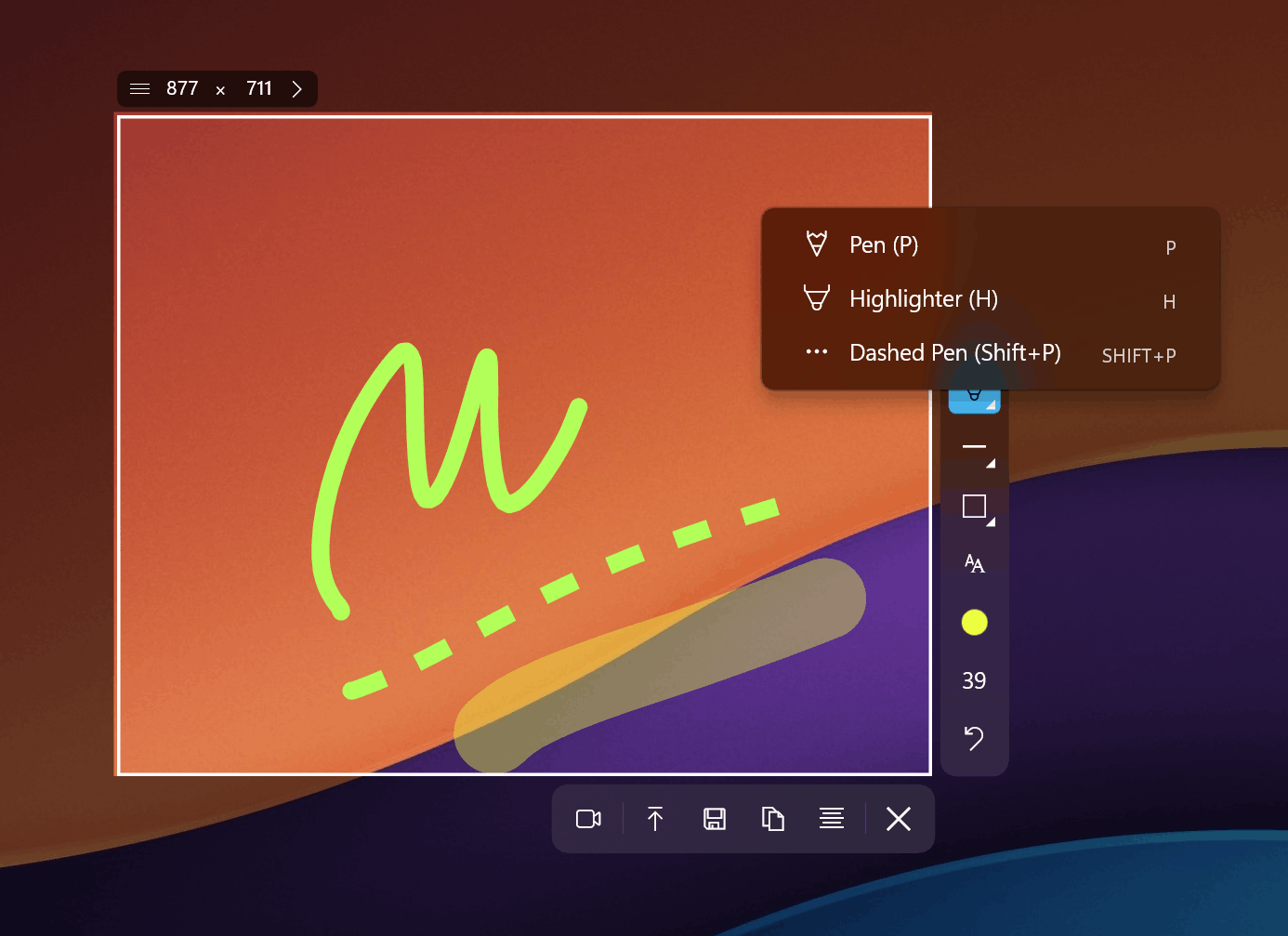
Using a reliable tool plays a key role. SleekShot is designed with common screen recording issues in mind, including the black screen problem.
SleekShot helps you:
correctly select the screen, window, or area to record;
avoid recording empty or inactive zones;
capture video stably without black screens;
quickly review the result and re-record a segment if needed.
Thanks to its clear interface, users always see what will be recorded and can avoid mistakes before starting.
What to Do If You See a Black Screen
If you encounter this issue, try the following:
make sure the correct screen or area is selected;
close unnecessary recording applications;
check whether the content you are recording has capture restrictions;
try using a reliable tool such as SleekShot.
In many cases, changing the recording method solves the problem immediately.
Conclusion
A black screen during screen recording is a common but solvable issue. It can be caused by content protection, incorrect area selection, hardware acceleration, or software conflicts.
Using a stable and user-friendly tool like SleekShot helps avoid most of these problems and ensures correct screen recordings without unpleasant surprises.


