Where Screenshots Are Saved on a PC: Complete Guide

A screenshot is one of the simplest ways to save information from your computer: capture an error, show a program interface, prepare an instruction, or quickly share data. Despite its apparent simplicity, many users get confused — a screenshot seems to be taken, but its location is unclear.
The reason is that Windows saves screenshots differently depending on the method used. Besides standard keyboard shortcuts, there are specialized programs, like SleekShot, that solve this issue immediately.
What Happens When You Press Print Screen
The Print Screen (PrtSc) key does not create a file on the disk. When pressed, an image of the entire screen is temporarily copied to the clipboard. This is a temporary storage from which the data can be pasted into any application.
Until you press Ctrl + V and save the image manually, the screenshot does not exist as a physical file. Moreover, the next time you copy something else, the previous screenshot in the clipboard will be overwritten and lost.
The Alt + Print Screen combination works similarly but captures only the active window. The result also remains in the clipboard until manually saved.
Instant Saving: Win + Print Screen

If you want to get a ready-to-use file without extra steps, use Win + Print Screen. In this case, Windows automatically saves the screenshot.
Where it appears:
Pictures → Screenshots folder
Files are numbered sequentially
Format — PNG
A brief dimming of the screen serves as visual confirmation that the image was successfully saved to disk.
Screenshot of a Selected Area — Win + Shift + S
The Win + Shift + S combination lets you manually select a portion of the screen. However, this screenshot is not automatically saved. It is copied to the clipboard and waits for further action.
To save it as a file, you need to paste the image into an editor, messenger, or document and save it manually.
Why Screenshots “Disappear”
Most often, the issue is not a system error but how Windows works:
The user presses PrtSc expecting a file to appear
The image remained in the clipboard and was overwritten
It is unclear which folder Windows automatically saves screenshots to
This creates the impression that the screenshot is lost, even though it simply wasn’t saved.
SleekShot — When Everything Is Saved Immediately
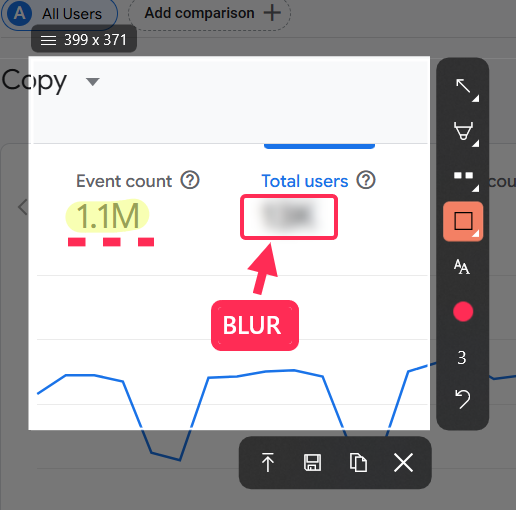
To completely avoid confusion with the clipboard and folders, SleekShot is a convenient solution. The app is designed for fast and predictable results.
With SleekShot:
Every screenshot is immediately created as a file
You can preselect the save folder
Screenshots of the entire screen, individual windows, or custom areas are supported
Built-in editing and fast sharing are available
This is especially useful for users who regularly work with screenshots and want to always know exactly where they are stored.
Summary
Ways screenshots are saved in Windows differ:
Print Screen / Alt + Print Screen — clipboard only
Win + Print Screen — automatic saving to default folder
Win + Shift + S — temporary result until manually saved
SleekShot — instant saving to a chosen folder
If you want to quickly find all your screenshots and avoid extra steps, SleekShot makes working with screenshots clear and convenient — even for beginners.


